Make a countdown timer for your email, free
Set the deadline, pick a style, and take the code. The preview below is drawn by the same renderer that will answer your subscribers' inboxes, and nothing is saved until you press the button.
Without an account, a timer from this generator works for 500 opens. Sign in and claim it, and the same timer works for 1,000 opens.
Build your timer
Live preview
Rendering
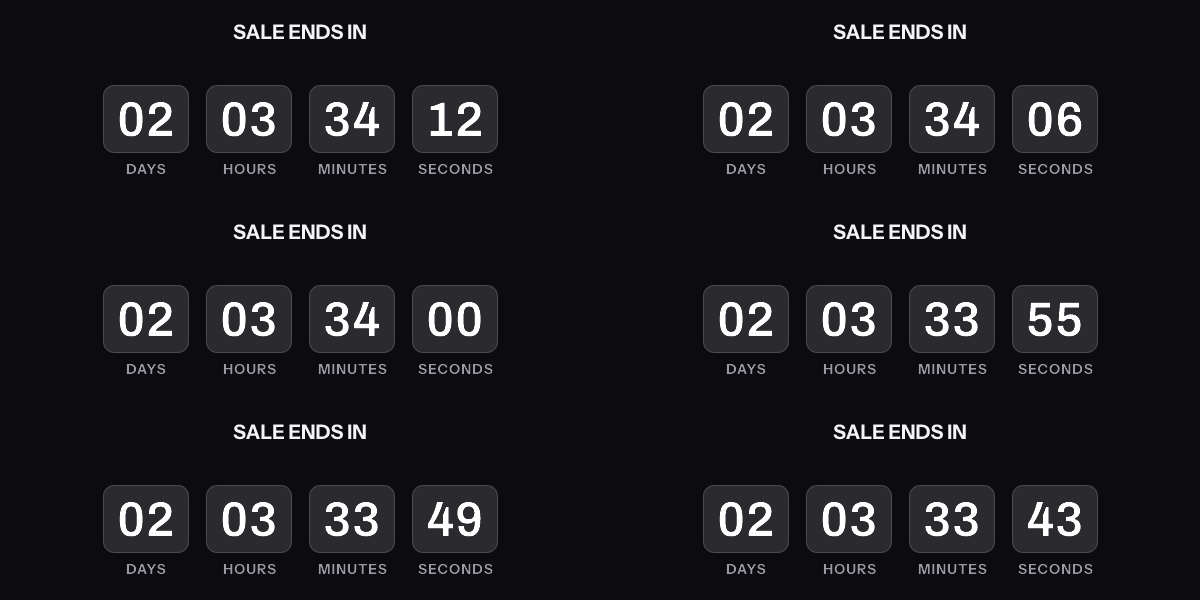
A downloaded GIF counts from the moment it was made, not from the moment it is opened. The hosted timer above is what counts from the open.
Get the code
This publishes the timer above and hands you the snippet. No email address, no account. Without an account, a timer from this generator works for 500 opens. Sign in and claim it, and the same timer works for 1,000 opens. After that, the image shows a note that its free opens are used up.
Your timer is live
HTML snippet
Image URL
See it in a real inbox
The preview above is your browser fetching the image. A mail client fetches it differently, and that is the part worth checking before a campaign goes out. Type an address you can open and this timer is sent there once, in a message that carries the picture and one sentence saying you asked for it.
One send per timer, and the address is used for that message and nothing else. The time in the picture is the time when your mail client fetched it, which is the behaviour the test is for.
Where to paste it
Keep it, or keep going
This timer works as it is, for 500 opens. To change the deadline later, see how many people opened it, use per-recipient evergreen timers, put a name or a code in the image, or use your own fonts, create a free account.
Create a free accountClaim code
After you sign up, open Templates and choose Claim a generator timer, then paste this code. It is valid until . Claiming raises this timer, the same image address you already copied, from 500 to 1,000 opens.
What this timer does in each email client
The timer is an image, because an image is the only moving thing an email client will run. When your subscriber opens the message, their client asks our image service for the URL in the snippet, and the GIF is drawn at that moment: 30 frames, one a second, counting toward the instant you set above. What they see therefore depends on when their client made that request, and every client makes it differently. Gmail fetches through its own proxy and keeps a copy per recipient. The first open pulls a fresh 30 seconds of countdown. A later open can be served from the copy Google already holds, and Google does not publish how long it keeps one. Apple Mail with Mail Privacy Protection does not wait for the open at all: it fetches at delivery, through an Apple relay, so the frames a reader sees were drawn when the message arrived rather than when they got to it. Testing reports from 2021 put the length of that copy at two to three days.
Outlook on Windows shows the first frame and never animates, which is why the first frame of every timer made here is a correct reading of the time left rather than a title card: a static "02 days 14 hours" is a true statement, and a spinning logo is not. Outlook on the web, Outlook for Mac and the Outlook phone apps animate normally, as do Apple Mail on the iPhone, Yahoo, AOL and Thunderbird. All of this is one table, per client, on the email client pages, with the specific behaviour of the two that matter most written up at Gmail and Outlook. Nothing on this page has been watched in a real inbox yet, so those pages say "documented" rather than "tested", and they will keep saying it until it has been.
Why a downloadable GIF cannot count from the open
A GIF is a fixed list of frames with fixed delays. There is no clock inside it and no code that runs when it is displayed, so the only question that decides what a countdown reads is when the file was built. A generator that hands you a file to save and upload builds it once, at the moment you press the button, and every recipient of every send after that sees a countdown to a deadline that was already stale when it was attached.
That is why this page hands you a URL rather than a file. The image is built on the fetch, not on the download, so a message you send next Tuesday still counts to the right second. The URL is signed, so its parameters cannot be edited by anybody, and it is what makes the timer honest in the clients that fetch late. It is also the reason the caching above matters at all: the fetch is the only moment the product controls, and the client decides when to make it. The full mechanism is written out in the guide to countdown timers in email, and the six ways a deadline can be defined are set side by side in timer types.
The tool also offers the GIF as a download, for places that will not take an image address. Download an animated countdown GIF says what that file can and cannot do. A countdown that starts when each reader opens the email is a different kind of timer, which this tool will not save, and the evergreen timer generator covers how to preview one and publish it from a free account.
The same generator is set up for four places a timer goes. Klaviyo and Mailchimp lead with where the snippet is pasted, Gmail with the image address on its own, and Outlook with a style whose first frame stands alone. A GIF you already have, from here or anywhere else, can be read with the GIF checker before it goes in a send.
What the free timer will not do
Stated plainly, because a limit found after a campaign is built is worse than a limit read before it.
- The deadline can be up to 90 days ahead, and at least a minute ahead. For a longer countdown, make it in an account.
- After the deadline the image keeps answering and shows the same design at zero with "Offer ended" under it. It never becomes a broken image.
- One design per timer. Nothing here can be edited after it is published, so a change means generating another timer and another URL.
- No merge tags. The headline is plain text, and a name, a coupon code or a per-recipient deadline needs an account.
- The timer is deleted 30 days after its deadline, along with the image behind it.
- Without an account, a timer from this generator works for 500 opens. Sign in and claim it, and the same timer works for 1,000 opens. After that, the image shows a note that its free opens are used up. Opens past that are not counted, so claiming a timer that has run out brings it back until it reaches 1,000.
- No watermark. What you copy is what your subscribers get.
Most of that list is a consequence of the timer having no owner. A timer in an account is a template with versions behind it, which is what makes a deadline movable and an open countable. The feature list says what that adds, and pricing says what it costs, starting at nothing for 5,000 image opens a month.
Questions
Before you paste it into a campaign
Six questions about the free generator, answered the way I would answer them in an email.
Is it really free
Yes. There is no card and no watermark on the image. What it costs you is that the timer is fixed once it is made: the design and the deadline are what you chose here, and changing either means making another one.
How many opens does a timer get
Without an account, a timer from this generator works for 500 opens. Sign in and claim it, and the same timer works for 1,000 opens. After that, the image shows a note that its free opens are used up. It is still an image, not a broken one. A timer you build in an account instead counts toward that account's plan, which starts at 5,000 opens a month on Free.
Will it work in Outlook
It shows, and it does not move. Outlook on Windows renders the first frame of an animated GIF and never animates, so your subscriber sees a correct reading of the time left at the moment the image was fetched, drawn in the same design as everywhere else. Outlook on the web, on a Mac and on a phone animate normally.
Does it need an account
No. The button below publishes the timer and hands you the code straight away, and it works for its first 500 opens with no account. An account is for the things a one-off image cannot do: moving the deadline later, seeing how many people opened it, per-recipient evergreen timers, merge tags and your own fonts.
Can I edit it later
Not this one. A timer made here has no owner and no dashboard behind it, so nothing can change it after it is published. Make another one with the new settings, or paste the claim code into a free account and edit the copy that lands in your templates. Claiming also raises the timer you already copied to 1,000 opens.
What happens after the deadline
The image keeps answering, and it shows the design at zero with the line "Offer ended" under it. It is never a broken image and never a missing one. Thirty days after the deadline the timer is deleted, and the URL stops resolving to a timer after that.