Bring your countdown in from a Photoshop PSD
Design the whole thing in Photoshop, keep your own pixels, and let the numbers animate. Here is the template, the shape that always works, and an honest account of what gets refused.
Your pixels, our numbers
Most tools that read a Photoshop file try to rebuild your design out of their own parts. Your card becomes their card, your label becomes their label, and the result is close enough that nobody notices it is wrong until the email is in an inbox and cannot be recalled.
EmailTimer.App does the opposite. Photoshop flattens your file with its own renderer, and that picture becomes the image. Every layer effect, blend mode, clipping group and adjustment layer is already baked into it by the application that owns them. We then draw one thing on top: the animating numerals, which are the one thing a still picture cannot do.
You get your artwork back pixel for pixel, and the only thing that can go wrong is the digits landing in the wrong place, which is obvious at a glance rather than subtly wrong.
If the design does not need your own artwork, one of the eight built-in styles may do the job without Photoshop at all, in your fonts and colours.
This page is the reference for the file itself. The whole route from a layered design to a live timer in a send, including the confirmation screen and the deadline panel, is walked through in turn a Photoshop file into a live email countdown.
Start from the template
The template is generated from the render engine layout solver, so the slots in it are exactly where the countdown will be drawn. It is not a drawing of our output, it is our output.
Both files are set in Archivo Bold, which is free from Google Fonts. Install it before you open the template, or Photoshop will substitute something else and your digits will not be the width the countdown expects.
What is in the file
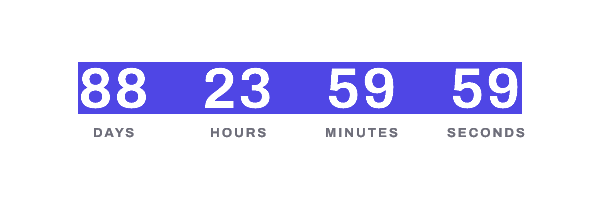
| Layer | What it is |
|---|---|
| et:days et:hours et:minutes et:seconds | The four digit slots, as editable type. Restyle the colour if you want. Do not move them and do not make them three digits wide. |
| et:safe-area | The rectangle the countdown repaints, 444 by 52 pixels, locked in place. Recolour it, keep it flat, keep it where it is. |
| et:readme | Hidden. The same rules as this page, carried inside the file. |
| et:manifest | Hidden. Machine readable notes about the geometry. We check your file against it and tell you when the two disagree rather than believing it. |
| labels | The words under the numbers, as ordinary type. Yours to restyle, move, translate or delete. We never draw a label of our own. |
| artwork | Empty. This is where you work. |
The safe area is the whole idea
An animated countdown redraws one rectangle on every frame, and there are thirty of them by default. Inside it, nothing of yours survives past the first frame. Outside it, nothing of ours ever appears. That single line is what the whole import stands on.
To scale. On a 600 by 200 pixels canvas the safe area is 444 by 52 pixels, 78 pixels from the left, 62 from the top. The digits are 58 point Archivo Bold and the placeholder reads 88 : 23 : 59 : 59.
Five rules, and then you are done
-
1. Keep your digits inside the safe area
Every frame of an animated countdown repaints that rectangle from edge to edge. Anything of yours sitting inside it shows up in the first frame and is gone from the second, which is the version most people see.
-
2. Keep the safe area one flat colour
A photograph, a gradient or a texture behind the numbers is wiped out for the same reason. Put the gradient on the panel around the digits and keep the strip under them solid.
-
3. Keep the days slot two digits wide, and the campaign under 100 days
At 100 days the days column needs a third digit. The countdown gets wider, and every unit to its right slides off the artwork you drew around it. That happens weeks after the email went out and it cannot be recalled, so we refuse it at import instead.
-
4. Everything outside the safe area is yours, exactly as you drew it
Your panels, your labels, your glow, your photograph, your adjustment layers. We flatten your file through Photoshop's own renderer and put nothing of ours on top of it except the numbers.
-
5. Rename nothing that starts with et:
Those five layers are how we find your digits and how we know where the safe area is. Anything you want us to skip entirely, name it et:ignore followed by whatever you like.
Save with Maximize Compatibility on
This is the one setting an import cannot proceed without.
Photoshop, then Preferences, then File Handling. Set Maximize PSD and PSB File Compatibility to Always. Save the file again after you change it. The setting only affects files saved from then on.
With it off, Photoshop stores your layers but not the flattened picture they make. That picture is the whole background of your email image, and it is the only way your layer effects, blend modes and adjustment layers arrive intact. We will not reconstruct it ourselves, because a reconstruction that is 95 percent right is the exact failure this design exists to avoid.
It costs a few seconds per save and a slightly larger file. In return your background comes out pixel for pixel.
What we refuse, and how often
Take a Photoshop file that was not drawn with any of this in mind and we would expect roughly one in five to import on the first try. A typical agency file fails the first check and then fails three more.
That is not a number we enjoy publishing. It is the consequence of refusing to ship a plausible wrong picture into an inbox nobody can recall. A competitor that samples an average colour into a plate and sends it looks more capable in a demo than we do. Starting from the template above is what turns a likely refusal into a likely import, and every refusal names the layer, says what is wrong with it in a sentence, and gives you the Photoshop menu path that fixes it.
| What stops it | Why | What to do |
|---|---|---|
| The file has no flattened preview inside it | Maximize Compatibility was off when the file was saved, so Photoshop stored the layers without storing the picture they make. We will not guess at your blend modes and adjustment layers. | Turn Maximize Compatibility on, save again, upload again. |
| The digits are not one flat colour | A gradient, a photo fill or an inner shadow on the numerals. A countdown digit is drawn as a single fill, so yours would be flattened to one colour and you would not see it until the send. | Set the digits to one solid colour and keep the gradient on the panel behind them. |
| There is a shadow or a glow on the digit layer | That ink lands outside the digits. The countdown repaints the digits and not the ink around them, so the shadow of your placeholder 88 would sit next to a live 07 on every frame. | Take the effect off the digit layer and draw it into the artwork behind the digits instead. |
| The typeface is not one we have | We cannot draw with a font file that arrives inside your document, and a lookalike changes every digit width and moves your layout. Substituting quietly is the thing this whole feature exists not to do. | Set the digits in a font from our catalogue. The template ships in Archivo. |
| The gaps between the units are not equal | EmailTimer.App has one gap number for the whole row. Four different gaps cannot be reproduced, so we would move your units and you would find out afterwards. | Even out the spacing, or accept the move we show you and check the picture. |
| The document is CMYK, 16 bit, or a .psb | Email images are 8 bit RGB, and a Large Document Format file is a different container. | Image, then Mode, then RGB Color and 8 Bits/Channel. Save as .psd. |
When we cannot place your countdown at all, or when the area behind your digits is not flat, the refusal comes with a corrected Photoshop file: your own flattened artwork, with our slots already placed where the countdown will actually be drawn. A refusal that hands back a working file is a second attempt rather than a dead end.
Before you publish, look at the picture
The confirmation screen is not a summary. It shows the real animated image at full size, never a thumbnail, because banding and rough glyph edges both disappear when a picture is shrunk and that is how a bad import gets approved. Next to it sits a crop of your Photoshop file and a difference image, so you can see exactly where we disagree rather than read a number that says we mostly agree.
It also shows what the countdown will read on the first send, next to the placeholder your file contains. The single most common surprise is a designer expecting to see 88 and getting 07, which is correct and still worth seeing before it goes out.
You will also see the four client previews, including the still frame that Outlook on Windows shows instead of an animation. That is covered in full on the email client pages.
The one thing you cannot change afterwards
An imported template is frozen around its countdown. You can add a logo, a line of type or a second image anywhere else on the canvas and publish normally. You cannot move the countdown, resize it, restyle it, change its colours or add a fifth unit to it.
The reason is that your artwork was measured against exactly one countdown geometry. Adding a unit makes the row wider, and the panel you drew around it cannot widen with it. So a publish that changes the countdown is refused with a sentence saying why, rather than allowed and quietly wrong. If you want a different countdown, change it in Photoshop and import the file again.
Questions designers ask
Do I have to start from your template?
No. Any .psd is read and every layer in it is listed back to you. The template is the shape that we know passes, and starting from it turns a likely refusal into a likely import. Most designers who start from their own existing artwork get refused at least once.
What does EmailTimer.App actually draw?
The numbers, and nothing else. Photoshop flattens your file and that flattened picture becomes the background of the email image. We paint animating numerals into the rectangle you marked as the safe area. Every layer effect, blend mode, clipping group and adjustment layer survives because Photoshop rendered them, not us.
Which font do I need installed?
Archivo, in the Bold weight. It is free from Google Fonts and it is the only face the template uses, including the DAYS, HOURS, MINUTES and SECONDS words. Archivo Bold is also the face our renderer cuts its digit cells for, so a template set in it lands at exactly the size Photoshop shows you.
Why does the template say 88:23:59:59?
Those are the widest values each slot can legally hold, so the design you draw around them has room for every value your campaign will ever show. The figures are tabular, so the width does not change when 88 becomes 07.
Can I edit the countdown after the file is imported?
You can edit everything except the countdown itself. The artwork was measured against one exact timer position, size, font and colour, so moving it or restyling it would put the digits somewhere the artwork does not expect. Changing it is refused at publish rather than allowed and regretted. Import the Photoshop file again instead.
What happens to a layer I forgot about?
It appears in the layer list on the confirmation screen with a verdict next to it: animates, flattened into the background, covered by the countdown, or hidden. Every layer in the file gets exactly one verdict and the list is complete, so a layer that is about to surprise you is visible before you publish rather than after you send.
The API reference covers the endpoints, and pricing covers what each plan includes.