Klaviyo in practice
Klaviyo countdown timer setup guide
By Danish Mohammed, founder. , updated 6 min read
Klaviyo is the platform where the answer is easiest to get wrong, because Klaviyo does ship a countdown block, and it is not the one you want.
Does Klaviyo have its own countdown timer
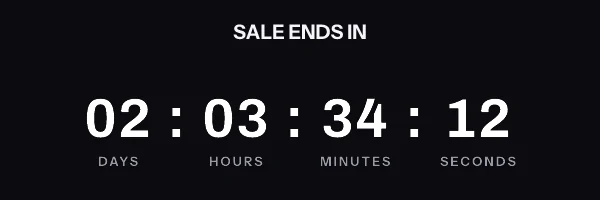
Klaviyo’s countdown block lives in the sign-up form builder. Its help article, How to add a countdown timer to a sign-up form, describes a block that adds “a sense of urgency to your sign-up forms”. Klaviyo says the timers “work particularly well for flash sales, special promotions, or holiday messaging”. A fixed countdown can point at “a date up to 100 days in the future”. A variable one starts per visitor, again capped at 100 days.
That block never reaches the inbox. It renders in a browser, on your site, where JavaScript runs.
For email, Klaviyo answers the question itself in one line. How to add a countdown timer to an email opens with this: “Klaviyo does not have a built-in countdown timer feature, so you’ll need to use a third-party tool like MailTimers.” The same article then walks you through an HTML block and a pasted image tag, which is the method below.
So Klaviyo has a countdown timer, in the one place you were not asking about.
Where the snippet goes
Klaviyo’s own instructions name the block. Add an HTML block to your template, delete any existing code in it, then paste in the code you copied. That is the whole click path, and it is identical in a campaign and in a flow email, because both use the same template editor.
An Image block also works when you have nothing to personalize. Paste the signed image URL into the image source field and set the link separately. The HTML block is better when you want the alt text and the click destination to carry merge tags, because those two attributes are never signed.
For per-recipient deadlines, the deadline does not travel in the query string. Every parameter in the image URL is covered by the signature, so a merge tag inside src is signed as literal text, substituted after signing, and then fails verification for every recipient in the send. Instead, mint one signed URL per recipient through the API or a recipient set, store it on the profile, and reference the property. That route needs Growth or Agency:
<img src="{{ person.et_image_url }}" width="600" height="200" border="0" alt="Your cart is held for a little longer" />
Klaviyo’s message personalization reference states that “Profile personalization generally begins with person”. A custom property named et_image_url is therefore written {{ person.et_image_url }} and dropped into the src attribute. Event variables “begin with event”, which is how a flow reads a deadline that arrived on the trigger payload. Klaviyo also warns that “personalization tags are case sensitive and must exactly match the property names they reference”, so a property created as ET_image_url will silently render nothing.
The default filter is worth attaching to anything in the link or the alt text. Klaviyo documents it as the way to supply fallback text when a recipient has no value for the property.
What breaks in automations and flows
A flow email is written once and sent for months. That single fact causes most of the timer problems people report.
A fixed deadline goes stale. A Black Friday timer pasted into a welcome flow keeps counting after Black Friday, and an expired image is the only thing standing between your subscriber and a row of zeros. Set the expired frame before the flow goes live, not after somebody replies to ask why the sale ended in negative numbers.
A campaign is the easy case by comparison. A flash sale with one deadline for the whole list is one signed address, pasted once, with no profile property to fill.
Preview data is the second trap. Klaviyo’s flow testing article explains that a preview of a metric-triggered flow draws on “the 10 most recent, qualified profiles or events”. If the property holding your image URL is not populated on any of those ten profiles, the preview shows an empty src, and you will conclude the snippet is broken when the snippet is fine.
The third is ordering. A per-recipient URL has to exist on the profile before the flow sends, which means the import runs ahead of the campaign rather than alongside it. For a flow that triggers on an event, that usually means writing the URL as part of the same integration that writes the event.
What your recipients will see
The image is fetched by the recipient’s mail client, so what happens next belongs to that client rather than to Klaviyo. Classic Outlook on Windows renders HTML through the Word engine and shows a single frame of an animated GIF. Frame one therefore has to be a finished picture with the real numbers already in it. Apple Mail with Mail Privacy Protection fetches remote images around the time the message is delivered, so the number your recipient sees reflects delivery rather than the moment they opened it. Gmail routes images through its own proxy, which may answer a second open from the copy it kept.
None of that is a Klaviyo defect and none of it is fixable inside Klaviyo. It is documented client behaviour, and the full version, version by version, is on the email client support page. Read it before you pick the resolution of your timer, because a seconds display is wasted on a list that skews to classic Outlook, and a days-and-hours display survives every one of these cases intact.
Test before you send
Klaviyo’s preview is the right first check and its test send is the one that matters. For a campaign, Klaviyo documents choosing “a real profile so you can see how profile-based variables render”. For a flow email, click Preview and test. Klaviyo then tells you to “Select the event and person you want to use to see a preview directly in Klaviyo, or click Send test to send a preview to your own inbox”.
Do both. The preview proves the merge tag resolves to a URL. Only the test send proves the URL returns a picture, because only the test send makes a real inbox fetch it. Klaviyo caps a preview send at 30 recipients at a time, which is more than enough for one address in Gmail and one in Outlook.
Questions and answers
Does Klaviyo have a native countdown timer for emails?
No. Klaviyo’s help centre says plainly that it “does not have a built-in countdown timer feature” for email and points you at a third-party service.
Can I use the Klaviyo sign-up form countdown in a campaign?
No, that block belongs to the form builder and renders in a browser. An email needs a server-rendered image, because mail clients do not run the JavaScript a form timer depends on.
How do I give every subscriber their own deadline in a flow?
Mint one signed image URL per recipient, store it on a profile property, and put {{ person.et_image_url }} in the image source. The deadline lives inside the signed URL, so nothing about it can be edited in transit.
Why is my timer showing a broken image only in Klaviyo previews?
Almost always because the preview profile has no value for the property you referenced. Klaviyo previews a flow against recent qualified profiles, and a profile without the property renders an empty source attribute.
Do I need a paid plan to try this?
No. The free plan here covers 5,000 image opens a month with no watermark, which is enough for a real campaign to a small list. The tiers are on pricing, and the Klaviyo countdown timer generator makes a timer without an account, with Klaviyo’s paste instruction first. That timer works for 500 opens without an account, and for 1,000 once you sign in and claim it.
Sources
- How to add a countdown timer to an email (Klaviyo Help Center)
- How to add a countdown timer to a sign-up form (Klaviyo Help Center)
- Message personalization reference (Klaviyo Help Center)
- How to preview and send test emails in Klaviyo (Klaviyo Help Center)
- How to test and preview flow messages (Klaviyo Help Center)