
A calendar in email with the dates that matter marked
A calendar in email is a picture of a month, drawn into your design, with dates marked in your colours. A calendar layer takes the month and up to two sets of dates, typed in or read from each contact's record, and draws them when the email is opened, in any of 44 languages, on every plan.
How a calendar in email works
A list of dates in a paragraph is easy to skim past. The same dates on a month grid are read at a glance: which week, which weekday, how far away. A calendar layer gives you that grid as part of the image, so it sits beside your headline in the font and colours of the rest of the design.
You set the month, as a year and month, any date inside it, or a date field. You list the dates to mark as full dates or day numbers, separated by commas, in two sets with two colours. When the email is opened, the image service lays out the month in the reader's language, starting on the day of the week you chose, and marks the dates as a filled disc, a ring or a dot.
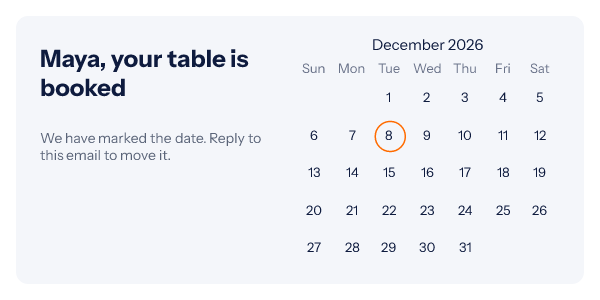
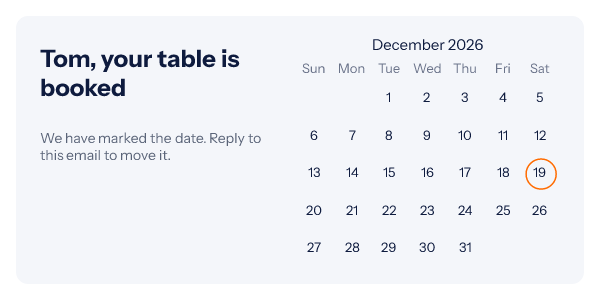
Because both the month and the dates can come from fields, one template can show Maya her table on the 8th and Tom his on the 19th, each in the right month, without building two images.
How to add a calendar to an email
-
Step 1
Add a calendar layer
In the editor, choose Calendar from the Add grid and give it room: about 260 by 240 pixels shows a full month clearly in a 600 pixel email.
-
Step 2
Set the month and the dates
Type a month and the dates to mark, or insert a field for either. Use the second set for a second meaning, in its own colour.
-
Step 3
Style it to the design
Marker style, colours, font and size, the first day of the week, the language, and whether to show the month heading and gridlines.
-
Step 4
Publish and paste
Copy the snippet for your platform from the publish dialog. For per-reader dates, build the links from a recipient list or the API.
Calendar email ideas
Schedules and timetables
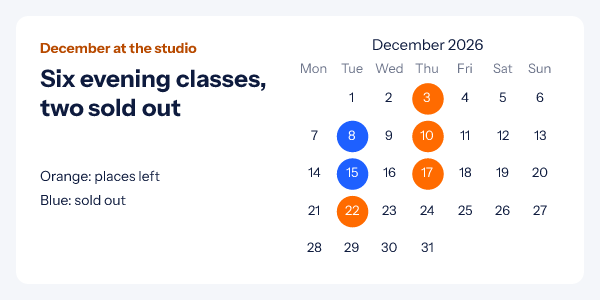
Classes, collections, opening days, release dates. Two colours say which are open and which are full, as in the December picture above.
Bookings and appointments
Confirm the date each person booked, then remind them with the same image. Pair it with an event reminder email.
Seasonal campaigns
Mark the days of an advent calendar email or the window of a holiday campaign, with a countdown in the same image.
Every calendar on this page is a render from the engine, drawn from the dates shown in its caption. For the invitation that carries one, read event invitation emails.
Which plan includes calendars
Every plan, Free included, for a calendar whose dates are the same for everyone who gets the link. Dates that differ per reader need a signed image address per recipient, from a recipient list or the API on Growth ($54 a month) and Agency.
Compare the plansWorks with your email platform
A calendar is an ordinary image tag. These guides show where it goes in each platform and how a date field is written there.
What a calendar in email cannot do
- One month per layer. Two months side by side take two layers.
- Two sets of dates. A third meaning needs a different marker style or a second layer.
- No text inside a day. Times and titles belong in the copy beside the calendar.
- Right-to-left languages keep a left-to-right grid. The names are translated; the order of the days is not mirrored.
- A month that cannot be read draws nothing, rather than the wrong month. Give a field a fallback value so the layer always has one.
- It is not an invite. Nothing is added to the reader's own calendar.
Calendar in email questions
Is this the same as a calendar invite?
No. A calendar invite is a file the mail app offers to add to the reader’s own calendar. A calendar layer is a picture of a month with dates marked, inside your email design. Link the image to your own add-to-calendar page if you want both.
How many dates can I mark?
As many as fit in the month, in two sets. The first set is drawn in the marker colour and the second in a second colour, so you can show "places left" and "sold out", or "your booking" and "our open days", side by side.
Can each reader see their own date?
Yes. The month and both sets of dates can come from fields, such as a booking date in the contact record. A date that includes a time is read in the zone you set on the layer, so a booking at 11pm stays on its own day.
Which languages are there?
The 44 languages the timer labels ship, month and weekday names included. Arabic, Hebrew, Persian and Urdu get their own names, though the grid itself still runs left to right.
Can the week start on Sunday?
Yes. Monday is the default and any day can be the first. The month heading and the gridlines can each be turned on or off.
Which plan do I need?
Calendars are on every plan, Free included. Dates that differ per reader need a signed image address per recipient, from a recipient list or the API on Growth and Agency.
More you can draw into an email
- Maps A map with your marker on it.
- Weather Widget The forecast for where each reader is.
- Charts Seven chart kinds from your numbers.
The merge tag reference shows how a date field reaches the image, and the getting started guide covers publishing. Everything else an image can carry is in personalized images for email.
Every feature on one pagePut the date where people look
Add a calendar layer, mark the dates, paste one image. Free for 5,000 opens a month.