
Edit an email after sending, through its images
You cannot edit an email after sending it: the text belongs to the inbox. You can change its images. An EmailTimer.app image is drawn each time it is opened, so a correction you publish, or a critical message you switch on, shows in emails already delivered.
Can you edit an email after sending it?
Not the email itself. Once a message is delivered, its subject, text and HTML are a copy in each inbox, and no sender can reach in and rewrite them. Recall features only work inside one company's own mail server, and only before the message is read.
Images are different. An image in an email is an address, and the inbox asks for it when the email is opened. If the address points at EmailTimer.app, what comes back is drawn at that moment from the version you have published. So the part of an email that sits in an image, the banner, the offer, the date, the timer, the notice, can still change after the send. That is the practical way to edit an email after sending: put what might change in an image you control.
Three ways to change a sent email
Follow the latest version
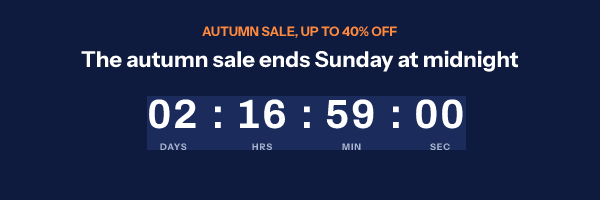
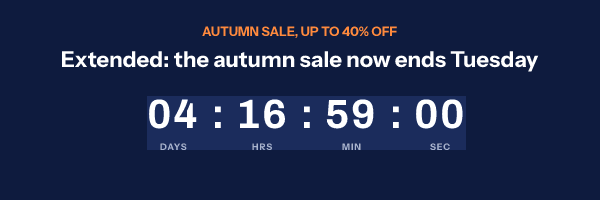
Turn it on for a snippet and the address always draws the newest published version of the template. Got the date wrong, extended the sale, or need to swap a sold-out product? Edit the template, publish, and the next fetch in every inbox shows the new version.
Critical messages
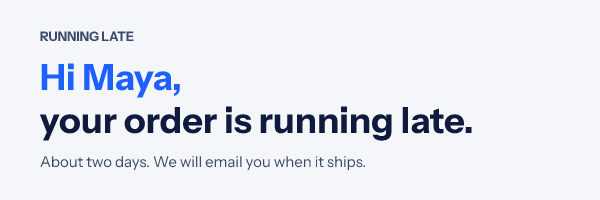
A critical message is a design that is a transparent 1 by 1 pixel while it is off. Put it at the top of every campaign and nobody sees it. If checkout goes down, a delivery is late or a store closes for the weather, switch it on from the dashboard or with one API call, and within about two minutes it appears in every email that carries it, including ones sent last week. The gallery has four ready designs: an outage, checkout down, a delay and a closure.
A message you can plan for, such as a holiday closure or a maintenance window, can run on a schedule. Set "Show from" and "Show until" in the editor, in your browser's time zone, either or both, and publish. The switch in the publish dialog stays the master: on arms the schedule, and from then the message appears at the first time and disappears at the second by itself, checked at every open, to the second. Off hides it whatever the schedule says. Leave "Show until" empty and it stays up until you switch it off. A changed schedule applies after you republish, and reaches emails already sent within about a minute.

Slide shows
A slide show plays 2 to 5 slides in one image, from your uploads or from other live templates in the workspace. Because a slide can be another live template, changing that template changes the slide in sent emails too.
How to set it up before you send
- Put the image in before you send. Only an EmailTimer.app image can change later, so it has to be in the email when it goes out: a timer, a banner, or a critical message that stays hidden.
- Turn on Follow the latest version. In the publish dialog, switch the snippet to follow the latest version, and copy it. Critical messages always follow.
- Send the campaign. Paste the snippet into your email platform and send as usual.
- Make the change. Edit the template and publish again, or switch a critical message on from the dashboard or the API.
- Let it reach the inboxes. A republished version reaches emails already delivered within about a minute, at their next fetch of the image. A critical message switch takes about two minutes, and a scheduled message turns on and off by itself at the times you set.
The switch is also on the API, as PATCH on the template's critical setting, so an incident tool can
turn the notice on when it opens an incident. The API reference has the call, and the API
is on Growth and Agency.
When changing a sent email saves the day
- A wrong date or price in a broadcast that already went to the whole list.
- A sale that is extended or ended early, with the countdown timer following the new deadline.
- An outage or a broken checkout during a big send, so readers do not click into an error.
- A late shipment or a closed store, told to the people who are about to come looking.
- An event that moved, or one that is now live, which a date rule can also handle without any edit.
For time-based changes you can plan, a rule is better than an edit: see the flash sale and webinar playbooks.
Which plan it is on
Every plan, Free included: follow the latest version, critical messages and slide shows have no plan gate. A critical message is not counted while it is off; once on, its opens count like any other image's.
Compare the plansWorks with your email platform
The change happens on the image server, so it works the same in every platform. These guides show where the snippet goes in each one.
What it does not do
- Only the image changes. The subject line, the text and the other links in the email stay as they were sent; the image's own link changes only when the snippet follows the latest version.
- The image has to be in the email before it is sent, with Follow the latest version on. An image published without it keeps the version it was sent with.
- A critical message switch takes about two minutes to reach emails. Gmail and Apple Mail keep their own copies, so their readers may see the change later.
- A schedule only runs while the switch is on, and changing the times means publishing again. The times are entered in your browser's time zone, which the editor names.
- Outlook on Windows shows the first frame of a GIF, so it shows the first slide of a slide show.
Frequently asked questions
Can you edit an email after sending it?
Not the email itself: once it is delivered, its text and HTML belong to the inbox. What can change is an image that is fetched from a server each time it is opened. An EmailTimer.app image set to follow the latest version draws whatever you published last, so you can correct it in emails already sent.
What can I change after the send?
Anything inside the image: a wrong date, a price, a headline, the deadline of a timer, a photo, or the design itself. You can also switch on a critical message that was hidden in the email, or show a slide show whose slides you swap later. Where the image links to can change too, including the address it switches to when a countdown ends. The text and other links in the email stay as they were sent.
What is a critical message?
An image that is a transparent 1 by 1 pixel while it is off, so nobody sees it, and your design once you switch it on. Put one in every campaign, and if checkout breaks or a delivery is late, switch it on and it appears in emails already delivered within about two minutes. It is not counted while off.
How fast does a change reach emails already sent?
A republished version reaches emails already sent within about a minute, at the next fetch of the image. A critical message switch takes about two minutes. Gmail and Apple Mail keep their own copy for a while, so their readers may see the old version until their copy is refreshed.
Does it work in every email platform?
Yes. The change happens on the image server, not in your email platform, so it works with any platform that sends HTML email, including Klaviyo, Mailchimp, HubSpot and Braze.
Can I schedule a critical message to switch on and off?
Yes. In the editor, give the critical message a "Show from" and a "Show until" time, either or both. The switch stays the master: switching it on arms the schedule, and the message then appears and disappears by itself at those times, checked at every open; switching it off hides it whatever the schedule says. A new schedule applies once you republish, and reaches sent emails within about a minute.
Related features
- Countdown Timers Eight styles, six ways to set a deadline.
- Dynamic Content Rules that change the image per reader.
- Live Data Values looked up when the email opens.
- Social Proof Counters A running count drawn into the email.
- Email Polls One-click votes, results in the image.
- Click Tracking and A/B Tests Clicks, stats and split tests per image.
Try it on the campaign you are building this week
The free plan covers 5,000 opens a month, and Starter is $24 for 250,000.