
Email click tracking and A/B tests for images
Email click tracking counts the clicks a link in an email gets. EmailTimer.app counts the clicks on each image, keeps them with the version that was drawn, and runs A/B split tests between two to five versions of an image, switching every later open to the one that wins. On every plan.
How email click tracking works on an image
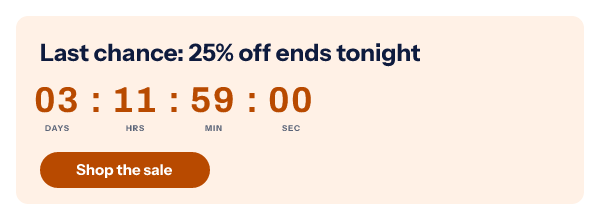
An email platform tracks clicks on the email as a whole. That tells you the email worked, not which part of it did. EmailTimer.app counts one level down: the image. When the image has a link, the snippet you paste wraps it in a click address of ours. A click on the image reaches that address, which records the click against the template, the version that was drawn and the recipient token if the link has one, then sends the reader on to your page in the same moment.
The click address is signed like the image address, so nobody can point it somewhere else, and it never carries the destination itself: the destination is read from the published version. If the counting side is slow, the reader is still sent on. Each click becomes part of the template's stats a short while later.
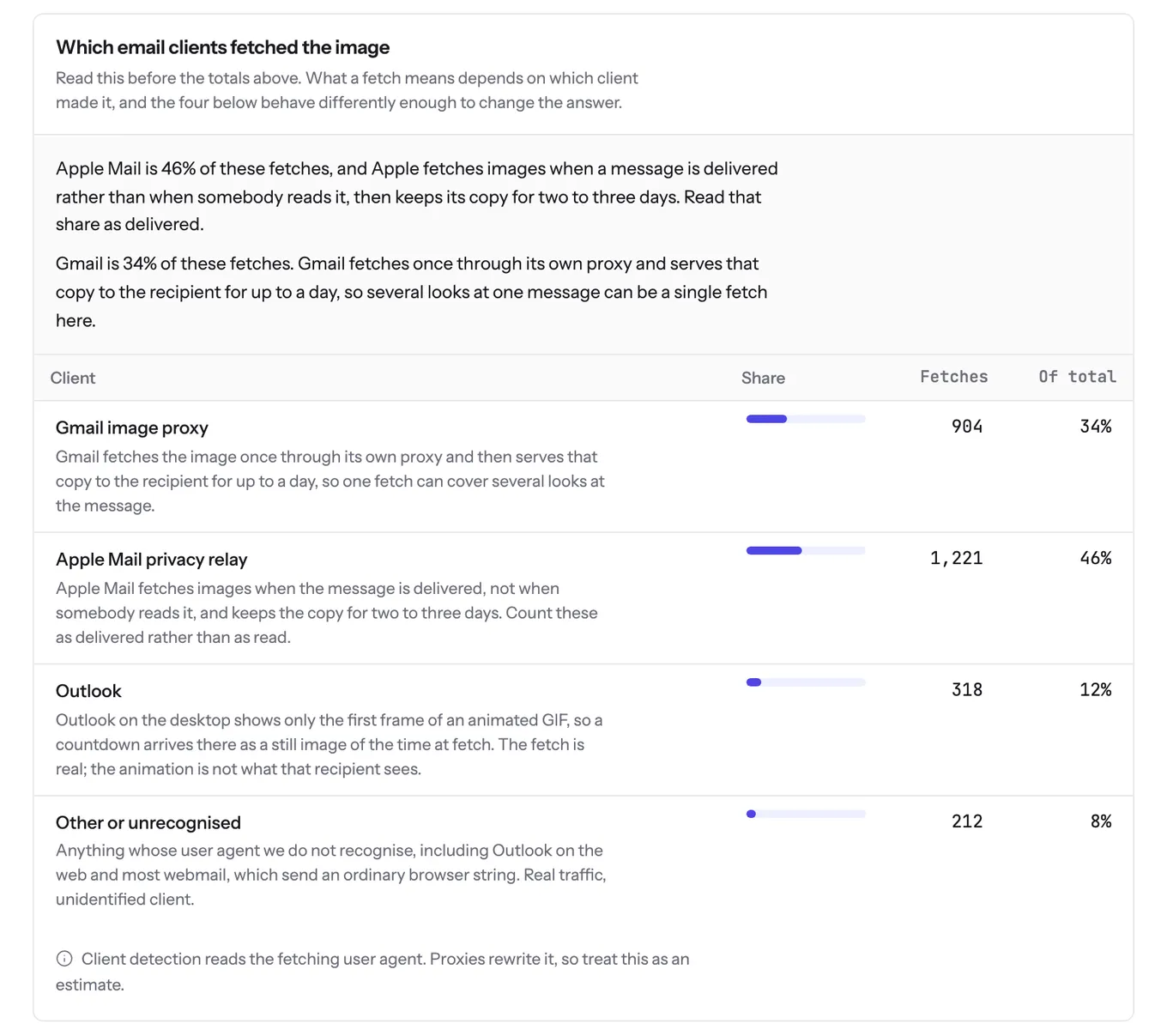
The stats live with each template: fetches of the image, clicks, click rate, and the number of recipients who fetched it, over 7, 30 or 90 days. The Usage screen adds a "Clicks by template" list and splits fetches by the email app that made them, which how we count usage explains in full.
A/B testing images with a split test
A split test serves two to five published versions of one template from a single snippet. Each version has its own design and its own link, and the clicks decide.
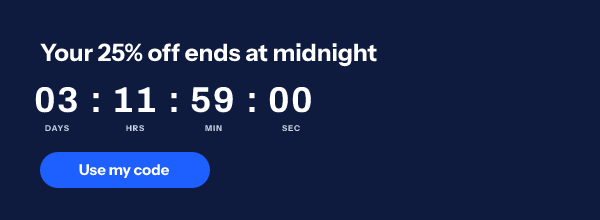
Each version is weighted, so a test can send half the opens each way, or keep most of them on the design you trust and try a new one on a fifth. You choose how the winner is found: the most clicks, or the best click rate, after a number of fetches, at a date and time, or both. You can also pick the winner yourself at any point. From then on, every open of every email that carries the snippet draws the winner, including emails delivered days earlier.
Because the split is made when the image is opened, a countdown in each version keeps its own clock: picking a winner does not restart an evergreen timer. A reader whose link carries a recipient token, or values your platform fills in, keeps the same version on every open, and their click lands on that version's link. Without either, each fetch draws a version of its own, which is fine for comparing designs but means one reader can see both.
Links that switch when the countdown ends
A timer image can have two links: one before its deadline and one from the deadline on. Set "After the timer ends, links to" in the publish dialog, and a click before the end goes to the sale while a click after it goes to the next offer or a waiting list, worked out from the same deadline the image draws, per recipient too. Both destinations count in the same click stats.
Where the clicks go is part of the published version. A snippet pinned to a version keeps that version's two addresses. A snippet that follows the latest version, such as a critical message or one with "Follow the latest version" turned on, takes new addresses when you republish, and sent emails pick them up within about a minute. More on deadlines is on the countdown timer page.
How to track clicks and run a split test
- Set where the image links to. In the publish dialog, type the web address the image should open in "Links to". A plain http or https address with no merge tag is counted; one with a merge tag stays your own link and is not counted.
- Publish and paste the snippet. Publishing freezes the link into the version. The snippet wraps the image in a click address that counts each click and passes the reader straight on to your page.
- Read the numbers. Open the template's details for fetches, clicks, click rate and recipients over 7, 30 or 90 days, and the Usage screen for clicks by template.
- Start a split test. From the same details dialog, open the split test page, pick two to five published versions of the template, give each a weight, and choose how the winner is decided.
- Let the rule pick, or pick by hand. After the number of fetches you set, at a date and time, or both, the version with the most clicks or the best click rate wins. Every later open draws the winner.
Ideas for what to test: the headline above a timer, an orange against a navy design, or one offer against another in a flash sale. The getting started guide covers publishing and the snippet.
Which plan it is on
Click tracking, template stats and split tests are on every plan, the free one included, with 5,000 opens a month on Free, 250,000 on Starter ($24 a month) and 1,000,000 on Growth ($54). A recipients figure and a split that stays the same for each reader need per-recipient links, which come from a recipient list or the API on Growth and Agency. Stats are also on the public API (getTemplateStats) on Growth and Agency; split tests are run from the dashboard.
Compare the plansWorks with your email platform
The click address is a normal link around the image, so it works wherever you paste the snippet. These guides show where the block goes and which merge tag carries a recipient token.
What it does not do
- Clicks are not unique and bots are not filtered. One reader clicking twice is two clicks, and a link scanner that follows the link is counted.
- Only a plain http or https link with no merge tag is counted. A link with a merge tag in it is passed through as your own and not counted.
- A link typed after publishing is not counted until you publish again.
- Split tests are run from the dashboard and are not on the public API. One test runs per template at a time, and a winner, once set, stays.
- Without a recipient token or filled values in the link, a reader can see a different version on each open.
- The screens say fetches rather than opens: a fetch is the image being requested, and Gmail and Apple Mail fetch on their own schedule.
Frequently asked questions
What is email click tracking?
Email click tracking counts how many times readers click a link in an email. In EmailTimer.app it counts clicks on the image itself: the image links through a click address that records the click and sends the reader on to your page, so you can see which timer, banner or offer image gets clicked.
Does this replace the click tracking in my email platform?
No, it sits next to it. Your platform counts clicks on the whole email. EmailTimer.app counts clicks on one image and keeps them with the template and version that was drawn, which is the number you need to compare two designs of the same image.
Can I A/B test images in an email that has already been sent?
Yes, as long as the email carries the split test snippet. The split happens when the image is opened, not when it is sent, so you can start with two versions, read the clicks as they come in and let the rule switch every later open to the winner.
Are clicks unique, and are bots filtered?
Neither. Every click on the click address is counted, so one person clicking twice is two clicks, and a security scanner that follows links is counted too. Read the numbers as a comparison between versions shown to the same audience, not as a count of people.
Does each reader always see the same version?
Only when their link carries a recipient token or values your platform fills in. Then a reader keeps one version on every open and their click lands on that version's link. Without that, every fetch draws its own version and every click is counted for the version it came from, which the split test screen says.
Can the link change when the countdown ends?
Yes. Set "After the timer ends, links to" in the publish dialog and clicks go to the first address before the deadline and to the second one from the deadline on. Both destinations are counted in the same click stats.
Which plan do I need?
Click tracking, stats and split tests are on every plan, the free one included. Per-recipient links, which make a split sticky for each reader and fill the recipients figure, come from a recipient list or the API on Growth and Agency.
Related features
- Countdown Timers Eight styles, six ways to set a deadline.
- Update After Send Change an image that is already delivered.
- Dynamic Content Rules that change the image per reader.
- Social Proof Counters A running count drawn into the email.
- Email Polls One-click votes, results in the image.
- Personalized Images Names and codes drawn in at open.
Try it on the campaign you are building this week
The free plan covers 5,000 opens a month, and Starter is $24 for 250,000.