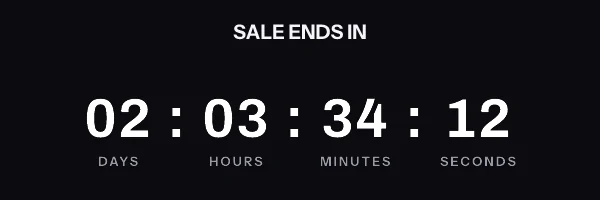
Braze in practice
Braze countdown timer with Liquid, per user
By Danish Mohammed, founder. , updated 8 min read
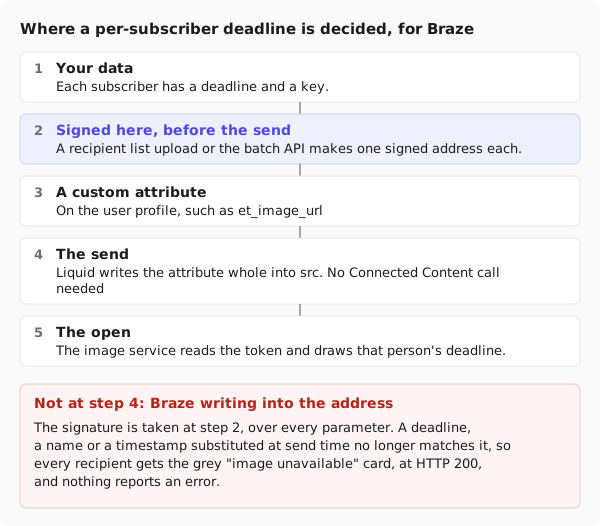
A per-user countdown in Braze is an image whose address was signed for that user before the send and stored in a custom attribute. Liquid writes the attribute whole into the image source with {{custom_attribute.${et_image_url}}}, and personalizes the link and the alt text around it. Liquid never goes inside the address, because every parameter in it is signed.
Putting a timer into a Braze email is the easy half. The half that goes wrong is where the signed address gets made, and the right answer to that sits outside Braze. If you are weighing vendors for a whole programme rather than one Canvas, choosing a dynamic image and countdown timer vendor for an enterprise email programme is the longer read.
Does Braze have its own countdown timer
Not for email. Braze’s drag-and-drop editor blocks reference lists thirteen blocks for email, from Title to Product, and none of them is a timer.
Braze runs a partner directory, and its visual and interactive content pages send you to other image vendors for countdowns, some with “personalized expiration dates.” So a countdown in a Braze email is an image served from outside Braze, whoever serves it. Nothing here needs a Braze partner integration to be switched on: the timer is an ordinary image tag, and the only thing Braze stores is a custom attribute you already know how to write.
What Liquid personalizes, and what it must not
The signature decides it. An HMAC covers the path and every parameter in the image address, so a value Braze substitutes into it at send time leaves the signature pointing at text that is no longer there. Every user in the send then gets a grey “image unavailable” card, at HTTP 200, and nothing on either side logs an error you would see.
That leaves Liquid three jobs: the link, the alt text, and handing over one complete address untouched.
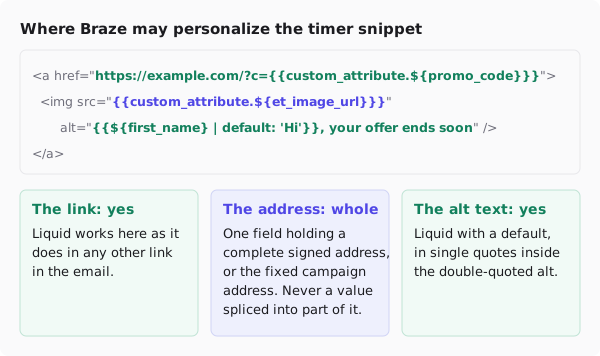
Braze writes a standard attribute as {{${first_name}}}. A custom attribute needs a namespace: to use one, the Liquid guide says, “you must add the namespace” custom_attribute to the variable. An attribute called et_image_url is therefore {{custom_attribute.${et_image_url}}}.
<a href="https://yourstore.com/sale?code={{custom_attribute.${promo_code}}}" target="_blank" rel="noopener">
  <img src="{{custom_attribute.${et_image_url}}}" alt="{{${first_name} | default: 'Hi'}}, your offer ends soon" width="600" height="200" border="0" style="display:block; width:100%; max-width:600px; height:auto; border:0;" />
</a>
Braze’s own fallback example is {{ ${first_name} | default: 'Valued User' }}. Its single quotes are safe inside a double-quoted alt, where a double-quoted default would close the attribute early. Keep them straight, too: Braze warns about curly quotes pasted from other editors, “Use straight quotes (’ ’) in your Liquid in Braze.”
The one thing Liquid must not do is build the address itself: a base address plus &deadline={{custom_attribute.${trial_end}}}. It is the shape people reach for first, and against a signed address it fails for the whole send.
Where a name inside the picture comes from
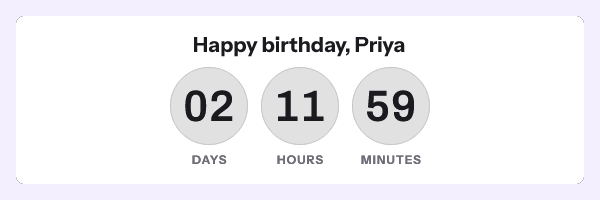
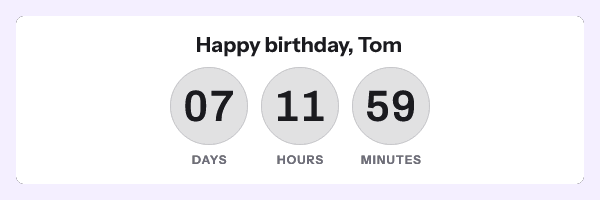
If the image itself should say the user’s name, that value is not Liquid’s either. It travels with the signed address: a recipient token in the address, and the name stored with the recipient list, read by the image service at the open.
Getting a signed address onto every user
The per-user addresses come from a recipient list upload or the REST API’s batch endpoint, and Growth is the first plan with either.
For an upload, put the Braze external_id in the file’s external_id column, the user’s deadline in deadline as a full timestamp with a zone, and any values to draw in, such as first_name. A file takes up to 500,000 rows. The download gives one signed address per row beside the same external id, which is the key you need to write the addresses back to Braze as a custom attribute, by whatever route you already use for attributes.
In the dashboard, choose Braze on the publish screen and pick a different image for each recipient. The snippet comes out in the Braze form, with the custom attribute already namespaced.

Where the snippet goes
Use the HTML block in the drag-and-drop editor. Braze describes it as the block that “Inserts raw HTML. Recommended for Liquid, such as Connected Content or conditional statements.” The personalization note on the same page is blunter: “Note that Liquid isn’t supported in image blocks or in button URL fields.” The Image block entry on that page also mentions dynamic images with Liquid, so the page disagrees with itself. The HTML block is the placement it recommends without a caveat.
Outside drag-and-drop, Braze’s Liquid guide says to use the HTML editor rather than the classic editor, which “may parse the Liquid as plaintext”, and to keep Liquid inside the body tag.
For one deadline shared by the whole send, paste the campaign snippet with its fixed address. That is on the free plan, and readers still see different numbers, since the time left is drawn when each mail client asks for the image.
Connected Content and minting at send time
Connected Content can call an API while Braze renders each message, so it looks like the obvious way to fetch a signed address per user. Braze’s own reference is the best argument against it.
Braze does not throttle it. The Connected Content reference says “Braze does not apply a separate rate limit to Connected Content”. Call volume, it says, “scales directly with your message delivery speed rate limit.” One recipient can also cost several calls, because Braze renders the HTML body, the plain text body and any AMP version separately.
The API here does have limits. Minting one URL per request allows 60 requests a minute per key. The batch route allows 600 a minute, at up to 10,000 URLs a call. A campaign delivering thousands of emails a minute through single-URL calls would start collecting 429s within the first minute.
In Braze, a 429 costs more than one missing image. It is one of the status codes counted toward unhealthy host detection, and when that trips, “Braze temporarily halts requests to the target host for one minute”. Slowness fails too: “if the server takes longer than two seconds to respond, the content is not inserted.” Either way those users get an empty src.
So mint before the send. One batch call covers 10,000 users while Braze is not yet involved, and the send stops depending on a third server answering inside two seconds.
Canvas, evergreen timers and send time
In a Canvas, write the attribute well before the user reaches the message step. If the write and the step happen together, some users can render before their address exists. Check the attribute is filled across the whole segment before the send, since a user with no address gets no image.
An evergreen timer that starts at first open is tracked per signed address. A campaign address is therefore one clock for the whole send, started by whoever opens first. A clock per user needs an address per user, which puts you back on the Growth route above. The evergreen-from-send mode carries the send instant inside the signed address, so that value is fixed when the address is minted rather than filled in by Braze. Email countdown timer types sets out all six modes.
What your recipients will see
Once Braze hands the message over, the mail client decides what the image does. In Outlook with animation switched off, Microsoft’s support page says, “If only the first frame of the animation appears, you have animations, or animated GIFs, disabled.” The first frame of every GIF rendered here carries the real time left, so that reader sees a correct number that does not move.
Apple’s Protect Mail Activity “downloads remote content in the background by default”, so the number an Apple Mail reader sees can reflect delivery rather than the open. Google’s Workspace documentation says “Gmail uses Google’s secure proxy servers to serve images”, and a proxy can answer a later open from its own copy. The email client support page goes through each client. All of that comes from the vendors’ documentation. I have not yet watched one of these timers arrive in a real inbox.
Test before you send
Braze’s test message guide has the tool that matters here: preview as a custom user. Braze then lets you “enter text for various fields available for personalization, such as the user’s first name and any custom attributes.” Paste a real signed address into the image attribute’s field and check the preview.
Then send it. Select the Test Send tab, add your address in Add individual users, and select Send Test. Open the result in two different mail apps, because a preview only shows that the Liquid resolved, and the fetch by a real mail client is the part being tested.
Questions and answers
How do I personalize a Braze countdown timer with Liquid?
Put Liquid in the link and the alt text, and make the image src one custom attribute holding a complete signed address, {{custom_attribute.${et_image_url}}}. The deadline and any name drawn in the picture are fixed when that address is signed, before the send.
Can I put a Liquid attribute inside the timer image URL?
Not inside a signed address. Braze would substitute the value after signing, and every user would get the grey “image unavailable” card.
Can Connected Content fetch a signed URL for each user at send time?
It can make the call, but Braze applies no separate rate limit to it, and the single-URL route here allows 60 requests a minute per key. Mint the addresses beforehand with the batch route, which takes 10,000 per call.
Why does my timer image break in the drag-and-drop editor?
One documented cause is Liquid in an Image block. Braze’s editor reference says Liquid isn’t supported in image blocks, so move the tag into an HTML block.
Do I need a paid plan for a Braze countdown timer?
Not for one deadline shared by the send, which is on the free plan with 5,000 image opens a month. An address per user needs the API or a recipient list upload, which start at Growth for $49 a month. The tiers are on pricing.
Sources
- Drag-and-drop editor blocks (Braze Docs)
- Use Liquid (Braze Docs)
- Supported Liquid personalization tags (Braze Docs)
- Make a Connected Content API call (Braze Docs)
- Send test messages (Braze Docs)
- Visual and interactive content partner pages (Braze Docs), which list other image vendors' countdown features; cited without a link
- The animated graphic in my e-mail message doesn't work (Microsoft Support)
- Mail Privacy Protection and Privacy (Apple Legal)
- Set up an image URL proxy allowlist (Google Workspace Admin Help)