HubSpot in practice
HubSpot countdown timer setup guide
By Danish Mohammed, founder. 6 min read
HubSpot has a countdown timer. It is in the wrong tool, and the gap between the two tools is the whole reason this page exists.
Does HubSpot have its own countdown timer
Not for marketing email. HubSpot’s calls-to-action documentation mentions a timer once, in a rule about module limits: “Certain modules can only be added once, such as the countdown timer or video modules.” That is a CTA module, rendered on a page by the browser, where a script can tick a clock every second.
Marketing email has no such module. HubSpot’s default module reference lists what ships with an email template. The one that matters for this job is plain: “The main email body module is a standard rich text module that is included by default in every email template.” No timer appears anywhere in the email set.
Customers have asked for one. A HubSpot Ideas post from January 2025, Countdown Timer Module for Emails, opens: “I noticed that we currently have a countdown timer feature available for CTAs and pop-up boxes, but not for emails.” It names early bird pricing and event registrations as the uses, the kind of deadline a launch or a webinar runs on. In December 2025 a HubSpot reply moved the idea to Not Currently Planned, saying “this isn’t something we’ll be addressing in the next quarter”. That was its status when this page was checked on 17 September 2026.
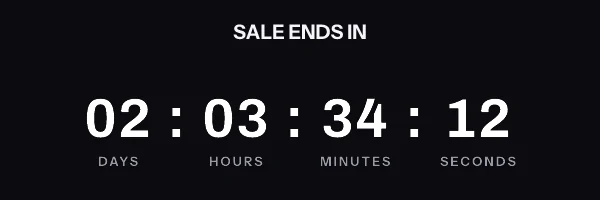
The reason is the same as everywhere else. A CTA runs in a browser. An email runs inside a mail client that will not execute your JavaScript, so a countdown in an email has to arrive as an image that was already correct when the server drew it.
Where the snippet goes
Start from the module you already have. HubSpot’s rich text documentation gives the exact gesture for getting raw markup into one: “To access the module’s source code, click the Advanced dropdown menu and select Source code.” Paste the snippet into that dialog and save changes.
If you would rather keep the timer in its own block, the drag-and-drop editor behaves the way you expect. HubSpot documents it as a single motion: “To add a new module to the email, click and drag the module from the sidebar editor into position in your email.” Drop a second rich text module where the timer belongs and use the same Advanced menu inside it, so the countdown can be moved or deleted without touching your body copy.
Personalization uses HubL double braces. HubSpot’s token article shows the coded form as {{contact.firstname}} and documents a fallback field: “Enter a fallback value for the personalization token. The fallback value will be used when the contact does not have a value for that specific property.”
A per-recipient deadline rides in the image source rather than in a token appended to it. The signature on a timer URL covers every query parameter, so a token substituted after signing breaks verification for the entire send. Create a contact property to hold a pre-signed URL and reference it directly:
<img src="{{ contact.et_image_url }}" width="600" height="200" border="0" alt="Your trial ends soon" />
Tokens in the surrounding link and in the alt text are safe, because neither attribute is part of the signed input.
Centring is the question that comes up next. In a HubSpot Community thread a user who pasted a countdown into an event email reported “there is no automatic centre alignment for the module”. The accepted answer wraps the image in a paragraph styled text-align: center, calls that quick fix “not recommended anymore”, and suggests a custom module centred with CSS for Marketing Hub Professional or Enterprise. Neither is needed for this snippet. The image carries display:block, which text-align does not move anyway, so put it inside a table cell with align="center", the attribute classic Outlook’s Word engine reads. The full table-wrapped version is in the HTML for an email countdown timer.
What breaks in automations and flows
A workflow email lives far longer than the offer that prompted it. HubSpot will happily keep sending a trial-expiry email for two years, and a fixed deadline inside it goes negative on day two. Set the expired frame when you publish, so the worst case is a graphic saying the window has closed.
The B2B failure mode here is property coverage rather than caching. Lifecycle workflows enrol contacts who arrived by every route your CRM has, and a property written by only one of those routes is empty for everyone who came in another way. A token with no value renders nothing, which turns into an empty src and a broken image. HubSpot’s fallback field solves this for text, and for an image source the equivalent is to gate the module with smart content or to make the workflow write the property as an enrolment action.
The third thing to watch is who owns the module. A rich text module edited at template level propagates; one edited inside a single email does not. Teams that discover a timer problem after a send often fix it in the wrong place, and then find the same stale snippet in nine other emails a month later.
What your recipients will see
HubSpot hands the message to the recipient’s mail client, and the client decides what happens to the picture. Classic Outlook on Windows renders through the Word engine and shows one frame of an animated GIF instead of playing it, so frame one has to be a finished countdown rather than a title card. Apple Mail with Mail Privacy Protection fetches remote images at about the time the message is delivered, so the figure reflects delivery rather than the open. Gmail routes images through its own proxy and may return a copy it already holds on a second open.
HubSpot acknowledges the general shape of this in its own troubleshooting note on custom-coded emails, which warns you “may notice discrepancies in the way your email renders in Outlook, such as positioning or spacing issues”. The countdown-specific version, with the Outlook builds separated out, is on the email client support page. It is documented behaviour rather than something I have photographed, and it argues strongly for a days-and-hours display on a corporate list.
Test before you send
HubSpot puts both checks behind one menu. Click the Preview and test dropdown and select Send test email, then “click the Send test to dropdown menu and select a recipient”. To watch personalization resolve, “click the Preview as contact dropdown menu and select a contact”.
Read HubSpot’s two warnings on that page before you trust the result. “Only verified email addresses can receive test emails”, so an unverified address produces silence rather than an error. And the test arrives “with a from address of noreply@hubspot.com and from name of Marketing Email Preview Send”, which is not the envelope your real recipients get. Send to one Gmail address and one Outlook address, because those two clients disagree about animation and you want to see both.
Questions and answers
Does HubSpot have a countdown timer module for marketing emails?
No. HubSpot documents a countdown timer module in the calls-to-action tool, and its default module list for email templates contains no timer.
Can I reuse the CTA countdown timer in an email?
No. That timer renders in a browser, and mail clients do not run the scripts it needs. An email countdown has to be a server-rendered image.
Where exactly do I paste the snippet in a HubSpot email?
Into a rich text module, through the Advanced dropdown and the Source code option. Every email template already includes a rich text module as the main email body.
Why does my timer image not appear for some contacts?
Usually because the contact property holding the image URL is empty for them, which renders an empty source attribute. Populate the property as a workflow enrolment action so every enrolled contact has one.
Is HubSpot adding a countdown timer module for email?
Not on its current plans. The Ideas post asking for one was marked Not Currently Planned by HubSpot in December 2025, and it still was when this page was checked on 17 September 2026.
How do I centre the timer in a HubSpot email?
Put the snippet inside a table cell with align="center", rather than a paragraph styled text-align: center, because the image is display:block. The table-wrapped snippet is in the HTML for an email countdown timer.
Do I need Marketing Hub Enterprise for this?
No. The snippet goes into a standard rich text module, and on this side the free plan covers 5,000 image opens a month with no watermark. The API your team would use to mint per-contact URLs is on Growth and Agency, and the tiers are on pricing.
Sources
- Create calls-to-action (CTAs) (HubSpot Knowledge Base)
- Edit content in rich text modules (HubSpot Knowledge Base)
- HubSpot's default modules (HubSpot Knowledge Base)
- Use personalization tokens (HubSpot Knowledge Base)
- Send a test marketing email (HubSpot Knowledge Base)
- Edit marketing email content and design (HubSpot Knowledge Base)
- Custom coded marketing emails look different in Outlook (HubSpot Knowledge Base)
- Countdown Timer Module for Emails (HubSpot Ideas, read 17 September 2026)
- HTML Module Format for Emails: Centering a Countdown Timer (HubSpot Community)