The HTML for an email countdown timer
By Danish Mohammed, founder. 7 min read
A countdown timer in an email is one image tag pointing at an address that renders a fresh picture every time it is fetched. There is no JavaScript involved, because no mail client runs any, and the arithmetic happens on the server before the bytes are sent. The markup below is what EmailTimer.App generates, attribute by attribute, and three things break it.
The snippet
<table role="presentation" cellpadding="0" cellspacing="0" border="0" width="100%">
  <tr>
    <td align="center" style="padding:0;">
      <a href="https://example.com/sale?code={{ coupon_code }}" target="_blank" rel="noopener">
        <img src="https://img.emailtimer.app/i/k7mQ2pXd.gif?w=w_8ha3fq&v=3&sig=YOUR_SIGNATURE"
             alt="{{ first_name }}, your 25% off ends at midnight tonight"
             width="600"
             height="200"
             border="0"
             style="display:block; width:100%; max-width:600px; height:auto; border:0;" />
      </a>
    </td>
  </tr>
</table>
The template id, the workspace id and the signature above are examples. Your own come out of the publish screen, or out of POST /urls on the API.
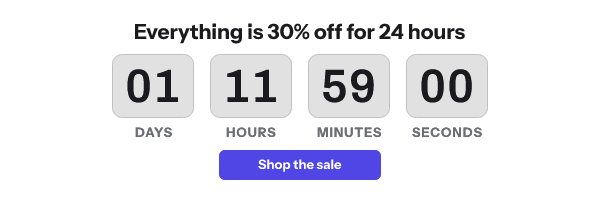
The address grammar is fixed: /i/{publicId}.{gif|png}, then w= for the workspace, v= for the published version, an optional r= for a recipient token, and sig= last. A timer template renders an animated GIF at 30 frames and one frame per second by default, configurable between 20 and 60 frames, looping by default, or played once and held at the last frame when the template’s “At the end” setting is Hold.
What every attribute is doing
| Attribute | Why it is there |
|---|---|
role="presentation" on the table |
Tells a screen reader this table is layout rather than data |
cellpadding, cellspacing, border on the table |
Word supports all three as table attributes, and they remove the default gaps that Outlook otherwise adds |
align="center" on the cell |
Word supports align on td but does not support the CSS float or position properties, so alignment has to be an attribute |
width="600" and height="200" on the image |
Word’s rendering engine does not support the CSS max-width property, so the inline style is ignored there. Without the attributes an unsized image can reflow the table around it |
border="0" |
A linked image picks up a blue border in older clients unless the attribute says otherwise |
alt |
The message for everyone whose client has images turned off, and for screen readers |
style="display:block; width:100%; max-width:600px; height:auto" |
The responsive behaviour for every client that does support CSS |
target="_blank" and rel="noopener" on the link |
Opens the landing page in a new tab without handing it a reference to the opener |
Microsoft’s own developer documentation for the Word engine lists max-width, float and position among the CSS properties Word 2007 does not support. The same document lists alt, border, height, src, style and width among the img attributes it does support. That table is the reason the snippet says the same thing twice.
The Outlook case, and what a conditional comment can honestly do
The same Microsoft document ends with a short list of unsupported web features. The first entry reads: “Animated GIF images. Only a static representation of the GIF image shows.” Klaviyo names Outlook 2007, 2010 and 2013, and Dotdigital says it of “2013 or older”.
EmailTimer.App answers that by making frame one a finished picture. It is the composed design with the digit strip already painted in, showing the live numbers for the instant of the fetch. An Outlook reader therefore gets a correct static countdown rather than a title card. Frames two onward redraw only the rectangle the digits occupy, over a colour table shared with frame one, so there is no flicker on the first tick.
If you still want Outlook to receive a different image, a conditional comment is the mechanism:
<!--[if mso]>
  <img src="https://img.emailtimer.app/i/p3Rk9Wte.png?w=w_8ha3fq&v=1&sig=…"
       alt="25% off ends at midnight tonight" width="600" height="200" border="0" />
<![endif]-->
<!--[if !mso]><!-->
  <img src="https://img.emailtimer.app/i/k7mQ2pXd.gif?w=w_8ha3fq&v=3&sig=…"
       alt="25% off ends at midnight tonight" width="600" height="200" border="0" />
<!--<![endif]-->
Two honest notes about that block. The second image has to be a separately published template with no timer layer, because the file extension in the path does not switch the render. Every address also carries its own signature over its own path. And Microsoft’s conditional comment documentation covers the IE and WindowsEdition features only. The mso vector is a convention the email industry relies on rather than something Microsoft publishes, so know that before you build a campaign on it.
Full version-by-version behaviour is on the Outlook page, and the summary across every client is on the email client table.
Why link tracking must not touch the image address
The signature is an HMAC-SHA256 over the path plus a canonical form of the query string. Canonicalisation drops the sig parameter, percent-encodes each key and value, sorts the pairs, and joins them. So reordering parameters is safe, and adding one is not.
An email platform that appends a tracking parameter to image sources changes the canonical query, the signature no longer matches, and verification fails. The image service then serves its fallback card. It does so at HTTP 200, with a valid picture, because a broken image in a message that has already been delivered can never be fixed. Nothing errors, nothing retries, and no dashboard turns red.
Most platforms rewrite href values and leave src alone, which is why the merge tags in the snippet live in the link and the alt text. Before a large send, view the source of a seed email and compare the src character for character against what the publish screen gave you. If it differs, turn image-link tracking off for that campaign.
Gmail is a separate matter and a harmless one. Google Workspace documents that “Gmail uses Google’s secure proxy servers to serve images”, so the address your recipient’s client requests is a Google address pointing at yours. The proxy passes the query through intact, so the signature survives.
Why merge tags cannot go inside the image address
This is the single most expensive mistake in this category, and plenty of published snippets still contain it. Because the signature covers every query parameter, a merge tag inside the address is signed as the literal text {{ first_name }}. Your platform then substitutes Sarah, verification fails, and every recipient in that send gets the fallback card.
There are two shapes that do work.
One image for the whole send. Parameters are fixed when you publish, the address is signed once, and everybody requests the same one. The countdown is still different for every reader, because the remaining time is worked out at the moment they open. This is on every plan including the free one.
One image per recipient. Mint a signed address per person from POST /urls/batch, up to 10,000 per call, or export one per row from a recipient set. Import the column into your platform as a contact field and set src to that field’s merge tag. The merge tag is then the whole address rather than a fragment inside a signed string. This needs Growth or Agency, and the plans are on pricing.
The parameter reference is in the merge tags documentation.
How to set it up
- Pick a design from the gallery, or start a blank canvas at 600x200, 600x300 or 300x250.
- Select the timer layer and set the mode, the deadline and the timezone in the right-hand panel.
- Set the style, the digit font and the colourway. Unit labels are editable and ship in 44 languages.
- Open Expiration State and choose what renders after the deadline passes.
- Publish. The dialog runs its readiness checks and reports the image size, the frame count and the version going live.
- Choose your platform on the publish screen and copy the snippet. It comes out with that platform’s own merge-tag syntax in the link and the alt text, for Klaviyo, Mailchimp and the rest of the directory.
- Paste it into an HTML block or code block in your builder rather than an image widget, so the attributes survive.
- Send a seed email, view the source, and confirm the
srcis unchanged.
You can generate a working snippet without an account in the countdown timer generator, and features lists what the renderer guarantees about frame one.
Questions and answers
Can I write a countdown timer in pure HTML and CSS instead?
No mail client executes JavaScript, and the CSS techniques that animate in a browser fail in the Word engine and in most mobile clients. A server-rendered image is the only approach that produces the same picture in every inbox.
Where exactly do I paste this?
Into an HTML or code block in your email builder, never into a WYSIWYG image widget. Widgets commonly rewrite the tag, strip attributes, or re-upload the image to their own storage, and a re-uploaded countdown is a screenshot.
Does the alt text really matter?
It is the whole message for anyone whose client blocks images by default, which includes a large share of corporate Outlook. Write it as a sentence carrying the offer and the deadline rather than as a label like “countdown timer”.
What happens if I change the template after sending?
Nothing changes in the mail already delivered. Publishing appends an immutable version and the address pins v=, so a campaign sent against version 3 keeps rendering version 3 whatever you do to the draft.
Why is my timer showing a grey card?
That card is the fallback, served whenever the signature fails to verify. The two usual causes are a merge tag inside the address and a platform appending a tracking parameter to the image source.
Sources
- Word 2007 HTML and CSS Rendering Capabilities in Outlook 2007 (Part 1 of 2)
- About conditional comments (Internet Explorer, Microsoft Learn)
- Set up an image URL proxy allowlist (Google Workspace Admin Help)
- How to add a countdown timer to an email (Klaviyo Help Center)
- Add a countdown timer to an email campaign (Dotdigital Marketing Help Centre)
Related
Put a countdown in the campaign you are writing now
The free plan covers 5,000 opens a month with no card. Starter is $19 a month for 250,000.