How email countdown timers and dynamic images work
An email cannot run JavaScript, so a countdown has to arrive as an image that is drawn at the moment the mail app asks for it. This is how that works.
Step 1 / the snippet
What you paste into your campaign
A timer reaches your subscribers as one image inside a link, and the few lines of HTML that carry it are the snippet. You copy it from the Snippet tab when you publish, after picking your email platform, so the link and the alt text already carry that platform's merge tags.
The image address in the snippet is signed, so nothing in it can change after you copy it. That is why a subscriber's first name goes in the alt text and not in the address. If your platform filled a merge tag into a signed address, the signature would stop matching and every subscriber in the send would get a grey "image unavailable" card.
Drawn for one image per subscriber, on Growth and Agency: the image source is a contact field holding an address signed for that subscriber. With one image for the whole send, the merge tags go in the link and the alt text, and the image carries what is the same for everybody.
Step 2 / the open
What happens when a subscriber opens the email
Their mail app asks for the image, and that request is one open, which is what your plan counts. The time left is worked out at that moment, so two subscribers who open an hour apart see two different numbers from the same snippet.
The image is an animated GIF of 30 frames by default, one a second, so the seconds move for half a minute. After the last frame it loops or it holds, whichever you set in the editor. The first frame is a complete image with the right time on it, because Outlook on Windows shows that frame and nothing after it.
Step 3 / the first open, and after it
How Apple Mail and Gmail handle image requests
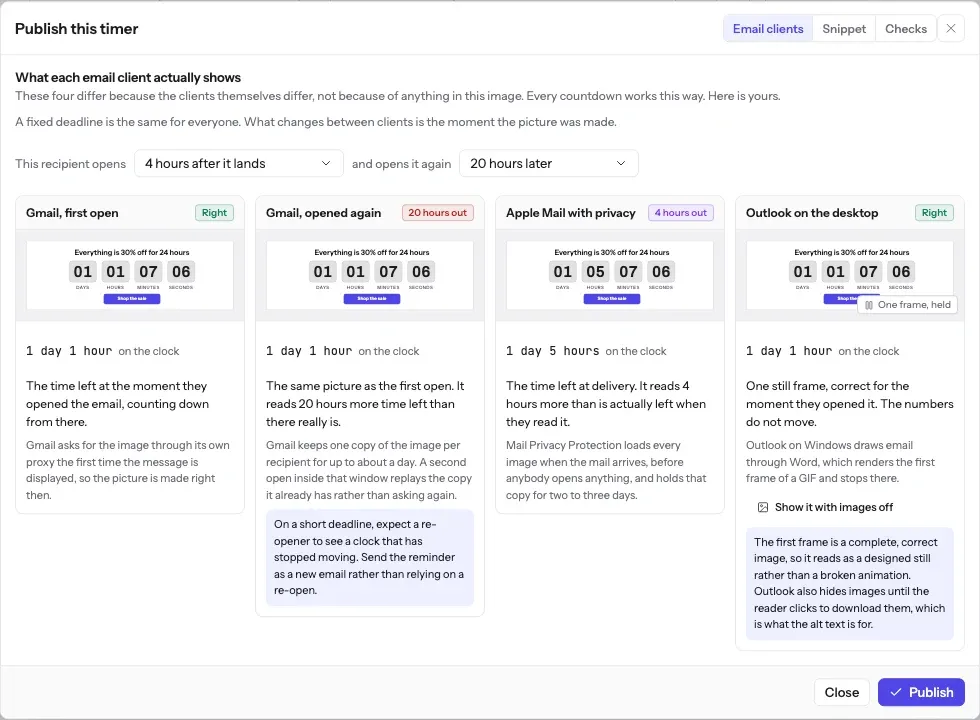
Some mail apps do not ask for the image when the subscriber opens the email. Apple Mail with Mail Privacy Protection collects it when the message is delivered, so those subscribers see the time that was left at delivery. Gmail asks through its proxy at the first open, and a re-open can come back from the copy the proxy kept. Knowing which client does what tells you which timing model to pick.
Apple documents the prefetch and Google documents the proxy. Neither publishes how long its cache holds a copy. The two to three days is from FreshInbox's 2021 testing of Mail Privacy Protection, not from Apple.
What each client is documented to do
The Apple and Gmail rows rest on Apple's and Google's published documentation and on third-party testing. Neither company publishes a cache lifetime: Apple documents the prefetch, Google documents the proxy, and the two to three days is FreshInbox's 2021 testing. The Outlook and Yahoo rows are what we expect those clients to do, with no vendor document behind them. No row comes from a test by us yet, and we will publish dated screenshots when we have them. Sources: Apple on Mail Privacy Protection, Google on the Gmail image proxy, FreshInbox on Mail Privacy Protection image caching.
Step 4 / after the deadline
What happens when a timer reaches zero
Once the deadline has passed, the image stops counting and becomes the expired frame you chose in the editor, under When it expires: the timer at all zeros, or an image of your own, such as a note that the offer has ended. Subscribers who open late read that instead of a clock stuck at zero.
For your developer
The protocol, for whoever asks how it is built
Mail clients block JavaScript, iframes and WebSockets. The one dynamic thing an email can carry is an
<img> whose src is fetched when the message is displayed, so that fetch
is where all of this happens.
The address is /i/{template}.gif or .png on img.emailtimer.app. Its
query carries w for the workspace, v for the published version the email was
sent with, r for a recipient token when there is one, wm for the over-quota
watermark, and sig, an HMAC-SHA256 over the path and the canonical query. A value that
genuinely differs per subscriber is looked up from their recipient token, which travels in a signed
address made for that subscriber through the API or a recipient list and carried in a contact field.
The digits and the static artwork of a timer are drawn apart from the clock and reused. An open works out the time left and copies the pre-drawn digits into the frames, each shown for 100 centiseconds, with frame 1 carrying the whole design. Every request is answered with HTTP 200 and a valid image: a bad signature gets a grey "image unavailable" card, a passed deadline gets the expired frame, and the Cache-Control header differs for a live timer, an expired one and a static image.
Where this goes into more detail
- A countdown can count to one of six kinds of deadline. Email countdown timer types sets them side by side, including which ones survive image caching and which do not.
- A subscriber's own values reach an image in two ways, and a merge tag inside the address is not one of them. Merge tags and dynamic image personalization says which, and what each one needs.
- What each mail client does to the fetch in step two is the whole subject of Countdown timers in Apple Mail, with the documented behaviour written up in how email image caching actually works in 2026. The other write-ups on caching and client behaviour are on the engineering blog.
- Putting the snippet into a real campaign is per platform. The 21 platform setup guides carry the exact merge syntax each one uses, and the campaign playbooks show the timing model each kind of send wants.
- The endpoints, the scopes and the error codes are in the REST API reference, and what the signature protects is on the security page.
The complete guide to countdown timers in email
Every email client, all six timing models, and the setup for each platform, in one page.