Iterable in practice
Iterable countdown timer, per user, with Handlebars
By Danish Mohammed, founder. , updated 7 min read
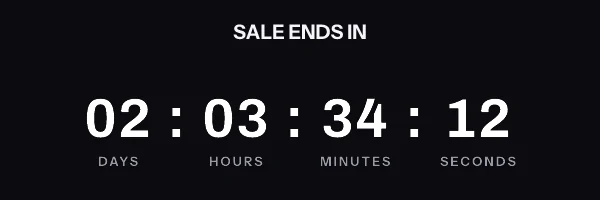
An Iterable countdown per user is an image whose address was signed for that user before the send and written to a user profile field. Handlebars puts the field whole into the image source, {{profile.etImageUrl}}, and personalizes the link and the alt text around it. Nothing Iterable computes at send time goes inside the address, because every parameter in it is signed.
Iterable’s own help centre carries a guide to adding someone else’s countdown timer. It is a good map of where the snippet goes. Two of its advanced tips break a signed timer, though, and one of them also puts each recipient’s email address into an image URL. This page is one of four for the enterprise ESPs: Marketo Engage, Oracle Responsys and Oracle Eloqua follow the same rule in their own syntax, and the enterprise guide covers the vendor decision around all of them.
Does Iterable have its own countdown timer
I found no timer block in Iterable’s documentation. What its help centre offers instead is integration articles, and the one for timers is Iterable’s page for a third-party timer vendor, “Sendtric + Iterable Integration”, read on 23 September 2026. It describes the integration as “a quick and easy way to add countdown timers to emails that contain time-sensitive products, sales, or events.”
The article’s setup steps apply to any timer image. Open the template, “select the HTML option in the Content tab”, drag the box to where the timer should appear, and paste the code into the Content Properties section for that HTML block. It also gives a wrapper for centring: a table with align="center" around the code.
The two tips that do not carry over
The article’s first advanced option is a dynamic timer. It appends ?to={{timestamp}}+86400 to the timer’s URL, so Iterable writes the send time plus a day into the address.
Its second option is a unique timer per user, keyed on “any unique user property”. It names {{entity_id}} and {{email}} as two options, and its code example uses ?k={{email}}, which puts each recipient’s email address in an image request.
Neither works with a signed address, and I would avoid the second on any timer. The HMAC signature on a timer address here is taken when the address is made, and it covers every parameter. A timestamp or an email address that Iterable writes in at send time leaves the signature out of step with the address. Every recipient then gets a grey “image unavailable” card, served with HTTP 200, and no error is raised anywhere. A per-user address from here carries an opaque recipient token instead, so no personal data travels in the image URL.
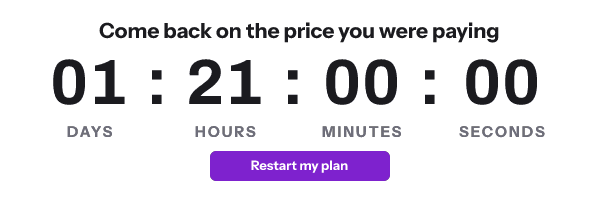
What the first tip was for, a window counted from the send, has its own mode here. The send instant is signed into the address when the address is minted: the batch API and the recipient list export both take a sent value, either now or a timestamp with an offset. The picture then counts down a fixed window from that moment, for as long as the mail sits in the inbox. The instant is whatever you sign, so mint close to the send: for a workflow that reaches users over weeks, mint each address through the API as the user enters, with sent set to now, rather than signing a whole list on day one.
Iterable can compute an HMAC at send time. Its Handlebars reference includes hmacSHA1, which uses “the HMAC Secret specified in Project > Settings”. A timer address here needs HMAC-SHA256 with your workspace’s own secret, which that helper cannot produce, so the signing has to happen outside Iterable. That also keeps the secret out of your templates.
Where Handlebars may personalize the snippet
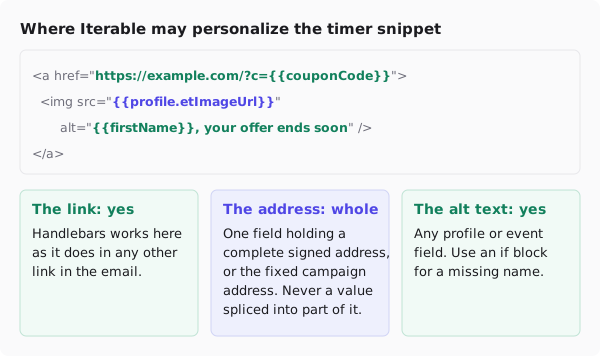
Campaign mode needs nothing from Iterable at all. Publish the timer, copy its signed address, and paste the snippet into the HTML block. The free plan includes this. Because the time left is drawn at the moment each mail client fetches the image, one address gives every reader the right number for their own open.
A per-user deadline needs one signed address per user, made before the send. They come from the REST API’s batch endpoint, up to 10,000 per call, or from a recipient list uploaded as a CSV and exported with one address per row, and both start at Growth. Write each address to a user profile field such as etImageUrl, the way you already write profile fields, and point src at that field.
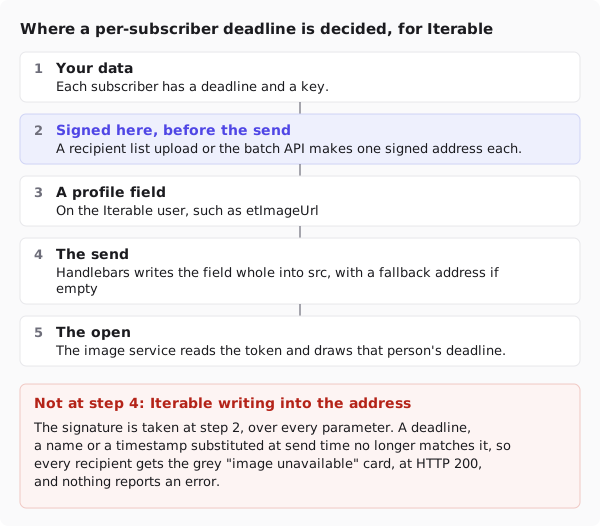
The dashboard’s publish screen writes the Iterable form when you choose Iterable and a different image for each recipient. It uses the short {{etImageUrl}}; change it to {{profile.etImageUrl}} in any campaign an event or an API call triggers, for the reason in the next section.

Handlebars rules that decide whether it renders
Four details from Iterable’s documentation matter for an image source.
Case. Iterable says “Event and user profile field names are case-sensitive.” A field created as EtImageUrl does not answer to {{etImageUrl}}.
Event fields win. When a triggering event or API call “contains a field with the same name as a field on the user’s profile, Iterable displays the value from the event field.” If an event could ever carry a field with that name, write {{profile.etImageUrl}}, the form Iterable documents for reading the profile value.
Quotes. The Handlebars overview says that inside a double-quoted HTML attribute, nested string literals take single quotes, because “Double nested quotes break Handlebars syntax.”
Defaults. Its own example of that rule is an image: <img src="{{defaultIfEmpty product.imageUrl 'https://cdn.example.com/fallback.png'}}">. The same helper gives a user with an empty field a working image rather than a broken one.
Put together, with the default pointing at the campaign address of a second template that has a fixed deadline:
<a href="https://yourapp.com/upgrade" target="_blank" rel="noopener">
  <img src="{{defaultIfEmpty profile.etImageUrl 'https://img.emailtimer.app/i/k7mQ2pXd.gif?w=w_8ha3fq&v=3&sig=YOUR_SIGNATURE'}}" alt="{{firstName}}, your offer ends soon" width="600" height="200" border="0" style="display:block; width:100%; max-width:600px; height:auto; border:0;" />
</a>
The overview also says double braces escape HTML and triple braces do not. An escaped ampersand in an attribute is decoded again by the mail client’s HTML parser. If you would rather not depend on that, {{{profile.etImageUrl}}} passes the address through unescaped. Iterable does not document triple braces around defaultIfEmpty, so test that combination before relying on it.
One more note from the reference. If you edit the HTML source, Iterable suggests commenting out Handlebars expressions that output nothing, such as #if blocks. It says not to comment out one that outputs a value, like a profile field: “Commenting out such an expression would prevent its value from rendering in the template.”
What your recipients will see
After delivery, Iterable is out of the picture and the mail client decides. Microsoft’s Outlook support page says “If only the first frame of the animation appears, you have animations, or animated GIFs, disabled.” A still timer from here reads correctly, because the first frame is a complete image with the time left already drawn.
Apple’s Protect Mail Activity “downloads remote content in the background by default”, so an Apple Mail reader can see the time left as it stood at delivery. In a workflow that sends at 03:00, that reader may see the 03:00 figure when they open at breakfast. The email client support page has the rest, taken from vendor documentation, since no timer here has been tested in a live inbox so far.
Test before you send
Iterable’s test message guide explains which data a proof uses. “To yourself” sends to you “using data from your Iterable profile to resolve any Handlebars expressions”. So your own profile needs a real signed address in etImageUrl, or the proof shows the default image.
Two other options help. “As random users” sends to you using data from random users on a list you choose. Sending from the Preview page is the more useful one. There, “Iterable uses the loaded user data when sending the test message, including any manual edits you have made.” Load a user, paste a real address into the field, send, and open the proof in two different mail apps.
Questions and answers
Does Iterable have a native countdown timer?
Not that I found. Iterable’s help centre documents countdown timers through a third-party integration article rather than a block of its own.
Can I use {{timestamp}} in the timer URL, as Iterable’s help article shows?
Not with a signed address. A value written into the address at send time breaks the signature, and every recipient gets the grey “image unavailable” card. Sign the send instant in when the address is minted, with the sent value, instead.
Why does my Iterable proof show the fallback or default image?
A proof sent to yourself resolves Handlebars from your own Iterable profile. If your profile has no signed address in the field, you get the default. Load a user on the Preview page, or fill in your own field.
Should I use {{profile.etImageUrl}} or {{etImageUrl}}?
Use the profile. form in any campaign triggered by an event or API call. Iterable gives an event field precedence over a profile field with the same name.
Which plan does an Iterable workflow need?
One deadline shared by everyone is on the free plan, with 5,000 image opens a month. A deadline per user needs addresses minted per user, which starts at Growth for $49 a month. Pricing lists what each tier adds.
Sources
- Sendtric + Iterable Integration (Iterable Support Center), read on 23 September 2026
- Handlebars Overview (Iterable Support Center)
- Personalizing Templates with Handlebars (Iterable Support Center)
- Sending Test Messages (Iterable Support Center)
- The animated graphic in my e-mail message doesn't work (Microsoft Support)
- Mail Privacy Protection and Privacy (Apple Legal)