Mailchimp in practice
Mailchimp countdown timer setup guide
By Danish Mohammed, founder. , updated 5 min read
Mailchimp ranks for its own countdown terms without owning a countdown feature. The page that ranks is a directory listing for somebody else’s product.
Does Mailchimp have its own countdown timer
No. Mailchimp’s content block reference for the new builder lists what you can drag into a layout, and the list runs from Text and Image through Product, Button, Social, Survey, Apps, Code, Logo and Footer. There is no timer in it, in either the new builder or the legacy one.
The closest thing Mailchimp publishes is a listing in its own integrations directory for MotionMail, which offers to “Add dynamic countdown timers to your emails that drive clicks and highlight upcoming events or deadlines”. That listing is an advertisement for a third party inside Mailchimp’s own site, which tells you where Mailchimp stands on building one.
So the answer for a Mailchimp sender is the Code block. The rest of this page is about using it without the two mistakes behind most of the Mailchimp support mail I get.
Where the snippet goes
Mailchimp names the block and the gesture. Use Code Content Blocks in the New Builder says to “Click a Code block, or click and drag a Code block into your layout from the side panel”. The next step is “In the Code menu, type or paste in your code”. The legacy builder uses the same block under the same name.
Two constraints from that page are worth carrying into the design. Mailchimp strips JavaScript, so any timer that depends on a script in the message is already dead. And it tells you to use “absolute paths” for images rather than relative links, which a signed image URL satisfies by construction.
Merge tags use the pipe-and-asterisk form. Mailchimp’s merge tag cheat sheet gives *|FNAME|* for a first name and *|EMAIL|* for the address, and custom audience fields follow the same *|TAGNAME|* shape.
For a per-recipient deadline, the tag cannot go inside the image source. Every query parameter on a signed image URL is inside the signature, so *|DEADLINE|* in the source is signed as literal text, replaced after signing, and then fails verification for the whole send. The working shape is one signed URL per recipient, imported into an audience field, with the field’s tag as the source:
<img src="*|ETIMAGE|*" width="600" height="200" border="0" alt="Your offer ends soon" />
Create the field as ETIMAGE in audience settings first. Merge tags in the surrounding link and the alt text are free to use, because neither attribute is signed.
What breaks in automations and flows
Mailchimp’s customer journeys reuse one email for months, so a fixed deadline pasted into a journey keeps ticking long after the offer is dead. Configure the expired frame at publish time. An image that says the sale has closed is a better outcome than a counter sitting at zero, and it is the only version of this that needs no maintenance.
A journey email whose deadline differs per subscriber, such as a birthday gift with a week to redeem it, needs the per-recipient field above rather than one fixed date.
The preview trap is specific and it catches almost everybody. Mailchimp’s own preview and test article explains that contact-specific merge tags do not resolve in a plain test email, because the draft has not been sent to real audience contacts. If your image source is a merge tag, the test email arrives with an empty source and a broken-image icon.
That is not your snippet failing. Mailchimp gives you two ways around it in the same article. Turn on the “Enable live merge tag info” slider in preview mode to “see how dynamic content or other merge tags look to your recipients”. Or send the campaign to a small test segment of the real audience.
One more habit. Paste the snippet from a plain text editor rather than from a word processor. A smart quote substituted into an attribute breaks the tag, and it is genuinely hard to see by eye.
What your recipients will see
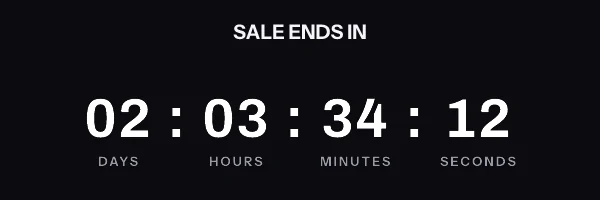
Mailchimp delivers the HTML. Everything after that is the recipient’s mail client, and the clients disagree with each other. Classic Outlook on Windows draws the message through the Word engine and shows one frame of an animated GIF rather than playing it. Frame one has to read as a finished countdown on its own. Apple Mail with Mail Privacy Protection fetches remote images around delivery time, which means the number reflects when the mail arrived. Gmail fetches through its own image proxy and can serve a copy it already holds when the same recipient opens the message again.
All of that is documented client behaviour rather than anything I have photographed in an inbox, and the version with the Outlook builds named individually is on the email client support page. The practical consequence for a Mailchimp campaign is a design decision. Hours and days survive every case above. Seconds only pay off on the clients that animate, and they look like noise on the ones that do not.
Test before you send
Use both halves of Mailchimp’s Preview and Test. Preview mode “gives you an idea of how your email will look in your recipients’ inboxes on both desktop and mobile devices”. The live merge tag slider then lets you step through real recipients and confirm the source attribute resolves.
Then send a test email to yourself. Separate several addresses with a comma and send to one Gmail account and one Outlook account in the same pass. The preview proves the markup is right. Only a real inbox proves the image was fetched, and only Outlook tells you whether frame one carries the message on its own.
Questions and answers
Does Mailchimp have a built-in countdown timer block?
No. Mailchimp’s published block list for the new builder contains no timer, and its own integrations directory advertises a third-party countdown product instead.
Which block do I paste a countdown timer into?
The Code block, in either builder. Mailchimp documents dragging it in from the side panel and pasting the code into the Code menu.
Why does my timer show a broken image in a Mailchimp test email?
Because contact-specific merge tags do not resolve in test sends, so a merge-tag image source arrives empty. Use the live merge tag slider in preview, or send to a small segment of the real audience.
Can I put the deadline in the image URL as a merge tag?
No. The signature covers every query parameter, so a tag substituted after signing invalidates the URL for every recipient. Per-recipient deadlines belong in a pre-signed URL stored on an audience field.
What does this cost on top of Mailchimp?
The free plan here is 5,000 image opens a month with no watermark, and timers and personalized images sit on the same plan rather than two subscriptions. The tiers are on pricing, and the Mailchimp countdown timer generator produces a timer without an account, with the Code block instruction first. That timer works for 500 opens without an account, and for 1,000 once you sign in and claim it.
Sources
- About Mailchimp's Email Builders (Mailchimp Help)
- Use Code Content Blocks in the New Builder (Mailchimp Help)
- All the Merge Tags Cheat Sheet (Mailchimp Help)
- Preview and Test Your Email (Mailchimp Help)
- MotionMail Countdown Timers (Mailchimp integrations directory), read on 23 September 2026