
Dynamic content in email, decided when each email opens
Dynamic content in email is a part of the message that changes for each reader. In EmailTimer.app it lives in an image: rules on each layer swap its text, picture or colour, or hide it, based on who opened the email, when, where and on what.
How dynamic content in email works here
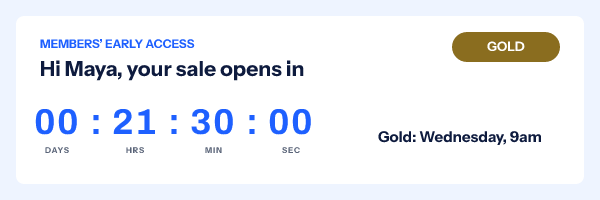
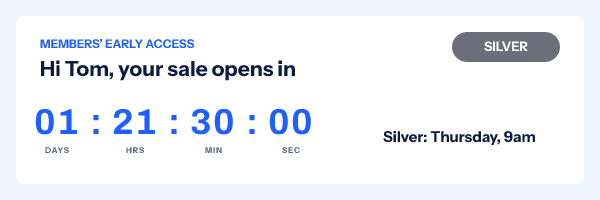
Every image you make in EmailTimer.app is a stack of layers: text, pictures, a timer, a QR code, a progress bar. Any layer can carry rules. Each rule names a subject, a condition and an action: if the tier equals Gold, colour the badge gold; if the open is after Friday at 9am, hide the clock and show the offer; if the email app is Outlook, swap the photo for one that reads well as a still.
The rules are checked when the email is opened, not when it is sent. That is the difference from the dynamic blocks in your email platform, which pick content once from the profile at send time. An image with rules keeps deciding for as long as the email sits in an inbox, which is why one image can open a sale, run it and close it.
For the longer story of where dynamic content fits in an email program, read dynamic email content, explained, and interactive versus dynamic email for what an image can and cannot do.
Six things a rule can read
Pick one subject per rule. Combine several rules on one layer, or across layers, for anything more particular.
| Subject | What it reads | Conditions |
|---|---|---|
| A merge value | Any field on the link: tier, plan, city, cart total, language | equals, not equals, greater or less than (or equal), contains, is empty, is not empty |
| Country | Where the email was opened, from the network | equals, not equals, contains, is known |
| Device | Mobile, desktop or unknown | equals, not equals, is known |
| Date and time | The moment of the open | before, after, on or before, on or after, equals, not equals |
| Email app | Gmail's image proxy, Apple Mail Privacy Protection, Outlook, or other | equals, not equals |
| Operating system | iOS, Android, macOS, Windows, Linux or unknown | equals, not equals |
What a rule can change
- Show or hide a layer, such as a VIP banner or a free shipping line.
- Swap the text, from a headline to a whole sentence.
- Swap the image to another of your uploads.
- Change the colour of a shape or a line of text.
- Use a variant: switch the whole image to an alternative design you made for that audience.
Examples drawn by the engine
Each pair below is one template rendered twice. Nothing was redrawn by hand.



How to set up dynamic content
- Build the default design. Design the image the way most readers should see it. That is what anyone who matches no rule gets.
- Select a layer and add a rule. In the Rules section of the layer panel, pick a subject (a merge value, country, device, date and time, email app or operating system) and a condition.
- Choose what changes. Show or hide the layer, swap its text, swap its image, change its colour, or switch the whole image to another variant of the design.
- Order the rules. Rules run from top to bottom and a later match overrides an earlier one, so put the broad rule first and the specific one under it.
- Preview and publish. Try values in the preview, publish, and paste the snippet into your email. Each open is checked against the rules.
Rules run top to bottom, and every match applies, so order matters. A common pattern is a general rule first ("country is not US: hide the free shipping line") and an exception under it ("tier is Gold: show it anyway"). A subject the image cannot read, such as the country behind Gmail's proxy, matches nothing, so the layer keeps its default.
The playbooks for webinars and events and product launches use date rules this way, and email segmentation covers when a rule beats a separate send.
Which plan it is on
Conditional rules are on Starter ($24 a month) and above; publishing a template with a rule on Free asks you to upgrade, and anything already published keeps working. Rules that read a merge value need that value in each subscriber's link, which comes from a recipient list or the API on Growth at $54 a month; rules on the date, country, device and email app need nothing from your list.
Compare the plansWorks with your email platform
Paste the image into any platform that sends HTML email. These guides show the merge tags and the steps for each one.
What it does not do
- Gmail's image proxy and Apple's privacy relay hide the reader's device and operating system, and usually their country. Those rules read as unknown there, and an unknown subject matches nothing.
- Rules that read the country or the email app make every open a fresh render, which is slower to arrive than a cached frame.
- A rule changes layers inside one image. It cannot pull in another template; a slide show is the feature that draws other live templates.
- There is no "first match wins" mode. Every matching rule applies, top to bottom.
- Gmail keeps its copy of an image for about a day, so a reader who reopens within that time may see the version from their first open.
Frequently asked questions
What is dynamic content in email?
Dynamic content is a part of an email that changes depending on who opens it, when, or where. In EmailTimer.app it lives in an image: rules on each layer decide what that layer shows at the moment the email is opened.
How is this different from the dynamic blocks in my email platform?
Your platform's dynamic blocks choose content when the email is sent, from the contact's profile. Rules in an EmailTimer.app image are checked when the email is opened, so they can also react to the time of the open, the country, the device and the email app, and they keep working after the send.
Which rule wins if two match?
Rules run from top to bottom and every matching rule applies, so a later rule that changes the same layer overrides an earlier one. It is not first-match: put the general rule above the specific one.
Does dynamic content work in Gmail and Apple Mail?
Rules on merge values and on the date and time work everywhere. Gmail's image proxy and Apple's privacy relay hide the reader's device, operating system and often their country, so those rules read as unknown there, and Gmail keeps its copy of an image for about a day.
Can an image change by date after it is sent?
Yes. A date and time rule compares against the moment of the open, so one image can say "starts in", then "live now", then "watch the replay" without a new send.
Which plan includes conditional layers?
Conditional rules are on Starter and above, at $24 a month; a Free template with a rule cannot be published. Rules on merge values need a value per subscriber in each link, which comes from a recipient list or the API on Growth.
Related features
- Live Data Values looked up when the email opens.
- Countdown Timers Eight styles, six ways to set a deadline.
- Personalized Images Names and codes drawn in at open.
- Update After Send Change an image that is already delivered.
- Click Tracking and A/B Tests Clicks, stats and split tests per image.
- Weather Widget The forecast for where each reader is.
Try it on the campaign you are building this week
The free plan covers 5,000 opens a month, and Starter is $24 for 250,000.