Webinar and event registration
Webinar reminders that get more of your registrants in the room
The gap between signing up and turning up is where webinars are won and lost. A reminder that shows minutes rather than a date and time does the mental arithmetic for the person reading it, which is most of the job.
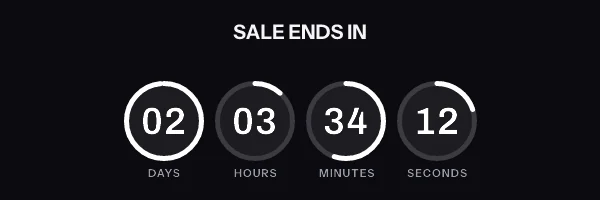
A webinar and event registration email with a live countdown in it. The timer is a real render from EmailTimer.App.
What creates the urgency
It starts without them, and the seat they claimed is only useful if they use it.
The timing model for this campaign is a start time, with a live state after it. You choose it once, when you build the image, and the engine works out the rest for every subscriber who opens.
Compare the timing modelsHow we would set this one up
- Timer style
- Digital numerals beside the date, so it reads like a calendar entry
- The deadline
- The event start time
- What goes in the image
-
- The session title and the start time, with its timezone written out
- The countdown to the start
- Their name in the alt text, and a check-in code per person if you move to one address per registrant
- When it expires
- Becomes "we are live now, click to join" the moment the session starts.
What to get right in a webinar countdown
-
Send reminders at 24 hours, one hour, and ten minutes. The ten minute one is the one that fills the room, and it is the one where a live counter matters most.
-
Make the expired state a join button rather than an apology. Somebody opening two minutes late should be one click from the session.
-
Add a scannable code layer if the event has a door. A code that differs per registrant needs one signed address per registrant, on the Growth plan or above, and the image then works as the ticket.
The webinar countdown timer snippet
One image tag, wrapped in a link. Drop it into an HTML block in your campaign builder. The merge tags below are the generic form. The exact syntax for HubSpot and Customer.io is on each platform's own page, and the integration pages cover the rest.
This campaign needs one image address for the whole send. One start time for everybody, so one signed address does it. The clock counts to the same instant wherever each registrant is, and any start time drawn in the image is written in the timezone set on the template.
Notice where the merge tags are. They are in the link and the alt text, and never inside the image address itself. The address is signed, and the signature covers all of it, so a tag your platform fills in afterwards breaks the signature and every subscriber quietly gets the fallback graphic instead of the timer.
<a href="https://yourstore.com/offer?code={{ coupon_code }}" target="_blank" rel="noopener">
  <img src="https://img.emailtimer.app/i/k7mQ2pXd.gif?w=w_8ha3fq&v=3&sig=YOUR_SIGNATURE" alt="{{ first_name }}, your offer ends tonight" width="600" height="200" border="0" style="display:block; width:100%; max-width:600px; height:auto; border:0;" />
</a>
What each inbox does with a webinar countdown
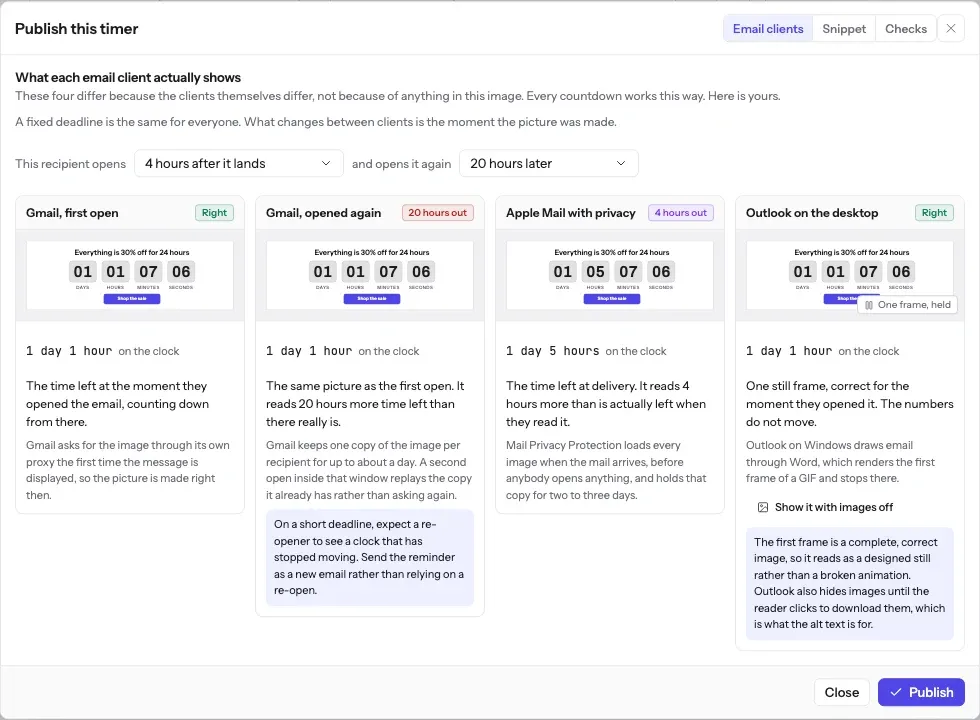
The one hour and ten minute reminders are opened almost immediately, so there is barely any gap between the fetch and the read. Those are the sends where subscribers genuinely watch single-digit minutes count down.
The full account of what each client does, including how long Apple Mail holds a pre-fetched image and why Outlook on Windows never animates, is in Countdown timers in Apple Mail. The timing model this campaign uses is one of six, compared side by side in email countdown timer types.
What each client is documented to do
The Apple and Gmail rows rest on Apple's and Google's published documentation and on third-party testing. Neither company publishes a cache lifetime: Apple documents the prefetch, Google documents the proxy, and the two to three days is FreshInbox's 2021 testing. The Outlook and Yahoo rows are what we expect those clients to do, with no vendor document behind them. No row comes from a test by us yet, and we will publish dated screenshots when we have them. Sources: Apple on Mail Privacy Protection, Google on the Gmail image proxy, FreshInbox on Mail Privacy Protection image caching.
The playbook
Registration closes, then the session starts
A webinar has two deadlines, and they belong in different emails. Until registration closes, the invitation and its reminders count down to the close, because what you want from those readers is a sign-up. Once somebody has registered, their reminders count down to the start, because what you want now is for them to turn up.
Build them as two timers with two expired images. The registration timer's expired image says registration has closed, and says where the recording will be if there is one. The start timer's expired image is the join button. Each counts to one fixed instant, so each is one image address for its whole segment, and nobody who has already registered is shown the registration clock.
Both are fixed deadlines, so the free countdown timer generator can make either countdown without an account. A timer from the free generator works for 500 opens without an account, and for 1,000 once you sign in and claim it. Its expired image is the design at zero with "Offer ended" under it, so the join-button image needs an account.
Before you send
Questions about webinar and event registration
Including the parts that do not work perfectly, because you will find those out either way.
What does a registrant see if they open the email after the session starts?
The join graphic. The image flips at the start time, so a reminder opened at five past reads that you are live now rather than counting down to something that already began.
Which timezone does the countdown use?
The deadline is one instant in time, so everybody counts down to the same moment wherever they are. What differs is the wall-clock label. A start time drawn in the image uses the timezone set on the template, and a timezone cannot be added to the address as a merge tag, because the address is signed. To show each registrant their own local time, carry their timezone on a recipient list, so each person gets their own signed address, or write the start time with its timezone in the email text. The countdown itself does not change.
How many reminders should carry a timer?
The twenty four hour and one hour reminders are where a visible countdown earns its place. On a confirmation sent three weeks out, a counter reading 21 days is decoration.
Does the timer work in a calendar invite?
No. A calendar invite is not an HTML email and most clients strip images from the description. Put the timer in the reminder email and let the invite do the calendar's job.
Campaigns that pair with a webinar countdown
Put a webinar countdown in your next send
Free for 5,000 opens a month, $19 for 250,000, and no developer needed at any point.