
Email social proof with a live counter in the image
Email social proof shows readers that other people are already acting. A social proof counter in EmailTimer.app draws a live number into an image, such as how many people opened the offer or voted in the poll, and updates it each time the email is opened. You set the sentence, a starting number and the minimum before it shows. On every plan.
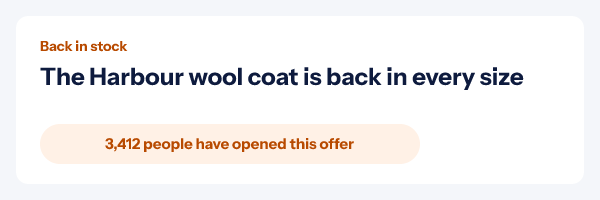
How a social proof counter works in email
Social proof on a website is easy: a script asks a server how many people bought today. An email cannot run a script, so the number has to arrive as a picture. The counter is a text layer in an EmailTimer.app image. Each time an inbox fetches the image, the image service reads the current count, adds your starting number, puts the result into your sentence with thousands separators and draws it. The email a subscriber opens on Thursday shows Thursday's number, not the one from the morning it was sent.
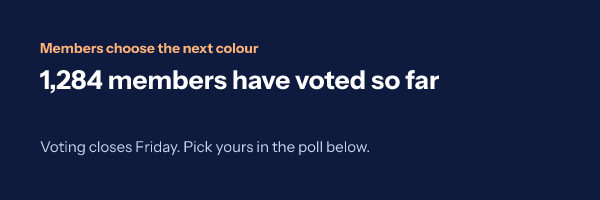
The count comes from one of two places. Opens are the counted opens of a template: the one the counter sits in, or another in your workspace, so a banner at the top of an email can report the opens of the hero image. Poll votes are the total votes cast in a poll, so the line above an email poll can say how many members have voted so far.
The minimum, the starting number and the words
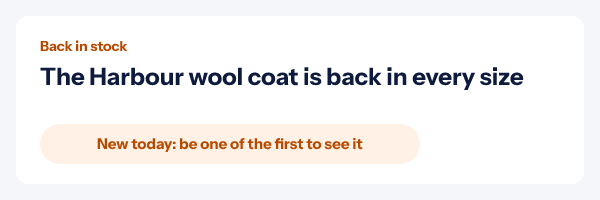
A counter that reads "4 people have opened this" does the opposite of what you wanted. So each counter has a minimum, labelled "Show from" in the editor. Until the count reaches it, the layer shows the words you set under "Until then", such as "New today: be one of the first to see it", or, if you leave those empty, hides itself. The same words cover the rare case where the count cannot be read, so a reader never sees a broken number.
"Starts at" is a number added to every count. It lets a new template carry on from an earlier send, or start from a figure you can stand behind. Use it honestly: every number shown is your starting number plus real opens or votes, and a reader who sees a big round number in a brand new email will notice.
The sentence is yours, up to 200 characters, with {count} where the number goes. Match the
words to what is counted. Opens are fetches of the image, so "3,412 people have opened this offer" is fair; "3,412
people are looking right now" is not.
How to add a social proof counter to an email
- Add a live counter. In the editor, open the After send panel and choose "Add a live counter". It adds a text layer and the counter that fills it.
- Choose what it counts. Opens or Poll votes, of this template or of another template in your workspace, such as the poll further down the same email.
- Write the sentence. Put {count} where the number goes: "{count} people have opened this offer". The number is drawn with thousands separators, such as 3,412.
- Set a starting number and a minimum. "Starts at" is added to the count, so a new counter does not open at zero. "Show from" is the number below which the counter shows the words under it instead, or nothing.
- Publish and send. Every open reads the latest count and draws the sentence into the image, so the number in a sent email keeps growing.
A counter changes after the send like the rest of the images that update after sending. For numbers from your own systems, such as stock left or seats sold, use live data instead.
Where email social proof earns its place
- Back in stock and launch emails, where a growing open count says the item is wanted. See the back in stock playbook.
- Polls and votes, where "1,284 members have voted" is a reason to add one more.
- Event invitations, beside a countdown to the doors opening.
- Flash sales, where a count of opens and a timer together say that others are already in.
Which plan it is on
Live counters are on every plan, the free one included, with 5,000 opens a month on Free, 250,000 on Starter ($24 a month) and 1,000,000 on Growth ($54). A counter image counts toward those opens like any other image, and Free allows three live images at once.
Compare the plansWorks with your email platform
A counter is an ordinary image, so any platform that sends HTML email can carry it. These guides show where it goes.
What it does not do
- Two sources only: opens of a template and votes in a poll. No clicks, sales, stock levels or sign-ups.
- An open is a fetch of the image, not a person, so a reader opening twice can be counted twice. Fetches served from a cache in front of the image service are not counted.
- Near live, not instant: opens reach the count within about a minute, and an image reuses a count it read in the last 15 seconds.
- Gmail and Apple Mail show the number from their own copy of the image, which can be hours old on a reopen.
- The editor sets one counter per template.
Frequently asked questions
What is social proof in email?
Social proof in email is showing readers that other people are acting, such as how many have opened an offer or voted in a poll, so the email feels popular rather than sent to nobody. A social proof counter draws that number into an image and updates it at each open.
What can the counter count?
Two things: opens of a template, which can be the template the counter is in or another one in your workspace, and the total votes of a poll. It does not count clicks, sales or unique people.
How live is the number?
Near live. Opens are added to the count as they are processed, which takes up to about a minute, and an image reuses a count it read in the last 15 seconds. Gmail and Apple Mail keep their own copy of an image, so a reader there sees the number from when their copy was fetched.
What does the starting number do?
It is added to the real count. Use it to carry over a number from an earlier send or a figure you can stand behind, so the counter does not start at zero. Every number shown is the starting number plus the counted opens or votes.
What happens below the minimum?
The counter shows the words you set for "Until then", such as "Be one of the first to see it", or nothing at all if you leave them empty, in which case the layer is hidden. The same happens if the count cannot be read.
Does an open mean one person?
No. An open is a fetch of the image that counts toward your plan, so one reader opening twice can count twice, and fetches answered from a cache in front of the image service are not counted. Word the sentence to match, such as "opened" rather than "people are looking right now".
Which plan do I need?
Live counters are on every plan, the free one included. A counter image counts toward your monthly opens like any other image.
Related features
- Email Polls One-click votes, results in the image.
- Update After Send Change an image that is already delivered.
- Live Data Values looked up when the email opens.
- Countdown Timers Eight styles, six ways to set a deadline.
- Click Tracking and A/B Tests Clicks, stats and split tests per image.
- Personalized Images Names and codes drawn in at open.
Try it on the campaign you are building this week
The free plan covers 5,000 opens a month, and Starter is $24 for 250,000.