Turn a Photoshop file into a live email countdown
By Danish Mohammed, founder. 7 min read
A countdown built in a timer editor is made of that editor’s parts. A countdown designed in Photoshop is not, and rebuilding it by hand is where it drifts from the file. EmailTimer.App imports the Photoshop file instead. The flattened picture Photoshop saved inside the .psd becomes the background of the email image, and the renderer draws exactly one thing on top of it: the digits, redrawn once a second inside one rectangle.
Start from the template
Two template files are free to download from the Photoshop import documentation:
| File | Canvas | Size |
|---|---|---|
| EmailTimerApp-countdown-template.psd | 600 by 200 pixels | 307 KB |
| EmailTimerApp-countdown-template-2x.psd | 1200 by 400 pixels | 366 KB |
The 2x file is for an image shown at 600 pixels wide on a high density screen. Both are set in Archivo Bold. Archivo is published under the SIL Open Font License 1.1 in Google’s fonts repository, so it costs nothing to install. Install it before opening the template, or Photoshop substitutes another face and the digit widths change.
The digits in the 600 pixel template sit in a strip 444 pixels wide and 52 high, starting 78 pixels from the left and 62 from the top. They are 58 pixel Archivo Bold, and the placeholder reads 88, 23, 59 and 59. Those are the widest values each slot can hold, so a design drawn around them has room for every value the campaign will show.
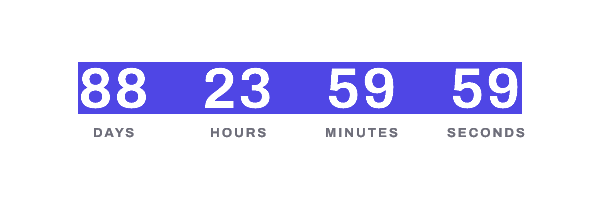
The layers that matter
| Layer | What it does |
|---|---|
et:days, et:hours, et:minutes, et:seconds |
The four digit slots, as editable type |
et:safe-area |
The rectangle the countdown repaints on every frame |
et:readme, et:manifest |
Notes inside the file. Neither is drawn |
Any layer starting et:ignore |
Left out of the import entirely |
The import does not need the template’s names. It also recognises layers named days, hours, minutes and seconds, short forms such as hrs and mm, and the unit words in any of the 44 languages the renderer prints labels in. A word that could mean two units binds neither, and the import asks you instead of guessing.
Five rules for the design
- Keep the digits inside the strip. Every frame repaints that rectangle edge to edge. Anything of yours inside it is gone after frame one.
- Keep the area behind the digits one flat colour. A photograph or a gradient there is wiped out for the same reason. Put the gradient on the panel around the strip.
- Keep the lead slot two digits wide, and the campaign under 100 days. At 100 days the days column needs a third digit, the countdown widens, and every unit to its right slides off the artwork.
- Set the digits in one flat colour, with no effects on the digit layers. A shadow or a glow lands outside the digits, and the countdown only repaints the digits.
- Save with Maximize Compatibility on. The template’s own readme layer gives the route as Preferences, then File Handling, then Maximize PSD and PSB File Compatibility, set to Always. Without it the file holds your layers but not the flattened picture they make, and that picture is the whole background.
Everything outside the strip is yours: panels, labels, photography, blend modes, adjustment layers. They arrive as Photoshop rendered them, because the import reads Photoshop’s own flattened picture and does not rebuild your layers.
Uploading
In the dashboard, open Photoshop import, name the import and choose the file. The screen states the limits before you pick anything: “A .psd up to 128 MB, 8 bit RGB, up to 4096 pixels on a side.” A document is also capped at 4 million pixels in total.
A workspace reads one Photoshop file at a time, holds at most three imports still waiting for a file or being read, and keeps up to 512 MB of uploaded files. An import still being read after 15 minutes is treated as stuck: another file can start, and the stuck import is marked failed, which lets you upload the file again.
What the import refuses, in its own words
Each refusal is a sentence that says what is wrong and what to do, and names the layer when one layer is at fault. Seven of them, as the import writes them:
| The import says | What to do |
|---|---|
| “Photoshop did not save a flattened preview inside this file.” | Turn Maximize Compatibility on, save, upload again |
| “The area behind your digits is not one flat colour.” | Put the digits on a solid panel and keep the artwork around it |
| “Your digits are set in”, then the font name, “and we do not have that typeface.” | Set the digits in a font from the catalogue |
| “Your digits use faux bold, which is Photoshop thickening a font that has no bold of its own.” | Pick a family with a real bold weight |
| “This is a Large Document Format file, a .psb.” | Save As, and choose Photoshop (.psd) |
| “The background of this document is partly transparent.” | Put a solid colour layer at the bottom |
| “This file points at Smart Objects stored outside it.” | Embed each linked Smart Object, then save |
The typeface refusal goes on: “There is no lawful way for us to draw with it from your file, and substituting a lookalike would change every digit width and move your layout, so we will not.”
A countdown placed where one row of evenly spaced digits cannot go is refused too, with the distance the nearest possible placement would move a unit.
Some findings are changes rather than refusals. Unequal gaps between units are one example, because the renderer has one gap for the whole row. The screen says which unit would move and by how many pixels, and shows the result before you accept it.
The confirmation screen
Nothing is applied until you press “Create the draft template”, and the screen puts the output above that button. It is headed “What we would build”, and it shows:
- the real animated image at one pixel to one pixel, never scaled, because banding and rough glyph edges vanish in a thumbnail
- the countdown area at four times size, ours beside Photoshop’s, with the difference brightened so that black means agreement
- the placeholder digits in your file next to what the first send will draw
- every layer in the file, including hidden ones and groups, each with exactly one verdict
- four email client previews, including the still frame classic Outlook on Windows shows
A GIF colour table holds at most 256 colours, by the format’s own specification. A photographic sky or a skin tone can therefore come out in visible steps. When that happens the screen says so, next to the full size image, which is the only place it can be seen.
Setting what it counts to
The deadline panel on the import offers four of the six timer types. They are a date and time, a countdown that starts at send, a countdown that starts on first open, and the same time every week or month. A count-up and a date from your list are left out because neither has a largest value, and the import reserves exactly two columns for the lead unit. Timer types explains what each one counts to and which email clients move it.
Because the design was measured against a two digit lead slot, publishing refuses a deadline or a length that reaches 100 days. The refusal reads “Set the end date inside 100 days, or import a design that counts in hours.”
After the import
The countdown inside an imported template is frozen. You can add a logo, a line of type or another image anywhere clear of the digits and publish normally. You cannot move the countdown, resize it, recolour it or add a unit to it, and a publish that tries is refused. The import explains why: “Changing them would slide the numbers off your artwork, so publishing refuses it rather than showing you a template that looks fine and sends wrong.”
To change the countdown itself, change the Photoshop file and import it again.
Klaviyo’s help centre notes that Outlook 2007, 2010 and 2013 “will simply display the first frame in the GIF”. Frame one of an imported timer is your full artwork with the live numbers for that fetch already drawn in, so an Outlook reader sees a finished still. Countdown timers in Outlook covers which versions animate, and features covers how every template, imported or not, is built for that first frame.
Questions and answers
Do I have to use the template?
No. Any .psd is read and every layer in it is listed back to you. The template is the shape that is built to pass, so starting from it avoids the refusals above.
Which font do I need?
Archivo Bold for the template, which is free under the SIL Open Font License. Your own design can use any family in the catalogue. A face that is not in the catalogue is refused rather than substituted.
Can I edit the timer after importing?
Everything except the countdown. Add layers anywhere clear of the digits. To move or restyle the countdown, import the changed Photoshop file again.
Why was my file refused when it looks fine in Photoshop?
Look first at Maximize Compatibility, the area behind the digits, and any effect on a digit layer. Photoshop can show a design correctly without saving the flattened picture the import needs, and the refusal says which of these it met.
Is Photoshop import on the free plan?
Photoshop import sits in the dashboard of every workspace, Free included. A published timer from an import counts against the plan like any other, and the free plan’s limit on live images is on pricing.
Sources
Related
Put a countdown in the campaign you are writing now
The free plan covers 5,000 opens a month with no card. Starter is $19 a month for 250,000.