Countdown timers in Outlook, version by version
By Danish Mohammed, founder. 8 min read
A countdown timer displays in every version of Outlook, because it is an image. Whether it animates depends on which Outlook and, on Windows, on a display setting that most recipients have never opened. In the versions that do not animate, the recipient sees frame one of the GIF and nothing else. Frame one therefore has to be a finished picture carrying the correct number, not a title card.
Why Outlook is different from every other client
Outlook 2007 moved HTML rendering to the Word engine. Microsoft’s own developer documentation from that release states it plainly: Outlook 2007 “uses the HTML parsing and rendering engine from Microsoft Office Word 2007 to display HTML message bodies”, and the same HTML and CSS support available in Word is what you get in Outlook. Every classic Windows Outlook since has inherited that architecture.
Word is a word processor. It lays out a table of pixels well enough, and it has never been in the business of playing animation frames on a timer. That single decision, made in 2007, is the origin of every countdown-timer complaint about Outlook you will read on a forum.
New Outlook for Windows is a different program on a web stack, and Outlook on the web has always been a browser application. Those two animate a GIF. They introduced a different problem instead, covered below.
The version table
| Version | Animates a timer GIF | What decides it | What the recipient sees |
|---|---|---|---|
| Outlook 2007, 2010, 2013 (Windows) | No | Word rendering engine, no animation support | Frame one only. The same Microsoft document lists “Animated GIF images. Only a static representation of the GIF image shows.” MailerLite says its own timer “will not count down” on Outlook 07, 10 and 13 and “will instead appear as a static image”. Klaviyo names the same three versions, and Dotdigital says it of “2013 or older”. |
| Microsoft 365 classic, before version 2008 (Windows) | Only if enabled | A checkbox in Outlook | Microsoft documents File, then Options, then Advanced, then a “Play animated GIFs” box in the Display section. Unchecked means frame one only. Its page is scoped to Microsoft 365 and does not address the perpetual 2016 to 2024 builds, where reports differ on whether the box is there at all. |
| Microsoft 365 classic, version 2008 and later (Windows) | Only if enabled | A Windows accessibility setting | Microsoft documents using the Windows setting “Show animations in Windows”, found by typing “Show animations” at Start, under “Simplify and personalize Windows”. Turned off, Outlook shows frame one. |
| Outlook 2016, 2019, 2021 and 2024, perpetual (Windows) | Not documented | Not documented by Microsoft for these builds | Microsoft’s animation page is scoped to Microsoft 365, and public reports say the Outlook option is missing in perpetual builds. Plan for frame one. |
| New Outlook for Windows | Yes, with a caveat | Web rendering stack | Animates, and the Microsoft Q&A thread below reports it resuming from a cached frame so the numbers can be wrong. |
| Outlook on the web | Yes, with the same caveat | Browser | Same report of an incorrect time in the same thread. |
| Outlook for Mac | Yes | WebKit-based rendering | I found no Microsoft documentation addressing GIF animation in Outlook for Mac, so this row is inference from the rendering stack rather than a citation. |
| Outlook for iOS and Android | Yes | Native app rendering | The reporter in the Microsoft Q&A thread states that mobile Outlook showed the correct time while the desktop and web clients did not. |
Outlook on a phone is covered beside the other mobile apps in countdown timers on phones.
The setting nobody knows about
In current Microsoft 365 builds, animation is controlled by an accessibility preference for the whole of Windows rather than by an email setting. “Show animations in Windows” exists so that people who are distracted or made unwell by motion can switch it off. Anyone who has switched it off, or whose IT department has switched it off in a group policy for performance reasons, sees your countdown as a still image.
You cannot detect this, you cannot influence it, and you should not try to. It means the correct planning assumption for a classic Outlook reader is a still image, even on a version that is capable of animating.
Microsoft’s support page for the symptom is titled “The animated graphic in my e-mail message doesn’t work”, and the first line of the diagnosis is the one to remember: “If only the first frame of the animation appears, you have animations, or animated GIFs, disabled.”
Frame one is the whole product
This is where a server-side renderer either respects the Outlook case or does not. In EmailTimer.App, frame one of every generated GIF is a complete full-canvas image: the composed design with the digit strip already painted in, showing the live numbers for the instant of the fetch. It is never blank, never a bare digit strip, never a placeholder that the animation is supposed to fill in. Frames two onward redraw only the rectangle the digits occupy, over a fixed colour table shared with frame one. The digits in frame two are therefore pixel-identical to the digits in frame one, and there is no flicker on the first tick.
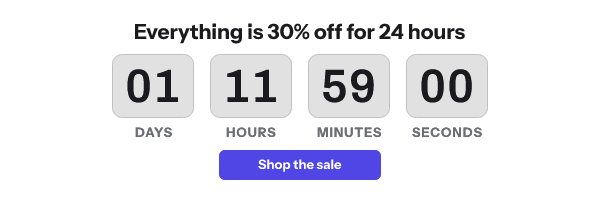
The result for an Outlook reader with animations off is a static countdown that is accurate as of the moment their client asked for the image. It will not move. It will say the right thing.
To make a free timer whose first frame stands on its own, putting a countdown timer in an Outlook email opens the generator on a style chosen for that.
The second design decision that matters here is looping. By default the GIF does not loop: the last frame stays on screen when the animation finishes. A timer that jumps back to its starting number reads as broken. In Outlook, where playback is inconsistent across versions, a loop is the fastest way to show somebody the same stale number twice.
The 2025 regression report
There is an unresolved thread on Microsoft’s own Q&A site, asked on 7 May 2025, titled “Why animated gif countdown timers aren’t showing correct time in Outlook Email Client?”. The reporter names new Outlook for Windows version 1.2025.319.100 and classic Outlook version 2502, build 18526.20286, and describes the timer starting “from a specific cached frame” on each new open rather than from the correct remaining time. Desktop and web were affected. Mobile Outlook was not.
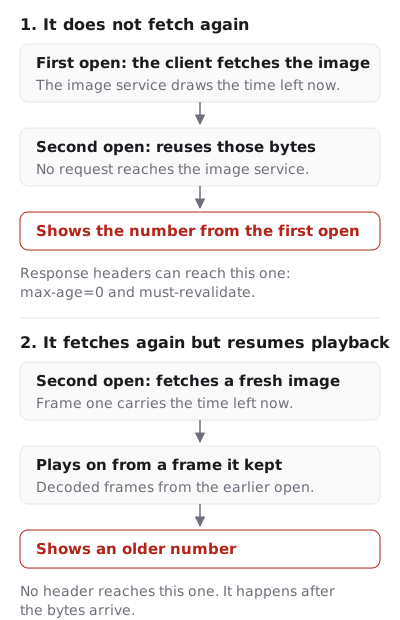
The vendor in the report is Sendtric. Two workarounds were tried and both failed: adding fallback imagery, and setting the timer by the recipient’s time zone. A Microsoft support specialist suggested updating Outlook and syncing the Windows clock. The reporter was already updated, and noted that the affected users could not change the Windows time without administrator rights. The thread is locked as a migrated question and unresolved.
Neither suggested workaround could have helped. Fallback imagery addresses an image that fails to load, not an image that loads an old copy. The Windows clock is irrelevant to a server-rendered GIF, because the arithmetic happens on the server before the bytes are sent; the recipient’s machine only decodes pixels. The problem described is a cache identity problem, and the levers for it are response headers and revalidation.
I have not reproduced this behaviour, and I am not claiming EmailTimer.App is immune to it. The full analysis, including exactly which headers would have to be honoured for it to help and how to check the behaviour in your own inbox, is in the Outlook countdown timer regression.
What to do about it
- Design the block so that a still image is a complete message. Look at frame one on its own. If it does not communicate the offer and the urgency without motion, the design is not finished.
- Put the deadline in body text next to the image. “Ends 23:59 UTC on Friday” survives frame-one-only rendering, blocked images and a stale copy at the same time.
- Set width and height on the image tag. The Word engine does not infer dimensions gracefully, and an unsized image can reflow the table around it.
- Choose minutes rather than seconds for an Outlook-heavy list. Seconds on a still frame are noise. A minutes-and-hours display is correct for longer and reads better when frozen.
- Use a fixed deadline for broadcasts. With an absolute instant, a frame drawn slightly early is still arithmetically right about the cut-off.
- Compare against the Gmail case before you decide the resolution. Countdown timers in Gmail covers the client where the animation does run, which is where a seconds display earns its place.
- Configure the expired image before the send. After the deadline, an Outlook reader with a cached copy is the most likely person to see a stale counter. A closed-sale graphic is a better outcome than zeros.
- Test in the Outlook you actually have, with animations both on and off. Toggle “Show animations in Windows” and open the same message twice. Five minutes of that is worth more than any vendor’s compatibility claim.
Questions and answers
Why is my countdown timer not moving in Outlook?
Almost certainly because animation is disabled, either by the Outlook option in versions before Microsoft 365 2008 or by the Windows “Show animations” setting from 2008 onward. Microsoft documents both.
Which Outlook versions cannot animate a GIF at all?
Outlook 2007, 2010 and 2013 on Windows. Microsoft’s own Outlook 2007 rendering document says only a static representation of a GIF shows, Klaviyo and MailerLite name all three versions, and Dotdigital says it of “2013 or older”.
Does new Outlook for Windows fix this?
It animates, and a Microsoft Q&A thread from May 2025 reports it resuming from a cached frame so the displayed time can be wrong. That trade is covered in the regression post.
Is a static timer still worth sending?
Yes, when frame one carries the real number for that fetch. A correct still countdown next to a written deadline does the job that the animation was only ever decorating.
How do I see what Outlook will get before I send?
The publish step in the editor shows the frame-one-only case alongside the animated ones, and features lists what the renderer guarantees about frame one. The comparison across all clients is on the email client table.
Sources
- The animated graphic in my e-mail message doesn't work (Microsoft Support)
- Word 2007 HTML and CSS Rendering Capabilities in Outlook 2007 (Part 1 of 2)
- Why animated gif countdown timers aren't showing correct time in Outlook Email Client (Microsoft Q&A, 7 May 2025)
- Add a countdown timer to an email campaign (Dotdigital Marketing Help Centre)
- How to use a countdown timer (MailerLite Help)
- How to add a countdown timer to an email (Klaviyo Help Center)
Related
Put a countdown in the campaign you are writing now
The free plan covers 5,000 opens a month with no card. Starter is $19 a month for 250,000.