Put a countdown timer in an Outlook email
By Danish Mohammed, founder. , updated 5 min read
Build your timer
Live preview
Rendering
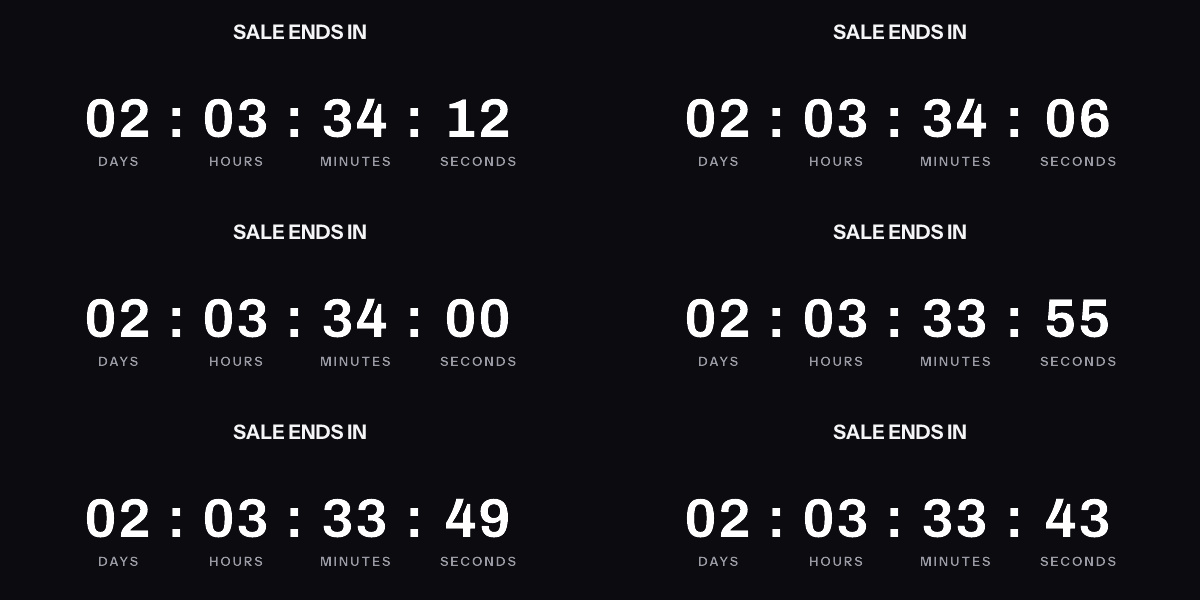
A downloaded GIF counts from the moment it was made, not from the moment it is opened. The hosted timer above is what counts from the open.
Get the code
This publishes the timer above and hands you the snippet. No email address, no account. Without an account, a timer from this generator works for 500 opens. Sign in and claim it, and the same timer works for 1,000 opens. After that, the image shows a note that its free opens are used up.
Your timer is live
HTML snippet
Image URL
See it in a real inbox
The preview above is your browser fetching the image. A mail client fetches it differently, and that is the part worth checking before a campaign goes out. Type an address you can open and this timer is sent there once, in a message that carries the picture and one sentence saying you asked for it.
One send per timer, and the address is used for that message and nothing else. The time in the picture is the time when your mail client fetched it, which is the behaviour the test is for.
Where to paste it
Keep it, or keep going
This timer works as it is, for 500 opens. To change the deadline later, see how many people opened it, use per-recipient evergreen timers, put a name or a code in the image, or use your own fonts, create a free account.
Create a free accountClaim code
After you sign up, open Templates and choose Claim a generator timer, then paste this code. It is valid until . Claiming raises this timer, the same image address you already copied, from 500 to 1,000 opens.
A countdown timer displays in every version of Outlook, because it is an image. Whether it moves is a separate question, and for a large share of corporate recipients the answer is no. The timer above is set for that, which means its first frame is built to stand on its own.
Frame one is the timer
Classic Outlook for Windows renders HTML through the Word engine. Microsoft’s own developer documentation from the 2007 release, where that decision was made, lists the consequence in plain language under unsupported web features: “Animated GIF images. Only a static representation of the GIF image shows.”
So for those readers the GIF’s first frame is the entire product. Everything after it is bytes they will never see.
That is a design constraint rather than a defect to work around. Frame one here carries the real time remaining at the moment the image was fetched, drawn in the same design as every other frame. A reader on Outlook 2016 sees something like “02 days 14 hours 09 minutes” as a still picture, and that is a true statement about the world. A title card, a logo or a frame reading all zeros is not.
The setting that decides whether it moves
Microsoft documents the cause directly: “If only the first frame of the animation appears, you have animations, or animated GIFs, disabled.” Its page covers Outlook for Microsoft 365 along with the 2016, 2019, 2021 and 2024 releases.
There are two switches, and which one applies depends on the build.
On Outlook for Office 365 before version 2008, Microsoft’s instruction is to “select File > Options > Advanced” and then, in the Display section, “check the box to Play animated GIFs”.
On version 2008 and later the switch moved out of Outlook entirely. Microsoft’s instruction for those builds is to “use Windows 10”, then “Click Start and type Show animations” and, under “Simplify and personalize Windows”, enable “Show animations in Windows”. That is an operating-system accessibility setting. It gets turned off on managed fleets to reduce motion, and the person who turned it off was not thinking about your campaign.
You cannot detect it from a send, and the recipient almost certainly does not know it exists.
Which Outlook you are dealing with
| Outlook | Does the GIF animate | What decides it |
|---|---|---|
| 2007, 2010, 2013 on Windows | No | The Word rendering engine, which Microsoft documents as showing only a static representation |
| Microsoft 365 classic before version 2008 | Only when enabled | The Play animated GIFs box under File, Options, Advanced |
| Microsoft 365 classic from version 2008 | Only when enabled | The Windows setting Show animations in Windows |
| New Outlook for Windows, and Outlook on the web | Yes, with a caveat | A web rendering stack. A Microsoft Q&A thread from 7 May 2025 reports timers resuming from a cached frame and showing the wrong numbers |
| Outlook for iOS and Android | Yes | The native app. The same thread’s reporter says mobile Outlook “still works fine on Android and iOS” |
The version-by-version detail, including what Microsoft has and has not documented for the perpetual 2016 to 2024 builds, is on countdown timers in Outlook.
Choosing a style whose still frame reads well
Given that frame one may be all there is, some choices survive the freeze better than others.
Pick the smallest unit that will actually change while somebody is looking. A still showing seconds is stale one second after it was drawn, and a reader who stares at an unmoving seconds column concludes the timer is broken. A still showing days and hours on a three-day countdown stays correct for the best part of an hour.
Prefer a design whose geometry carries information. In the ring and bar styles the fill position is a reading in itself, so a frozen frame still says how much of the window is gone. A design that depends on movement to make its point says nothing at all when it does not move.
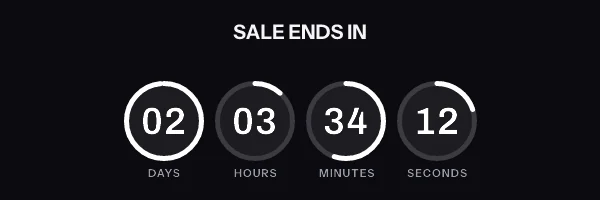
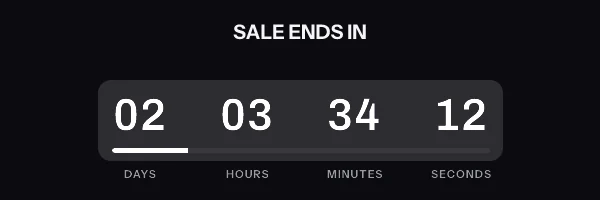
Give the labels room, in the reader’s own language. The generator above carries unit labels in 44 languages, and a frozen image gets read rather than watched, so keep the contrast between the digits and the card behind them high.
Composing by hand in Outlook
Most timers reach Outlook from a sending platform. If you are writing one message by hand, the thing to protect is the remote address.
The countdown is computed when the image is fetched. Anything that drops a copy of the file into the message freezes the numbers at the moment you inserted it, because a GIF has no clock inside it. Insert the picture in a way that keeps the URL, and send the message to yourself before you send it to anybody else.
Before you send
Look at frame one on its own. Open the image URL in a browser, wait for the animation to finish, then reload and screenshot the first thing you see. The GIF checker does the same job on a file you already have, and reads the frame count and the loop flag out of it.
Check the width. Outlook draws through Word, which ignores most CSS, so the snippet carries width and height as HTML attributes as well as in the style attribute. Changing one without the other is how a timer ends up 40 pixels too wide and reflows a two-column layout.
Write alt text a reader can act on. Many corporate Outlook configurations hide remote images until the reader asks for them, and for those people the alt text is the message.
Questions and answers
Why is my countdown timer frozen in Outlook?
Because classic Outlook for Windows draws the first frame of a GIF and stops when animations are disabled. Microsoft documents both the behaviour and the two settings that control it.
Can any tool fix Outlook desktop?
No. No vendor can make the Word engine animate. What a vendor can do is make frame one a correct, finished picture, so a frozen timer still tells the truth.
Does new Outlook for Windows solve it?
It animates, and it introduced a different problem. A Microsoft Q&A thread from May 2025 reports it resuming from a cached frame so the numbers read wrong, on the desktop and web clients, while mobile Outlook was correct. The thread is unresolved.
Do I need an account?
No. The generator above publishes the timer and hands over the code with no address asked for. That timer works for 500 opens without an account, and for 1,000 once you sign in and claim it. An account adds a movable deadline, per-recipient timers and open counts, free to 5,000 image opens a month. See pricing.
Sources
Related
Put a countdown in the campaign you are writing now
The free plan covers 5,000 opens a month with no card. Starter is $19 a month for 250,000.