Shopify Email in practice
Shopify Email countdown timer setup guide
By Danish Mohammed, founder. 5 min read
A countdown bar on a product page runs in the shopper’s browser, and nothing like it runs in an inbox. An email needs the countdown drawn into an image, and Shopify’s own email tool will draw one.
Shopify’s help centre calls that tool Shopify Messaging, and its articles open it from your Shopify admin under Apps, then Messaging. If you know it as Shopify Email, it is the same place.
Does Shopify Email have its own countdown timer
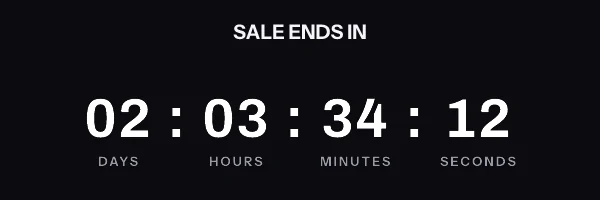
Yes. Managing Shopify Messaging templates lists the section types a template can hold, and one of them is Countdown. Its editing options are an end date and end time, an optional URL, the font, the text colour, the background colour and the section padding. Then: “After you add an end date and time, a live countdown GIF automatically generates. There is built-in padding on the countdown GIF that can’t be adjusted.”
Shopify documents nothing further. Alt text, an image for after the deadline, and a deadline that differs per customer are not among the listed options. The same article does list alt text for its Image and GIF and Video sections. If you want one live deadline for the send, with a font and colours you pick, the Countdown section does that with nothing else installed. Use it.
A timer from elsewhere earns its place when you need something the section does not list. Alt text you write is one, since for a reader with images turned off it is the whole message. An image of your own for after the deadline is another, and so is a different timer family, or a preview of each mail client before you send.
Where the snippet goes
Not in an Image and GIF section. Shopify’s template article says that section takes “an image or GIF from your Shopify files”, or a new upload. An uploaded GIF is a finished file. It cannot count down from the moment somebody opens it, because nothing redraws it.
The snippet goes in a Custom Liquid section. Shopify’s custom Liquid article says these options “let you input custom Liquid or HTML”, with a limit of “Maximum 50 kilobytes (KB) for custom Liquid sections.” A timer snippet is well under one kilobyte. Shopify also notes that “You can only use a desktop device to create a custom Liquid section.”
The alternative is a whole email written as code, which Shopify calls Code your own. That route allows 500 KB, and it adds requirements. The unsubscribe_link or unsubscribe_url variable must be in the code, and so must open_tracking if open tracking is on.
Which Liquid the snippet can use
Shopify is specific here: “The variables that you include in your code need to be supported by custom Liquid.” The list for all email templates includes customer.first_name, customer.email, customer.tags and shop.name, among others. Abandoned checkout automations add an abandoned_checkout object with its own url.
Use those in the link and the alt text, and keep them out of the image address. That address is signed over every parameter it carries. A customer’s name written into it at send time would break the match for everyone, and each customer would get a grey “image unavailable” card, returned with HTTP 200. So Liquid appears only where nothing is signed:
<a href="https://yourstore.com/collections/sale" target="_blank" rel="noopener">
  <img src="https://img.emailtimer.app/i/k7mQ2pXd.gif?w=w_8ha3fq&v=3&sig=YOUR_SIGNATURE" alt="{{ customer.first_name }}, the sale ends at midnight" width="600" height="200" border="0" style="display:block; width:100%; max-width:600px; height:auto; border:0;" />
</a>
The ids in that address are examples. Your own comes from the publish screen, and this shape works on the free plan. Customers who open hours apart see different numbers, because the time left is drawn when their mail client fetches the image.
A deadline per customer
Elsewhere, a per-customer deadline means storing one signed address per customer in a contact field and pointing src at that field. Shopify Messaging’s supported variables include no field that could hold one, and metafields are not on its list for all email templates. The per-customer route therefore has nothing documented to read from, and I would not build a campaign on a variable Shopify does not list.
Two alternatives hold up. An evergreen timer counts from the first fetch of an address, but a campaign address is one clock for the send, started by the first person to open. A recurring timer, such as every Sunday at 09:00 in a named time zone, needs no customer data at all.
If your store sends its lifecycle email through Klaviyo, a Klaviyo profile property can hold a signed address per customer. The Klaviyo setup guide covers that route, which needs Growth or Agency here.
What your customers will see
Past the send, the customer’s mail client is in charge. Microsoft’s Outlook support page says “If only the first frame of the animation appears, you have animations, or animated GIFs, disabled.” Our first frame already shows the time left, so the Outlook reader gets a still countdown with the right number on it. Apple’s Protect Mail Activity “downloads remote content in the background by default”, which can fix the number at delivery rather than at the open.
Countdown timers in Outlook goes version by version, and the email client support page covers the others. Both describe what the vendors document. Neither is a report from a real inbox, because I have not run that test yet.
Test before you send
Shopify’s campaign article documents a test send from the campaign itself. Click Send test, then “enter up to five email addresses that you want to send the test to, one at a time.” Use two of the five on different mail apps.
Look at two things in what arrives. The timer should show the right time for the moment you opened it. And the alt text should read as a sentence, which you can check by turning images off in one client.
Questions and answers
Does Shopify Email have a countdown timer?
Yes. Shopify Messaging has a Countdown section with an end date and time, an optional URL, and font and colour options. Shopify generates the GIF itself.
Why would I use a different timer in Shopify Email?
For something the Countdown section does not list: alt text you write, your own image for after the deadline, a different timer family, or a preview of each mail client before the send.
Can I paste a timer image URL into an Image and GIF section?
Not by anything Shopify documents. Its Image and GIF section is described as taking files from your Shopify files or a new upload. Put the snippet in a Custom Liquid section instead.
Can each customer get their own deadline in Shopify Messaging?
Not through anything Shopify documents. Its supported Liquid variables include no field that can hold a per-customer image address. A store sending through Klaviyo can do it with a profile property.
Is the free plan enough for a Shopify store?
For one sale deadline, yes, as long as the images are fetched fewer than 5,000 times a month. Starter, at $19 a month, covers 250,000 opens a month. The tiers are on pricing.
Sources
- Managing Shopify Messaging templates (Shopify Help Center)
- Customize your Shopify Messaging campaigns using Liquid (Shopify Help Center)
- Create email marketing campaigns using Shopify Messaging (Shopify Help Center)
- The animated graphic in my e-mail message doesn't work (Microsoft Support)
- Mail Privacy Protection and Privacy (Apple Legal)