Omnisend in practice
Omnisend countdown timer setup guide
By Danish Mohammed, founder. , updated 6 min read
Omnisend ships a countdown timer, and for a lot of stores it is the right answer. Two documented limits decide whether it is yours: the plan it needs, and the single end time it gives every recipient.
Does Omnisend have its own countdown timer
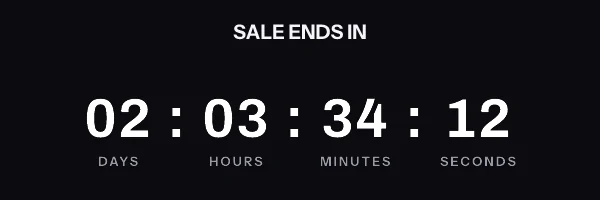
Yes. Omnisend’s help article Add Countdown Timer to Your Emails describes a Countdown timer you drag into a campaign or into an email block inside an automation. You set a date and time, choose one of three formats (DD:HH:MM:SS, HH:MM:SS or MM:SS), pick a font and a colour, and add alt text. When the countdown expires, a fallback image replaces it. Left at the default, that image says “THIS OFFER HAS ENDED”.
The first limit is the plan. The article says “The Countdown timer is available only on the Standard and Pro plans.” If you are on a Free or legacy plan, it tells you to upgrade.
The second limit is the clock. Omnisend’s timer “uses a single fixed end date and time for all recipients.” The next sentence rules out the other reading: “It does not create an individual countdown from send time.” The article’s FAQ asks “Can I create an evergreen Countdown timer?” and answers “No.” The end time follows the time zone in your store settings, under Store information.
So the native block covers one deadline for everybody, on a paid Omnisend plan. If that describes your campaign, use it. What it leaves out is a Free or legacy Omnisend account, and a deadline that differs per shopper.
Where the snippet goes
Omnisend’s answer to the second case is in the same FAQ: “use an HTML block with a third-party countdown timer and Omnisend personalization tags.” The HTML block is documented in Add & Configure Custom HTML Item. That article does not say which Omnisend plans include the HTML block, so check yours before you plan around it.
In the Email Builder, open Add Elements, drag the HTML block into your email, and click it to open the editor on the right. The markup goes in the HTML input. CSS rules go in the separate Styles input, because CSS pasted into the HTML input “may be stripped or ignored”. Two details from Omnisend’s checklist apply directly to a timer. Image URLs must start with https:// and be publicly accessible. And if you copied the snippet out of a visual editor, paste it through a plain text editor first.
The image tag is on Omnisend’s supported list, with the note “Images must use absolute URLs”. The snippet here uses an anchor, an image and inline styles, so it stays inside what the block accepts. Omnisend also says its support team “cannot assist with custom code issues”, so a problem inside the block is yours to debug.
Omnisend’s send-time trick and a signed address
The HTML block article includes a way to make a third-party timer count from send time. It appends [[ current_date | date: '%s' | plus: 86400 ]] to the timer’s image URL, so Omnisend writes the send time plus one day into the address.
That works for an image address nobody has signed, which is what the article was written for. A timer address from here is signed before it ever reaches Omnisend, and the HMAC covers every parameter. Once Omnisend writes a timestamp into it, the signature describes an address that no longer exists. Every contact in the send gets a grey “image unavailable” card, served with HTTP 200, so no report or log flags it.
Getting a clock that starts per shopper takes a different route. An evergreen timer counts from the first fetch of an address, so a single campaign address starts one clock for the whole list. One clock per shopper means one signed address per shopper, made before the send by the batch endpoint in the REST API or by a recipient set, on Growth or Agency.
The tag form for a per-shopper address
Omnisend’s personalization guide is strict about syntax. It says “Personalization syntax must use double square brackets”, gives [[contact.first_name]] as the example, and warns that other formats display as raw text. A custom property is written with its full path, as [[contact.custom_properties.name_of_custom_property]].
A property called et_image_url that holds a complete signed address therefore goes in as the src:
<a href="https://yourstore.com/sale" target="_blank" rel="noopener">
  <img src="[[contact.custom_properties.et_image_url]]" alt="[[contact.first_name]], your offer ends soon" width="600" height="200" border="0" style="display:block; width:100%; max-width:600px; height:auto; border:0;" />
</a>
Omnisend’s fallback filter is written [[contact.first_name | default: "there"]], and its FAQ confirms that single and double quotes both work. Inside a double-quoted HTML attribute, use single quotes or leave the filter out, or the attribute closes early.
The same guide separates two kinds of data, and the difference decides where the address lives. Custom properties “are stored permanently on contact profiles and work in all campaigns and automations.” Event variables only work in automations triggered by that event, and “Campaigns cannot access event variables.” Put the signed address in a custom property, and write it before the automation reaches the email.
What your recipients will see
The mail client takes over at delivery. For Outlook, Microsoft’s support page says “If only the first frame of the animation appears, you have animations, or animated GIFs, disabled.” A GIF from here puts the real time left in its first frame, so a shopper whose Outlook does not animate still reads a correct deadline.
Apple Mail is the other one to plan for. Its Protect Mail Activity setting “downloads remote content in the background by default”, which can fix the number at delivery rather than at the open. The email client support page covers the rest. These are the vendors’ documented behaviours, not results from an inbox test, because no timer here has been through one yet.
Test before you send
Omnisend’s test emails are the wrong tool for a timer held in a property. The personalization guide says “Test emails do not include real contact data”, and that a tag with a default: fallback shows the fallback. Its troubleshooting section adds that editor test emails “will always show raw personalization tags”. The src tag has no fallback, so a broken image in a test email is expected either way.
Omnisend points to two tools that do use real data. Use Dynamic Preview with a contact selected, or send the campaign live to your own address with the property filled in. For an automation, the HTML article is plain: “You can only test Automation Workflows by triggering them yourself”. Place a test order, or fire the trigger event, from a contact whose property you have filled in.
Questions and answers
Is Omnisend’s countdown timer available on the free plan?
No. Omnisend’s help article says the Countdown timer is available only on the Standard and Pro plans, and tells Free and legacy accounts to upgrade.
Can Omnisend’s own timer count down separately for each contact?
No. Omnisend documents that it uses one fixed end date and time for all recipients and cannot create an evergreen timer. For a deadline per contact, Omnisend itself points to an HTML block and a third-party timer.
Can I add current_date to the timer URL the way Omnisend’s article shows?
Not with a signed address. The value would be written in after signing, and every contact would get the grey “image unavailable” card. For a clock per contact, store one signed address per contact in a custom property.
Why does my Omnisend test email show a broken timer image?
Because test emails do not use real contact data, so the property holding the address never resolves. Check it with Dynamic Preview or a live send to yourself.
What does this cost next to Omnisend’s native timer?
The campaign snippet, with one deadline for everybody, is on the free plan here with 5,000 image opens a month. An address per contact needs Growth at $49 a month. Every tier is on pricing, and the free generator makes a one-deadline timer without an account. A timer from the free generator works for 500 opens without an account, and for 1,000 once you sign in and claim it.