Make a Mailchimp countdown timer
By Danish Mohammed, founder. , updated 4 min read
Build your timer
Live preview
Rendering
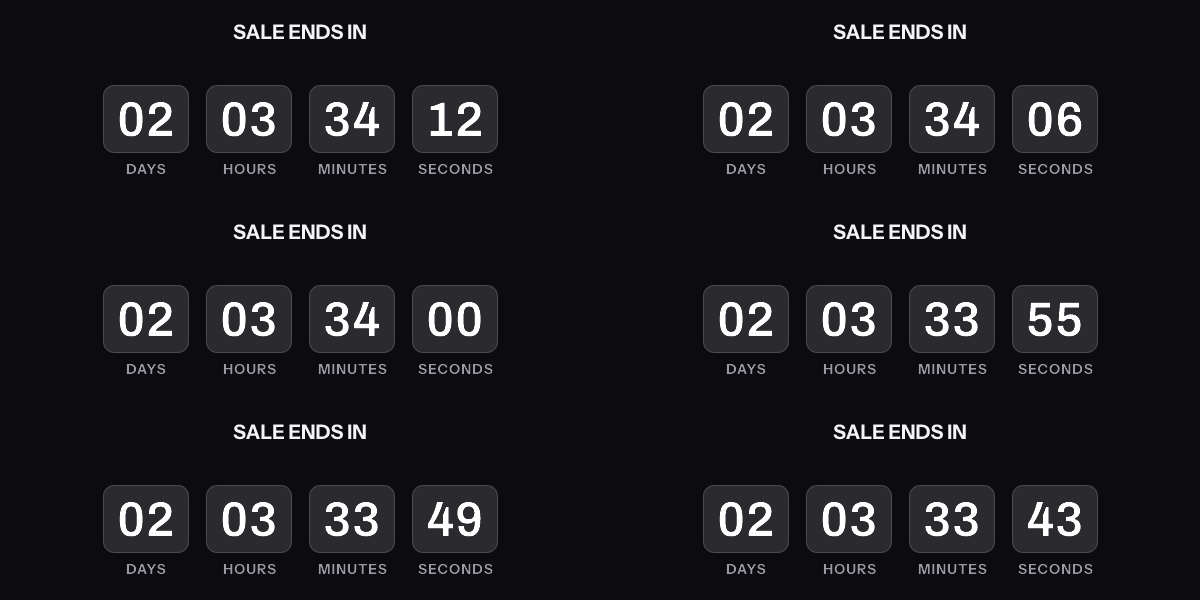
A downloaded GIF counts from the moment it was made, not from the moment it is opened. The hosted timer above is what counts from the open.
Get the code
This publishes the timer above and hands you the snippet. No email address, no account. Without an account, a timer from this generator works for 500 opens. Sign in and claim it, and the same timer works for 1,000 opens. After that, the image shows a note that its free opens are used up.
Your timer is live
HTML snippet
Image URL
See it in a real inbox
The preview above is your browser fetching the image. A mail client fetches it differently, and that is the part worth checking before a campaign goes out. Type an address you can open and this timer is sent there once, in a message that carries the picture and one sentence saying you asked for it.
One send per timer, and the address is used for that message and nothing else. The time in the picture is the time when your mail client fetched it, which is the behaviour the test is for.
Where to paste it
Keep it, or keep going
This timer works as it is, for 500 opens. To change the deadline later, see how many people opened it, use per-recipient evergreen timers, put a name or a code in the image, or use your own fonts, create a free account.
Create a free accountClaim code
After you sign up, open Templates and choose Claim a generator timer, then paste this code. It is valid until . Claiming raises this timer, the same image address you already copied, from 500 to 1,000 opens.
Mailchimp has no countdown timer block. It has a Code block, and that is where a timer goes. The generator above is set for it.
The Code block, in both builders
Mailchimp’s guidance for the new builder is one sentence long: “Use Code blocks to add custom HTML directly into your email.” You click a Code block or drag one in from the side panel, then paste the snippet into the Code menu.
The legacy builder has the same block under the same name, described the same way: “Use the Code content block to add HTML code directly into your email.” Mailchimp keeps a separate help article for each builder, which is the clearest signal that the two are different products sharing a vocabulary.
Mailchimp’s own guidance in that article explains why a timer has to be an image. JavaScript is removed from Code blocks automatically, so nothing in an email can count down on its own. External stylesheets do not work either, which is why the snippet’s styling is inline and its width is an HTML attribute.
Which builder you are in
Mailchimp describes the new builder as “our updated designer with a refined interface that lets you undo/redo your edits to your draft”. The legacy builder is the one it still points you to for custom-coded templates and RSS feeds.
For a countdown timer the practical difference is small, because Code blocks exist in both. Two things do change.
In the new builder the Code block sits in the side panel with the other blocks, and the block list is fixed. In the legacy builder you can also edit the template’s own code, which is where people get into trouble. A timer pasted into a hand-edited template can end up outside the table that holds the layout together. Paste into a Code block rather than into the template source.
Merge tags around the timer, not inside the URL
Mailchimp merge tags are written *|TAGNAME|*. The standard audience fields are the ones you already know: *|FNAME|* inserts the contact’s first name “if it’s available, in your audience”, *|EMAIL|* inserts the address, and custom audience fields get tags of their own.
Those tags work inside a Code block. What they cannot do is sit inside the image URL.
The URL the generator hands you is signed, and the signature is taken over every query parameter. Mailchimp substitutes *|DEADLINE|* after the code leaves the editor, so the value that arrives is not the value that was signed. Verification fails, and the image service answers with a fallback picture rather than an error, because a delivered email cannot be recalled. The whole send looks fine in the reports and looks wrong in the inbox.
Put merge tags where nothing is signed: in the link href around the image and in the alt text. For a deadline that genuinely differs per contact, mint one signed URL per recipient, store it in a custom audience field, and set the image source to that field’s merge tag. The steps are on the Mailchimp integration page.
The image block route
If you would rather not touch code at all, an Image block takes the image URL directly. Paste the URL into the source field and set the width to the timer’s pixel width.
You give up the link wrapper and the alt text that the snippet carries, so add both in the block’s settings. Width matters more than it looks: a timer wider than the column reflows the layout in clients that do not scale images.
The same generator is set up for other places too: the Klaviyo version leads with Klaviyo’s HTML block, and the Outlook version opens on a style whose first frame stands on its own.
Before you send
Send yourself a test and open it in the clients your list actually uses. A Mailchimp preview shows you the template, not what an inbox does to an image.
For readers on classic Outlook for Windows, frame one of the GIF is the entire timer, so check that it reads correctly as a still. That is covered version by version on the Outlook page.
Check the expired state too. The image keeps answering after the deadline and shows the design at zero, so a campaign that gets forwarded a week later still shows a finished picture instead of a broken one.
Questions and answers
Does Mailchimp have a built-in countdown timer?
No. There is no countdown block in either builder. The Code block is the supported way to add one, and Mailchimp’s help centre documents that block for exactly this kind of custom HTML.
Can I put a merge tag in the timer image URL?
No. The URL is signed over its whole query string, and a value substituted after signing invalidates it. Use merge tags in the link and the alt text, or carry a per-recipient signed URL in an audience field.
Classic builder or new builder?
Either. Both have a Code block. The legacy builder is the one Mailchimp still points to for custom-coded templates, so long-standing hand-built templates usually live there.
Do I need an account to get the code?
Not for this timer. The generator publishes it and hands over the snippet with no address asked for. That timer works for 500 opens without an account, and for 1,000 once you sign in and claim it. An account adds a movable deadline, per-recipient URLs and open counts, free up to 5,000 image opens a month with no watermark. See pricing.
Sources
Related
Put a countdown in the campaign you are writing now
The free plan covers 5,000 opens a month with no card. Starter is $19 a month for 250,000.