Make a Klaviyo countdown timer
By Danish Mohammed, founder. , updated 4 min read
Build your timer
Live preview
Rendering
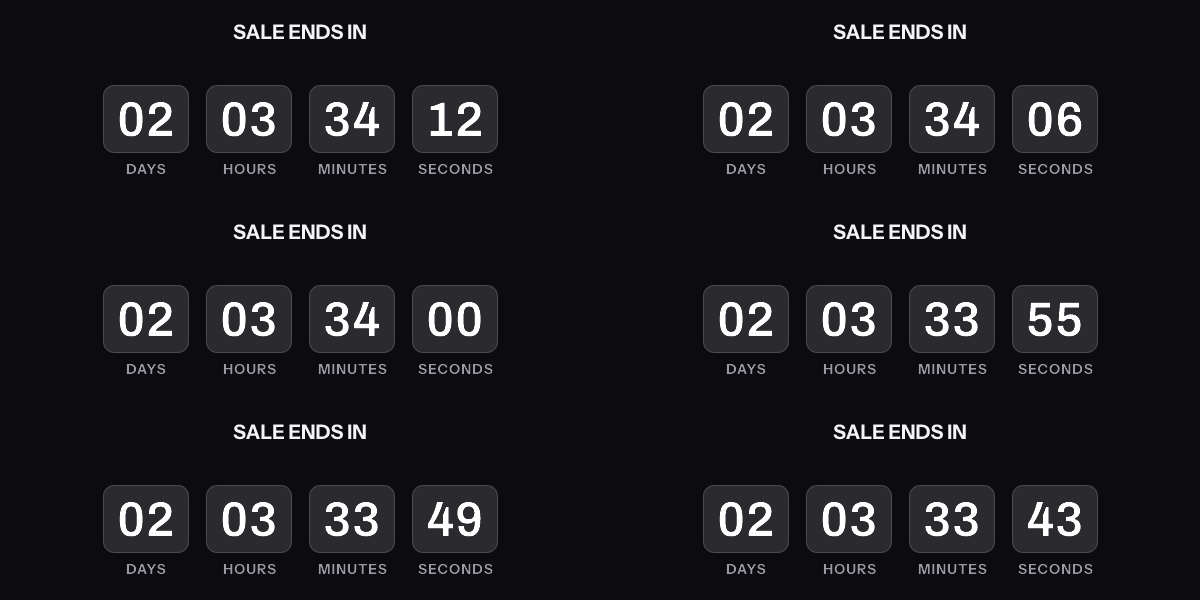
A downloaded GIF counts from the moment it was made, not from the moment it is opened. The hosted timer above is what counts from the open.
Get the code
This publishes the timer above and hands you the snippet. No email address, no account. Without an account, a timer from this generator works for 500 opens. Sign in and claim it, and the same timer works for 1,000 opens. After that, the image shows a note that its free opens are used up.
Your timer is live
HTML snippet
Image URL
See it in a real inbox
The preview above is your browser fetching the image. A mail client fetches it differently, and that is the part worth checking before a campaign goes out. Type an address you can open and this timer is sent there once, in a message that carries the picture and one sentence saying you asked for it.
One send per timer, and the address is used for that message and nothing else. The time in the picture is the time when your mail client fetched it, which is the behaviour the test is for.
Where to paste it
Keep it, or keep going
This timer works as it is, for 500 opens. To change the deadline later, see how many people opened it, use per-recipient evergreen timers, put a name or a code in the image, or use your own fonts, create a free account.
Create a free accountClaim code
After you sign up, open Templates and choose Claim a generator timer, then paste this code. It is valid until . Claiming raises this timer, the same image address you already copied, from 500 to 1,000 opens.
Klaviyo has no countdown timer for email. Its help centre says so in one line: “Klaviyo does not have a built-in countdown timer feature, so you’ll need to use a third-party tool.” The timer above fills that gap.
Where the code goes
Drag an HTML block into the template and paste the snippet into it. Klaviyo’s article gives the same two steps: “Add an HTML block to your template”, then “Paste in the code you copied from the previous section.”
Klaviyo’s template guide names this exact use: the HTML block is for “custom-coded elements, third-party features like countdown timers, or custom CSS”.
There is a second route that avoids code. Add an Image block, paste the image URL into its source field, and set the width to match. You lose the link wrapper and the alt text the snippet carries, so set both in the block’s settings.
The same generator is set up for other places too: the Mailchimp version leads with the Code block, and the Outlook version opens on a style whose first frame stands on its own.
Campaigns and flows are not the same send
Klaviyo’s personalization reference says event tags “can only be used in flows triggered by that event”. A campaign is not triggered by an event, so a cart expiry that arrived on a trigger payload is available inside an abandoned-checkout flow and is not available in Tuesday’s newsletter.
A campaign therefore wants a fixed deadline. Everybody counts to the same instant, the image is one URL for the whole send, and the clock is still correct per reader because it is drawn when their inbox asks for it. A flow can carry a deadline that belongs to one person, because the triggering event brought one.
A deadline that belongs to one profile
A profile property is written {{ person.property_name }}, or {{ person|lookup:'property name' }} when the name contains a space. A trigger value is {{ event.property_name }}.
One thing about those tags matters more than the syntax. A per-recipient deadline cannot be spliced into the image URL’s query string. The URL is signed, the signature covers every query parameter, and Klaviyo substitutes the value after the signature was taken. Verification then fails for the whole send, and the image service answers with a fallback picture at HTTP 200. Nothing alerts you.
The route that works runs the other way. Mint one signed URL per recipient from the API, write it into a Klaviyo profile property such as et_image_url, and set the image source to {{ person.et_image_url }}. The deadline, the recipient token and the version are all inside the signature, so nothing has to be edited in the template. The setup is written out on the Klaviyo integration page.
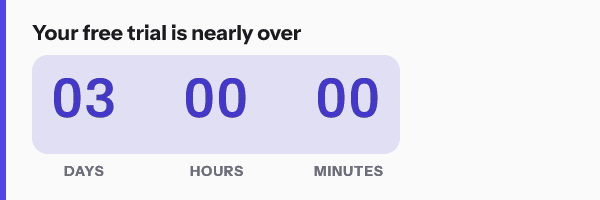
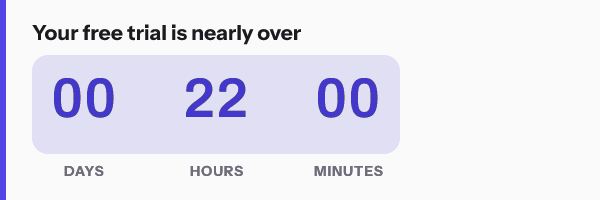
If you would rather not hold a URL on the profile, a countdown that starts at the recipient’s first open needs no per-profile data at all. The six models are set side by side in timer types.
What Klaviyo’s own countdown block does
Klaviyo does ship a countdown timer block. It is for sign-up forms, which are web pages rather than inboxes.
Its help article describes dragging a Countdown timer block into a form and choosing a Fixed or a Variable date type. The fixed type counts to a date. The variable type “begins counting down when the form launches, and resets with every new page load”, which is honest about what it is.
None of that reaches an email. The form block runs in a browser, where JavaScript is allowed. An email cannot run JavaScript, so the email version has to be an image drawn at the moment the inbox fetches it.
Before you schedule the send
Klaviyo’s preview panel shows a real profile’s values. Use it on a profile that has the properties your snippet references, because a blank value in preview is a blank value in the inbox.
Klaviyo’s article carries two client warnings, and both belong here. On Apple Mail: timers “may not render correctly”, because Apple Mail “generally pre-loads emails before they are opened, which can cause a countdown timer to display an incorrect time”. On old Outlook: versions 2007, 2010 and 2013 “will simply display the first frame in the GIF”. Both are covered on the email client pages.
Set alt text a reader can act on. For the share of any list that has images off, the alt text is the whole message.
Questions and answers
Does Klaviyo have a built-in countdown timer for email?
No. Its help centre states that there is no built-in countdown timer feature for email and points to third-party tools. The countdown block it does ship is for sign-up forms.
Can I use a countdown timer in a Klaviyo campaign as well as a flow?
Yes, with a fixed deadline. What a campaign cannot do is read event tags, because Klaviyo restricts those to flows triggered by that event.
How do I give each recipient their own deadline?
Put a signed per-recipient image URL into a profile property and reference that property in the image source. Do not put a merge tag inside the image URL’s query string, because the signature covers the query and substitution breaks it.
Do I need an account to get this code?
No. The generator above publishes the timer and hands over the snippet. That timer works for 500 opens without an account, and for 1,000 once you sign in and claim it. An account is for moving a deadline after the send, per-recipient URLs and analytics. It starts free at 5,000 image opens a month with no watermark. The rest is on pricing.
Sources
- How to add a countdown timer to an email (Klaviyo Help Center)
- How to add a countdown timer to a sign-up form (Klaviyo Help Center)
- How to use event data to personalize email and SMS flows (Klaviyo Help Center)
- Message personalization reference (Klaviyo Help Center)
- Guide to the email template editor (Klaviyo Help Center)
Related
Put a countdown in the campaign you are writing now
The free plan covers 5,000 opens a month with no card. Starter is $19 a month for 250,000.