SendGrid in practice
SendGrid countdown timer setup guide
By Danish Mohammed, founder. 6 min read
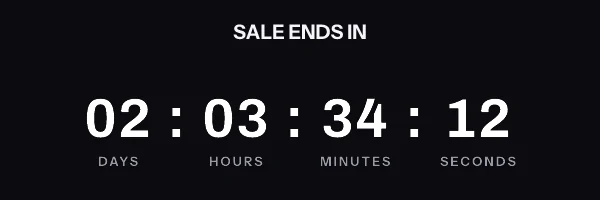
In SendGrid, a countdown timer can go in a dynamic template sent through the Mail Send API, or in a Marketing Campaigns design. Either way, the work is in deciding where the image address comes from, and that depends on whether every recipient shares one deadline.
Does SendGrid have its own countdown timer
I could not find one. SendGrid’s documentation for its two email editors and for dynamic templates describes no timer module. A countdown in a SendGrid email is an image served from elsewhere.
Two ways to wire it
The same moment for everyone. Publish the timer, copy its signed image address, and put it straight into the dynamic template. No API call happens per send, and the free plan covers it. The time left is drawn when each mail client fetches the image, so a fixed order cut-off stays right all day. A transactional email sent at 09:00 and one sent at 17:00 both show the correct time left.
A different moment per recipient. Each recipient needs their own signed address, made before the send and passed in with the rest of their data. The address carries one of two things. An address exported from a recipient set carries an opaque recipient token, and the renderer looks the deadline up from it. An address minted by POST /urls/batch with a deadline param carries the date itself, signed and readable in the URL. Minting those addresses takes the REST API or a recipient set, and Growth is the first plan with either.
Where the address goes
SendGrid’s dynamic template guide says the Handlebars variables “point to the JSON keys in your dynamic_template_data object”. So the per-recipient address travels as one more key in each personalization:
{
  "from": { "email": "billing@yourapp.com" },
  "template_id": "d-your-template-id",
  "personalizations": [
    {
      "to": [{ "email": "sam@example.com" }],
      "dynamic_template_data": {
        "first_name": "Sam",
        "et_image_url": "https://img.emailtimer.app/i/k7mQ2pXd.gif?w=w_8ha3fq&v=3&r=tok_3fJq9xYw2LmPa8Rt&sig=YOUR_SIGNATURE"
      }
    }
  ]
}
The template then reads that key as its src:
<a href="https://yourapp.com/billing" target="_blank" rel="noopener">
  <img src="{{{et_image_url}}}" alt="{{first_name}}, your trial ends soon" width="600" height="200" border="0" style="display:block; width:100%; max-width:600px; height:auto; border:0;" />
</a>
Pass the address in finished, never as pieces the template joins together. An HMAC signature covers every parameter in it, so a template that assembles the address, or drops a date into it, produces one the image service will not accept. The service still answers every recipient, with a grey “image unavailable” card and HTTP 200, so nothing on either side reports a failure.
Double braces or triple
SendGrid’s Handlebars reference quotes the Handlebars documentation on the triple-stash, {{{ }}}, which outputs a value without escaping it. Its own example of a link built from data uses double braces, as <a href="{{ url }}">.
A signed address contains ampersands. Escaped inside an attribute, they are decoded again by the mail client’s HTML parser, so the double-brace form should resolve correctly. The triple-stash removes the question entirely, and for an image address it is what I would use. The alt text can stay in double braces.
Minting the addresses before the send
There are two routes, and both happen outside SendGrid.
The first starts from a recipient set. Upload a CSV with each recipient’s values through POST /recipient-sets/{setId}/upload, then stream one signed address per row back as CSV from POST /recipient-sets/{setId}/urls. The import error report is per row, so a file with three bad dates says which three.
The second is POST /urls/batch, which mints up to 10,000 signed addresses in one call. Minting changes nothing in the workspace, so a read-scoped key is enough. The full reference is on the REST API page.
Plan the numbers on both sides. Most API routes here allow 60 requests a minute per key, and the two bulk routes allow 600. SendGrid’s Mail Send reference caps the personalizations array at 1,000 items per request, so one batch call here covers ten full Mail Send requests.
What not to do is mint one address inside the request path of each transactional send. The single-URL route allows 60 requests a minute, and a signup spike can pass that in seconds. Mint ahead, store the address beside the user record, and read it when the email is built.
Marketing Campaigns
Marketing Campaigns reads contact fields rather than a JSON payload, and its tags use double braces too. The editor guide lists {{first_name}} and {{email}} among the reserved tags, and says custom fields appear in the Tags tab of either editor. Import the signed address into a custom field such as et_image_url and write the image as src="{{et_image_url}}".
Two things there are undocumented, so check them with a real send. The editor guide does not say whether a substitution tag resolves inside an img attribute. And the triple-brace form above comes from the Handlebars reference for dynamic templates, which I would not assume carries over to Marketing Campaigns.
SendGrid documents one way to set a default, {{insert first_name "default=Valued Customer"}}, and warns that “For contacts with no entry in a custom field, the substitution tag appears blank.” A blank src is a missing image, so check the field is filled for every contact in the segment. That default form carries double quotes, which would close a double-quoted attribute, so keep it out of alt and src.
On editors: the code editor, in SendGrid’s words, “doesn’t add excess code or modify your code”. The design editor builds from drag-and-drop modules, and SendGrid says you can edit their HTML. For a snippet you want delivered exactly as written, the code editor is the safer of the two.
What your recipients will see
Once SendGrid delivers the message, the mail client decides what happens. Microsoft’s support page says “If only the first frame of the animation appears, you have animations, or animated GIFs, disabled.” That first frame is drawn with the real time left in it, so an Outlook reader who never sees the animation still reads the right figure.
Google’s Workspace documentation says “Gmail uses Google’s secure proxy servers to serve images”, so a later open can be answered from a copy the proxy holds. How far that copy drifts depends on its age, which matters less for a cut-off counted in hours than for one counted in minutes. The email client support page covers the other clients, from their documentation rather than from an inbox test, which I have not run yet.
Test before you send
SendGrid’s editor guide says “Both editors provide a data preview feature”, so you can “use test data and view the result in the editor’s preview pane”. Put a real signed address into the test data as et_image_url, not a placeholder, so the preview has a real image to fetch.
Then send one message to yourself through Mail Send, with the same payload shape your code will use. The preview shows the template resolving. The delivered copy shows what a mail client’s proxy and cache do with the image, which is the part no preview can tell you.
Questions and answers
Does SendGrid have a built-in countdown timer?
Not that I could find in its editor or dynamic template documentation. A timer in a SendGrid email is an image served by a timer service.
Can I put a deadline variable into the timer image URL?
No. The address is signed, so a value substituted into it after signing breaks verification for every recipient. Pass a complete signed address as one key in dynamic_template_data.
Do I need the API for a SendGrid countdown timer?
Not for one deadline shared by every recipient. Paste the published address into the template, which works on the free plan. You need the API or recipient sets, on Growth or Agency, only when each recipient’s deadline differs. What each plan includes is on pricing.
How many signed URLs can I mint for one SendGrid send?
Up to 10,000 per batch call, at up to 600 calls a minute per key. SendGrid accepts up to 1,000 personalizations per Mail Send request.
Should the image source use double or triple braces?
In a dynamic template, triple braces, {{{et_image_url}}}, pass the address through unescaped, which settles any doubt about the ampersands. SendGrid’s Handlebars reference quotes the Handlebars documentation on the triple-stash. In Marketing Campaigns, use double braces and check a real send.
Sources
- Send an email with dynamic templates (SendGrid Docs)
- Using Handlebars (SendGrid Docs)
- Mail Send (SendGrid API reference)
- Choose an email editor (SendGrid Docs)
- The animated graphic in my e-mail message doesn't work (Microsoft Support)
- Set up an image URL proxy allowlist (Google Workspace Admin Help)