MailerLite in practice
MailerLite countdown timer guide
By Danish Mohammed, founder. 5 min read
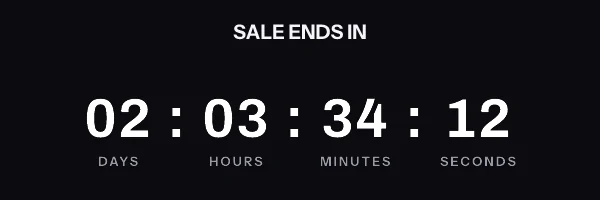
MailerLite documents its own countdown block more honestly than most platforms document theirs. Two sentences in that help article decide whether the block is right for your campaign, and both are easy to miss.
Does MailerLite have its own countdown timer
Yes. The Countdown block sits in the Special tab of the drag-and-drop editor, alongside the survey, signature, accordion and code blocks. MailerLite’s help article gives the click path plainly: open the draft campaign in the drag-and-drop editor, find the Special tab in the left sidebar, then drag the Countdown block into the campaign.
Three documented behaviours define what it is. It “will play on a 90-second loop when a subscriber opens your newsletter”. It “uses your account time zone to calculate the expiry date”. And on old Outlook, MailerLite writes: “While countdown timers are compatible across all mailboxes, the timer will not count down if your subscriber is using Outlook 07/10/13. The countdown timer will instead appear as a static image.”
The time zone line is the one to stop at. An account set to Vilnius sends a deadline computed in Vilnius, so a subscriber in Los Angeles sees a countdown to a moment that is not the one they would have calculated. That is correct behaviour for a launch with a single global cut-off. It is wrong for anything framed as “ends at midnight your time”.
The 90-second loop is a design decision rather than a defect, and it has a consequence. A timer that restarts is a timer that shows the same number twice, which is the pattern people describe on forums as a frozen countdown.
Where the snippet goes
A server-rendered image goes into the Code block, in the same Special tab as the countdown. MailerLite’s drag-and-drop reference names the restriction that makes this the only viable route: “JavaScript and codes such as embed, frame, iframe, form, input, object, and textarea are not allowed.” An image tag is none of those.
For a message built entirely from markup, MailerLite’s custom HTML editor takes code written from scratch or an HTML import as a ZIP file, and its sidebar inserts personalization variables into either.
Variables use a dollar sign inside braces. MailerLite documents {$name} for a first name and {$email} for the address. Custom fields work the same way: “Every field in MailerLite has an accompanying Tag, including the fields you created yourself”, listed in the Tag column. Defaults are written inline as {$name|default('Friend')}, and without one the space “will appear blank unless you add a default value”.
A per-subscriber deadline cannot travel as a variable in the image URL. Every query parameter is inside the signature, so a value substituted after signing invalidates the URL for the whole send. Create a custom field to hold a pre-signed URL and use its tag as the source:
<img src="{$et_image_url}" width="600" height="200" border="0" alt="Your offer ends soon" />
In the drag-and-drop editor, variables are inserted with the {x} button that appears when you double click into a text area, which is a faster way to get the exact tag than typing it.
What breaks in automations and flows
An automation email runs for as long as the workflow does. A native countdown with a fixed expiry date inside a welcome sequence is accurate for a while and misleading afterwards, and nothing in the workflow will tell you when it crossed over.
The account time zone compounds this in an automation. A fixed deadline in your time zone, delivered to a list spread across several, produces a countdown that is arithmetically correct and rhetorically wrong for most readers. A deadline anchored to each subscriber’s own entry instant avoids the problem, because the duration is the same wherever they are.
Test emails hide part of the picture. MailerLite’s test email article lists what stops working in one, and dynamic content blocks are on that list along with the unsubscribe link, forward links, survey blocks and event blocks. A test send is therefore a check on layout rather than a full rehearsal of personalization.
The ordinary field problem applies as well. A custom field with no value renders blank, so an image source built from an empty field becomes an empty attribute. Populate the field before the automation reaches the email step.
What your recipients will see
MailerLite is unusually candid about one client, and its candour generalises. Outlook 2007, 2010 and 2013 show a still image rather than an animation, which MailerLite states outright. The same thing happens on later classic Outlook builds on Windows, where HTML is drawn by the Word engine and a GIF is reduced to its first frame. Apple Mail with Mail Privacy Protection fetches remote images at about the time the message is delivered, so the figure reflects delivery. Gmail proxies images and can serve a copy it already holds when the same reader opens the message again.
That is documented client behaviour rather than a render I have photographed, and the full version is on the email client support page. Put it beside the 90-second loop and one rule falls out for both timers. Frame one has to be a finished picture carrying a correct number, because for a large share of any list frame one is all there is.
Test before you send
Click Preview and test in the top right of the campaign editor and choose Send a test email, then enter the address you want it at. The message arrives with [TEST] in the subject line, which your subscribers never see.
Send to Gmail and to Outlook in the same pass, and remember what the test cannot tell you. Dynamic content blocks do not function in a test email, so confirm the value of any custom field in the editor rather than inferring it from what arrives. MailerLite also warns that test emails land in spam more often than real ones, because of the label added to the subject.
Questions and answers
Does the MailerLite countdown use the subscriber’s time zone?
No. MailerLite documents that the countdown timer “uses your account time zone to calculate the expiry date”, so every subscriber counts down to the same instant expressed in your zone.
Why does the MailerLite timer restart?
Because the block plays on a 90-second loop when the newsletter is opened. Once the loop completes it begins again, which reads as a stuck counter to anyone watching closely.
Does the native block work in Outlook?
Not as an animation on Outlook 2007, 2010 and 2013, where MailerLite says it “will instead appear as a static image”. Later classic Outlook builds on Windows behave the same way for the same reason.
Where do I paste custom timer code in MailerLite?
Into the Code block in the Special tab of the drag-and-drop editor, or into the custom HTML editor for a fully coded campaign. JavaScript is rejected in both.
Can I run a deadline per subscriber?
Yes, by writing a pre-signed image URL to a custom field and using {$et_image_url} as the image source. The deadline sits inside the signed URL, so it is fixed for that subscriber wherever they open the mail. Minting those addresses is a Growth feature, and the tiers are on pricing.