Constant Contact in practice
Constant Contact countdown timer setup guide
By Danish Mohammed, founder. 5 min read
The usual instruction for a timer is to paste a snippet into a code block, and Constant Contact’s regular email builder does not take one. It has two image options that get the same result instead, and one of them reads a value from each contact’s record.
Does Constant Contact have its own countdown timer
No. When somebody asked in Constant Contact’s community how to insert an HTML countdown timer, the reply marked best came from a community admin badged as a Constant Contact employee, in December 2023. It suggested the custom code editor, and said “HTML code and RSS feeds cannot be manually inserted into the regular email builder.” It is the only reply, and it names no timer block.
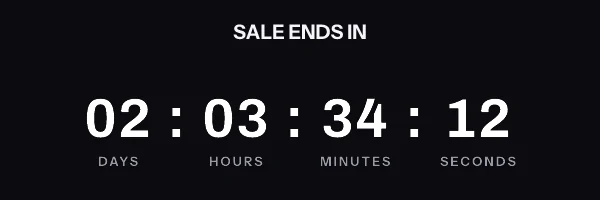
So a countdown in a Constant Contact email is an image from a timer service. There are three places to put it.
Route one: an Image block with an image URL
This is the route for one deadline shared by everyone on the send. Constant Contact’s article Insert, replace, or remove images in an email covers images “hosted online that are publicly viewable”. Add an Image block, click the Image URL tab, and paste the link into the Image URL field. Click Preview, enter an image description in the Alt Text field, and click Insert.
Paste the signed image address from the publish screen, and nothing else. The free plan covers this route. Readers who open hours apart still see different numbers, since the time left is worked out when their mail client requests the image. Set the link on the image to your sale page, and write the deadline as text near it for anyone with images off.
Route two: a Dynamic Image with a custom field
The same article has a Dynamic Image tab, with a Dynamic Variable field. Its example is a logo stored in account settings. A tip underneath says dynamic images work with Contact and Custom variables as well as Account variables.
That is the route for a deadline per contact. On Growth or Agency, generate one signed address per contact, either with the REST API’s batch endpoint or by exporting a recipient set as a CSV. Import the addresses into a custom field, then put the field’s variable in the Dynamic Variable box. Constant Contact’s dynamic links article gives the form as [[custom.my_custom_field_name]], so a field called et_image_url is:
[[custom.et_image_url]]
Pick the field type with the length in mind. According to the custom fields article, a single line text field “allows up to 250 characters to be entered into the field.” A signed address with a recipient token comes to about 165 characters on the default image host, so it fits. On an Agency white-label domain, your own hostname replaces img.emailtimer.app, so count its length instead.
Route three: the custom code editor
If you build the email as custom code, the full snippet goes into the HTML. Constant Contact’s custom code personalization article lists the tags. A first name is [[FirstName]], an email address is [[EmailAddress]], and a custom field is [[custom.field_name]], with spaces in the field name replaced by underscores. It also says “Capitalization isn’t important.”
<a href="https://yourstore.com/sale" target="_blank" rel="noopener">
  <img src="[[custom.et_image_url]]" alt="[[FirstName]], your offer ends soon" width="600" height="200" border="0" style="display:block; width:100%; max-width:600px; height:auto; border:0;" />
</a>
For a shared deadline, replace the src value with the signed address itself. Fallback text is written inside the tag, as or followed by quoted text. Those inner quotes close a double-quoted attribute, so leave fallbacks out of alt.
The developer portal adds a hard rule for custom code emails. They “cannot exceed 400 KB or contain the character combinations” [#, ${ or <@. A signed address contains none of them.
Dynamic links and the signed address
Constant Contact documents dynamic links with a variable on the end of a URL, as https://www.yourdomainhere.com/exampleaction?exampleparameter=[[variable]]. That is correct for a link to your site.
It is the wrong shape for a timer image. A timer address from here is signed with an HMAC over all of its parameters, so a contact’s value appended at send time turns it into an address the signature does not match. Every contact then gets a grey “image unavailable” card, with HTTP 200. Variables are fine in the link around the image. The image itself takes a complete signed address, or a field holding one.
What your contacts will see
After delivery, the mail client decides. On Outlook, Microsoft’s support page explains that “If only the first frame of the animation appears, you have animations, or animated GIFs, disabled.” The first frame of a timer from here already has the time left drawn in, so that contact still sees the right number. Apple’s Protect Mail Activity “downloads remote content in the background by default”, which can fix that number at delivery rather than at the open.
The email client support page compares the rest. If the image does not appear at all, start with why a timer is not showing. Both pages work from what the vendors document, because I have not yet watched one of these timers land in a real inbox.
Test before you send
For route one, a normal preview and test send are enough, because the address has nothing to resolve.
Routes two and three need a real send. Constant Contact says “Dynamic links won’t display when previewing or sending a test email.” It says that of links, not images, and gives no separate test route for a dynamic image, so I would treat one the same way. Its instruction is to “make a copy of the email and send it to your email address”, and to “make sure that you have information saved in your account for the appropriate variable.” For a custom field, that means your own contact record. For custom code, the personalization article says a preview shows “the information from your account profile”. Either way, put a real signed address on your own record before you check anything.
Questions and answers
Does Constant Contact have a countdown timer block?
No. A Constant Contact community admin’s answer pointed to the custom code editor, not to a timer block. A countdown is an image from a timer service.
Can I paste countdown timer HTML into a regular Constant Contact email?
Not according to Constant Contact, which says HTML cannot be manually inserted into the regular email builder. Paste the image address into an Image block’s Image URL tab instead.
Will a Constant Contact custom field hold a signed image URL?
A single line text field allows up to 250 characters. A signed address with a recipient token is about 165 characters on the default host, so it fits.
Why does my Constant Contact test email not show the per-contact timer?
Constant Contact documents that dynamic links do not display in previews or test emails, and gives no separate test route for dynamic images. Send a copy of the email to yourself, with your contact record holding a real address.
Which plan do I need for a Constant Contact timer?
One deadline for everyone on the send works on the free plan, with 5,000 image opens a month. A deadline per contact needs addresses minted per contact, on Growth at $49 a month. The full plan list is on pricing.
Sources
- Insert, replace, or remove images in an email (Constant Contact Knowledge Base)
- Insert dynamic links in an email (Constant Contact Knowledge Base)
- Add personalization to a custom code email (Constant Contact Knowledge Base)
- Add dynamic links to a custom code email (Constant Contact Knowledge Base)
- Create and manage custom contact fields (Constant Contact Knowledge Base)
- Designing HTML for Custom Code Emails (Constant Contact Developer Portal)
- How do I insert an HTML countdown timer into an email? (Constant Contact Community)
- The animated graphic in my e-mail message doesn't work (Microsoft Support)
- Mail Privacy Protection and Privacy (Apple Legal)