Why your countdown timer is not appearing at all
By Danish Mohammed, founder. 9 min read
A timer that shows the wrong number is a different problem from a timer that is not there at all. This page is the second one: a blank space, a broken image icon, alt text where a clock should be, or the raw embed code printed as text.
Six causes account for almost all of it. The first five are documented by the platform responsible. Part of the sixth comes from a third party’s guide, and it is labelled that way where it appears. Work down the list in order, because the cheap checks are first.
1. Images are switched off in the client
Start here, because it is the most common and the least interesting.
Outlook on Windows. Microsoft’s own page says it plainly: “Microsoft Outlook is configured by default to block automatic picture downloads from the Internet.” The Trust Center option is named “Don’t download pictures automatically in HTML e-mail messages or RSS items”. Microsoft lists avoiding tracking pixels among the reasons, which is exactly what a remote timer image looks like to a mail client.
Outlook.com. Microsoft documents that “Outlook.com helps protect your data by loading external images using an image proxy”. Two settings control it: “Always use the Outlook service to load images” and “Don’t use the Outlook service to load images”. A recipient on the second one does not get your image.
Gmail. Google’s default is the friendly one: “By default, when you get an email with an image, you’ll see the image automatically.” The alternative setting is “Ask before displaying external images”, and anyone who has picked it sees nothing until they click.
Yahoo Mail. The setting is “Show images in messages”, with “Always, except in Spam folder” as the default and “Ask before showing external images” as the alternative. Note the spam-folder clause: a message that lands in spam does not load images at all, whatever the setting says.
What to do about it: nothing technical. Put the deadline in body text next to the image, set width and height on the <img> so the blocked image reserves its space, and write real alt text. “Sale ends Friday” beats “countdown timer” when it is the only thing rendering.
2. A corporate proxy or an allowlist is in the way
This one shows up as “it works for me and not for anyone at that company”, and it is almost always a Google Workspace or a corporate network policy.
Google documents that “When your users open email messages, Gmail uses Google’s secure proxy servers to serve images that might be included in these messages”. It also documents the side effect: “Because of the image proxy, links to images that are dependent on internal IPs and sometimes cookies are broken.” Workspace administrators can maintain an “Image URL proxy allowlist” of internal URLs that bypass the proxy. Google adds that “Disabling the image proxy is not recommended”.
Corporate networks add their own layer. A secure web gateway that blocks uncategorised domains will block an image host it has never seen, and a brand-new white-label timer domain is exactly that.
What to do about it:
- Open the image URL directly in a browser on the affected network. If the URL fails there, the mail client was never the problem.
- Check whether the failure is domain-wide. One recipient is a setting; a whole company is a gateway.
- If you serve timers from a white-label domain, give the recipient’s IT team the hostname to categorise. A domain that has existed for a week has no reputation to lean on.
- Never depend on cookies, a referrer header or an internal IP in the image URL. Google says outright that the proxy breaks those.
3. The ESP rehosted the image and broke the URL
Several sending platforms treat every <img src> in your HTML as an asset to take a copy of. That is sensible for a logo and fatal for a timer, because a timer is not a file. It is a URL that must be fetched fresh, per recipient, at open time.
Adobe Campaign Classic is the clearest documented case. A thread in Adobe’s Experience League community describes a countdown GIF failing on upload with BAS-010035 Cannot write to file '/usr/local/neolane/nl6/var/xxx/upload/...' (errno=9, Bad file descriptor). The accepted solution runs in two halves. Upload the HTML without the timer’s img tag, then go to the tracking settings, find Images and disable the “Upload images” option. After that, paste the timer tag into the HTML by hand.
Mailchimp rehosts on import. Its own documentation of ZIP imports says “We’ll upload all your images and files to the content studio and create absolute paths for you when we convert your ZIP.” A rehosted timer is a frozen snapshot of one moment.
What to do about it:
- After building the campaign, view the sent or preview HTML and read the
srcof the timer image. - If it points at your ESP’s asset domain rather than the timer host, the image was copied. Turn the rehosting off for that campaign and paste the URL back in.
- Send a seed to yourself and open it twice, an hour apart. A rehosted timer shows the same number both times.
4. The builder stripped the tag or printed the code
The symptom here is distinctive. Instead of a timer you see the embed code itself, printed as text, or you see nothing and the HTML source has no img tag at all.
Two causes. Either the snippet went into a rich-text block that escapes HTML instead of an HTML block that renders it, or the builder sanitised something.
Mailchimp documents its sanitising in general terms: “Our campaign builder will remove any JavaScript we’re able to detect”, and separately notes that “Most email applications strip HEAD and BODY tags from incoming email”. A timer needs none of those things, which is useful: a correct timer snippet is one <img> tag, sometimes wrapped in an <a>. There is nothing in it for a sanitiser to object to.
What to do about it:
- Paste the snippet into the platform’s HTML or code block, never into a text or paragraph block.
- Check that the snippet you pasted is an
<img>tag. If your vendor gave you a<script>, it will not work in any inbox, sanitiser or not. - Look at the rendered source of a preview. If the
imgtag is missing entirely, the block type was wrong. - In builders with no HTML block at all, use the image element and paste the timer URL into its image-URL field. Most builders accept a remote URL there.
5. The vendor’s allowance ran out
This one is rarer and worse, because the email is already delivered.
Stripo documents the behaviour for its timer block without ambiguity: “When available opens are out, GIF pictures with a timer will be replaced with a single-pixel image.” The same page notes that re-editing the block in the builder also consumes the allowance. Its wording: “Each time when you open an email\template that contains a timer block in the editor Stripo reduces 1 monthly opens.”
Then it gets worse. Stripo also warns that Gmail may cache the one-pixel image: “Even after purchasing extra timer views, the timer will NOT work in already opened emails.” It describes the caching as “controlled entirely by Gmail and cannot be influenced or overridden by us”. Paying does not undo it.
What to do about it: check your vendor’s overage policy before the campaign that matters, not during it. Here, images keep rendering past the allowance. At 110 percent of a plan new renders carry a small corner watermark until you move up, and every request still returns an image, because a delivered email cannot be recalled.
6. The address was changed on the way out
A signed timer address has to reach the inbox exactly as it was published. Anything that edits it between your platform and the reader breaks it, and in sent mail that reads as a timer that never appeared.
Link tracking that reaches the image. Most platforms rewrite href values for click tracking and leave image sources alone. One that also appends a tracking parameter to src changes the address the signature was taken over, so the image service answers with its fallback card instead of the timer. The HTML for an email countdown timer explains why one added parameter is enough, and how to compare the address in a seed email with the one the publish screen gave you.
Brevo’s Hide Image URL setting. CountdownMail’s Brevo guide tells readers to “Go to Campaigns > Settings > Default Settings” and to confirm that “the ‘Hide Image URL’ option is set to ‘No’”, because otherwise images “might not load”. That is a third party describing Brevo’s interface. I could find no Brevo documentation that mentions the setting, so treat it as a thirty-second check rather than a documented cause. The Brevo setup page sets out what Brevo does and does not document about timers.
What to do about it:
- View the source of a seed email and compare the timer’s
srccharacter for character with the address you published. - If a parameter was added, turn off the tracking option that added it for that campaign, and send the seed again.
- On Brevo, check the Hide Image URL option under Campaigns, then Settings, then Default Settings.
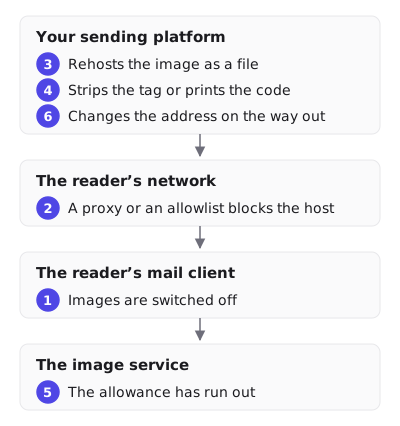
The order to check in
| Symptom | Most likely cause | First check |
|---|---|---|
| Blank space, alt text visible | Images off in the client | The recipient’s image setting, and whether the message went to spam |
| Broken image icon | The URL failed | Open the URL in a browser on the same network |
| Works for you, fails at one company | Proxy or gateway | The image host’s domain reputation and the Workspace allowlist |
| Same number on every open | The ESP rehosted the image | The src in the sent HTML |
| Embed code printed as text | Wrong block type | Paste into an HTML block, not a text block |
| A one-pixel gap where the timer was | Allowance exhausted | The vendor’s usage page and overage policy |
| The fallback card, or no timer, only in sent mail | The address was changed on the way out | The src in a seed email against the published address |
What EmailTimer.App does about it
Every request to the image service returns HTTP 200 and a valid image. If anything upstream fails, the response degrades to a fallback image rather than an error, because a broken image icon in delivered mail cannot be fixed afterwards.
A publish that cannot render is refused at publish time rather than shipped and discovered in an inbox. The getting started guide covers the readiness check.
The snippet per platform is one <img> tag with the width, the alt text and the merge tag already in it, so there is nothing for a builder to sanitise. Each integration page carries the version for that ESP.
Past the plan allowance the images keep rendering with a small corner watermark. Nothing is ever replaced by a one-pixel image. The allowance per plan is on the pricing page.
Questions and answers
Why is my countdown timer blank in Outlook?
Most likely because Outlook blocks automatic picture downloads by default, which Microsoft documents. It is also worth checking whether the timer is rendering as a still first frame rather than not rendering at all, which is a different situation covered in countdown timers in Outlook.
The timer shows for me but not for my colleague. Why?
Their client setting, their company’s web gateway, or a Workspace image proxy allowlist. Ask them to open the image URL directly in a browser. If that fails too, the mail client is not involved.
My ESP shows the embed code as text. What went wrong?
The snippet went into a rich-text block that escapes HTML. Move it to an HTML or code block, or paste the URL into the platform’s image-URL field instead.
Why does the timer work in a test but freeze in the real campaign?
Check whether the platform rehosted the image. Adobe Campaign Classic uploads external images by default and has a documented workaround to stop it, and Mailchimp rehosts images on ZIP import. A rehosted timer is a still photograph of one instant.
Can images being off be fixed from the sender side?
No. It is the recipient’s setting and their client’s default. Write the deadline in text, size the image tag, and write alt text that carries the offer.
Next: why your timer is stuck if the image does appear but never changes, and why your timer shows the wrong time if the numbers are simply off.
Sources
- Block or unblock automatic picture downloads in email messages (Microsoft Support)
- External image protection in Outlook.com (Microsoft Support)
- Show images in Gmail (Google Help)
- Set up an image URL proxy allowlist (Google Workspace Admin Help)
- Block images in New Yahoo Mail (Yahoo Help)
- Use countdown timer GIF in emails (Adobe Experience League Community)
- Import a Custom HTML Template (Mailchimp)
- Common HTML Mistakes (Mailchimp)
- What do you mean by timer block monthly opens? (Stripo Support), read on 17 September 2026
- How to Add a Countdown Timer to Your Brevo Emails (CountdownMail), read on 17 September 2026
Related
Put a countdown in the campaign you are writing now
The free plan covers 5,000 opens a month with no card. Starter is $19 a month for 250,000.