EmailTimer.App

Marketo Engage

Countdown timers and personalized images for Marketo Engage

Your subscribers see how long is left on the offer, counted from the moment they open the message, and it goes into the Marketo Engage campaign you have already built. One snippet, in the merge syntax Marketo Engage already uses.

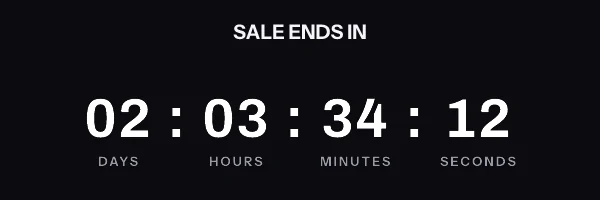
Animated countdown in the digital style, reading 02 days 03 hours 34 minutes 12 seconds and counting down
A render from the engine at 600 by 200, the size that goes into a Marketo Engage image block.

Marketo Engage merge syntax

The tags you already use, around the image

The same merge fields that put a subscriber's name in your subject line go in the link and the alt text around the image, where Marketo Engage fills them in as it sends. They never go inside the image address, for the reason in the warning further down. A name or a deadline drawn inside the image itself comes from an address signed for each subscriber, held in a contact field.

Worth checking in your own account. These are the token forms for Email Editor v2.0, where a custom person field is referenced by its display name. Adobe documents a different token format for its newer email designer, using camel case or underscores instead of spaces, and its own pages give mixed examples. Check a token in your own instance before a send.

First name
{{lead.First Name:default=there}}
Coupon code
{{lead.Coupon Code}}
Deadline
{{lead.Offer End Date}}
Email address
{{lead.Email Address}}

The snippet to paste into Marketo Engage

Put it in image element, external url option, in email editor v2.0. There are two shapes, and which one you want depends on whether every subscriber gets the same deadline or their own. The editor generates whichever you pick, already filled in with your ids.

One thing to know before you paste anything. A merge tag cannot go inside the image address. The address is signed, and the signature covers every part of it, so if Marketo Engage swaps a name into it after signing, the signature no longer matches and every subscriber gets the fallback graphic instead of your timer. It happens quietly, because the image service always answers with a valid picture rather than an error. Both snippets below put the merge tags in the link and the alt text, where they belong and where they work.

One image for the whole send

On every plan, including the free one. Everybody requests the same address, and the clock is worked out at the moment each person opens, which is what lets one address show a different time to every reader. The name and the code go in the link and the alt text.

<a href="https://yourstore.com/sale?code={{lead.Coupon Code}}" target="_blank" rel="noopener">
  <img src="https://img.emailtimer.app/i/k7mQ2pXd.gif?w=w_8ha3fq&v=3&sig=YOUR_SIGNATURE" alt="{{lead.First Name:default=there}}, your 25% off ends at midnight tonight" width="600" height="200" border="0" style="display:block; width:100%; max-width:600px; height:auto; border:0;" />
</a>

A different image for each subscriber

On Growth and Agency. Generate one signed address per subscriber, import the column into Marketo Engage as a contact field called ET Image URL, and point the snippet at that field. This is the only way a deadline that differs per subscriber can work, because the deadline is inside the signature too. A contact whose field is empty gets no image, so check the field is filled across the whole segment before you send.

<a href="https://yourstore.com/sale?code={{lead.Coupon Code}}" target="_blank" rel="noopener">
  <img src="{{lead.ET Image URL}}" alt="{{lead.First Name:default=there}}, your 25% off ends at midnight tonight" width="600" height="200" border="0" style="display:block; width:100%; max-width:600px; height:auto; border:0;" />
</a>

The addresses come from the batch endpoint in the REST API, or from a CSV export if you would rather not write code.

Setting it up in Marketo Engage

Four steps, and the longest one is deciding what the timer should look like.

  1. 1

    Build the image in EmailTimer.App

    Set the timer style and the deadline, publish, and copy the signed image address. A webinar or event date shared by everyone needs nothing more.

  2. 2

    Store the address in a token

    For a shared deadline, paste the address into a program-level Text My Token such as {{my.Timer Image URL}}. For a deadline per person, import one signed address per person into a custom person field.

  3. 3

    Use External URL on the image element

    In Email Editor v2.0, select the Image element, click the gear icon, choose Edit, and enter the token under External URL. Adobe notes the image appears broken in the editor and renders in Preview and in Send Sample.

  4. 4

    Send a sample as a real person

    Open Email Actions and choose Send Sample. Pick a person in the person drop-down so person tokens resolve, and send to internal addresses only, because multiple recipients can see each other.

Things that only matter in Marketo Engage

Marketo writes person tokens as {{lead.First Name}}, and custom person fields work by display name. A default in the classic editor is {{lead.City:default=fallback}}. My Tokens resolve to the value for the email's program, which makes a Text My Token a clean home for a signed address shared by a whole program.

Before procurement asks

You will have to explain this to someone in security

Running Marketo Engage usually means a review before anything new goes near a send. The short version you can forward: an image URL goes in the template, the values it carries are the merge fields you choose, and no script runs anywhere. Nothing is installed inside Marketo Engage and no data leaves your platform except what you put in that URL.

The Agency plan adds white-label image domains, so the URL your subscribers see reads as your own brand rather than ours, along with a separate workspace per brand or region and control over what each person on the team can touch. There is no dedicated IP option and no written uptime commitment; what the service does when something fails is on the status page.

What your Marketo Engage subscribers will actually see

If your list reads on Outlook for Windows, plan for a still image: Microsoft documents that only the first frame appears when animation is disabled. The first frame here is a complete image with the time left already drawn in.

What each client is documented to do

Email client Fetch moment Cache lifetime GIF animation What EmailTimer.App does Basis
Apple Mail (iOS 15+, macOS Monterey+) Apple Mail Privacy Protection (MPP) Delivery time (pre-fetched by Apple server) Testing reports 2 to 3 days Full 30-second live animation The timer counts down from the time remaining at delivery. A fixed deadline, such as 23:59 UTC, is still the right deadline. Documented by Apple
Gmail (web, iOS, Android) Google image proxy First open by recipient Not published by Google Full 30-second live animation First open displays a real-time countdown. A re-open can be served from the copy the proxy already holds. Documented by Google
Outlook on Windows (2016 to 2024) Word rendering engine Open time Not documented First frame only (static image) Frame 1 is a complete image with the time left at the fetch, so a reader who sees only that frame sees a correct still countdown. Expected, not yet documented or tested
Outlook on the web and mobile (iOS, Android) Native browser or app engine Open time Not documented Full 30-second live animation Expected to play the animation, 30 frames at one frame per second by default. Expected, not yet documented or tested
Yahoo Mail and AOL Yahoo image proxy Open time Not documented Full 30-second live animation Expected to fetch the image when the message is opened and play the animation. Expected, not yet documented or tested

The Apple and Gmail rows rest on Apple's and Google's published documentation and on third-party testing. Neither company publishes a cache lifetime: Apple documents the prefetch, Google documents the proxy, and the two to three days is FreshInbox's 2021 testing. The Outlook and Yahoo rows are what we expect those clients to do, with no vendor document behind them. No row comes from a test by us yet, and we will publish dated screenshots when we have them. Sources: Apple on Mail Privacy Protection, Google on the Gmail image proxy, FreshInbox on Mail Privacy Protection image caching.

Marketo Engage in practice

Marketo Engage countdown timer, shared or per person

By Danish Mohammed, founder. , updated 6 min read

A countdown in Marketo Engage is a signed timer image placed through the image element’s External URL option. For a date everyone shares, such as a webinar start, put the timer’s address in a program My Token. For a date that differs per lead, put one signed address per lead in a custom person field and use that token as the whole image address. No token ever goes inside part of an address.

The shared date is the easy case. Tokens take more care, because Adobe documents two token formats and only one of its editors documents a token as an image address. For the wider decision, choosing a dynamic image and countdown timer vendor for an enterprise email programme covers the questions a Marketo team’s security and procurement reviewers will ask.

One thing to know before you start: the dashboard’s snippet generator does not write Marketo tokens. Marketo is not one of the twelve platforms on its publish screen, so you copy the signed address, or download the per-lead addresses, and place the token yourself as below. Nothing about that is less supported; it is one field in Marketo instead of a generated tag.

Does Marketo have its own countdown timer

No. In an October 2023 thread on Adobe’s community, Countdown Timers in Email, one reply reads: “There’s no built-in solution in Marketo. And most LaunchPoint partners are commercial products.” That is a community member’s answer rather than Adobe’s documentation, and I found nothing in Adobe’s Marketo documentation that contradicts it.

So a timer in a Marketo email is an image from a timer service, placed through the image element.
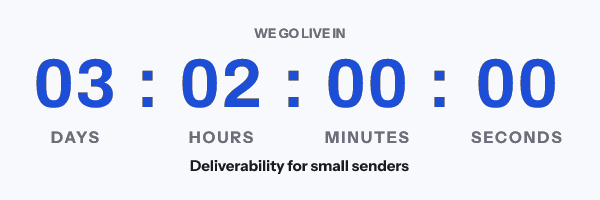
A webinar countdown headed We go live in, reading 03 days 02 hours 00 minutes 00 seconds, above the session title Deliverability for small senders
A webinar timer from the dashboard gallery, rendered by the product's engine at 12:00 UTC on 23 September 2026. Every registrant who opens at that moment sees the same numbers, from one address in one My Token.

Where the image goes

In Email Editor v2.0, Adobe’s Edit Elements in an Email gives three ways to insert an image, and the first is External URL. Click the Image element, click the gear icon and select Edit, paste the URL, set the dimensions and alt text, then press Swap.

The note under External URL is the useful part. It says “If you want to use a Marketo token, use this option.” It then warns that with a token, the image appears broken in the editor, but renders in Preview mode and in the Send Sample email.

So a token can be the whole image source, and a broken image in the editor is expected. Both routes below depend on that.

Route one: the same deadline for everyone, in a My Token

For a webinar or an event, every recipient counts down to the same moment. One signed address covers the send on any plan here, including the free one, and each mail client gets the time left as of its own fetch.

Put that address in a program-level My Token rather than straight into the email. Adobe’s My Tokens article describes a Text token as “Just some text. Use it when HTML is overkill.” Create one called, say, {{my.Timer Image URL}}, paste the signed address as its value, and use the token in the External URL field.

Cloned programs are where this pays off. A local My Token holds a value per program, and Adobe’s Send a Sample Email page notes that “My Tokens resolves to the value appropriate to the email’s program.” Clone the webinar program, publish a timer for the new date, and change one token, without opening the email.

Route two: a deadline per person, in a person field

A renewal date or a trial end differs per person, so it needs one signed address per person. Those are made before the send, on Growth or Agency, with the REST API’s batch endpoint or from a recipient set exported as a CSV.

Import the addresses into a custom person field. Adobe’s Tokens Overview says “Custom person fields also work if you use their display name, for example, {{lead.Custom Field Name}}”. A field shown as ET Image URL becomes {{lead.ET Image URL}} in the External URL field.

The Recipient lists screen for a list called Renewals October, with a Download the addresses button and a table of recipient tokens, external ids, per-recipient deadlines in UTC and first names
A recipient list in the dashboard, captured from a local test instance. Put the Marketo lead's own identifier in the external id column, and the download pairs it with that lead's signed address, ready to import into the person field.

Nothing about the deadline goes into the address as a token. The address is signed with an HMAC over every parameter, so a date or a name that Marketo wrote into it at send time would fail the check. Everyone in the send would then get a grey “image unavailable” card, at HTTP 200. The token has to be the entire address, never a piece of one.
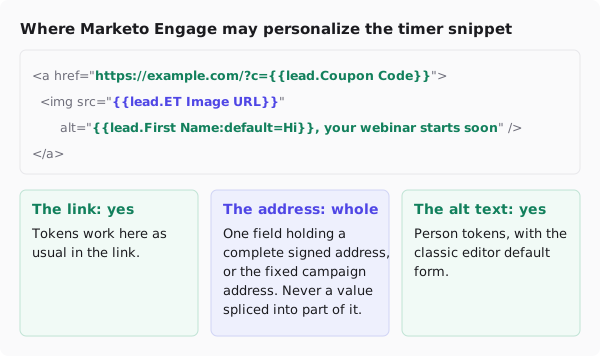
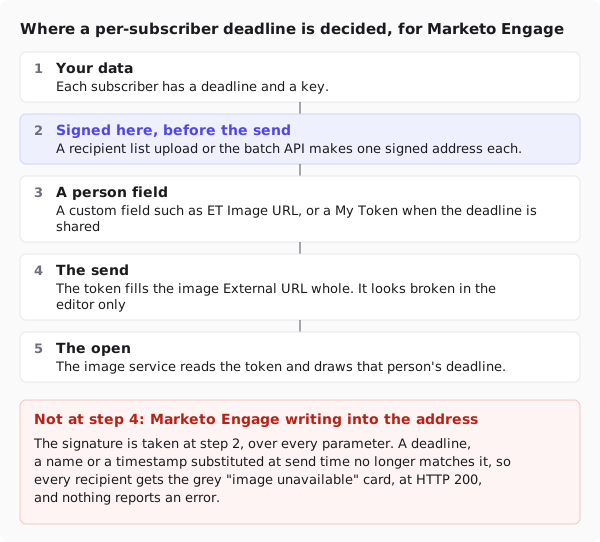
Diagram of the timer snippet with Marketo tokens. The link, carrying a coupon code token, and the alt text, with a first name token and a default, are marked as safe to personalize. The image source is the ET Image URL person token, one field holding a complete signed address, marked whole only.
Where Marketo tokens may go around a timer, and the one place they must be whole.
Five-step diagram. Your data holds a deadline and a key per lead. EmailTimer.App signs one address per lead before the send. The address is stored in a custom person field such as ET Image URL, or in a My Token when the deadline is shared. At the send, the token fills the image External URL whole; it looks broken in the editor only. At the open, the image service reads the token and draws that person's deadline. A warning says Marketo must not write a value into part of the address.
Where a per-lead deadline is fixed, and what Marketo does with it.

Two token formats

Adobe also has a newer email designer, rolled out by region from 23 May 2025 according to its Personalization Tokens page. That page says the designer “has a different format than the classic email editor”.

In the classic editor, tokens may contain spaces, and a default reads {{lead.City:default=fallback}}. In the designer, Adobe says “you must use camel case or underscores for tokens”, with examples such as lead.anonymousIP, and a default becomes {%=lead.city ?: "fallback" %}.

Adobe’s own pages do not agree on the details. The designer’s authoring guide gives {{lead.First Name:default=Friend}} as its fallback example, in the old format. The same guide describes adding images from Images and Files, and describes no external image URL. Until Adobe documents one, build timer emails in Email Editor v2.0, where the token route above is documented.

What your recipients will see

If your list reads on Outlook for Windows, plan for the still image. Microsoft’s support page says “If only the first frame of the animation appears, you have animations, or animated GIFs, disabled.” The first frame here is a complete picture of the time left, so a reader with animation off sees a correct countdown that does not move.

Pick days and hours rather than seconds for a webinar a week away, since a seconds digit that never moves tells that reader nothing. Countdown timers in Outlook goes through it version by version, from documented behaviour. I have not yet watched a timer from here render in a real Outlook inbox.

Test before you send

Adobe’s Send a Sample Email is the check. Select the email, open Email Actions, and choose Send Sample. For route two, pick a person: “If you want to resolve tokens as a specific person, choose said person in the person drop-down”. Choose one whose ET Image URL field holds a real signed address.

One warning from the same page. If you enter several addresses, “they will all be visible to every recipient”. Send internal samples only, and open the result in both Outlook and a web client.

Questions and answers

Does Marketo Engage have a countdown timer token?

No. An answer in Adobe’s Marketo community says there is no built-in solution. A countdown in a Marketo email is an image from a timer service, placed with the image element’s External URL option.

Why does my timer image look broken in the Marketo email editor?

Adobe documents it. A token in the External URL field appears broken in the editor, but renders in Preview mode and in the Send Sample email.

Should the timer address live in a My Token or a person field?

A My Token, when everyone shares the deadline, so a cloned program needs one token change. A person field, when each person’s deadline differs, which needs addresses minted per person on Growth or Agency. Pricing has the plan comparison.

Which token syntax works in Marketo’s new email designer?

Adobe says the designer needs camel case or underscores instead of spaces, with a different default syntax. Its own pages give mixed examples, so check a token in your instance before a send.

Can I build the timer URL out of Marketo tokens?

No. The address is signed, so a token written into part of it breaks verification for everyone. The token must hold the complete signed address.

Sources

Related

Campaigns to build in Marketo Engage

Each playbook says which timing model the campaign needs, which snippet it takes, and what to get right before you send it.

Setting this up on another platform

The snippet is the same everywhere. Only the merge syntax changes, and each page below carries the exact syntax that platform expects.

All 21 platform setup guides

Put a timer in your next Marketo Engage send

Free for 5,000 opens a month, $19 for 250,000, and the snippet above is the whole integration.