Put a countdown timer in your email signature
By Danish Mohammed, founder. 7 min read
A countdown timer in an email signature is the same server-rendered image as one in a campaign, pasted into the signature block instead of the body. It works, and it is the only way to put a live deadline into a one-to-one sales email without building a campaign for each recipient. Its limits are sharper than a campaign timer’s, and they come first here, because they decide whether the idea is worth the effort at all.
Why the signature is a different job from a campaign
A campaign image is published once and requested by a defined list inside a known window. A signature image is requested by everybody you write to, on every message, for as long as the signature stays in your client. That includes replies, forwards, internal threads and the person who reads the same thread four times.
Every one of those fetches is an open against your plan. The free plan covers 5,000 a month, Starter covers 250,000 and Growth covers 1,000,000, and the current figures are on pricing. For one salesperson that is generous. For a 200-seat organisation sending from a shared banner, do the arithmetic before you deploy it.
The second difference is that a signature has no send list, so there is no merge data. Whatever a signature image shows, it shows the same way to everybody who receives it. That rules out the per-recipient models entirely.
Which timer models work in a signature
| Timer mode | Works in a signature | What happens |
|---|---|---|
| Fixed deadline | Yes, and this is the one to use | Counts to one instant for every reader, correct whenever the image is fetched |
| Recurring | Yes, with care | Rolls to the next weekly or monthly occurrence on its own, so the signature stays current without edits |
| Count-up | Yes | Counts elapsed time from a fixed past moment, so it never expires |
| Evergreen from first open | No | The address is shared, so the clock starts at the first stranger’s fetch and every later reader sees that same clock |
| Evergreen from send | No | The send instant is inside the signature of the address, and a signature block has no send step to mint one |
| Per-recipient deadline | No | Needs one minted address per person, which a static signature cannot carry |
The practical reading is short. Use a fixed deadline for a dated event, a recurring rule for a standing weekly cut-off, and nothing else.
What Outlook does with a signature image
Microsoft documents animated GIFs in the message body and it documents images in signatures, and it never documents the intersection. The gap matters, because the vendor pages that answer this question confidently are answering from their own testing rather than from documentation.
What Microsoft does say:
- Images in signatures are supported, and the insert path is Signature, then Signatures, then the image button.
- The accepted file extensions for a signature image are listed on the signature block article as “.bmp, .gif, .jpg, or .png”. That is a format list, with no statement about animation.
- Animated GIFs in the message body are supported, and can be inserted through Insert a Picture or Online Pictures.
- When animation does not play, the cause page is direct: “If only the first frame of the animation appears, you have animations, or animated GIFs, disabled.” It documents the pre-2008 Outlook option under File, Options, Advanced, Display, “Play animated GIFs”. For version 2008 and higher it says to “use Windows 10” and turn on “Show animations in Windows”, which is an operating-system setting rather than an email one.
Exclaimer, who sell signature management, summarise the state of it this way:
Whether a GIF actually animates in Outlook depends on where it’s inserted, not just the version: email-body GIFs follow a settings toggle, signature GIFs are less predictable, and New Outlook has its own separate quirks.
So plan for a still image in Outlook. That is survivable here for the same reason it is survivable in a campaign. Frame one of every EmailTimer.App GIF is a finished picture carrying the live numbers for the instant of the fetch. A recipient who gets no animation still gets a correct countdown. The version-by-version detail is on the Outlook page.
Deploying it across a team
A signature pasted by hand into each person’s client drifts within a month. Signature managers exist to stop that, and both of the large ones handle an image in a template.
Exclaimer’s product page offers “Centralized control over every email signature your organization sends, from one place”, and it supports server-side imprinting, client-side deployment or a hybrid of the two. Server-side imprinting stamps the signature after the message is sent, which covers mobile and webmail as well as the desktop. Their handbook is explicit about the control that gives you: “Want an animated GIF across the whole organization’s signatures? Deploy it once from a single admin console.”
CodeTwo describes the same central model. Its product page says the software “allows a single person to centrally create, deploy and manage email signatures and disclaimers for all users in a Microsoft 365 organization”. Their template editor accepts uploads in JPG, PNG and GIF. They note that they support images over 1 MB while recommending against large ones. Large images “can cause significant delays” and may even cause emails to be blocked, depending on the mail server settings at both ends.
Exclaimer publishes a recommended spec for a signature GIF. It asks for 300 to 600 pixels wide and 100 to 200 tall, at 10 to 15 frames per second, under three seconds long. The file should be under 500 KB and ideally under 200 KB, with one to three loops at most.
An EmailTimer.App timer at 300x250 with a reduced frame count sits inside that envelope, and the publish dialog reports the exact file size before you commit.
The sales outreach case
This is where a signature timer earns its place. A salesperson running a sequence has one deadline that applies to everybody in the quarter: a pricing change, a cohort start date, a conference where the team is present. Putting that in the signature means every message in the thread carries it, including the replies where a campaign image would never appear.
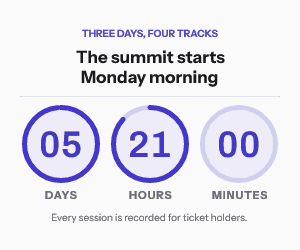
Keep it small and keep it quiet. A 300x250 or a short 600x200 banner under the contact details reads as information. A full-width flashing clock above your name reads as a mass mailing, which is the opposite of what a one-to-one email is for.
How to set it up
- Create a template at 300x250 or 600x200. The gallery holds 47 designs and each comes in three sizes.
- Select the timer layer and set the mode to fixed, with the deadline and an explicit IANA timezone in the right-hand panel.
- Reduce the frame count if you are targeting the Exclaimer spec. The default is 30 frames at one frame per second, and the range is 20 to 60.
- Open Expiration State and set what renders after the date passes. A signature outlives the campaign it was made for, so this is the field that stops a stale clock appearing under your name in March.
- Publish, and read the image size and frame count off the readiness checks.
- Copy the campaign snippet from the publish screen. Strip the merge tags out of the link and the alt text, because a signature has no merge data to fill them.
- Paste the HTML into your signature manager’s template editor, or into the signature editor in Outlook if you are doing this for one person.
- Send a test to yourself and to one external address, and reply to it once. Check that the image still renders in the quoted thread.
You can build and preview one without an account in the countdown timer generator, and the six timing models are compared in timer types.
Questions and answers
Will a countdown timer animate in an Outlook signature?
Microsoft does not document animation for signature images either way, so treat a still frame as the planning assumption. Frame one carries the correct numbers on its own, so a static render is still an accurate countdown rather than a broken one.
Can each recipient see their own deadline?
No. A signature carries one fixed image address for everybody, so per-recipient deadlines and evergreen-from-open both need a campaign send behind them.
How many opens will a signature timer use?
One per image fetch, which means every message, every reply and every re-read by a recipient whose client did not cache the copy. Watch the usage figure for the first fortnight before you roll it out to a team.
What happens after the deadline passes?
The expired state renders, which is why setting it matters more here than anywhere else. Without it, an old signature keeps showing a counter stuck at zero to everybody you write to.
Does this need the HTML snippet, or can I paste an image?
It needs the snippet, or at minimum an image tag pointing at the signed address. Inserting the file through your client’s picture button uploads a single frame and the countdown stops being live.
Sources
- How to add and change an email signature in Outlook (Microsoft Support)
- Create an Outlook signature block with a photo and links to Facebook and X (Microsoft Support)
- Add graphics to messages in Outlook (Microsoft Support)
- The animated graphic in my e-mail message doesn't work (Microsoft Support)
- Email Signature Management Software (Exclaimer)
- Animated GIFs in Email Signatures, Pros and Cons (Exclaimer)
- Insert pictures, social links and other content into your template (CodeTwo user guide)
- Central and automatic email signatures for Office 365 (CodeTwo)
Related
Put a countdown in the campaign you are writing now
The free plan covers 5,000 opens a month with no card. Starter is $19 a month for 250,000.