Put a countdown timer in a Gmail message
By Danish Mohammed, founder. , updated 5 min read
Build your timer
Live preview
Rendering
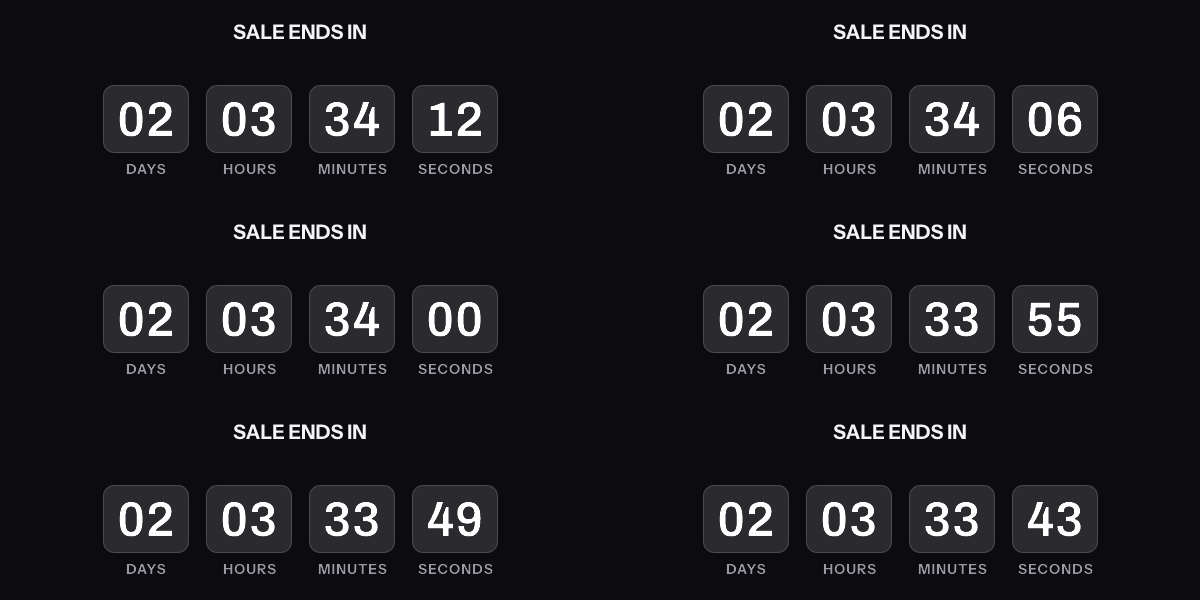
A downloaded GIF counts from the moment it was made, not from the moment it is opened. The hosted timer above is what counts from the open.
Get the code
This publishes the timer above and hands you the snippet. No email address, no account. Without an account, a timer from this generator works for 500 opens. Sign in and claim it, and the same timer works for 1,000 opens. After that, the image shows a note that its free opens are used up.
Your timer is live
HTML snippet
Image URL
See it in a real inbox
The preview above is your browser fetching the image. A mail client fetches it differently, and that is the part worth checking before a campaign goes out. Type an address you can open and this timer is sent there once, in a message that carries the picture and one sentence saying you asked for it.
One send per timer, and the address is used for that message and nothing else. The time in the picture is the time when your mail client fetched it, which is the behaviour the test is for.
Where to paste it
Keep it, or keep going
This timer works as it is, for 500 opens. To change the deadline later, see how many people opened it, use per-recipient evergreen timers, put a name or a code in the image, or use your own fonts, create a free account.
Create a free accountClaim code
After you sign up, open Templates and choose Claim a generator timer, then paste this code. It is valid until . Claiming raises this timer, the same image address you already copied, from 500 to 1,000 opens.
Two different questions arrive at this page under the same words, and they have different answers. One is about sending a countdown from a Gmail account, by hand, from the compose window. The other is about a marketing campaign that Gmail subscribers will read. Each section below says which one it is talking about.
Sending from Gmail: the compose window takes no HTML
Gmail’s compose window is a formatting toolbar over a rich-text area. Google’s own help documents adding an image “by dragging it directly into the compose window”. For a designed message it points to the Layouts feature, where you “insert, resize, and rearrange text boxes, buttons, images, and content” in a visual editor. Nothing in Google’s documentation offers a place to paste HTML source.
The Layouts page is blunter still about what happens afterwards. Once a layout is in the draft, “you can’t change the contents of the email draft directly”, and changes go back through the layout editor.
So the snippet the generator produces, with its anchor and its width attributes, has nowhere to go in a Gmail compose window. The image URL inside it does.
Sending from Gmail: the image URL route
Take the image URL rather than the HTML. Insert it as a picture from a web address, and Gmail fetches the image and places it in the message.
Google documents that option in its signature setup, where the choice is spelled “Web Address (URL)” and the instruction is to “Paste the image URL in the space provided”. The insert-photo dialog in compose offers the same choice. That part is an observation of the interface rather than something Google writes down, so check it in your own account before you promise it to anybody.
Two things follow from inserting a bare image. There is no link on the timer unless you select the image and add one. And compose gives you no alt text field, so a recipient with images off sees nothing where the timer was. For one-to-one mail that is usually acceptable. For a send to a list it is not.
Sending from Gmail: the signature case
A signature is stored once and reused on every message, which makes it the most useful place for a Gmail sender to put a timer. The same “Web Address (URL)” option adds it, and Google’s admin documentation covers rolling signatures out across a Workspace domain.
Use a deadline far enough out to be worth the trouble, such as the close of a quarter, and put a reminder in your calendar for the day it expires. An expired timer sitting under your name for six weeks says something you did not mean to say.
Reading in Gmail: the fetch happens at open
Now the other question. Your campaign went out from a real sending platform, and a large share of the list reads it in Gmail.
Google states the mechanism in one line: “When your users open email messages, Gmail uses Google’s secure proxy servers to serve images that might be included in these messages.” The open triggers the fetch. Delivery does not, which is the opposite of what Apple Mail does with Protect Mail Activity.
That makes Gmail the friendliest large client for a countdown. Somebody who opens on Thursday morning causes a request on Thursday morning, and the renderer draws Thursday morning’s numbers. Gmail plays animated GIFs, so the countdown moves.
Reading in Gmail: what a second open shows
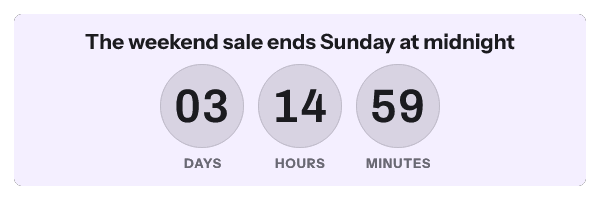
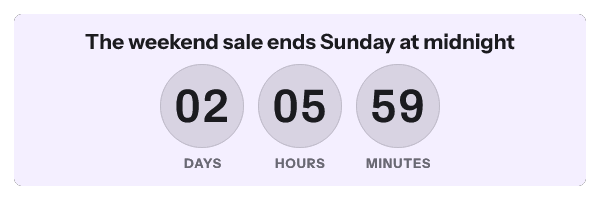
Google does not publish how long the proxy keeps a copy of an image. There is no documented lifetime, no purge endpoint and no stated rule for when a re-open causes a second request. Any figure you have been quoted for this came from a vendor’s observation.
What vendors report is consistent. MotionMail’s support article says Google has “a server that downloads the images from links in emails, and stores them at Google”. When a recipient views the message again, it says, Gmail “downloads this ‘old’ image instead of loading the timer new”.
The practical shape of it: the first open is accurate, and a later open can show the numbers from the first one. The timer looks stopped rather than wrong, which is what people report in forums. The longer version, with what the image service sends in its response headers, is on countdown timers in Gmail.

What to do about it
For a Gmail sender, use the image URL and add the link by hand. Keep the deadline far enough out that a message read the next day still makes sense.
For a campaign read in Gmail, design for the first open, because that is the one the proxy makes a request for. Put the deadline in the subject line or in text near the image, so the message survives a stale frame. If a stale timer is the thing you are chasing, the decision tree is at why your email timer is stuck.
If much of your list reads in Outlook instead, the Outlook version of this generator opens on a style whose first frame stands on its own, and the GIF checker shows the first frame of a timer you already have.
Questions and answers
Can I paste HTML into a Gmail message?
Not in the compose window. Google documents images by drag and drop and designed messages through Layouts, with no place to enter HTML source. Use the image URL instead.
Why does my Gmail timer show a different time than my colleague’s?
Because you opened at different moments, and because one of you may be looking at a copy the proxy already held. The first open is the one that produces a fresh render.
How long does Gmail cache a timer image?
Google publishes no figure. Vendors report that re-opens can be served from an older copy, and that is the most that can honestly be said.
Do I need an account to make one of these?
No. The generator above hands over the image URL with no address asked for. That timer works for 500 opens without an account, and for 1,000 once you sign in and claim it. An account adds a deadline you can move after the send, per-recipient timers and open counts, free to 5,000 image opens a month. See pricing.
Sources
- Set up an image URL proxy allowlist (Google Workspace Admin Help)
- Set up Google Workspace user signatures in Gmail (Google Workspace Help)
- Create branded emails with customized layouts (Gmail Help)
- My timer isn't showing the correct time in Gmail (MotionMail Help), read on 17 September 2026
Related
Put a countdown in the campaign you are writing now
The free plan covers 5,000 opens a month with no card. Starter is $19 a month for 250,000.