
Email testing means checking an email in the places it will actually be read, before the real send: how it renders in Gmail, Outlook and Apple Mail, how it holds up in dark mode and with images off, whether every link works, whether it is accessible, whether Gmail will clip it, and whether it is authenticated well enough to reach the inbox. A browser preview tests none of that, because no mail client draws HTML the way your browser does.
Below, the checks run in the order that finds the expensive problems first, ending with a real test send from a terminal and a 26-row checklist to copy, and each figure caption says what its browser render simulates.
You can run every check here with free accounts (Gmail, Outlook.com, Yahoo, an iPhone) and free tools such as Gmail’s “Show original”, Google Postmaster Tools, Mail Tester and Mailtrap’s free sandbox plan. Paid preview services such as Litmus and Mailgun Inspect add screenshots from many clients at once, including classic Outlook without a Windows PC; the trade-offs are in free and paid email testing tools.
Why a browser preview is not a test
Every mail client takes your HTML apart before it shows it. Gmail keeps a <style> block only in the <head>, caps it at 16 KB, and drops it entirely in the Gmail apps when the account is not a Google one, according to Can I email’s tests. Classic Outlook for Windows (2007 to 2019 in caniemail’s tests; 2021, 2024 and Microsoft 365 use the same Word engine) does not use a browser at all: Microsoft’s documentation says Outlook “uses the HTML parsing and rendering engine from Microsoft Office Word 2007 to display HTML message bodies”, and the same page lists background-image, float, position and max-width among the CSS 2.1 properties it does not support. The new Outlook for Windows is different again; Microsoft says it is “based on WebView2” and that “the experience is provided by Outlook on the web”.
So the same file has at least three rendering engines to survive, plus the dark mode rules each app layers on top, plus whatever your sending platform changes on the way out. The HTML email guide explains how those engines read your code, and Outlook rendering issues covers the Word engine’s quirks one by one. Testing is how you find out which of them bit you this time.
1. Content and links
Read the email once as a reader, start to finish, on a phone. Then check it as a tester:
- Every link goes where its words say. Click each one in a delivered test, not in the editor. Your platform rewrites links for tracking at send time, so the editor’s links are not the ones the reader gets.
- Tracking parameters are on every link and spelled the same way, so campaign reports do not split one campaign into two.
- The unsubscribe link works and lands on a page that completes the unsubscribe.
- Merge tags filled in. Send to a test contact with a first name and to one without, and check the fallback reads naturally. A raw
{{first_name}}or*|FNAME|*in the inbox means the tag syntax does not match the platform. - Dates, prices and codes match the offer, including the time zone of any deadline.
- The subject line and preheader read well together in the inbox list. Email preheader shows how to stop the inbox pulling body text into that line.
2. Code health: size, structure and the plain-text part
Keep the HTML under Gmail’s clip point
Gmail clips a message when its HTML passes about 102 KB and shows “[Message clipped] View entire message”. Images do not count, because they load from their own addresses; inline styles, tracking links and the code your platform adds after you press send do. The clip hides whatever sits at the bottom, which is usually the footer, the unsubscribe link and the open tracking pixel. Measure the HTML as it arrives, not the file in your editor: Gmail clipped message shows how to read the size from Gmail’s “Show original” view and six ways to cut it.
Send a plain-text part
A plain-text part is the text-only copy of the email sent in the same message. RFC 2046 defines the container, multipart/alternative, where “each of the body parts is an ‘alternative’ version of the same information” and “the alternatives appear in an order of increasing faithfulness to the original content”. A client shows the last part it can display, so the plain text goes first and the HTML last, with an AMP email’s AMP part between the two. Most platforms generate the plain text for you; open it and read it, because generated text often keeps image file names, empty brackets and long tracking URLs in the middle of sentences.
Check the image formats
Use PNG, JPG or GIF. Can I email records that classic Outlook for Windows does not show WebP, that Gmail converts WebP to JPG, and that Gmail rasterises SVG to PNG in its September 2026 tests. An image in an unsupported format is a blank box with alt text. Email image size covers dimensions and file weight.
3. Rendering in real clients
Open the delivered email in the clients your readers use. Your sending platform’s client report tells you which ones they are; if you have no data yet, start with these six, which between them cover the three engines and the main dark mode behaviours:
| Client | Why it is on the list | How to get it |
|---|---|---|
| Gmail on the web | Strips body <style>, 16 KB style limit, clips at about 102 KB |
A Gmail account |
| Gmail app (iOS or Android) | Recolours in dark mode; drops <style> for non-Google accounts |
The app, signed in to Gmail and to a second, non-Google address |
| Classic Outlook for Windows (2007 to 2019 in caniemail’s tests; 2021, 2024 and Microsoft 365 use the same Word engine) | Word engine: no background-image, no max-width; background images and rounded buttons need VML |
A Windows PC with Microsoft 365, or a paid preview service |
| Outlook.com or new Outlook for Windows | Web engine; adds data-ogsc attributes in dark mode |
A free Outlook.com account |
| Apple Mail or iOS Mail | Honours your prefers-color-scheme styles; Mail Privacy Protection |
An iPhone, iPad or Mac |
| Yahoo Mail | Rewrites some CSS; no prefers-color-scheme |
A free Yahoo account |
Check each at its natural width, and turn a phone sideways once. Look for columns that did not stack, text that is too small to read without zooming, buttons that lost their background colour, and spacing that collapsed. When something breaks only in classic Outlook, the fixes are in email template for Outlook, HTML email button and email background image.
If you build with a framework, test its compiled output, not the source. MJML and the other tools compared in email frameworks write the Outlook code for you, which is exactly why the result still needs opening in Outlook.
4. Hostile conditions: styles stripped, images off, dark mode
Styles stripped
Can I email’s tests record that the Gmail apps ignore the <style> element when the mailbox is not a Google account, for example an Outlook.com address added to the Gmail app. Everything in the head block disappears, including your media queries, which is why responsive email builds columns that stack without them. Test it by adding a second, non-Google address to the Gmail app and sending your test there, or by deleting the <style> block from a copy of the file and opening it in a browser.
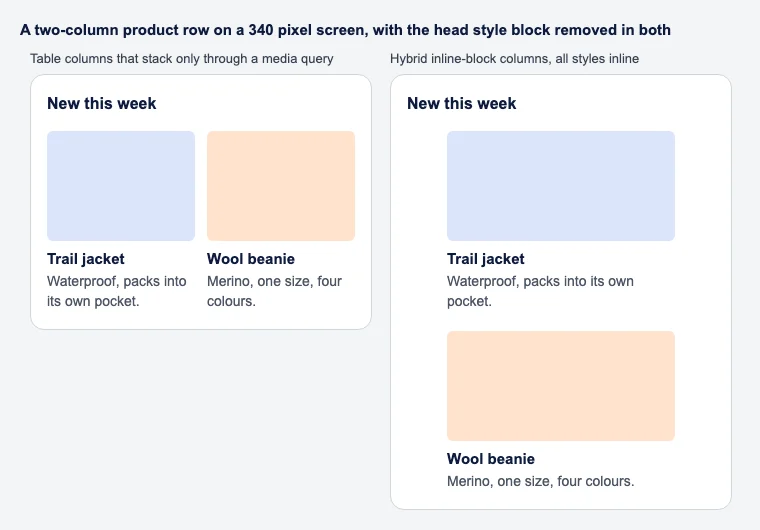
The pass condition is not “looks the same”. It is “still readable and still usable”: text at a readable size, the button still a button, nothing overlapping. That only happens if layout, colours and button styles are inline and the head block holds enhancements you can afford to lose.
Images off
Images are not always on. Microsoft says “Microsoft Outlook is configured by default to block automatic picture downloads from the Internet”, partly to avoid “tracking pixels: invisible images that can tell a sender you’ve read the email”. Gmail shows images by default, but Google’s help says it will not show them automatically when it considers a sender or message suspicious, and a reader can choose “Ask before displaying external images”.
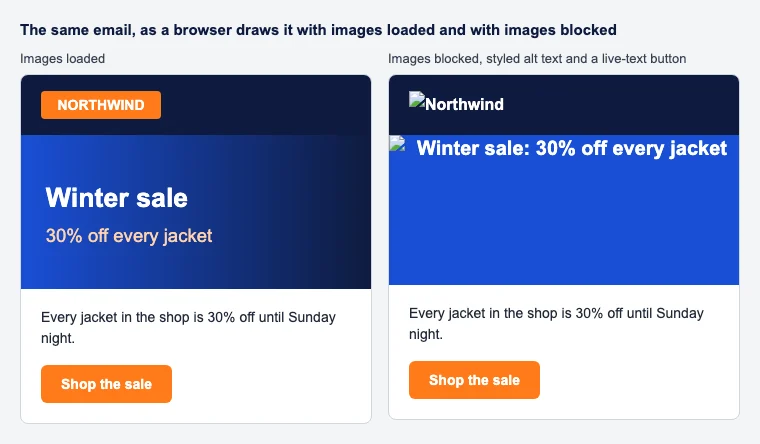
To test it, turn images off in a client (Outlook does this by default; in Gmail use the setting above) and read the email again. Check that:
- every meaningful image has alt text that says what the image says, and the alt text is styled with a font size and a colour that reads on the cell behind it;
- cells behind images have a background colour, so white alt text is not white on white;
- the main action is a live-text button, not a picture of a button;
- the offer is in live text somewhere, not only inside the hero image.
Images not showing in email covers the reader’s side of the same problem.
Dark mode
Open the test with dark mode on in Apple Mail or iOS Mail, Outlook.com, the Gmail apps and classic Outlook. Some of these honour dark styles you write in @media (prefers-color-scheme: dark); Can I email records no support in any Gmail client, and the Gmail apps recolour on their own. Look for dark text that vanished on a dark background, logos drawn as dark shapes on transparency, and white-background product photos that now glow.
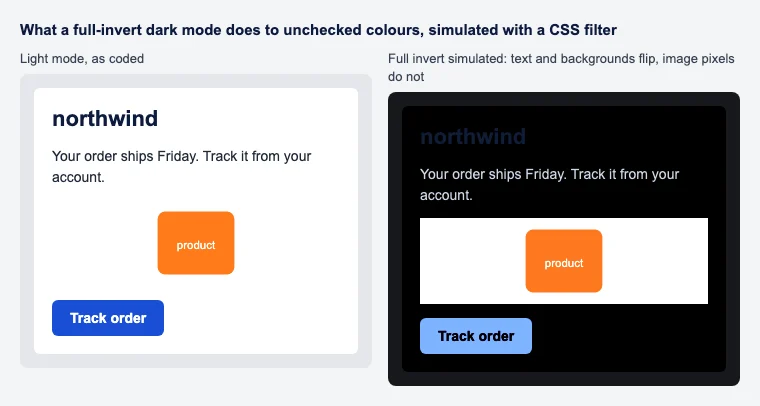
The causes and the CSS for each of those problems are on email dark mode; this page only asks that you look.
Zoom and long words
Set the phone’s text size to its largest and open the email again. Fixed-height cells clip text, and long words such as a URL or a German compound can push a table wider than the screen. Both show up only in this test.
5. Accessibility
Accessibility checks overlap with the hostile-conditions tests above, and they take five minutes:
- Language.
lang="en"(or your language) on the<html>element and on the outer wrapper<div>, because webmail clients remove the<html>element, so screen readers still pronounce the text correctly. Can I email records the attribute as supported across Gmail, Outlook.com, Apple Mail and Samsung Email, with Yahoo not reading it on<td>. - Layout tables are hidden from screen readers. Every table used for layout carries
role="presentation", so a screen reader does not announce rows and columns. Can I email records the attribute in Gmail, Outlook.com, Apple Mail and Samsung Email, with Yahoo reading it only on<table>, which is where you put it anyway. - Alt text follows the W3C’s decision tree. Decorative images get an empty
alt=""; images of text carry that text; an image inside a link describes “the destination of the link or action taken”. - Contrast. Body text needs at least 4.5 to 1 against its background under WCAG 1.4.3, in light mode and in dark mode.
- Headings and reading order. Real
<h1>and<h2>elements, in the order a reader should hear them, and link text that makes sense on its own (“See the winter coats”, not “click here”).
Turn on VoiceOver on an iPhone or Mac, or Narrator on Windows, and listen to the email once. Email accessibility goes deeper on each of these.
6. Deliverability: authentication and a spam check
Rendering means nothing if the email lands in spam. Gmail, Yahoo and Outlook.com publish their sender requirements, and they agree on the basics:
| Provider | Who it applies to | Authentication | Unsubscribe | Spam rate |
|---|---|---|---|---|
| Google (Gmail) | Every sender; more rules above 5,000 messages a day | Every sender: SPF or DKIM. Bulk: SPF and DKIM, plus DMARC | Bulk: one-click unsubscribe on marketing and subscribed messages | Below 0.3% in Postmaster Tools |
| Yahoo | Bulk senders | “Implement both SPF & DKIM”; “a valid DMARC policy with at least p=none” | One-click list-unsubscribe; “The Post (RFC 8058) method is highly recommended”; “Honor unsubscribes within 2 days” | Below 0.3% |
| Microsoft (Outlook.com, Hotmail, Live) | Domains sending more than 5,000 emails a day | SPF and DKIM must pass; DMARC at least p=none, aligned with SPF or DKIM | Not listed among the requirements | Not listed among the requirements |
Google also asks every sender to use TLS, to “Format messages according to the Internet Message Format standard, RFC 5322”, and not to “use HTML and CSS to hide content in your messages”. Microsoft’s April 2025 post says non-compliant mail is first routed to Junk, and its 29 April update gives the rejection code “550; 5.7.515 Access denied”. SPF, DKIM and DMARC explains how to set the records up.
One-click unsubscribe is a pair of headers defined in RFC 8058: List-Unsubscribe with an HTTPS address, and List-Unsubscribe-Post: List-Unsubscribe=One-Click, both covered by the DKIM signature. Your platform adds them; check they are there in the raw message. In Gmail on a computer, click the down arrow below the sender’s name: Google’s help says an authenticated message shows a “Mailed by” line with the sending domain and a “Signed by” line. For the detail, choose More next to Reply, then “Show original”, and read the Authentication-Results header, which lists the SPF, DKIM and DMARC results, along with every other header.
Then run a content check. Mail Tester gives you an address to send your email to and returns a report; Mailtrap’s sandbox and the paid services below include spam checks too. Treat a spam score as a hint, not a verdict: the providers that matter judge mostly on your domain’s reputation and your readers’ complaints, which Google Postmaster Tools reports for Gmail.
7. How to send yourself a real test
A real test is an email that travelled through the internet into a real mailbox. There are four ways to send one.
From your sending platform. The test-send button in Mailchimp, Klaviyo, HubSpot and the rest sends the email exactly as subscribers get it, with tracking links, the footer and merge tags filled from a test contact. This is the test that matters most, and the only one that shows what the platform adds.
From Gmail. Gmail has no “paste HTML” box, but you can paste a rendered email from a browser, swap the body in with developer tools, or send the file with Google Apps Script. Send HTML email from Gmail has all three methods with complete code, and what Gmail strips on the way.
From Outlook. Outlook has no supported way to make an HTML file the body of a message, so send to your Outlook addresses from your platform, from Gmail or from a terminal.
From a terminal, to any inbox. curl can send a prepared message over SMTP. Save the headers and the plain-text part as test-top.txt, ending with the boundary line that opens the HTML part:
From: Your Name <you@gmail.com>
To: you@outlook.com, you@yahoo.com
Subject: [TEST 3] Winter sale, build 2026-11-22
Date: Sun, 22 Nov 2026 10:00:00 +0000
MIME-Version: 1.0
Content-Type: multipart/alternative; boundary="b1-test"

--b1-test
Content-Type: text/plain; charset="utf-8"
Content-Transfer-Encoding: 8bit

Winter sale: every jacket is 30% off until Sunday night.

Shop the sale: https://example.com/sale

--b1-test
Your email stays in its own file, email.html, as you built it. Its head should carry the Outlook font rule, so classic Outlook never falls back to Times New Roman:
<!--[if mso]><style>body, table, td, th, div, p, a, li, span, h1, h2, h3, h4, h5, h6 { font-family: Arial, Helvetica, sans-serif !important; }</style><![endif]-->
Then join the two, with the HTML encoded as base64, and send the result through Gmail’s SMTP server:
{
  cat test-top.txt
  printf 'Content-Type: text/html; charset="utf-8"\nContent-Transfer-Encoding: base64\n\n'
  base64 -b 76 -i email.html      # on Linux: base64 -w 76 email.html
  printf '\n--b1-test--\n'
} > test.eml

curl --ssl-reqd --url "smtps://smtp.gmail.com:465" \
  --user "you@gmail.com" \
  --mail-from "you@gmail.com" \
  --mail-rcpt "you@outlook.com" \
  --mail-rcpt "you@yahoo.com" \
  --upload-file test.eml
How each part works:
- Base64 for the HTML part. RFC 5322 limits a message line to 998 characters, and minified email HTML often runs longer. Base64 in 76-character lines keeps every line legal and carries accented characters intact.
smtps://and--ssl-reqdencrypt the whole connection, on port 465 by default, as curl’s documentation describes.--userwith only the address. curl’s manual says “If you specify only the username, curl prompts for a password”, which keeps it out of your shell history; the manual also warns that hiding it from process listings “is not enough to protect credentials”. At the prompt, type a Google app password, which works only on “accounts that have 2-Step Verification turned on” and may be missing on work or school accounts.--mail-fromand--mail-rcptare the envelope. TheTo:header in the file is only what the reader sees.--upload-filesends the file, which curl’s documentation says should be in RFC 5322 format: headers, a blank line, then the body.
I built a file this way on macOS and read it back with Python’s standard email parser: it parses as multipart/alternative, picks the HTML part as the body, and decodes accented characters correctly.
Seed lists: testing the real send
A seed list is a set of your own mailboxes, one or more at each provider your readers use, added to the real campaign so they receive exactly what subscribers receive, at the same moment. It is the last test and the only one that checks the send itself: the final segment, the scheduled time, the platform’s last-minute rewriting, and where the email lands (inbox, promotions tab or spam) for an authenticated campaign at full volume.
Build one with a Gmail address, an Outlook.com address, a Yahoo address, an iCloud address, and a mailbox on your own company domain if you send to businesses. Keep them as real subscribers in a segment that every campaign includes. Open each seed on the device it is most likely to be read on, the first time on every send.
Testing an image that is drawn when it is opened
A countdown timer, a live weather panel or a personalized image is a picture that a server draws at the moment a mail client asks for it. That makes it the part of an ordinary HTML email that a preview cannot test, because what the reader sees depends on when, and through what, the request arrives.
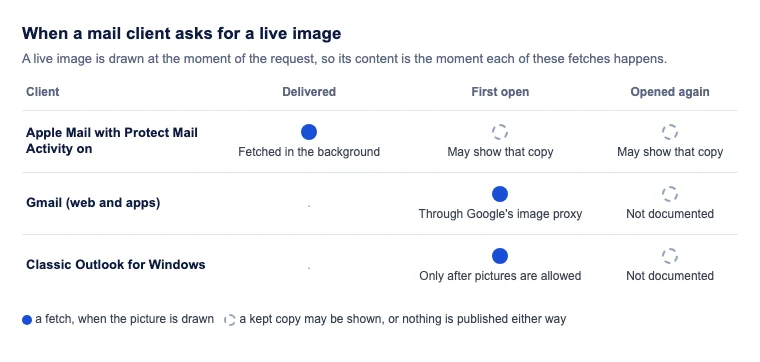
Three documented behaviours decide what your test shows:
- Apple Mail. Apple says “Protect Mail Activity downloads remote content in the background by default”, “regardless of whether you engage with the email”. A countdown fetched at delivery shows the time left at delivery.
- Gmail. Google says “Gmail uses Google’s secure proxy servers to serve images”, so the request comes from Google, not the reader’s device. Google publishes no rule for how long the proxy keeps a copy; how email image caching works collects what each provider does and does not document.
- Classic Outlook. No request at all until the reader allows pictures, and Microsoft’s documentation says animated GIFs show only “a static representation” in the Word engine. That applies to Outlook 2007 to 2016; Microsoft 365’s classic Outlook animates GIFs when a setting allows, so test both.
So send a real test to Gmail, Apple Mail and classic Outlook. In each, check that the time shown matches a clock, open it again a few minutes later and see whether it moved, and open the Outlook copy with pictures blocked to read the alt text. If the image looks frozen, countdown timer not updating works through the causes, and Apple MPP and the shared image cache covers the Apple case.
If the image is an email countdown timer from EmailTimer.app, the editor preview is drawn when you look at it, so it shows nothing about proxies or caching; test the delivered email. To rehearse this section before a real campaign, make a timer in the free countdown timer generator that ends a few minutes ahead, send it to your seed accounts, and note which inboxes show it reaching zero and which keep an older picture.
Free and paid email testing tools
You can test well with nothing but free accounts. The paid services save time when you need many clients at once, or classic Outlook without a Windows PC.
Free:
- Your own mailboxes: Gmail, Outlook.com, Yahoo and iCloud accounts, the Gmail app with a non-Google account added, and any phone you own. Slow, and the most faithful test there is.
- Gmail’s “Show original” for headers, authentication results and the raw HTML size.
- Google Postmaster Tools, which Google’s sender guidelines point to for spam reports, delivery problems, authentication status and domain or IP reputation on mail sent to Gmail.
- Can I email (caniemail.com), for checking whether a client supports a feature before you test it. Email CSS support turns its data into one table.
- Mail Tester (mail-tester.com), which gives you an address to send to and returns a spam report.
- Mailtrap Email Sandbox, which catches the test mail your app sends so it never reaches real recipients. Its free plan, read on 21 November 2026, includes 50 test emails a month with HTML check and spam analysis.
Paid (check each vendor’s pricing page for current plans):
- Litmus: screenshot previews in many clients, including dark mode, plus spam filter tests.
- Mailgun Inspect, the new name for Email on Acid: previews plus accessibility checks against WCAG 2.2.
- Parcel: a code editor for email with inbox previews built into the editor.
- Testi@: screenshot previews, with a free trial.
Preview screenshots are rendered on the vendor’s own accounts. They show the rendering engine faithfully, but not your sending platform’s changes, your domain’s reputation, or how a live image behaves through a proxy, so they replace some of the client checks in step 3, not the seed list on the real send.
The email testing checklist
Copy this table into your own runbook. Every row is a check from the sections above.
| # | Check | How to test | Pass when |
|---|---|---|---|
| 1 | Copy, numbers and dates | Read the delivered test on a phone | No typos; prices, codes and deadline time zone match the offer |
| 2 | Every link | Click each link in the delivered email | Each lands on the right page, with tracking parameters |
| 3 | Unsubscribe | Click it in the delivered email | Unsubscribe completes |
| 4 | Merge tags | Send to a contact with and without a first name | Both read naturally; no raw tag syntax |
| 5 | Subject and preheader | Look at the inbox list on a phone | They read as a pair; no stray body text |
| 6 | Size | Measure the HTML part in “Show original”; check the head style block | HTML under 102 KB (ideally 90 KB); style block in the <head>, under 16 KB |
| 7 | Plain-text part | Open it in “Show original” | Readable text, no image file names or empty brackets |
| 8 | Image formats | Check every src |
PNG, JPG or GIF only |
| 9 | Gmail web | Open the test | Layout, fonts and buttons as designed |
| 10 | Gmail app, non-Google account | Open the test | Readable and usable without the style block |
| 11 | Classic Outlook for Windows (all Word-engine versions) | Open the test or a preview service | No broken layout, buttons and backgrounds have fallbacks |
| 12 | Outlook.com or new Outlook, Apple Mail or iOS Mail, Yahoo | Open the test in each | Layout as designed, phone styles applied |
| 13 | Phone width | Open on a phone, then rotate it | Columns stack, text readable without zoom |
| 14 | Dark mode | Open in Apple Mail, Outlook.com, Gmail apps, classic Outlook | Text, logos and buttons readable in all four |
| 15 | Images off | Block images and reopen | Alt text styled and readable; offer and button still there |
| 16 | Largest text size | Set phone text to maximum and reopen | Nothing clipped or wider than the screen |
| 17 | Language and tables | Inspect the code | lang on <html> and the wrapper div, role="presentation" on layout tables |
| 18 | Alt text | Read every alt |
Decorative images empty, others say what the image says |
| 19 | Contrast | Check text and button colours | At least 4.5 to 1, in light and dark mode |
| 20 | Screen reader | Listen with VoiceOver or Narrator | Logical order, meaningful link text |
| 21 | Authentication | Read Authentication-Results in Gmail’s “Show original” |
SPF, DKIM and DMARC pass |
| 22 | One-click unsubscribe | Read the raw headers | List-Unsubscribe and List-Unsubscribe-Post present |
| 23 | Spam check | Send to Mail Tester or a paid checker | No content or authentication warnings left unexplained |
| 24 | Live images | Open in Gmail, Apple Mail and classic Outlook, then reopen | Content correct at open; alt text with pictures blocked |
| 25 | Animated GIFs | Open in classic Outlook | The first frame makes sense on its own |
| 26 | Seed list | Include seeds in the real send | Every seed arrives, in the inbox, looking like the tests |
Questions and answers
What is email testing?
Email testing is checking an email before a real send in the conditions it will be read in: real mail clients, phones, dark mode, images off, a screen reader, and spam filters. It also covers the content (links, merge tags, dates) and the technical side (HTML size, a plain-text part, authentication). A browser preview is not a test, because mail clients rewrite and strip HTML in ways browsers do not.
How do I test an HTML email before sending it?
Send it as a real email to accounts at Gmail, Outlook.com, Yahoo and Apple Mail, open it on desktop and phone, then repeat with dark mode on and images off. Check the size and authentication in Gmail’s “Show original”, run a spam check, and include a seed list in the real send. The checklist table above lists every step.
How can I see how my email looks in classic Outlook without a Windows PC?
Use a paid preview service, which renders the email on its own copies of classic Outlook and returns screenshots. Outlook.com and the new Outlook for Windows do not stand in for it, because Microsoft says the new Outlook’s “experience is provided by Outlook on the web”, while classic Outlook uses Word’s rendering engine. They draw the same email differently.
What is a seed list in email marketing?
A seed list is a group of mailboxes you own, at the providers your subscribers use, added to every real campaign. They receive the email exactly as subscribers do, at the same time, so they show the final rendering, the platform’s changes and whether the campaign reached the inbox or spam. It is the last check, after test sends.
How do I check if my email will go to spam?
Check that SPF, DKIM and DMARC pass in the Authentication-Results header of Gmail’s “Show original”, that the one-click unsubscribe headers are present, and that your spam rate in Google Postmaster Tools is below the 0.3% Google and Yahoo both set. A content checker such as Mail Tester flags obvious problems, but reputation decides most placement, so watch the seed list on every real send.
How many email clients should I test?
Test every client with a meaningful share in your own platform’s client report, and at least one of each engine: Gmail, classic Outlook for Windows, a web-engine Outlook, and Apple Mail or iOS Mail. Add the Gmail app with a non-Google account, because it drops the style block, and Yahoo if you have Yahoo readers.
What is an email rendering test?
An email rendering test checks how one email is drawn by different mail clients, because Gmail, the Word engine in classic Outlook, and browser-based apps such as Apple Mail each display the same HTML differently. You run one by sending the email to accounts in those clients, or with a preview service that returns screenshots, and comparing layout, fonts, images and buttons.
How do I test an email on mobile?
Open the delivered test on a real phone in the apps your readers use: the Gmail app, iOS Mail and the Outlook app. Check that columns stack, text reads without zooming, buttons are big enough to tap, and the email still works with the phone turned sideways and the system text size set to its largest.
Can I test an email without sending it?
Partly. A sandbox such as Mailtrap’s catches mail your app sends so no real recipient gets it, and paid preview services render your HTML in their own client accounts. Neither shows what your sending platform adds or where a real campaign lands, so finish with a test send and a seed list.
How do I test an email in the new Outlook for Windows?
Add your Outlook.com or work account to the new Outlook and send it a test. Microsoft says the new Outlook’s “experience is provided by Outlook on the web”, so it renders like Outlook.com rather than like classic Outlook, which means it does not replace a classic Outlook check if your readers still use that.
Sources
- CSS support (Gmail, Google for Developers), read on 21 November 2026
- Choose whether to show images (Gmail Help), read on 21 November 2026
- Set up an image URL proxy allowlist (Google Workspace Admin Help), read on 21 November 2026
- Email sender guidelines (Google Workspace Admin Help), read on 21 November 2026
- Trace an email with its full header (Gmail Help), read on 21 November 2026
- Check if your Gmail message is authenticated (Gmail Help), read on 21 November 2026
- Sign in with app passwords (Google Account Help), read on 21 November 2026
- Sender best practices (Yahoo Sender Hub), read on 21 November 2026
- Strengthening Email Ecosystem: Outlook's New Requirements for High-Volume Senders (Microsoft Defender for Office 365 blog, 2 April 2025, updated 30 April 2025), read on 21 November 2026
- Block or unblock automatic picture downloads in email messages (Microsoft Support), read on 21 November 2026
- Word 2007 HTML and CSS Rendering Capabilities in Outlook 2007, Part 1 of 2 (Microsoft Learn), read on 21 November 2026
- Overview of the new Outlook for Windows (Microsoft Learn), read on 21 November 2026
- Mail Privacy Protection and Privacy (Apple Legal), read on 21 November 2026
- Use Mail Privacy Protection on iPhone (Apple Support), read on 21 November 2026
- RFC 2046: MIME Part Two, Media Types (IETF), section 5.1.4, multipart/alternative, read on 21 November 2026
- RFC 5322: Internet Message Format (IETF), read on 21 November 2026
- RFC 8058: Signaling One-Click Functionality for List Email Headers (IETF), read on 21 November 2026
- SMTP, in Everything curl (curl project), read on 21 November 2026
- What is Gmail clipping and what to do? (Al Iverson, Spam Resource, 12 January 2022), read on 21 November 2026
- style element support by email client (Can I email), read on 21 November 2026
- @media (prefers-color-scheme) support by email client (Can I email), read on 21 November 2026
- lang attribute support by email client (Can I email), read on 21 November 2026
- role attribute support by email client (Can I email), read on 21 November 2026
- WebP image support by email client (Can I email), read on 21 November 2026
- SVG image support by email client (Can I email, tested 16 September 2026), read on 21 November 2026
- Understanding Success Criterion 1.4.3: Contrast (Minimum) (W3C WAI), read on 21 November 2026
- An alt Decision Tree (W3C WAI Images Tutorial), read on 21 November 2026
- Mailgun Inspect, formerly Email on Acid (Sinch), home page, read on 21 November 2026
- Parcel, home page, read on 21 November 2026
- Email Sandbox (Mailtrap), read on 21 November 2026
- Pricing (Mailtrap), read on 21 November 2026
- curl man page (curl project), -u, --user, read on 21 November 2026
- Mail Tester, home page, read on 21 November 2026
- Testi@, home page, read on 21 November 2026
- Email testing product page (Litmus), read on 21 November 2026; not linked, as Litmus sells a competing timer
Related
Put a countdown in the campaign you are writing now
The free plan covers 5,000 opens a month with no card. Starter is $24 a month for 250,000.