

MJML is a markup language for responsive email: you write short tags such as <mj-section>, <mj-column> and <mj-image>, and the MJML compiler turns them into the nested tables, inline styles and Outlook-only code that email clients need. You can use it without installing anything in the free online editor at mjml.io, or install it with npm install mjml and compile a file with npx mjml email.mjml -o email.html.
This tutorial takes you from nothing to a complete, responsive sale email: the install, the five tags every MJML email is built from, the email written one section at a time, mj-attributes and mj-class for styles you set once, mj-image with a live countdown as a worked example, the compile options, and what MJML writes for classic Outlook, line by line. I compiled every example on this page with MJML 5.4.1 on 21 November 2026, and the screenshots are that output drawn by a browser. If you are still choosing a framework, MJML vs Maizzle vs Foundation for Emails builds the same email in each.
Why MJML exists
A short sale email, coded by hand so that it survives Word-based Outlook, Gmail’s head-only styles and clients without media queries, runs to hundreds of lines; the tutorial email below compiles to 384. Most of those lines are repetition: the same widths, the same resets and the same Outlook comments around every block. The HTML email developer’s guide explains why each one is needed. MJML’s idea is that you describe the layout once, in a few dozen lines, and let the compiler write the repetition.
What MJML gives you, in one sentence each:
- Sections and columns that become a fixed-width table for Outlook and a fluid
<div>for everyone else. - Mobile layouts by default, with no media queries to write.
- Inline styles written onto every element from attributes you set once.
- Components for the usual email parts: text, image, button, divider, spacer, social icons, navigation, hero, accordion.
Install MJML, or skip the install
The online editor
Open mjml.io/try-it-live. On 21 November 2026 it ran MJML 5.4.1: code on the left, the rendered email on the right, a switch between desktop and phone width, a “View HTML” button for the compiled output, a “Minify HTML” option and a “Beautify MJML” button. It is the fastest way to learn: paste any example from this page and watch the result. When the email is ready, copy the HTML from “View HTML” into your sending platform.
With npm
MJML 5 needs a current Node.js. Its upgrade notes say the project tests on Node 20, 22 and 24 and dropped Node 16 and 18; MJML 6, in alpha, will need Node 22 or later.
mkdir my-emails && cd my-emails
npm init -y
npm install mjml
npx mjml --version
The last line should print mjml-core: 5.4.1 and mjml-cli: 5.4.1 (or newer). Installing into the project, rather than globally, means everyone on the team compiles with the same version, which matters because MJML 5 changed the HTML it writes.
In your editor
The MJML documentation lists a Visual Studio Code plugin, with MJML included, on the Visual Studio Code Marketplace and the Open VSX Registry, and a Sublime Text plugin that needs MJML installed separately.
The structure of an MJML email
Every MJML email uses the same five tags in the same order:
<mjml lang="en">
  <mj-head>
    <!-- title, preview text, default styles -->
  </mj-head>
  <mj-body width="600px">
    <mj-section>
      <mj-column>
        <!-- mj-text, mj-image, mj-button ... -->
      </mj-column>
    </mj-section>
  </mj-body>
</mjml>
<mjml>wraps the document and may contain onlymj-headandmj-body. Itslangattribute is copied to the<html>tag and to the wrapper<div>MJML adds for screen readers; leave it out and MJML writeslang="und"(undetermined).<mj-head>holds settings, not content:mj-title,mj-preview(the preheader text),mj-attributes,mj-style,mj-fontandmj-breakpoint.<mj-body>holds the email. Itswidthsets the desktop width, 600px by default. MJML adds a<div role="article" aria-roledescription="email">inside the body, which in my build was labelled with themj-titletext.<mj-section>is a horizontal band of the email. Sections cannot be nested inside each other.<mj-column>sits inside a section, and every section needs at least one, even for a single block. Columns are what stack on phones. A column cannot contain another column or a section.
Two layout rules from the documentation save a lot of confusion. First, columns share the section equally unless you give them a width: two columns get 50% each, three get 33%. Second, anything inside a column is as wide as the column, minus padding. If you need columns that stay side by side on phones, wrap them in mj-group; to share a border or background image across several sections, wrap them in mj-wrapper.
Build a responsive email, step by step
Here is the email we will build: a header, a headline, a live countdown, two products side by side, a button and a footer.
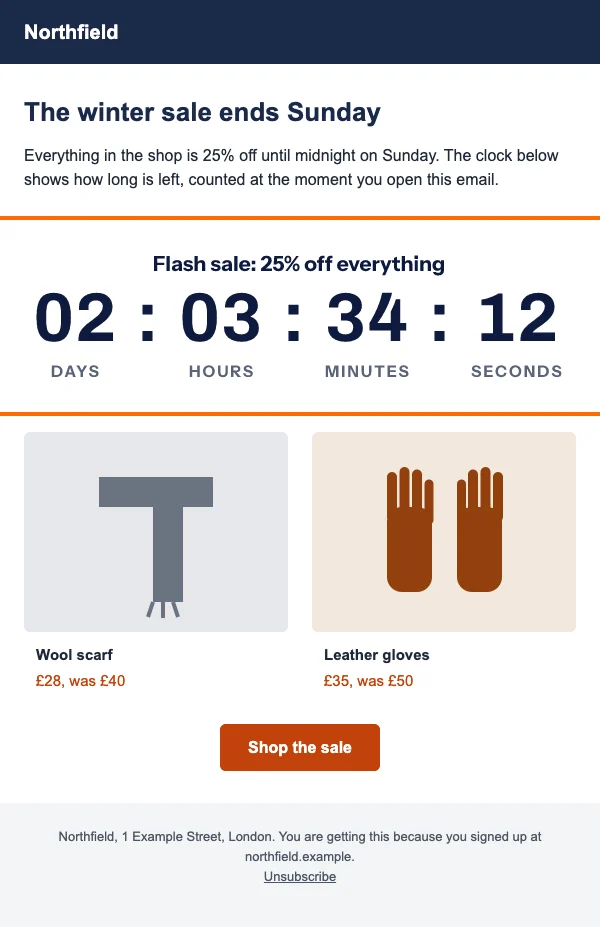
Step 1: the head and the defaults
Start with the document, a title, the preview text, and the styles every element shares. Setting padding="0" on sections, columns and images as defaults means you only add spacing where you want it, which makes widths predictable.
<mjml lang="en">
  <mj-head>
    <mj-title>The winter sale ends Sunday</mj-title>
    <mj-preview>25% off everything until midnight Sunday, plus two picks from the team.</mj-preview>
    <mj-attributes>
      <mj-all font-family="Arial, Helvetica, sans-serif" />
      <mj-section padding="0" />
      <mj-column padding="0" />
      <mj-text font-size="16px" line-height="24px" color="#1f2937" padding="0 24px 16px" />
      <mj-image padding="0" />
      <mj-class name="heading" font-size="26px" line-height="32px" font-weight="bold" color="#1b2a4a" />
      <mj-class name="muted" font-size="13px" line-height="20px" color="#4b5563" />
      <mj-class name="product" font-size="15px" line-height="22px" font-weight="bold" padding="12px 12px 4px" />
      <mj-class name="price" font-size="15px" line-height="22px" color="#c2410c" padding="0 12px 16px" />
    </mj-attributes>
  </mj-head>
  <mj-body background-color="#f3f4f6" width="600px">
    <!-- sections go here -->
  </mj-body>
</mjml>
Set a font-family in mj-all even if you want a plain system font: MJML’s default stack starts with Ubuntu, and when I compiled an email without one, MJML added a Google Fonts link for Ubuntu to the head. To use a web font on purpose, declare it with mj-font and put it first in the stack, with safe fonts after it:
<mj-head>
<mj-font name="Inter" href="https://fonts.googleapis.com/css2?family=Inter:wght@400;700&display=swap" />
<mj-attributes>
<mj-all font-family="Inter, Arial, Helvetica, sans-serif" />
</mj-attributes>
</mj-head>
MJML’s documentation says mj-font “is only applied if the template uses the font”. In my build it wrote the stylesheet <link> and an @import inside <!--[if !mso]><!-->, so classic Outlook never requests the font and uses the next one in your list; Outlook rendering issues explains why the fallback matters there.
mj-preview becomes a hidden <div> at the top of the body, which inbox lists show after the subject; email preheader covers what to write in it. The mj-class lines are named style groups we use below.
Step 2: the header
<mj-section background-color="#1b2a4a" padding="20px 0">
  <mj-column>
    <mj-text font-size="20px" line-height="24px" font-weight="bold" color="#ffffff" padding="0 24px">Northfield</mj-text>
  </mj-column>
</mj-section>
A section with one column and one block of text. The background-color on the section fills the full 600 pixels; the 24 pixel side padding on the text lines it up with everything below. For a logo instead, use an mj-image with a width and an alt of the brand name.
Step 3: the headline and introduction
<mj-section background-color="#ffffff" padding="32px 0 8px">
  <mj-column>
    <mj-text mj-class="heading">The winter sale ends Sunday</mj-text>
    <mj-text>Everything in the shop is 25% off until midnight on Sunday. The clock below shows how long is left, counted at the moment you open this email.</mj-text>
  </mj-column>
</mj-section>
mj-class="heading" applies the named group from the head. The second mj-text has no attributes at all; it takes the mj-text defaults. mj-text accepts ordinary HTML inside it, so links, <strong> and <br /> work as you would expect.
Step 4: the live countdown image
<mj-section background-color="#ffffff" padding="0 0 16px">
<mj-column>
<mj-image src="https://img.emailtimer.app/i/k7mQ2pXd.gif?w=w_8ha3fq&v=3&sig=YOUR_SIGNATURE" width="600px" alt="The sale ends Sunday at midnight" href="https://example.com/sale" />
</mj-column>
</mj-section>
This is an ordinary image tag whose picture is drawn by the server each time the email is opened, so the time left is right for each reader. Three details matter. The & characters in the URL are written &, as in any HTML attribute. There is no height, so MJML writes height:auto and the image scales down cleanly on a phone. And href makes the whole timer a link to the sale. The mj-image section below explains each choice.
Step 5: two products side by side
<mj-section background-color="#ffffff" padding="0 12px 8px">
  <mj-column width="50%" padding="0 12px">
    <mj-image src="https://example.com/img/wool-scarf.jpg" width="264px" alt="Grey wool scarf" fluid-on-mobile="true" border-radius="6px" />
    <mj-text mj-class="product">Wool scarf</mj-text>
    <mj-text mj-class="price">£28, was £40</mj-text>
  </mj-column>
  <mj-column width="50%" padding="0 12px">
    <mj-image src="https://example.com/img/leather-gloves.jpg" width="264px" alt="Brown leather gloves" fluid-on-mobile="true" border-radius="6px" />
    <mj-text mj-class="product">Leather gloves</mj-text>
    <mj-text mj-class="price">£35, was £50</mj-text>
  </mj-column>
</mj-section>
The arithmetic: the section is 600 pixels with 12 pixels of padding each side, leaving 576; each column gets half, 288; each column has 12 pixels of padding each side, leaving 264 for the image. Get the numbers right and the images are exactly as wide as you exported them, which keeps them sharp; email image size covers exporting at twice the width for high-density screens. fluid-on-mobile="true" lets each product image grow to the full width once the columns stack, instead of staying 264 pixels in the middle of the phone screen.
Step 6: the button
<mj-section background-color="#ffffff" padding="8px 0 32px">
  <mj-column>
    <mj-button href="https://example.com/sale" background-color="#c2410c" color="#ffffff" font-size="16px" font-weight="bold" border-radius="6px" inner-padding="14px 28px" padding="0">Shop the sale</mj-button>
  </mj-column>
</mj-section>
inner-padding is the space inside the button; padding is the space around it. White text on #c2410c passes the 4.5:1 contrast that WCAG asks for normal text. MJML writes this as a padded table cell, which is the first method in HTML email buttons; the Outlook section below shows the code.
Step 7: the footer
<mj-section padding="24px 0">
  <mj-column>
    <mj-text mj-class="muted" align="center">Northfield, 1 Example Street, London. You are getting this because you signed up at northfield.example.<br /><a href="https://example.com/unsubscribe" style="color:#4b5563;">Unsubscribe</a></mj-text>
  </mj-column>
</mj-section>
This section has no background colour, so it sits on the grey mj-body background and reads as separate from the white card above it.
The complete file
Put the sections inside mj-body in order and you have the whole email: 63 lines of MJML.
<mjml lang="en">
<mj-head>
<mj-title>The winter sale ends Sunday</mj-title>
<mj-preview>25% off everything until midnight Sunday, plus two picks from the team.</mj-preview>
<mj-attributes>
<mj-all font-family="Arial, Helvetica, sans-serif" />
<mj-section padding="0" />
<mj-column padding="0" />
<mj-text font-size="16px" line-height="24px" color="#1f2937" padding="0 24px 16px" />
<mj-image padding="0" />
<mj-class name="heading" font-size="26px" line-height="32px" font-weight="bold" color="#1b2a4a" />
<mj-class name="muted" font-size="13px" line-height="20px" color="#4b5563" />
<mj-class name="product" font-size="15px" line-height="22px" font-weight="bold" padding="12px 12px 4px" />
<mj-class name="price" font-size="15px" line-height="22px" color="#c2410c" padding="0 12px 16px" />
</mj-attributes>
</mj-head>
<mj-body background-color="#f3f4f6" width="600px">
<!-- 1. Header -->
<mj-section background-color="#1b2a4a" padding="20px 0">
<mj-column>
<mj-text font-size="20px" line-height="24px" font-weight="bold" color="#ffffff" padding="0 24px">Northfield</mj-text>
</mj-column>
</mj-section>
<!-- 2. Headline and intro -->
<mj-section background-color="#ffffff" padding="32px 0 8px">
<mj-column>
<mj-text mj-class="heading">The winter sale ends Sunday</mj-text>
<mj-text>Everything in the shop is 25% off until midnight on Sunday. The clock below shows how long is left, counted at the moment you open this email.</mj-text>
</mj-column>
</mj-section>
<!-- 3. Live countdown image -->
<mj-section background-color="#ffffff" padding="0 0 16px">
<mj-column>
<mj-image src="https://img.emailtimer.app/i/k7mQ2pXd.gif?w=w_8ha3fq&v=3&sig=YOUR_SIGNATURE" width="600px" alt="The sale ends Sunday at midnight" href="https://example.com/sale" />
</mj-column>
</mj-section>
<!-- 4. Two products, side by side on desktop, stacked on phones -->
<mj-section background-color="#ffffff" padding="0 12px 8px">
<mj-column width="50%" padding="0 12px">
<mj-image src="https://example.com/img/wool-scarf.jpg" width="264px" alt="Grey wool scarf" fluid-on-mobile="true" border-radius="6px" />
<mj-text mj-class="product">Wool scarf</mj-text>
<mj-text mj-class="price">£28, was £40</mj-text>
</mj-column>
<mj-column width="50%" padding="0 12px">
<mj-image src="https://example.com/img/leather-gloves.jpg" width="264px" alt="Brown leather gloves" fluid-on-mobile="true" border-radius="6px" />
<mj-text mj-class="product">Leather gloves</mj-text>
<mj-text mj-class="price">£35, was £50</mj-text>
</mj-column>
</mj-section>
<!-- 5. Call to action -->
<mj-section background-color="#ffffff" padding="8px 0 32px">
<mj-column>
<mj-button href="https://example.com/sale" background-color="#c2410c" color="#ffffff" font-size="16px" font-weight="bold" border-radius="6px" inner-padding="14px 28px" padding="0">Shop the sale</mj-button>
</mj-column>
</mj-section>
<!-- 6. Footer -->
<mj-section padding="24px 0">
<mj-column>
<mj-text mj-class="muted" align="center">Northfield, 1 Example Street, London. You are getting this because you signed up at northfield.example.<br /><a href="https://example.com/unsubscribe" style="color:#4b5563;">Unsubscribe</a></mj-text>
</mj-column>
</mj-section>
</mj-body>
</mjml>
Compiled, it becomes 384 lines and 21,716 bytes of HTML, or 15,386 bytes minified.
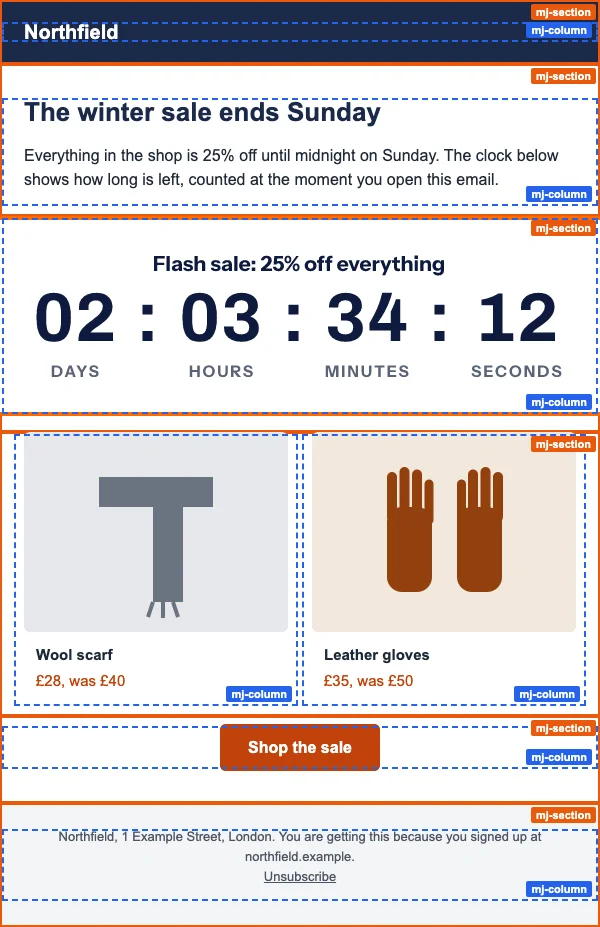
How it stacks on a phone
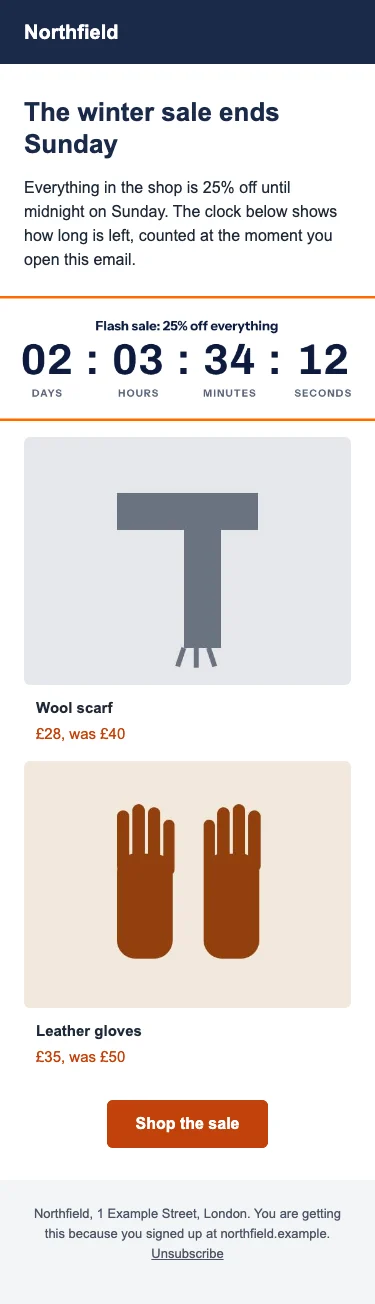
You did not write a media query, and yet the products stack on a phone. MJML is mobile first: in the compiled HTML every column is a <div> with width:100% written inline, and a media query in the head widens it to 50% on screens of 480 pixels or more. A client that ignores media queries therefore gets the stacked layout, which is the safe failure. Can I email lists @media support as partial in Gmail (Google accounts only, and no height queries) and in Outlook.com, and as full in Apple Mail and iOS Mail. To move the switch point, add <mj-breakpoint width="520px" /> to the head.
mj-attributes and mj-class
mj-attributes is where an MJML email keeps its design system. Inside it you can write any component’s tag to change that component’s defaults, mj-all to change every component, and mj-class to make named groups.
<mj-attributes>
  <mj-all font-family="Arial, Helvetica, sans-serif" />
  <mj-text font-size="16px" line-height="24px" color="#1f2937" />
  <mj-class name="heading" font-size="26px" font-weight="bold" color="#1b2a4a" />
  <mj-class name="center" align="center" />
</mj-attributes>
Use a class with mj-class="heading", and combine classes with a space: mj-class="heading center". When the same attribute is set in several places, the documentation gives the order in which MJML applies them, from strongest to weakest:
- An attribute written on the tag itself.
- A default for that component in
mj-attributes, such as<mj-text>. - The
mj-alldefault. - MJML’s built-in default.
The list does not mention mj-class; in my test with MJML 5.4.1 a class beat the mj-text default, and an attribute written on the tag beat the class. A good habit is to put every colour and font size in mj-attributes and keep the body free of styling, so a brand change is one edit in the head. For CSS that has no MJML attribute, such as a hover colour, use <mj-style> in the head; add inline="inline" to it to have those rules inlined onto the elements.
mj-image in depth, with a countdown block
mj-image becomes a table cell holding an <img> with display:block, no border, and width:100% up to the width you set. These are the attributes you will use most:
| Attribute | What it does | Default |
|---|---|---|
src |
The image URL, written with & for each & |
none |
width |
The widest the image will be drawn | The column width |
height |
The drawn height; leave it out unless you must | auto |
alt |
Text shown when images are off, and read by screen readers | empty |
href |
Makes the image a link | none |
padding |
Space around the image, which comes out of its width | 10px 25px |
fluid-on-mobile |
Full width on phones even when width is set |
off |
align |
Left, center or right inside the column | center |
border-radius |
Rounded corners (not in classic Outlook) | none |
The padding trap
The default 10px 25px padding is the most common reason an MJML image comes out the wrong size. MJML keeps the image inside the column, so 50 pixels of side padding turns a 600 pixel image into a 550 pixel one. If you also set height, the height stays fixed while the width shrinks, and the picture is squashed:
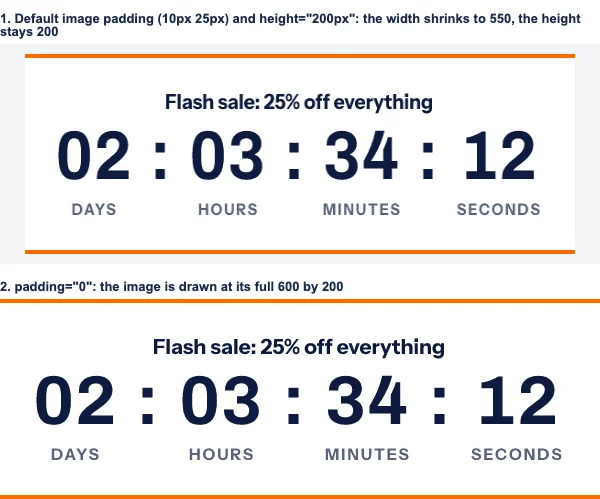
The fix is the one used in the tutorial: set padding="0" on images (once, in mj-attributes) and leave height out, so MJML writes height:auto and the image keeps its shape at every width.
A countdown block you can paste
A countdown timer is a good test of mj-image, because the picture changes at every open while the code stays the same. This block gives it its own white section, full width, linked to the offer, with a line of text above it for readers who have images turned off:
<mj-section background-color="#ffffff" padding="0 0 16px">
<mj-column>
<mj-text align="center" font-size="14px" color="#4b5563" padding="0 24px 8px">The sale ends Sunday at midnight (UK time).</mj-text>
<mj-image src="https://img.emailtimer.app/i/k7mQ2pXd.gif?w=w_8ha3fq&v=3&sig=YOUR_SIGNATURE" width="600px" padding="0" alt="Time left in the sale: ends Sunday at midnight" href="https://example.com/sale" />
</mj-column>
</mj-section>
Why each part is there:
- The text line states the deadline in words, so a reader with images blocked still knows it. The
alttext says the same, for screen readers. width="600px"andpadding="0"draw the image at exactly the width it was made. For sharp results on high-density screens the image itself should be made at twice that width; retina countdown timers explains how.- No
height, so the timer shrinks in proportion on phones. hrefmakes the timer clickable, which readers expect of a picture in a sale email.
Animation in Outlook has one limit that has nothing to do with MJML. Outlook 2007 to 2013 show only the first frame. In current builds, including Microsoft 365, GIFs animate by default, and show only the first frame when animations are turned off. Animated GIFs in email covers the details.
For a live timer such as an email countdown timer from EmailTimer.app, the mj-image attributes that matter are width at the size the timer was made, padding="0", no height, so it scales on a phone, and no fluid-on-mobile, because a 600 pixel timer already fills a phone screen; a snippet from the countdown timer generator drops into the src as it is. The EmailTimer.app editor copies its snippet with your sending platform’s merge tags already in it. Those merge tags belong in the href and the alt text; the image address is signed, so leave it exactly as copied. I checked that MJML leaves them alone: {{ contact.id }} in an mj-image href, {{ first_name }} in its alt, and *|FNAME|* in an mj-text all came through MJML 5.4.1 unchanged, minify included.
Compile your MJML
The command line covers almost everything:
# Compile one file
npx mjml email.mjml -o email.html

# Recompile every time you save
npx mjml -w email.mjml -o email.html

# Print to the terminal instead of a file
npx mjml email.mjml -s

# Minify the output
npx mjml email.mjml --config.minify true -o email.html

# Stop on any invalid MJML instead of warning
npx mjml email.mjml --config.validationLevel strict -o email.html
Validation has three levels: strict fails on errors, soft (the default) compiles and lists the problems, and skip does not check. Use strict in a build script so a typo in an attribute name stops the build rather than reaching an inbox.
From Node.js, mjml2html takes the MJML as a string and returns the HTML and any errors:
import mjml2html from "mjml";
import { readFile, writeFile } from "node:fs/promises";

const source = await readFile("email.mjml", "utf8");
const { html, errors } = await mjml2html(source, { validationLevel: "strict", minify: true });
if (errors.length) console.error(errors);
await writeFile("email.html", html);
Two MJML 5 changes are worth knowing before you set this up. mj-include, which pulls in a shared header or footer from another file, is now off by default: turn it on with --config.allowIncludes true on the command line, or ignoreIncludes: false in Node. And minification moved to htmlnano and cssnano, so minified output differs from MJML 4’s; if you compare snapshots in tests, regenerate them after upgrading.
Templating with mj-raw
MJML does not have loops or conditions of its own. Your sending platform’s template language goes inside mj-raw, which MJML passes through untouched. The documentation’s example wraps the tag in <!-- htmlmin:ignore --> so the minifier does not trip over characters such as <:
<mj-raw>
  <!-- htmlmin:ignore -->{% if customer.vip %}<!-- htmlmin:ignore -->
</mj-raw>
<mj-section>
  <mj-column>
    <mj-text>Your VIP code is {{ customer.code }}.</mj-text>
  </mj-column>
</mj-section>
<mj-raw>{% endif %}</mj-raw>
The MJML 5 release notes add a warning: template syntax inside CSS or style attributes can cause a CssSyntaxError when CSS minification is on, so keep merge tags out of styles.
What MJML writes for Outlook, line by line
Open the compiled file and you will see three kinds of Outlook-only code. All of it sits in conditional comments that only Microsoft Office reads.
The document settings
<!--[if mso]>
<noscript>
<xml>
<o:OfficeDocumentSettings>
  <o:AllowPNG/>
  <o:PixelsPerInch>96</o:PixelsPerInch>
</o:OfficeDocumentSettings>
</xml>
</noscript>
<![endif]-->
<!--[if lte mso 11]>
<style type="text/css">
  .mj-outlook-group-fix { width:100% !important; }
</style>
<![endif]-->
<!--[if mso]>opens a block that only Outlook’s Word engine reads; every other client sees a comment.<o:AllowPNG/>and<o:PixelsPerInch>96are Office document settings. The pixels-per-inch value is the setting email developers use against Outlook’s scaling on high-DPI Windows displays; Outlook rendering issues covers that bug.[if lte mso 11]targets Office version 11 and earlier, which is older than any Word-based Outlook (Outlook 2007 is version 12), with a width fix for column groups.
The ghost tables
Each section is a <div> with max-width:600px for modern clients, wrapped in a table that only Outlook sees:
<!--[if mso | IE]><table align="center" border="0" cellpadding="0" cellspacing="0" class="" role="presentation" style="width:600px;" width="600" bgcolor="#ffffff" ><tr><td style="line-height:0px;font-size:0px;mso-line-height-rule:exactly;"><![endif]-->
<div style="background:#ffffff;background-color:#ffffff;margin:0px auto;max-width:600px;">
  ...
</div>
<!--[if mso | IE]></td></tr></table><![endif]-->
[if mso | IE]matches Outlook and old Internet Explorer.width="600"andstyle="width:600px;"give Outlook a fixed width, since Word ignoresmax-width.bgcolorrepeats the section background as an HTML attribute on the Outlook table.line-height:0px; font-size:0px; mso-line-height-rule:exactlyare there so the wrapper cell adds no line height of its own around the section.
Inside a section with two columns, the ghost table has one cell per column, at the pixel width MJML worked out:
<!--[if mso | IE]><table role="presentation" border="0" cellpadding="0" cellspacing="0"><tr><td class="" style="vertical-align:top;width:288px;" ><![endif]-->
<div class="mj-column-per-50 mj-outlook-group-fix" style="font-size:0px;text-align:left;direction:ltr;display:inline-block;vertical-align:top;width:100%;">
  ...first column...
</div>
<!--[if mso | IE]></td><td class="" style="vertical-align:top;width:288px;" ><![endif]-->
This is why classic Outlook shows the desktop layout with columns side by side, even though it ignores the media queries: it ignores the <div> widths, which Word does not support on <div>, and lays out the two 288 pixel cells instead.
The button
<td align="center" bgcolor="#c2410c" role="presentation" style="border:none;border-radius:6px;cursor:auto;mso-padding-alt:14px 28px;background:#c2410c;" valign="middle">
  <a href="https://example.com/sale" style="display:inline-block;background:#c2410c;color:#ffffff;font-family:Arial, Helvetica, sans-serif;font-size:16px;font-weight:bold;line-height:120%;margin:0;text-decoration:none;text-transform:none;padding:14px 28px;mso-padding-alt:0px;border-radius:6px;" target="_blank"> Shop the sale </a>
</td>
The padding is on the link for modern clients, so the whole button is clickable there, and mso-padding-alt:14px 28px puts the same padding on the cell for Outlook, where mso-padding-alt:0px on the link stops it doubling. In classic Outlook the corners are square and only the text is clickable. If rounded corners in Outlook matter, the MJML documentation lists a community component, mjml-msobutton, that adds a VML button, or you can write VML in an mj-raw as shown in HTML email buttons.
The new Outlook for Windows reads the <div> code and skips the conditional comments; Outlook rendering issues compares it with the classic app.
Which part of the output each client uses
| Client | Layout it reads | Columns on desktop | Stacks on phones |
|---|---|---|---|
| Classic Outlook for Windows (2007 to 2019 in caniemail’s tests; 2021, 2024 and Microsoft 365 use the same Word engine) | The ghost tables | Side by side, fixed widths | Not applicable |
| New Outlook for Windows, Outlook on the web | The <div> layout |
Side by side, via media query | Yes |
| Gmail, with a Google account | The <div> layout and head styles |
Side by side | Yes |
| Gmail app with a non-Google account | The <div> layout, inline styles only |
Stacked (no media query support) | Yes |
| Apple Mail, iOS Mail | The <div> layout |
Side by side | Yes |
| Yahoo Mail, AOL | The <div> layout |
Side by side (width queries supported) | Yes |
| Samsung Email | The <div> layout |
Side by side (not with Hotmail or Outlook accounts) | Yes |
Sources: Can I email’s @media, max-width and <style> data, read on 21 November 2026, and Microsoft’s documentation of Word’s rendering engine. The non-Google account rows follow from MJML’s mobile-first output: where media queries are not supported, the inline width:100% wins. See Gmail and Outlook for each client’s wider quirks.
Pre-send checklist
<mjml lang="...">is set, so the HTML is not markedlang="und".mj-titleandmj-previeware filled in.- Colours and fonts live in
mj-attributes, not on individual tags. - Image widths add up: section width, minus section padding, divided between columns, minus column and image padding.
- Every
mj-imagehasalttext, and images that should scale have noheight. - Product and hero images use
fluid-on-mobile="true"where they should fill a phone screen. - Every
&in a URL is written&. - The file compiles with
--config.validationLevel strictand no errors. - The minified HTML is well under Gmail’s clipping size of about 102 KB (Gmail clipped message).
- Merge tags are outside
styleattributes, CSS and signed image addresses. - A test send has been opened in classic Outlook for Windows, Gmail and Apple Mail or iOS Mail; send an HTML email from Gmail is a quick way to send one to yourself.
Questions and answers
What is MJML?
MJML is an open-source markup language for responsive email, released under the MIT licence. You write tags such as mj-section, mj-column and mj-image, and the compiler produces HTML with nested tables, inline styles and Outlook conditional comments. It runs from the command line, from Node.js, in editor plugins, or in the online editor at mjml.io.
Is there an MJML editor online?
Yes. The free editor at mjml.io/try-it-live shows your MJML on the left and the rendered email on the right, at desktop or phone width. On 21 November 2026 it ran MJML 5.4.1 and offered “View HTML”, “Minify HTML” and “Beautify MJML”. Copy the HTML from “View HTML” into your sending platform.
Where is the MJML documentation?
The official documentation is at documentation.mjml.io. It covers installation, the command line and Node.js options, every standard component with its attributes and defaults, and community components. Release notes, including the MJML 5 upgrade guide, are on the project’s GitHub releases page.
How do I install MJML?
Run npm install mjml in your project, then npx mjml --version to check it. MJML 5 is tested on Node.js 20, 22 and 24. You can also install it globally with npm install -g mjml, but a project install keeps every developer on the same version.
How do I convert MJML to HTML?
Run npx mjml email.mjml -o email.html, or call mjml2html(source) in Node.js, which returns an object with html and errors. In the online editor, “View HTML” shows the compiled output to copy.
What is the difference between mj-section and mj-column?
An mj-section is a horizontal band of the email, and an mj-column is a box inside it. Every section needs at least one column, columns in a section share its width, and columns are the part that stacks on phones. You cannot put a section inside a column, or one section inside another.
Why is my mj-image smaller than the width I set?
Because mj-image has a default padding of 10px 25px, and the padding comes out of the column width. A 600 pixel image in a 600 pixel column is drawn 550 pixels wide. Set padding="0" on the image, or once for all images in mj-attributes.
Why does my MJML image look stretched or squashed?
You probably set a height. MJML writes the height as a fixed CSS value, so when the image is narrowed by padding or by a phone screen, the height does not follow. Leave height out and MJML writes height:auto, which keeps the proportions.
Does MJML work in Outlook?
Yes. MJML wraps every section and column in fixed-width tables inside [if mso | IE] conditional comments, which classic Outlook for Windows reads and other clients ignore, and it pads buttons with mso-padding-alt. Rounded corners and background images still need extra work in classic Outlook. The new Outlook for Windows reads the modern code.
How do I change the mobile breakpoint in MJML?
Add <mj-breakpoint width="520px" /> inside mj-head. The compiled media queries then switch between the stacked and side-by-side layouts at that width; without it, my build switched at 480 pixels.
How do I add Liquid or Handlebars logic to an MJML email?
Put the template tags, such as {% if %} and {% endif %}, in mj-raw, which MJML passes through untouched, and wrap them in <!-- htmlmin:ignore --> if you minify, as the documentation shows. Plain merge tags in text, href and alt passed through MJML 5.4.1 unchanged in my test. Keep template syntax out of CSS, where MJML 5’s minifier can raise a CssSyntaxError, and leave a signed image address, such as an EmailTimer.app timer’s, exactly as copied.
How do I reuse a header and footer across MJML emails?
Put them in their own files and pull them in with <mj-include path="./header.mjml" />. In MJML 5 includes are off by default for safety, so enable them with --config.allowIncludes true on the command line or ignoreIncludes: false in Node.js.
Is MJML still maintained?
Yes. The latest stable release on 21 November 2026 was 5.4.1, from 10 September 2026, and MJML 6.0.0-alpha.1 came out on 9 October 2026 with smaller HTML, dark mode attributes and ARIA attributes. MJML 6 will need Node.js 22 or later and changes some defaults, such as a 16px base font size.
Sources
- MJML documentation (mjml.io), read on 21 November 2026
- MJML online editor, Try it live (mjml.io), opened on 21 November 2026
- MJML releases on GitHub, v5.4.1, read on 21 November 2026
- MJML v5.0.0 release notes and upgrade guide (GitHub), read on 21 November 2026
- MJML 6.0.0-alpha.1 release notes (GitHub), read on 21 November 2026
- Word 2007 HTML and CSS Rendering Capabilities in Outlook 2007 (Microsoft Learn), read on 21 November 2026
- max-width support by email client (Can I email), read on 21 November 2026
- @media support by email client (Can I email), read on 21 November 2026
- <style> element support by email client (Can I email), read on 21 November 2026
Related
Put a countdown in the campaign you are writing now
The free plan covers 5,000 opens a month with no card. Starter is $24 a month for 250,000.