

Google Fonts and other web fonts work in email only in some clients: Apple Mail, iOS Mail, Thunderbird and Samsung Email load them, while Gmail, Yahoo Mail, AOL, Outlook.com and the Outlook apps do not, according to caniemail’s tests. So you can use a Google Font in an email, but every reader in those other clients will see your fallback font, and classic Outlook for Windows can show Times New Roman instead unless you hide the font from it or set its fallback with mso-font-alt.
The safe setup is three pieces of code, all shown below: the web font loaded inside a comment that classic Outlook skips, a font stack ending in a generic family on every text cell, and an Outlook-only rule that forces Arial.
Where the fonts in an email come from
Email developer Rémi Parmentier opens his guide to fonts in HTML email by saying “There is no such thing as a ‘web safe font’”. He lists four places a font in an email can come from:
- System fonts, installed with the operating system. They differ between macOS, iOS, Windows and Android; he notes that Android has neither Arial nor Times New Roman, and falls back to Roboto and Noto Serif.
- User fonts, which the reader has installed.
- Email client fonts, which a mail app or webmail ships for its own interface. He gives the examples of Gmail’s web version embedding Google Sans and Roboto, and Outlook.com embedding Segoe UI Web.
- Embedded fonts, which you load from a server with
<link>,@importor@font-face, the same as on a web page.
Only the fourth is under your control, and it is the one with patchy support. The first three decide what your fallback looks like.
Which email clients load web fonts
| Client | @font-face in <style> |
<link> to a stylesheet |
@import |
What the reader sees |
|---|---|---|---|---|
| Apple Mail (macOS) | Yes | Yes | Yes | The web font |
| iOS Mail | Yes | Yes | Yes | The web font |
| Samsung Email | Yes, except with Microsoft addresses | No | No | The web font, if declared with @font-face |
| Thunderbird (78) | Yes | No | No | The web font, if declared with @font-face |
| Gmail (web, iOS, Android) | No | No | No | The fallback (Gmail on the web shows Google Sans and Roboto only because it embeds them) |
| Outlook.com and Outlook on the web | No | No | No | The fallback |
| Outlook for Mac (16.80), iOS, Android | No | No | No | The fallback |
| Classic Outlook for Windows (2007 to 2019 in caniemail’s tests; 2021, 2024 and Microsoft 365 use the same Word engine) | Declaration read, remote font ignored | Yes, but the remote font is ignored | Yes, but the remote font is ignored | The fallback, or Times New Roman in 2007 to 2016 (see below) |
| Yahoo Mail and AOL | No | No | No | The fallback |
Source: caniemail’s @font-face, <link> and @import pages, read on 21 November 2026. The @font-face data was last tested on 19 December 2023. Caniemail records that Samsung Email does not support @font-face “when using a Microsoft email address; outlook, live, hotmail, etc.”, that Outlook for Mac and the Outlook iOS app used to support it and no longer do, and that classic Outlook for Windows reads the declaration but “distant fonts are ignored”. Google’s own CSS page for Gmail lists font-family among the supported properties but says nothing about loading fonts, which matches caniemail’s result.
In practice, that means a web font in email is a progressive enhancement for Apple devices and a few others. Design the email so it looks right in the fallback, then let the web font improve it where it loads, the same approach the HTML email developer’s guide takes to all typography.
Three ways to load Google Fonts in an email
All three go in the <head>. Each is wrapped in <!--[if !mso]><!--> and <!--<![endif]-->, which hides it from classic Outlook for Windows and shows it to every other client; the next section explains why.
Option 1: a <link> tag
<!--[if !mso]><!-->
<link rel="stylesheet" href="https://fonts.googleapis.com/css2?family=Instrument+Sans:wght@400;600&display=swap">
<!--<![endif]-->
This is the code Google Fonts’ own CSS API documentation starts with: a <link rel="stylesheet"> to https://fonts.googleapis.com/css2 with a family= parameter. wght@400;600 asks for the two weights the email uses and no others, which Google’s documentation recommends so readers do not download font data they do not need. display=swap sets font-display, which Google describes as controlling “what happens while the font is still loading or otherwise unavailable”; swap shows the fallback first and swaps the web font in when it arrives.
The benefit of linking the stylesheet rather than copying it: Google decides which font files to serve based on who asks. When I requested the URL above on 21 November 2026 with a Safari user agent, Google returned woff2 files split into separate Latin and Latin Extended ranges. The same request with no browser user agent returned one TrueType (.ttf) file per weight. Each mail app that follows the link gets the format Google chooses for it.
Option 2: @import inside a <style> block
<!--[if !mso]><!-->
<style>
@import url('https://fonts.googleapis.com/css2?family=Instrument+Sans:wght@400;600&display=swap');
</style>
<!--<![endif]-->
It loads the same stylesheet. MDN notes that @import must come before any other rule in a stylesheet, “or it will be ignored”, so give it a <style> block of its own at the top of the head. Caniemail shows the same support for both: Apple Mail and iOS Mail load the font, classic Outlook reads the tag but not the remote font, and every other client in the table supports neither. Use whichever survives your sending platform’s editor, and check the source of a sent test to be sure.
Option 3: @font-face
<!--[if !mso]><!-->
<style>
@font-face {
  font-family: 'Instrument Sans';
  font-style: normal;
  font-weight: 400;
  font-display: swap;
  src: url('https://example.com/fonts/instrument-sans-400.woff2') format('woff2'),
       url('https://example.com/fonts/instrument-sans-400.woff') format('woff');
}
@font-face {
  font-family: 'Instrument Sans';
  font-style: normal;
  font-weight: 600;
  font-display: swap;
  src: url('https://example.com/fonts/instrument-sans-600.woff2') format('woff2'),
       url('https://example.com/fonts/instrument-sans-600.woff') format('woff');
}
</style>
<!--<![endif]-->
MDN describes @font-face as specifying “a custom font with which to display text”, loaded “from either a remote server or a locally-installed font”. Here you point straight at the font files, one rule per weight.
This is the method with the widest reach: caniemail shows Samsung Email and Thunderbird supporting @font-face while not supporting <link> or @import. The catch is the file URLs. Google’s fonts.gstatic.com addresses contain a version number and change when a font is updated, and the format you copy depends on the browser you copied it with, as described above. For @font-face, host the files yourself and check the font’s licence allows it. MDN notes that web fonts are subject to a same-domain restriction “unless HTTP access controls are used to relax this restriction”, and an email is never on your domain, so the server must send a cross-origin header that allows the font to be used anywhere.
Which option to use
Use <link> or @import to a Google Fonts URL when you want the simplest code and Apple Mail and iOS Mail are the clients you care about. Use self-hosted @font-face when you also want Samsung Email and Thunderbird, or your font is not on Google Fonts. Do not combine methods for the same font; it only adds requests.
MJML has this built in: its documentation says mj-font “Imports external fonts and is only applied if the template uses the font”, with an href that points to a CSS file such as a Google Fonts URL. The MJML tutorial uses it.
The font stack: what most of your readers will see
A web font is only the first name in a list. MDN’s advice for any font-family is: “You should always include at least one generic family name in a font-family list, since there’s no guarantee that any given font is available.” Parmentier shows why in email: font-family:Lobster with no fallback renders as Times in a browser, while font-family:Lobster, sans-serif gives Arial, Helvetica or Roboto depending on the system.
Put the stack inline on every text element, the web font first:
<td style="font-family:'Instrument Sans', Arial, Helvetica, sans-serif; font-size:16px; line-height:24px; color:#1b2a4a;">
'Instrument Sans'is the web font, in quotes because the name has a space.Arialis installed on Windows and macOS, so it is the fallback for Gmail and Outlook readers on a computer.Helveticacatches Apple systems where you prefer it to Arial.sans-serifis the generic family. On Android, where Arial is not installed, this is what gives Roboto.
Inline styles matter here. Gmail apps signed in with non-Google accounts ignore <style> blocks, as responsive email and media queries explains, so a font set only in a class never reaches those readers.
Pick a fallback that matches the web font’s width
The fallback should be close to the web font in width as well as style, or the email will look different in Gmail from the design. A wider fallback breaks lines in new places, makes buttons wrap and pushes content down.
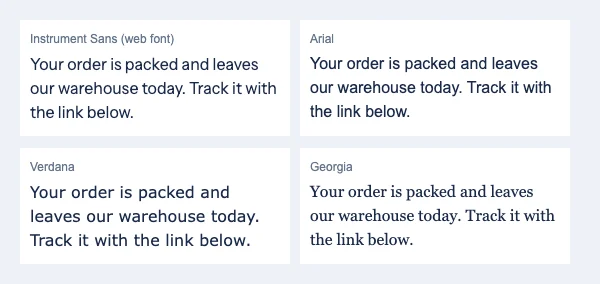
Some stacks that work, each a web font followed by a close system fallback:
| Web font style | Example stack |
|---|---|
| Neutral sans-serif (Inter, Instrument Sans, Roboto) | 'Inter', Arial, Helvetica, sans-serif |
| Wide, friendly sans-serif (Open Sans, Nunito Sans) | 'Open Sans', 'Segoe UI', Tahoma, Arial, sans-serif |
| Book serif (Merriweather, Lora, Source Serif) | 'Lora', Georgia, 'Times New Roman', serif |
| Monospace (JetBrains Mono, Roboto Mono) | 'Roboto Mono', 'Courier New', Courier, monospace |
Parmentier also recommends declaring a generic family every time, and suggests the font shorthand, for example font:bold 16px/24px sans-serif, which he says has very good support. Whichever you use, test the fallback by deleting the web font from the head and looking at the email: that is what a Gmail reader gets.
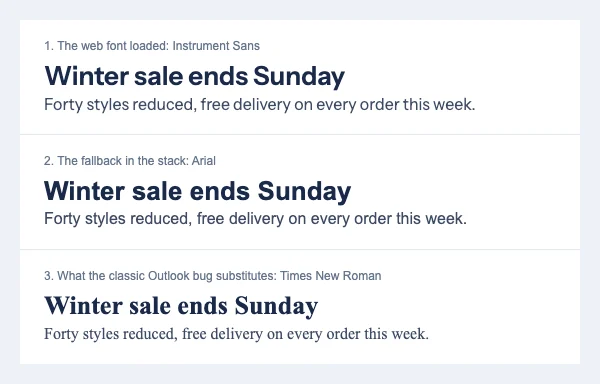
Why classic Outlook shows Times New Roman, and the fix
Caniemail records this bug for Outlook 2007 to 2016 for Windows: “Elements using a font declared with @font-face ignore the font stack and fall back to Times New Roman. Use mso-generic-font-family and mso-font-alt to control the fallback.”
In other words, once Outlook reads a declaration for a font it cannot download, it gives up on your whole stack, Arial included, and uses its default serif font. Without a web font, the stack works: Microsoft’s documentation of the Word engine lists font-family among the CSS properties it supports. The fix is to make sure Outlook never sees the declaration, and to tell it which font to use.
The fix, in three parts
<head>
<!--[if !mso]><!-->
<link rel="stylesheet" href="https://fonts.googleapis.com/css2?family=Instrument+Sans:wght@400;600&display=swap">
<!--<![endif]-->

<!--[if mso]>
<style>
body, table, td, th, div, p, a, li, span, h1, h2, h3, h4, h5, h6 { font-family: Arial, Helvetica, sans-serif !important; }
</style>
<![endif]-->
</head>
Line by line:
<!--[if !mso]><!-->opens a block that classic Outlook skips. Office reads[if !mso]as “not Office” and ignores what follows; other clients see<!--[if !mso]><!-->as a complete comment, so they read the<link>normally.- The
<link>loads the web font for everyone else. Because Outlook never reads it, Outlook has no@font-facedeclaration for Instrument Sans, so the bug is never triggered and it moves on to Arial in the inline stack. <!--<![endif]-->closes the block. To Outlook it is the end of the conditional; to other clients it is an empty comment.- The
[if mso]style block is the safety net, read only by Outlook. It sets Arial on every text element, with!importantand a space before it, which caniemail notes is how classic Outlook accepts!important. If any element’s inline stack is missing a fallback, or a sending platform has moved your font declaration, Outlook still uses Arial.
The free HTML email template uses the same [if mso] Arial rule for this reason.
The alternative: mso-font-alt inside @font-face
If you cannot wrap the declaration in a conditional comment, for example because a platform’s editor rewrites the head, you can tell Outlook what to use from inside the @font-face rule:
@font-face {
  font-family: 'Instrument Sans';
  font-weight: 400;
  src: url('https://example.com/fonts/instrument-sans-400.woff2') format('woff2');
  mso-generic-font-family: swiss;
  mso-font-alt: 'Arial';
}
These are Office-only properties that other clients ignore. Caniemail’s note names both as the way to control the fallback, and its own @font-face test file includes a version of the rule with mso-generic-font-family:swiss next to a sans-serif stack. Good Email Code, which points to the MSO properties listed in Microsoft’s Office HTML and XML reference, says of mso-generic-font-family and mso-font-alt: “These don’t appear to work in the majority of places however, they can be used as part of a fallback for webfonts”, and Parmentier’s fonts guide recommends including them whenever you use @font-face. Use swiss for a sans-serif font and give mso-font-alt the system font you want, then test it, because this route depends on Outlook honouring properties Microsoft never documented for email. The conditional-comment fix above does not.
Font weights in Outlook
One more Outlook difference that shows up with web fonts. Caniemail’s font-weight data says classic Outlook for Windows sets numeric weights “between 0 and 599 as normal font weight” and 600 to 1000 as bold. So a heading set to font-weight:500 for a medium weight is regular in Outlook, and 600 is full bold. Design headings that look right at 400 or 700 in Arial, since that is what Outlook will draw.
Text in images: why not
When a brand font matters, it is tempting to save the headline as an image. Good Email Code lists the problems in detail, and they are worth knowing before you do it:
- Screen readers announce every image as an image, and only the alt text is read.
- The text cannot be selected, translated, searched with find-in-page, or restyled by tools readers use to make text easier to read.
- On a phone, the image shrinks but the text cannot reflow, so it gets small. Zoomed in, it gets blurry.
- When images are off, the message is gone. Good Email Code adds that some clients include alt text in inbox search and some do not, and that Yahoo and AOL did not return results in its tests.
- Copy is harder to change. Good Email Code points out that editing text in code is quick, while editing text in an image usually needs design software, and the alt text has to be updated to match.
Images of text also add download weight, and one more file that can fail to load. WCAG’s images of text criterion asks for real text wherever the technology can produce the presentation, with exceptions for logos and cases where the particular presentation is essential. In email, a web font with a good fallback can almost always produce it.
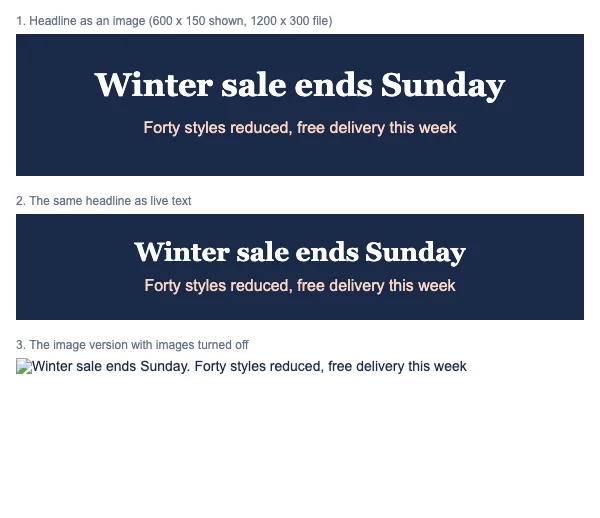
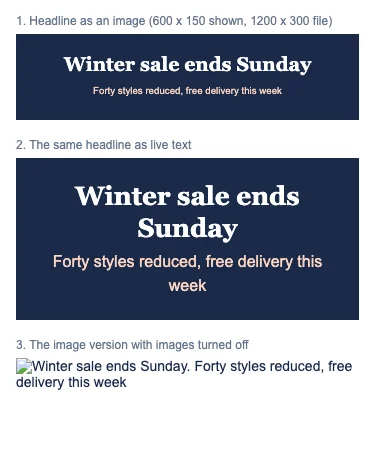
If you do use an image for a display headline, keep it short, make the alt text say exactly what the image says, repeat the key facts in live text nearby, and save it at twice its shown size. Email accessibility covers alt text in more depth.
When an image is the right answer
Logos are the accepted exception, and so is anything whose content must change after the email is sent, because an image is the only part of an ordinary HTML email that can change once it is in the inbox. A live countdown is the common case, and it sidesteps everything above about fonts: its digits are part of the picture, so an email countdown timer from EmailTimer.app shows the same lettering in Gmail and classic Outlook as in Apple Mail, which no web font can do. Because those digits are not text, give it alt text that states the deadline in words, such as “Sale ends Sunday at midnight”, so screen reader users and readers with images off still get the date. The countdown timer generator makes one to test in your own template.
Common web font problems
- Times New Roman in Outlook. The font declaration is visible to Outlook. Wrap it in
<!--[if !mso]><!-->and add the[if mso]Arial rule. - The font works in a browser preview but not in Gmail. That is expected: Gmail does not load web fonts. Check the email in the fallback.
- The font loads in Apple Mail but the wrong weight shows. The weight is not in the Google Fonts URL. Add every weight you use to
wght@. - The
@importdoes nothing. It is not the first rule in its stylesheet; MDN says it is ignored after other rules. - Headings look thin in Outlook. A numeric weight below 600 is drawn as normal in classic Outlook. Use 700 or
bold. - The layout shifts when the font arrives. The fallback is much wider or narrower than the web font. Choose a closer fallback, as in the table above.
- Fonts disappear after importing into an ESP. The platform’s editor stripped the
<link>or the conditional comments. Look at the source of a sent test, not the editor. Send an HTML email from Gmail is a quick way to send one.
Pre-send checklist
- Every text element has an inline
font-familystack ending in a generic family. - The fallback has similar width and style to the web font, checked by deleting the web font from the head.
- The
<link>,@importor@font-faceblock is wrapped in<!--[if !mso]><!-->and<!--<![endif]-->. - An
[if mso]style block sets Arial or your chosen system font on all text elements. - The Google Fonts URL requests only the weights you use, with
display=swap. - Self-hosted font files are sent with
Access-Control-Allow-Origin: *, and the licence allows self-hosting. - Headings look right at weight 700 in the fallback.
- No important text is only in an image; images of text have alt text that matches them word for word.
- Tested in Apple Mail or iOS Mail (web font), Gmail (fallback) and classic Outlook for Windows (Outlook fallback). Outlook rendering fixes covers the other Outlook surprises, and email width and responsive email the layout around the text.
Questions and answers
Can you use Google Fonts in email?
Yes, with a <link>, @import or @font-face in the head, but only some clients load them. Caniemail shows Apple Mail and iOS Mail loading Google Fonts through all three methods, and Samsung Email and Thunderbird through @font-face. Gmail, Yahoo, AOL, Outlook.com and the Outlook apps show your fallback font instead.
Does Gmail support web fonts?
No. Caniemail records @font-face, <link> and @import as unsupported in Gmail on the web, iOS and Android. Google Sans and Roboto can appear in Gmail’s web version only because Gmail already embeds them for its own interface, so they are not a reliable choice for every reader.
Does Outlook support custom fonts?
Not remote web fonts. Classic Outlook for Windows reads the declaration but ignores fonts on a server, and in versions 2007 to 2016 that can make it fall back to Times New Roman. Outlook.com, Outlook on the web, and Outlook for Mac, iOS and Android do not load web fonts either, according to caniemail. Fonts installed on the reader’s computer still work in all of them.
Why does my email show in Times New Roman in Outlook?
Classic Outlook found an @font-face declaration for a font it could not download, and caniemail records that it then ignores the rest of your font stack. Hide the font declaration from Outlook with <!--[if !mso]><!--> and add an [if mso] style that sets Arial on your text elements.
What does mso-font-alt do?
It is an Office-only CSS property, used inside an @font-face rule, that names the font classic Outlook should use instead of the web font. Caniemail suggests it, together with mso-generic-font-family, to control Outlook’s fallback. Good Email Code reports it does not work in most places, so treat it as a backup to the conditional-comment fix.
What are email safe fonts?
Fonts installed on most of your readers’ systems, such as Arial, Helvetica, Georgia, Verdana, Tahoma and Times New Roman. Rémi Parmentier argues there is no truly safe font, since Android has neither Arial nor Times New Roman and substitutes Roboto and Noto Serif. The safe approach is a stack that ends in sans-serif or serif.
Should I use link, @import or @font-face for email fonts?
<link> and @import to a Google Fonts URL are simplest and reach Apple Mail and iOS Mail. Self-hosted @font-face reaches those plus Samsung Email and Thunderbird, which caniemail shows supporting @font-face but not the other two. Pick one method per font and wrap it in a conditional comment that hides it from Outlook.
Can I embed a font file in an email as base64?
You can put a font in an @font-face rule as a data URI, but it adds the whole font file to the email’s HTML. Gmail clips messages over about 102 KB, so even a small font can push an email over the limit, and Gmail would not use the font anyway. Link to a hosted file instead; Gmail clipped message explains the limit.
Do web fonts slow down email loading?
They add a download, like an image. Request only the weights you use, and for a headline-only font, Google’s text= parameter returns a file with just the letters you need; Google says that can reduce the file “by up to 90%”. With display=swap, the reader sees the fallback while the font loads.
Should I put my brand font in an image?
Only for a logo or a short display line, and never for body text or the main message. Text in images cannot be read when images are off, does not reflow on a phone, and is harder for screen reader and translation users. A web font with a close fallback gives you the brand font in Apple Mail and a near match elsewhere.
Why does font-weight 500 look normal in Outlook?
Caniemail records that classic Outlook for Windows treats numeric weights from 0 to 599 as normal and 600 to 1000 as bold. Medium weights collapse to regular. Use 700 or bold for headings that must stand out in Outlook.
Do I need to set the font on every element in an email?
Set it inline on every table cell that holds text. Good Email Code notes that font-family generally inherits into headings and paragraphs inside a cell, so you do not need it on each <p>. But a font set only in a class never reaches Gmail app readers with non-Google accounts, who do not get the <style> block, so repeat the full stack on each <td>.
Sources
- @font-face support by email client (Can I email, tested 19 December 2023), read on 21 November 2026
- <link> element support by email client (Can I email), read on 21 November 2026
- @import support by email client (Can I email), read on 21 November 2026
- font-weight support by email client (Can I email), read on 21 November 2026
- !important support by email client (Can I email), read on 21 November 2026
- Can I email @font-face test file, with mso-generic-font-family, read on 21 November 2026
- Fonts in HTML emails (Rémi Parmentier, 18 December 2020), read on 21 November 2026
- Using MSO styles in email (Good Email Code, Mark Robbins), read on 21 November 2026
- Text (Good Email Code, Mark Robbins), read on 21 November 2026
- Text in images (Good Email Code, Mark Robbins), read on 21 November 2026
- CSS API update, Google Fonts (Google for Developers), read on 21 November 2026
- CSS support (Gmail, Google for Developers), read on 21 November 2026
- font-family (MDN Web Docs), read on 21 November 2026
- @font-face (MDN Web Docs), read on 21 November 2026
- @import (MDN Web Docs), read on 21 November 2026
- Word 2007 HTML and CSS Rendering Capabilities in Outlook 2007, Part 1 of 2 (Microsoft Learn), read on 21 November 2026
- Understanding Success Criterion 1.4.5: Images of Text (W3C WAI), read on 21 November 2026
- MJML documentation: mj-font (MJML), read on 21 November 2026
Related
Put a countdown in the campaign you are writing now
The free plan covers 5,000 opens a month with no card. Starter is $24 a month for 250,000.