HTML email: how it renders, and how to code one that works everywhere
By Danish Mohammed. 20 min read
HTML email is an email whose body is an HTML document, so it can carry layout, colour, images and links instead of plain text. Coding one is different from coding a web page: you lay it out with tables, write the CSS that matters inline on each element, and add code that only classic Outlook for Windows reads, because email clients draw HTML with very different engines and some of them rewrite or drop your code.
This guide explains how each kind of mail client renders HTML, the rules that follow from that, and a complete working email you can copy, with every part explained. Then it walks through layout, CSS, images, buttons, typography, dark mode, accessibility, file size, testing and sending, and links to the page on this site that covers each topic in full. Every figure is a browser render of the code on this page, made for this guide.
What makes HTML email different from a web page
A web page is read by a few browser engines that follow the same standards. An email is read by whatever program the recipient uses, which changes three things.
There is no single engine. Classic Outlook for Windows draws email with Microsoft Word. Gmail rewrites your HTML on its servers before showing it. Apple Mail and most phone apps use a browser engine. The same file passes through all three.
The message is not only HTML. An HTML email usually travels as a multipart/alternative message with a plain text part and an HTML part. RFC 2046, the standard that defines it, says each part is “an alternative version of the same information” and that “the best choice is the LAST part of a type supported by the recipient system”, which is why sending platforms put the HTML part last.
The page is not yours. Your email sits inside someone else’s interface. Clients remove code that might affect their own layout, block images until the reader allows them, and recolour messages in dark mode.
So the craft is writing code that every engine draws alike, and that still reads when a client ignores parts of it.
How email clients render HTML
Classic Outlook for Windows: Microsoft Word
Microsoft’s documentation for Outlook 2007 states that it “uses the HTML parsing and rendering engine from Microsoft Office Word 2007 to display HTML message bodies”. Rémi Parmentier, who maintains caniemail.com, wrote in 2020 that “even the latest release on Windows (Outlook 2019) still uses Word”. Mark Robbins at Good Email Code adds that Windows Mail is rendered the same way.
Word supports a subset of HTML 4 and CSS 1. Microsoft’s list of CSS it does not support includes background-image, float, position, max-width, min-width and display, and the width, height and padding properties are limited to the elements Microsoft classes as “FULL” support, such as tables and cells, not <div>, <p> or <span>. For animated GIFs, Microsoft’s 2007 document says “only a static representation of the GIF image shows”. Outlook 2007 to 2013 show only the first frame. In current builds, including Microsoft 365, GIFs animate by default, and show only the first frame when animations are turned off in Windows or Outlook. Everything in email code that looks old-fashioned, the tables, the width attributes, the padding on cells, exists because of this engine.
Webmail that rewrites your code
Gmail, Outlook.com and Yahoo Mail show your email inside their own web page, so they process the HTML on their servers first. Google’s CSS page says Gmail supports <style> blocks with “class, element, and ID selectors” and media queries “against screen width, orientation, and resolution”, and that “Gmail might ignore unsupported CSS properties and selectors”. caniemail’s tests add the limits that catch people out: Gmail does not read a <style> element inside <body>, caps the <style> block at 16 KB, and replaces tags such as <main> and <nav> with <u></u>. Yahoo Mail rewrites a prefers-color-scheme media query so it never matches.
Apps that use a browser engine
Apple Mail, iOS Mail and Samsung Email render with browser engines and support most modern CSS in caniemail’s tests. Parmentier notes that Outlook on macOS, iOS and Android “all use WebKit or Blink as a rendering engine”. The new Outlook for Windows belongs here too: Microsoft says it “is a native application, based on WebView2”, and adds: “The experience is provided by Outlook on the web.”
| Client | How it renders | <style> in the head |
Width media queries | What your code must provide |
|---|---|---|---|---|
| Classic Outlook for Windows (2007 to 2019 in caniemail’s tests; 2021, 2024 and Microsoft 365 use the same Word engine) | Microsoft Word | Yes, but rules must be declared before use | No | Tables, width attributes, padding on cells, [if mso] code |
| New Outlook for Windows | WebView2, the Outlook on the web experience | As Outlook on the web | As Outlook on the web | Standard email HTML; ignores [if mso] code |
| Outlook.com and Outlook on the web | Webmail, rewritten | Yes | Yes, no nested queries | Standard email HTML |
| Gmail (web and apps) | Webmail, rewritten | Head only, up to 16 KB; Google accounts only in the apps | Width, orientation, resolution | Inline styles for anything that must survive |
| Yahoo Mail and AOL | Webmail, rewritten | Yes | screen, min and max width and height |
Inline styles |
| Apple Mail and iOS Mail | Browser engine | Yes | Yes | Almost anything; it is the forgiving client |
| Outlook for Mac, iOS and Android | WebKit or Blink | Yes | Yes, no nested queries | Standard email HTML |
| Samsung Email | Browser engine | Yes | Yes, except with Hotmail and Outlook accounts | Standard email HTML |
The table summarises caniemail’s <style> and @media pages and the Microsoft and Parmentier sources above. Per-client detail, especially on how each one fetches images, is on the email clients overview.
HTML email best practices, in one list
These are the rules that follow from the three engines. Each one is explained further down, with the code.
- Lay out with tables. Use
<table role="presentation">for structure, because it is the one layout model Word, webmail and browsers all draw alike. - Keep the content column near 600 pixels, fluid on phones, and fixed for Outlook with a “ghost table” in
[if mso]comments. - Put essential styles inline on each element. Use the
<style>block in the head only for things that may fail safely: resets, the phone layout and dark mode. - Put padding on table cells, not on
<div>,<p>or links, and setmargin:0on headings and paragraphs so every client starts from the same spacing. - Give every image
width,heightandalt, set it todisplay:block, and host it at a fullhttps://address. - Make buttons from HTML, not images, so they show with images off, and add VML for rounded corners in classic Outlook.
- Use system fonts first and treat a web font as an enhancement, with an Arial rule for Outlook.
- Set every colour explicitly and plan for clients that recolour in dark mode.
- Write for screen readers: set
lang, keep the reading order logical, use real text, and keep contrast at 4.5 to 1 or more. - Keep the HTML under about 100 KB as sent, so Gmail does not clip it.
- Test the email as received, in real clients, not only in the editor’s preview.
- Authenticate the sending domain and include a working unsubscribe link.
A complete HTML email you can copy
This is a small but complete email: a header, a hero image, a heading and paragraph, a button that works in classic Outlook, and a footer. It is responsive and supports dark mode in the clients that allow it. Replace the https://example.com addresses with your own.
<!DOCTYPE html>
<html lang="en" dir="ltr" xmlns="http://www.w3.org/1999/xhtml" xmlns:v="urn:schemas-microsoft-com:vml" xmlns:o="urn:schemas-microsoft-com:office:office">
<head>
<meta charset="utf-8">
<meta name="viewport" content="width=device-width, initial-scale=1">
<meta name="x-apple-disable-message-reformatting" content="true">
<meta name="color-scheme" content="light dark">
<meta name="supported-color-schemes" content="light dark">
<title>Our winter reading list is here</title>
<!--[if mso]>
<noscript><xml><o:OfficeDocumentSettings><o:PixelsPerInch>96</o:PixelsPerInch></o:OfficeDocumentSettings></xml></noscript>
<![endif]-->
<!--[if mso]><style>body, table, td, th, div, p, a, li, span, h1, h2, h3, h4, h5, h6 { font-family: Arial, Helvetica, sans-serif !important; }</style><![endif]-->
<style>
:root { color-scheme: light dark; supported-color-schemes: light dark; }
body { margin: 0 !important; padding: 0 !important; width: 100% !important; -webkit-text-size-adjust: 100%; }
table, td { border-collapse: collapse; }
img { border: 0; outline: none; text-decoration: none; -ms-interpolation-mode: bicubic; }
@media screen and (max-width: 620px) {
.px { padding-left: 20px !important; padding-right: 20px !important; }
.h1 { font-size: 24px !important; line-height: 30px !important; }
}
@media (prefers-color-scheme: dark) {
.page { background-color: #0f172a !important; }
.card { background-color: #1e293b !important; }
.ink { color: #e2e8f0 !important; }
.foot { color: #94a3b8 !important; }
.foot a { color: #93c5fd !important; }
}
</style>
</head>
<body class="body" xml:lang="en" style="margin:0; padding:0; background-color:#eef2f6;">
<div role="article" aria-roledescription="email" aria-label="Our winter reading list is here" lang="en" dir="ltr" class="page" style="background-color:#eef2f6;">
<div style="display:none; font-size:1px; line-height:1px; max-height:0; max-width:0; opacity:0; overflow:hidden; mso-hide:all;">Twelve books our staff could not put down, and 20% off them until Sunday.͏‌ ͏‌ ͏‌ </div>
<table role="presentation" class="page" width="100%" cellpadding="0" cellspacing="0" border="0" style="background-color:#eef2f6;">
<tr><td align="center" style="padding:24px 10px;">
<!--[if mso]><table role="presentation" align="center" width="600" cellpadding="0" cellspacing="0" border="0"><tr><td width="600"><![endif]-->
<table role="presentation" class="card" width="100%" cellpadding="0" cellspacing="0" border="0" style="width:100%; max-width:600px; margin:0 auto; background-color:#ffffff;">
<tr>
<td class="px ink" style="padding:24px 40px; font-family:Arial, Helvetica, sans-serif; font-size:20px; line-height:24px; font-weight:bold; color:#1f3a5f;">Fernhill Books</td>
</tr>
<tr>
<td><img src="https://example.com/winter-hero.png" width="600" height="280" alt="Winter reading list: twelve books, chosen by our staff" style="display:block; width:100%; max-width:600px; height:auto; background-color:#1f3a5f; font-family:Arial, Helvetica, sans-serif; font-size:16px; color:#ffffff;"></td>
</tr>
<tr>
<td class="px ink" style="padding:32px 40px 8px; font-family:Arial, Helvetica, sans-serif; font-size:16px; line-height:26px; mso-line-height-rule:exactly; color:#1e293b;">
<h1 class="h1 ink" style="margin:0 0 12px; font-size:28px; line-height:34px; mso-line-height-rule:exactly; color:#1f3a5f;">Our winter reading list is here</h1>
<p style="margin:0 0 16px;">Twelve books our staff could not put down this year, from a slow-burning mystery to a history of the humble pencil. Every title on the list is 20% off until Sunday.</p>
</td>
</tr>
<tr>
<td class="px" align="left" style="padding:8px 40px 32px;">
<!--[if mso]>
<v:roundrect xmlns:v="urn:schemas-microsoft-com:vml" xmlns:w="urn:schemas-microsoft-com:office:word" href="https://example.com/winter-list" style="height:48px; v-text-anchor:middle; width:220px;" arcsize="25%" strokecolor="#c2410c" fillcolor="#c2410c">
<w:anchorlock/>
<center style="color:#ffffff; font-family:Arial, Helvetica, sans-serif; font-size:16px; font-weight:bold;">See the full list</center>
</v:roundrect>
<![endif]-->
<!--[if !mso]><!-->
<table role="presentation" cellpadding="0" cellspacing="0" border="0">
<tr><td bgcolor="#c2410c" style="background-color:#c2410c; border-radius:6px;">
<a href="https://example.com/winter-list" style="display:inline-block; padding:14px 32px; font-family:Arial, Helvetica, sans-serif; font-size:16px; line-height:20px; font-weight:bold; color:#ffffff; text-decoration:none; border-radius:6px;">See the full list</a>
</td></tr>
</table>
<!--<![endif]-->
</td>
</tr>
<tr>
<td class="px foot" style="padding:20px 40px 28px; border-top:1px solid #e2e8f0; font-family:Arial, Helvetica, sans-serif; font-size:13px; line-height:20px; color:#64748b;">
Fernhill Books, 12 Mill Lane, Bristol BS1 4XE. You get this email because you joined our reading list. <a href="https://example.com/unsubscribe" style="color:#1d4ed8; text-decoration:underline;">Unsubscribe</a>
</td>
</tr>
</table>
<!--[if mso]></td></tr></table><![endif]-->
</td></tr>
</table>
</div>
</body>
</html>
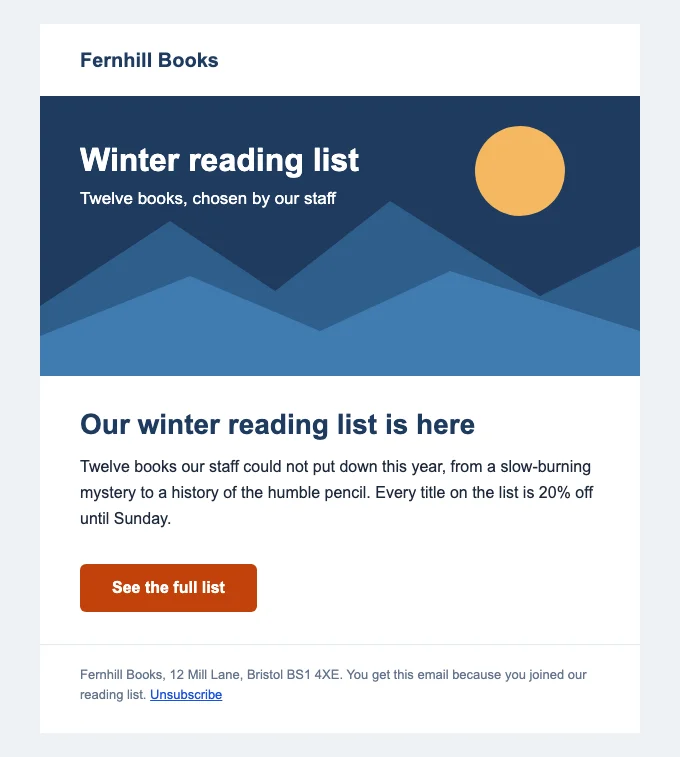
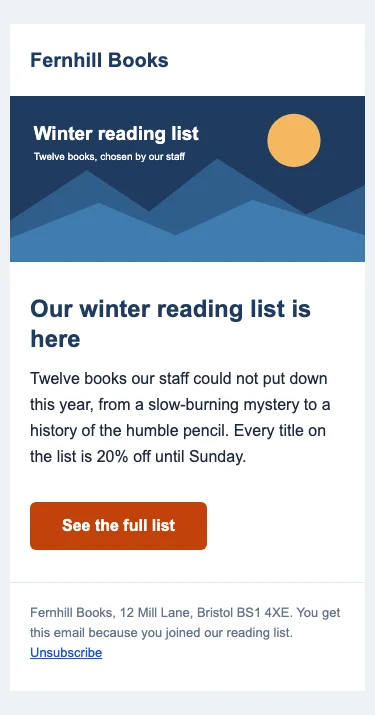
What each part is for, from the top:
<!DOCTYPE html>keeps browser-based clients in standards mode. caniemail notes that for classic Outlook “the HTML5 doctype has no impact”, so it costs nothing there.langanddiron<html>tell screen readers which language to speak. The same attributes are repeated on the wrapper<div>, because Good Email Code notes that “email clients often strip the<html>element”. The<body>also carriesxml:lang="en", because Good Email Code says Windows Outlook reads the language there and ignores the other places it is set.- The
xmlns:vandxmlns:onamespaces declare VML and Office markup, which the Outlook button and the settings block use. viewportmakes phones lay the email out at the device width.x-apple-disable-message-reformattingstops iOS Mail rescaling an email it judges not to be mobile friendly, as Good Email Code explains; Apple does not document it.- The
color-schememeta tags and:rootrule say the email has its own dark styles. The detail is on the dark mode page. - The two
[if mso]blocks are read only by Word.PixelsPerInchset to 96 helps keep classic Outlook from enlarging images and tables on Windows machines set to a higher display scale. The style block forces Arial on every text element with!important, so Outlook never falls back to Times New Roman. The<noscript>wrapper is there because, as Good Email Code notes, the German webmail T-Online also reads these comments and would otherwise print “96” as text. - The
<style>block holds only resets, the phone layout and dark mode. Each rule in a media query uses!important, because it has to beat an inline style. - The hidden preheader is the first text in the body, so the inbox shows it beside the subject line. The spacer characters after it stop the inbox pulling in the next text. Email preheader covers how to write it.
- The outer table, ghost table and container are the layout, explained in the next section.
- The button has two halves: a VML rounded rectangle for classic Outlook and an HTML table button for everyone else.
- The footer carries a postal address, the reason the reader gets the email and an unsubscribe link, which sending platforms check for.
A longer, downloadable starter with two stacking columns, a slot for a live image and more dark mode rules is on the free HTML email template page, where each section is explained the same way.
Layout: tables, the container and the ghost table
An HTML email is a set of nested tables. The outer table spans the full width and paints the background. Inside it sits a container, usually 600 pixels wide on a desktop, and each section of the email is one row of that container.
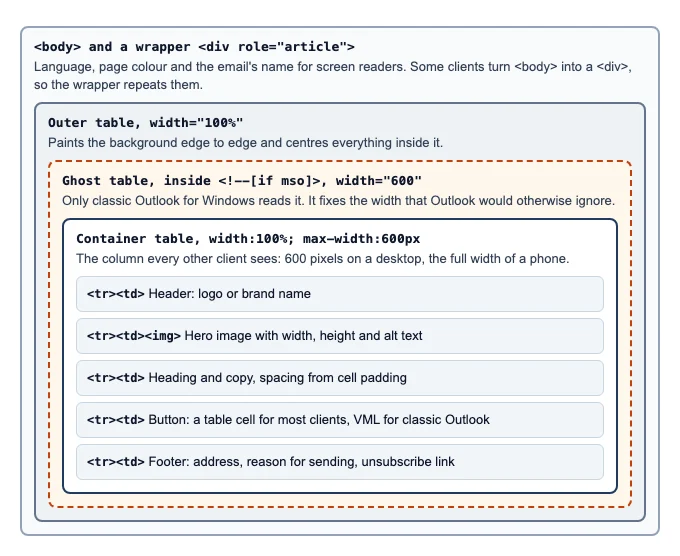
Why the container is fluid. The container has width:100% and max-width:600px, so it is 600 pixels on a desktop and shrinks to fit a phone without any media query. Why 600: it fits a desktop reading pane with room to spare, and it is the size most email image guidance is built around, as email image size explains.
Why the ghost table. Classic Outlook ignores max-width on the container, so it needs a fixed width. The ghost table is a fixed 600 pixel table inside <!--[if mso]> comments, which Word reads and every other client treats as an ordinary HTML comment. Microsoft documented this syntax as “downlevel-hidden” conditional comments: programs that do not support them “ignore the HTML content inside the comment block”. In email the feature name is mso: [if mso] matches every Word-based Outlook, and Parmentier lists the version numbers for narrower tests, such as mso 12 for Outlook 2007 and mso 16 for Outlook 2016 and later.
Why role="presentation". It stops screen readers announcing a layout table’s rows and columns. caniemail lists the attribute as supported in Gmail, Apple Mail and Outlook, and in Yahoo only on <table>, which is where it belongs.
Columns. Two columns that stack on a phone are two display:inline-block elements, each up to half the container’s width, plus a ghost table that gives Outlook two fixed cells. They stack even where media queries fail; the code is in the HTML email template.
What not to use for layout. caniemail records display:flex and grid as unsupported in the Gmail apps for non-Google accounts, and classic Outlook supports display only to hide things. CSS float and position are on Microsoft’s unsupported list. Semantic tags such as <header> and <section> are stripped or replaced in several webmail clients, according to caniemail’s semantics tests, so a <div> or a table cell is the safer wrapper.
Frameworks. You do not have to write every table by hand. MJML describes itself as “a markup language designed to reduce the pain of coding a responsive email” that compiles to email HTML; Maizzle is “a modern framework for building HTML emails with Vue and Tailwind CSS”; and Foundation for Emails uses a templating language, Inky, to write the tables for you. All three output the same structure this page describes, so knowing it is what lets you debug their output.
CSS in email: inline styles, the style block and what gets removed
Inline styles on each element are what every client reads, including those that drop or limit the <style> block. Put anything the email cannot do without here: fonts, colours, sizes, padding, borders, widths. Most platforms and frameworks can inline a stylesheet for you.
The <style> block in the head is for rules that can only be written there, or that may fail without breaking the email:
- resets, such as
margin:0on the body andborder-collapse:collapseon tables; - media queries for the phone layout;
prefers-color-schemerules for dark mode;- hover styles and other enhancements.
Things that commonly go wrong in the style block, each from caniemail’s notes:
| Problem | Client | What to do |
|---|---|---|
<style> placed in the <body> is ignored |
Gmail | Keep every <style> element in the head |
| The block is dropped past 16 KB | Gmail | Keep embedded CSS short; inline the rest |
| A rule straight after a CSS comment is ignored | Older Yahoo Mail builds (2019 test) | Leave comments out of the <style> block |
| A class must be declared before it is used | Classic Outlook | Keep the <style> block above the body |
| Nested media queries are not supported | Outlook.com, Outlook apps | Write one level of @media |
| Media queries ignored for non-Google accounts | Gmail apps | Make the layout work without them |
The CSS that classic Outlook understands is the other boundary. From Microsoft’s tables: padding, width and height work on table cells and images but not on <div>, <p> or <span>; margin works on <div> and <p> but not <span>; background-image, max-width, float and position do not work at all, and caniemail adds border-radius. Rounded corners and background images need VML, a Microsoft vector format that Word still draws: the code is in email background images and HTML email buttons. Good Email Code’s notes on MSO styles cover Outlook-only properties such as mso-line-height-rule and mso-padding-alt, which other clients ignore.
Images
Size them in the HTML. Give every image width and height attributes in pixels. Classic Outlook reads the attributes and holds the space while the image loads; other clients use them to reserve the box. Add width:100%; max-width:600px; height:auto inline so the image shrinks on a phone. Export the file at twice the displayed size for sharp phone screens; email image size has the widths for each slot and how heavy each file should be.
Set display:block. MDN notes that <img> “has a display value of inline by default”, so it sits on the text baseline and leaves a few pixels of gap under it inside a table cell. display:block removes the gap.
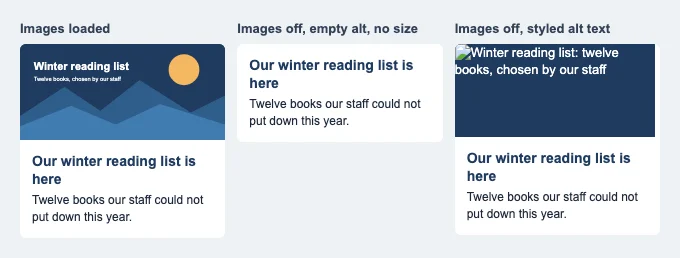
Write alt text, and style it. Microsoft states that “Microsoft Outlook is configured by default to block automatic picture downloads from the Internet”, so many readers see your alt text before they see the picture. The W3C’s images tutorial says images “must have text alternatives that describe the information or function represented by them”. Give the <img> a font, size, colour and background colour inline, and the alt text shows as styled text in a box of the right size instead of a broken icon.
Choose the format for the worst client. JPG for photos, PNG for flat graphics and transparency, GIF for animation. Outlook may show only the first frame of an animated GIF, so frame one must make sense alone; GIFs in email shows how to plan for that. SVG is unsafe: caniemail records no support in Outlook 2007 to 2016 for Windows, and its September 2026 test found Gmail rasterising SVGs to PNG. WebP fails in classic Outlook.
Background images are a special case: classic Outlook needs VML, and Gmail has had periods of stripping styles that contain url(). Put text over a background image only with a solid background colour behind it. The code is in email background images.
Live images. A countdown timer or a personalized image is the same kind of <img> tag, except the server draws the picture when the email is opened. An email countdown timer from EmailTimer.app follows every rule above and draws frame one of its GIF as a finished picture for the Outlook versions that show only the first frame; you can make one without an account in the countdown timer generator.
When images do not appear at all, images not showing in email works through the causes.
Buttons
A button made from an image disappears when images are blocked, so the call to action should be HTML. The reliable pattern is a one-cell table with the background colour on the <td> and an <a> inside with display:inline-block and padding. Classic Outlook ignores padding on links and border-radius, so for rounded corners there it gets a VML v:roundrect inside [if mso], as in the example email above. Microsoft’s VML reference documents the element, and caniemail’s border-radius notes point to it for Outlook.
Three versions of the button, with the trade-offs and the Outlook part explained line by line, are in bulletproof HTML email buttons. Make the link text say what happens (“See the full list”, not “Click here”), and make it easy to tap: WCAG’s enhanced target size criterion asks for at least 44 by 44 pixels.
Typography
Font stacks. Use fonts that are installed nearly everywhere first: Arial and Helvetica, Georgia, Verdana, Trebuchet MS. Outlook for Windows does not load web fonts, and caniemail records that in Outlook 2007 to 2016 a declared @font-face font makes it “ignore the font stack and fall back to Times New Roman”. Hide font declarations from Outlook with <!--[if !mso]><!-->, and add an MSO-only style that forces Arial, as the NSW Government’s email toolkit does. The example email has that style block:
<!--[if !mso]><!-->
<link href="https://fonts.example.com/inter.css" rel="stylesheet">
<!--<![endif]-->
<!--[if mso]><style>body, table, td, th, div, p, a, li, span, h1, h2, h3, h4, h5, h6 { font-family: Arial, Helvetica, sans-serif !important; }</style><![endif]-->
Web fonts can be added with a <link> or @font-face inside that [if !mso] comment for the clients that support them, with the system font after it in every font-family. Treat them as an enhancement: the email must look right in Arial.
Line height and spacing. caniemail flags that classic Outlook handles em and px line heights “weirdly” and recommends mso-line-height-rule:exactly. Good Email Code explains why: Outlook treats a pixel line height as a minimum unless that rule says otherwise. Set margin:0 on headings and paragraphs and space them with padding or explicit margins, because, as Good Email Code notes, Outlook apps, Samsung Email and Yahoo (only on Internet Explorer) all reset margins or font sizes in their own way.
Dark mode
In dark mode some clients leave your email alone, some darken light backgrounds and lighten dark text, and some invert nearly everything. caniemail records prefers-color-scheme support in Apple Mail, iOS Mail, Samsung Email, Outlook.com and the Outlook apps for Mac, iOS and Android, and none in Gmail or classic Outlook. That is why the example sets an explicit colour on every element and adds dark overrides in a media query.
The full picture, client by client, with fixes for vanishing text, disappearing logos and inverted buttons, is in dark mode email for developers. For images such as logos and timers that must sit on either background, see dark mode countdown timers.
Accessibility
The essentials:
- Language. WCAG’s success criterion 3.1.1 asks that the language of a page “can be programmatically determined”. Set
langon<html>and on the wrapper. - Layout tables carry
role="presentation", so only the content is read. - Real text. Headings, offers and dates belong in HTML text, not in images. Use
<h1>and<h2>for headings so screen reader users can jump between them. - Alt text on every informative image, and
alt=""on decorative ones so they are skipped. - Contrast. WCAG 1.4.3 asks for “a contrast ratio of at least 4.5:1” for normal text and 3:1 for large text. Check button labels and footer text, which are the usual failures.
- Link text that makes sense out of context.
Email accessibility goes through each WCAG 2.2 criterion that applies to email, with code.
File size and Gmail clipping
Gmail cuts off long messages and shows “[Message clipped] View entire message”. Google does not publish the limit; Al Iverson at Spam Resource found that “everybody in the world advertises 102KB as the HTML limit” and measured it himself at a little over that. Images do not count, because they load from their own addresses; the HTML does, including the tracking links your platform adds when it sends. Long inline styles repeated on every element are the usual cause.
How to measure the size of the message as Gmail receives it, and six ways to cut it, are in Gmail clipped message.
Testing before you send
A sending platform’s preview is a browser, so it shows the email roughly as Apple Mail would, not as Outlook will. Test the real thing:
- Open the file in a browser at phone width, and in Safari with the computer in dark mode.
- Send a test from your sending platform, not a file upload, so its tracking links and code are included.
- Open it in Gmail on the web and in the Gmail app, in Outlook.com, in Apple Mail or iOS Mail, and in classic Outlook for Windows if any of your readers use it.
- Turn images off in one client and read the email again.
- Click every link, including the unsubscribe link.
- Check the size of the received HTML against Gmail’s clipping point.
- Read it with a screen reader for a minute: VoiceOver on a Mac or iPhone, or Narrator on Windows.
If you are sending a one-off HTML email from a personal account rather than a platform, send HTML email from Gmail explains the methods that work and what Gmail removes.
Sending: the plain text part, authentication and unsubscribe
Plain text. Your platform usually generates the plain text part from your HTML. Read it once: text generated from a table layout can be a jumble.
Authentication. Google’s sender guidelines require every sender to “set up SPF or DKIM email authentication” and senders of more than 5,000 messages a day to set up SPF, DKIM and DMARC. SPF, DKIM and DMARC explains the three records.
Unsubscribe. The same guidelines say “marketing messages and subscribed messages must support one-click unsubscribe” for bulk senders. That is the List-Unsubscribe and List-Unsubscribe-Post: List-Unsubscribe=One-Click header pair defined in RFC 8058, which your platform adds; keep a visible unsubscribe link in the footer as well.
Honest HTML. Google also says “Don’t use HTML and CSS to hide content in your messages”, because hidden content can get a message marked as spam. A short preheader is normal; hidden text that differs from what the reader sees is not.
Loading the HTML. Import steps for Klaviyo, Mailchimp and HubSpot are at the end of the HTML email template page. A signature is pasted into a mail app instead; see HTML email signature.
Questions and answers
What is HTML email?
An email whose body is written in HTML, so it can show layout, colours, images, buttons and links rather than plain text.
How do I code an HTML email?
Start from a tested skeleton: an outer table, a 600 pixel container with a ghost table for Outlook, and one row per section. Put essential styles inline, size every image with attributes, make buttons from HTML, then send real tests.
Can I use CSS in HTML email?
Yes, but put essential styles inline and keep the head <style> block for things that may fail safely. Gmail reads that block up to 16 KB, and classic Outlook supports only a subset of CSS 1.
Does JavaScript work in HTML email?
Plan for no. Microsoft’s list of HTML that Word does not support includes script, form and iframe, and I have not met a mainstream mail client that runs a sender’s script. Interactive effects in email are built with CSS alone, they work in fewer clients, and the email must make sense without them.
How do I make an HTML email responsive?
Make it fluid first: a container with max-width:600px, images with width:100% and height:auto, and inline-block columns that wrap. Then add a media query for padding and font sizes on phones.
Do images in HTML email need alt text?
Yes. Classic Outlook blocks automatic picture downloads by default, so many readers see the alt text first, and screen readers read it aloud. Describe what the image says or does, use alt="" for decoration, and style the <img> with a font and colour so the alt text reads well.
Can I send an HTML email from Gmail?
Not by pasting code into the compose window: Gmail has no HTML source mode. There are workarounds, from pasting a rendered page to a short Apps Script that sends your file, and for campaigns a sending platform is the right tool. The four methods, and what Gmail strips from each, are on the send HTML email from Gmail page linked above.
What is the difference between HTML email and plain text email?
A plain text email is only characters: no layout, images, colours or link styling. An HTML email carries all of those, and is normally sent with a plain text version in the same multipart/alternative message, so a client that cannot or will not show HTML still has something to display. RFC 2046 says the client should show the last part it supports, which is the HTML when it can.
How big can an HTML email be?
Keep the HTML under about 100 KB as it is sent. Gmail clips messages past roughly 102 KB of HTML, a figure Spam Resource’s Al Iverson tested himself, and hides the rest behind a link. Images do not count toward that, because they load from their own addresses, but tracking links your platform adds do.
Can I use SVG or WebP images in HTML email?
Not safely. caniemail records no SVG support in Outlook 2007 to 2016 for Windows, and its September 2026 test found Gmail rasterising SVGs to PNG. WebP is not supported in classic Outlook for Windows. Use JPG for photos, PNG for flat graphics and GIF for animation.
How do merge tags fit into HTML email?
A merge tag is a placeholder, such as a first name or an unsubscribe address, that your sending platform replaces for each recipient just before it sends. Because the replacement happens in the HTML source, a merge tag can sit in text, in a link’s href or in an image’s src. Each platform has its own syntax, so use the tags your platform documents, and send a test to see them filled in.
Which DOCTYPE should an HTML email use?
<!DOCTYPE html>, the HTML5 doctype. It keeps browser-based clients in standards mode, and caniemail records that for classic Outlook “the HTML5 doctype has no impact”, so it does no harm there. Some webmail clients replace it with their own, which is one more reason to rely on tables and inline styles.
How do I test an HTML email?
Send real tests from the platform you will use and open them in Gmail, Outlook.com, Apple Mail and classic Outlook, with images off, in dark mode, on a phone and with a screen reader.
Sources
- Word 2007 HTML and CSS Rendering Capabilities in Outlook 2007, Part 1 of 2 (Microsoft Learn, August 2006), read on 21 November 2026
- Making sense of Outlook's rendering engine (Rémi Parmentier, 7 July 2020), read on 21 November 2026
- Overview of the new Outlook for Windows (Microsoft Learn, updated 11 September 2026), read on 21 November 2026
- About conditional comments (Microsoft Learn, archived Internet Explorer documentation), read on 21 November 2026
- CSS support (Gmail, Google for Developers), read on 21 November 2026
- <style> element support (caniemail.com), read on 21 November 2026
- @media support (caniemail.com), read on 21 November 2026
- max-width support (caniemail.com), read on 21 November 2026
- display support (caniemail.com), read on 21 November 2026
- HTML5 semantic elements support (caniemail.com), read on 21 November 2026
- SVG image support (caniemail.com, tested 16 September 2026), read on 21 November 2026
- @media (prefers-color-scheme) support (caniemail.com), read on 21 November 2026
- line-height support (caniemail.com), read on 21 November 2026
- Base Template (Mark Robbins, Good Email Code, updated 9 October 2026), read on 21 November 2026
- Using MSO styles in email (Mark Robbins, Good Email Code), read on 21 November 2026
- Text (Mark Robbins, Good Email Code, updated 10 March 2022), read on 21 November 2026
- VML RoundRect Element (Microsoft Learn), read on 21 November 2026
- role attribute support (caniemail.com), read on 21 November 2026
- HTML5 doctype support (caniemail.com), read on 21 November 2026
- border-radius support (caniemail.com), read on 21 November 2026
- background-image support (caniemail.com), read on 21 November 2026
- WebP image support (caniemail.com), read on 21 November 2026
- Understanding Success Criterion 2.5.5: Target Size (Enhanced) (W3C WAI), read on 21 November 2026
- The animated graphic in my e-mail message doesn't work (Microsoft Support), read on 22 November 2026
- @font-face support (caniemail.com, tested 19 December 2023), read on 21 November 2026
- MJML Guide (MJML documentation), read on 22 November 2026
- Introduction (Maizzle documentation), read on 22 November 2026
- Foundation for Emails (ZURB Foundation), read on 22 November 2026
- Font stack (NSW Email Toolkit, NSW Government), read on 21 November 2026
- Block or unblock automatic picture downloads in email messages (Microsoft Support), read on 21 November 2026
- img: The Image Embed element (MDN Web Docs), read on 21 November 2026
- Images Tutorial (W3C Web Accessibility Initiative), read on 21 November 2026
- Understanding Success Criterion 1.4.3: Contrast (Minimum) (W3C WAI), read on 21 November 2026
- Understanding Success Criterion 3.1.1: Language of Page (W3C WAI), read on 21 November 2026
- What is Gmail clipping and what to do about it (Al Iverson, Spam Resource, January 2022), read on 21 November 2026
- RFC 2046: Multipurpose Internet Mail Extensions Part Two, Media Types (IETF, November 1996)
- RFC 8058: Signaling One-Click Functionality for List Email Headers (IETF, January 2017)
- Email sender guidelines (Google Workspace Admin Help), read on 21 November 2026