

Outlook email rendering issues almost all come from one program: classic Outlook for Windows, which draws HTML email with Microsoft Word instead of a browser engine. Word ignores max-width, padding on <div> and <p>, border-radius and CSS background images, treats line heights as minimums, and scales layouts unevenly on high DPI screens, which is where the stretched columns, white lines, gaps and wrong fonts come from.
This page takes each problem in turn: what you see, the cause with a source, and complete code that fixes it, with the Outlook-only parts explained line by line. It starts with which Outlook you are fixing and how MSO conditional comments work, because every fix below uses them, and ends with a client table, a reusable head block and a checklist. The figures are browser renders of my own example code; where a figure simulates what Word does, the caption says so. None is a screenshot of Outlook.
First, which Outlook are you fixing?
“Outlook” is several programs with different engines. Only one of them causes the problems on this page.
| Outlook | How it draws email | Reads MSO conditional comments and VML | Has the problems on this page |
|---|---|---|---|
| Classic Outlook for Windows (2007 to 2019 in caniemail’s tests; 2021, 2024 and Microsoft 365 use the same Word engine) | Microsoft Word | Yes | Yes |
| Windows Mail (the old Mail app in Windows) | Word, per Good Email Code | Yes | Yes |
| New Outlook for Windows | WebView2; “The experience is provided by Outlook on the web” | No | No |
| Outlook.com and Outlook on the web | Webmail | No | No, but it has its own rules |
| Outlook for Mac, iOS and Android | WebKit or Blink | No | No |
Microsoft’s Outlook 2007 documentation states that it “uses the HTML parsing and rendering engine from Microsoft Office Word 2007”, and Rémi Parmentier confirmed in 2020 that “even the latest release on Windows (Outlook 2019) still uses Word”, while Outlook on macOS, iOS and Android “all use WebKit or Blink”. Mark Robbins at Good Email Code lists the Word-based clients as “Outlook desktop app on Windows, and Windows Mail” and says the Mac, iOS, Android and web versions “use regular HTML rendering and don’t support these MSO styles”.
Classic Outlook is not going away soon. Microsoft says it will “honor published support timelines for existing version of classic Outlook for Windows until at least 2029”, and describes the move to the new app in three stages: opt in, opt out, then cutover. So the fixes below are still worth writing; your sending platform’s client report tells you how many of your own readers open in Word-based Outlook.
MSO conditional comments, the tool behind every fix
A conditional comment is an HTML comment with a condition in it. Word evaluates the condition and renders the contents when it is true; every other client sees an ordinary comment and skips it. Microsoft documented the syntax for Internet Explorer, and Word in Outlook uses the same one with the feature name mso.
Show code only to Word-based Outlook. Microsoft calls this a “downlevel-hidden” comment: programs that do not support conditional comments “ignore the HTML content inside the comment block”.
<!--[if mso]>
  <table role="presentation" width="600"><tr><td>
<![endif]-->
Hide code from Word-based Outlook. This is the form email developers use for HTML that Outlook should not see, such as a CSS button that has a VML version above it:
<!--[if !mso]><!-->
  <a href="https://example.com" style="display:inline-block; padding:14px 32px;">Shop now</a>
<!--<![endif]-->
Line by line: <!--[if !mso]> is the opening of a conditional comment that Word reads as “if not Outlook” and skips to the matching <![endif]>. To every other client, <!--[if !mso]><!--> is a complete comment that opens and closes on the same line, so the link after it is ordinary HTML. <!--<![endif]--> is another complete comment for other clients, and the end of the condition for Word.
Target a version. The condition can compare version numbers with the operators in Microsoft’s documentation: lt, lte, gt, gte, ! for not, & for and, | for or, and parentheses.
| Condition | Matches |
|---|---|
[if mso] |
Every Word-based Outlook |
[if mso 12] |
Outlook 2007 |
[if mso 14] |
Outlook 2010 |
[if mso 15] |
Outlook 2013 |
[if mso 16] |
Outlook 2016 and later; 2019 and Microsoft 365 share the number |
[if gte mso 9] |
Every version in this table; the form most VML examples use |
[if (gte mso 12)&(lte mso 15)] |
Outlook 2007 to 2013 |
[if !mso] |
Anything that is not Word-based Outlook (use the <!--> form above) |
The version numbers are the internal Office version, not the year: Parmentier lists 12 for 2007, 14 for 2010, 15 for 2013 and 16 for “Outlook 2016. And 2019”, and Microsoft’s own registry instructions use “16.0 = Office 2016, Microsoft 365 and Office 2019”. Every Word-based version is greater than 9, so the gte mso 9 you see in VML examples simply means any of them.
Two mistakes to avoid. Every <!--[if ...]> needs its own <![endif]-->, and a missing one hides the rest of the email from Outlook. And an HTML minifier set to remove comments deletes these blocks along with real comments, so check that setting in your build tool or sending platform.
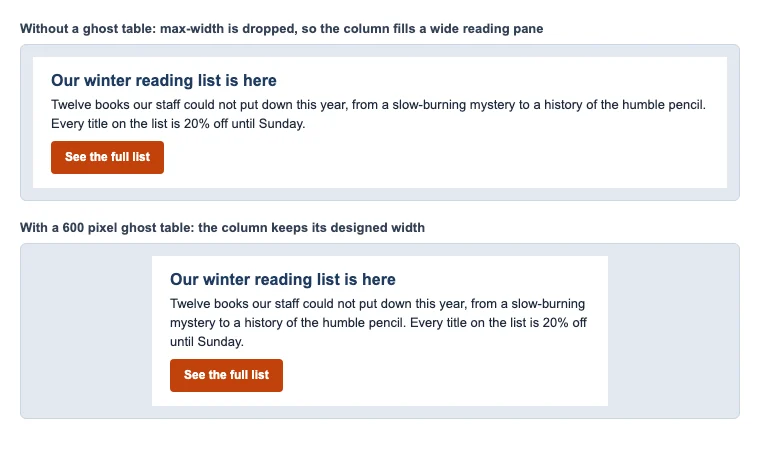
1. The email stretches across the whole reading pane
What you see. A layout that is 600 pixels wide everywhere else fills the full width of Outlook’s reading pane, so lines of text run very long and images sit in a sea of white.
Cause. The container uses max-width:600px, and caniemail records no max-width support in Outlook 2007 to 2016 for Windows and support only on <table> elements in Outlook 2019. Microsoft’s list of CSS 2.1 properties Word does not support includes max-width and min-width.
Fix. Wrap the fluid container in a fixed-width “ghost table” that only Word reads (MJML and Maizzle write one for you, as the email frameworks comparison shows):
<table role="presentation" width="100%" cellpadding="0" cellspacing="0" border="0" style="background-color:#eef2f6;">
  <tr>
    <td align="center" style="padding:24px 10px;">
      <!--[if mso]>
      <table role="presentation" align="center" width="600" cellpadding="0" cellspacing="0" border="0">
      <tr><td width="600">
      <![endif]-->
      <table role="presentation" width="100%" cellpadding="0" cellspacing="0" border="0" style="width:100%; max-width:600px; margin:0 auto; background-color:#ffffff;">
        <tr>
          <td style="padding:32px 40px; font-family:Arial, Helvetica, sans-serif; font-size:16px; line-height:24px; mso-line-height-rule:exactly; color:#1e293b;">
            Your content.
          </td>
        </tr>
      </table>
      <!--[if mso]>
      </td></tr></table>
      <![endif]-->
    </td>
  </tr>
</table>
- The outer table is 100 percent wide and centres its content with
align="center", an attribute Word supports on tables and cells. - The
[if mso]table is the ghost table:width="600"as an attribute on the table and the cell, which Word honours. - The inner table is what every other client sees: fluid up to 600 pixels.
- The closing
[if mso]block closes the ghost table’s cell, row and table. Forget it and Outlook nests the rest of the email inside a half-open table.
Good Email Code’s container uses the same idea: a fixed-width table inside <!--[if true]> comments around a max-width <div>; [if true] is a broader condition that Word also reads.
2. Padding is ignored
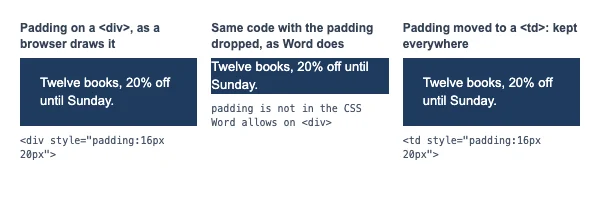
What you see. Text sits hard against the edge of a coloured box, or a button has no space around its label.
Cause. Microsoft’s specification groups CSS support into three levels, and its table lists padding only at the “FULL” level: tables, cells, images, and on paper links and headings too. <div> and <p> get “COREEXTENDED”, which adds margins but not padding, and <span> and <body> get “CORE”, with neither. In practice caniemail finds padding in Outlook for Windows “only supported on table cells”, so padding on <div>, <p>, <span> or <a> is dropped.
Fix. Put padding on a <td>. If a <div> must carry it for other clients, wrap it in a one-cell table for Outlook:
<!--[if mso]>
<table role="presentation" width="100%" cellpadding="0" cellspacing="0" border="0"><tr>
<td style="padding:16px 20px; background-color:#1f3a5f;">
<![endif]-->
<div style="padding:16px 20px; background-color:#1f3a5f; color:#ffffff; font-family:Arial, Helvetica, sans-serif; font-size:16px; line-height:24px; mso-padding-alt:0;">
  Twelve books, 20% off until Sunday.
</div>
<!--[if mso]>
</td></tr></table>
<![endif]-->
The [if mso] cell gives Outlook the padding and the background. mso-padding-alt:0 is an Outlook-only property that, per Good Email Code, “works just like padding”; setting it to 0 makes sure Outlook never applies the <div> padding on top of the cell’s, a pattern Robbins shows on his container page (padding:2em;mso-padding-alt:0;). For a link styled as a button, put the padding on the cell around the link, or use VML; the three versions are in HTML email buttons.
A related quirk. caniemail notes that in Outlook for Windows “vertical padding will be the same for all cells of a same row, adopting the biggest value”. If one cell in a row has padding-top:40px and its neighbour has 10, both get 40. Give cells that need different vertical spacing their own rows or nested tables.
3. Margins misbehave, and centring fails
What you see. A block that should be centred sits on the left, a negative margin does nothing, or a background colour spreads into the margin around an element.
Cause. caniemail lists four margin problems in Outlook for Windows: negative values are not supported, margins do not work on <span> or <body>, “background-color is included inside the margin”, and the auto value is not supported. So margin:0 auto does not centre anything.
Fix. Centre with the align attribute, keep spacing positive, and keep background colours on cells rather than on elements with margins:
<table role="presentation" align="center" width="600" cellpadding="0" cellspacing="0" border="0" style="margin:0 auto;">
  <tr>
    <td align="center" style="padding:0 0 24px 0;">
      <p style="margin:0; font-family:Arial, Helvetica, sans-serif; font-size:16px; line-height:24px; mso-line-height-rule:exactly;">Centred in every client.</p>
    </td>
  </tr>
</table>
align="center" on the table centres it in Word; margin:0 auto does the same in clients that support it. Space between blocks comes from padding on the cell, and the paragraph’s own margin is set to 0 so no client adds its default.
4. Line height is wrong, and text spacing changes
What you see. Lines of text are further apart in Outlook than everywhere else, a small line height is ignored, or a spacer row is taller than its height.
Cause. caniemail marks line height in Outlook for Windows as buggy: “em and px units behave weirdly. Use mso-line-height-rule:exactly”. Good Email Code explains the rule: it says whether a line height is applied “exactly or at-least”, it only applies to fixed units such as px, and “at-least” is the default. So without it, Word treats line-height:20px as a minimum and can make the line taller to fit the font.
Fix. Use pixel line heights and add mso-line-height-rule:exactly on every element that sets one:
<td style="font-family:Arial, Helvetica, sans-serif; font-size:16px; line-height:24px; mso-line-height-rule:exactly; color:#1e293b;">
  <h2 style="margin:0 0 8px 0; font-size:20px; line-height:28px; mso-line-height-rule:exactly;">A heading</h2>
  <p style="margin:0;">Body text at 16 pixels on a 24 pixel line.</p>
</td>
For a vertical spacer, set the height, the line height and the font size to the same value, so Word has nothing to grow. Good Email Code’s spacer adds a character for the line height to act on and notes “if the line-height is less than the current font-size, then you’ll also need to add a font-size”:
<tr>
<td height="24" style="height:24px; font-size:24px; line-height:24px; mso-line-height-rule:exactly;"> </td>
</tr>
The height attribute and inline height work on a <td> in Outlook; caniemail notes that height is not supported on <div>, <p>, <span> or <body> there, so a <div> spacer that relies on height collapses; one sized with line-height and a character, as Good Email Code’s is, holds.
5. Gaps under images, and images at the wrong size
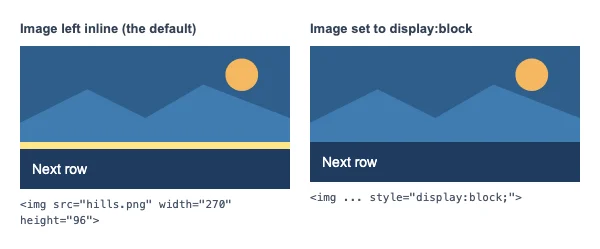
What you see. A thin strip of background shows under an image, between an image and the row below, or between stacked image slices. Or an image appears at its full file size, far wider than the layout.
Cause of the gap. MDN notes that an <img> “has a display value of inline by default”. An inline image sits on the text baseline, and the space below the baseline, kept for the descenders of letters like g and y, shows as a gap inside the table cell. It happens in browsers too, as the figure shows.
Cause of the size. caniemail records that Outlook for Windows does not support the CSS width property on <img>, <div>, <p>, <span> or <body>. An image sized only with style="width:300px" is shown at its natural size in Word.
Fix. Make every image a block, and size it with attributes as well as CSS:
<td style="padding:0;">
  <img src="https://example.com/hills.png" width="600" height="280" alt="Hills under a winter sun" style="display:block; width:100%; max-width:600px; height:auto; border:0; outline:none; text-decoration:none;">
</td>
display:blockremoves the baseline gap.width="600"andheight="280"are what Word uses. Use the displayed size, not the file’s size; a 1,200 pixel file for sharp phone screens still getswidth="600".- The inline
width:100%; max-width:600px; height:autolets other clients shrink the image on a phone. border:0removes the border some clients draw around linked images.
If a gap remains under a block image in Outlook, the cell’s own line height is the usual suspect: give the cell font-size:0; line-height:0; when it holds nothing but the image. Image widths for each slot are in email image size, and container widths in email width.
6. Everything is too big at 120 DPI
What you see. On some Windows laptops the email looks inflated: images larger than designed, text that wraps differently, columns that no longer fit side by side.
Cause. Windows lets people scale the display, and laptops with high resolution screens often ship scaled up. The baseline is 96 dots per inch, which Windows shows as 100%; 120 DPI is 125%, and 144 DPI is 150%. Act-On’s Outlook guide puts it this way: Outlook “is subject to DPI scaling through your Windows Visibility Settings”, and “text size may not increase proportionally to table and image sizes”. It adds that Outlook “converts pixels to points and inches”, and that widths which convert badly “will snap to the closest 100th of an inch”.
Word has a document setting that helps. Microsoft documents it for Word documents saved as web pages; declaring it in incoming HTML is an email-community fix. Microsoft’s Open XML documentation describes PixelsPerInch as “the number of pixels per inch (or density) that is used for the display of pictures or table cells”, which “affects the size of the pictures or table cells relative to the size of text”. Good Email Code says declaring it “will improve rendering on machines that have a higher DPI set, this is often the case for Windows laptops that have higher than standard resolution monitors”.
Fix. Three parts, all in code you already have if you started from a good template:
<!DOCTYPE html>
<html lang="en" xmlns="http://www.w3.org/1999/xhtml" xmlns:v="urn:schemas-microsoft-com:vml" xmlns:o="urn:schemas-microsoft-com:office:office">
<head>
<meta charset="utf-8">
<!--[if mso]>
<noscript>
<xml>
<o:OfficeDocumentSettings>
<o:PixelsPerInch>96</o:PixelsPerInch>
</o:OfficeDocumentSettings>
</xml>
</noscript>
<![endif]-->
</head>
<body>
  <table role="presentation" width="600" cellpadding="0" cellspacing="0" border="0" style="width:600px;">
    <tr>
      <td width="600" style="width:600px;">
        <img src="https://example.com/hero.png" width="600" height="280" alt="Winter reading list" style="display:block; width:100%; max-width:600px; height:auto;">
      </td>
    </tr>
  </table>
</body>
</html>
- The namespaces.
xmlns:oon<html>declares the Office namespace, so Word understands theo:elements in the head.xmlns:vis for VML, which you need anyway for buttons and backgrounds. OfficeDocumentSettingswithPixelsPerInch96. This tells Word to treat pixel sizes at 96 per inch whatever the screen. It sits in[if mso]so no other client sees it, and in<noscript>because Good Email Code notes the T-Online webmail would otherwise print “96” as text.- Widths as attributes and as inline pixels on tables, cells and images. Uplers’ 2015 guide pairs the two, as in
<table width="290" ... style="width:290px;">. Act-On suggests percentages where a fixed pixel width keeps snapping to the wrong size; a container that is 100 percent of a fixed ghost table is the usual way to have both.
Microsoft also documents a sender-side cause: in Outlook 2010 and later, a picture can grow when the sender’s Windows is set to “125 DPI or 150 DPI”, fixed by a registry value on the sender’s machine. That affects emails written in Outlook, not HTML you send from a platform, but it explains why your email can look larger when a reader on a scaled display forwards it from Outlook.
Then test with Windows display scaling at 125% and 150%, not only 100%: Settings, System, Display, Scale.
7. White lines between tables
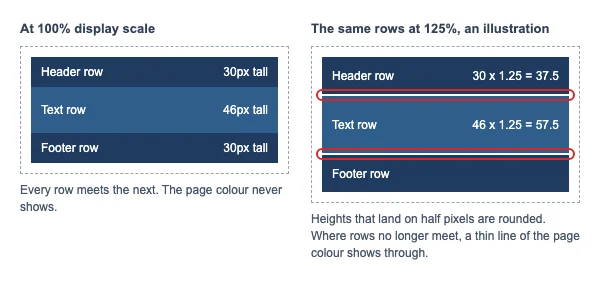
What you see. Thin horizontal lines, usually white (black in dark mode), between rows or stacked tables that should touch. They appear on some machines and not others.
Cause. Act-On lists white lines as resolution-dependent (“using 1080p is more likely to see the lines”) and fixes them with even padding and font sizes divisible by 4. It describes a related coloured bar as a height mismatch, where the content will “rip” and expose the background. Both fit the scaling above: at 125%, a row 30 pixels tall becomes 37.5 pixels, and when half pixels are rounded, neighbouring rows can stop meeting.
Fix. Make the line invisible, then make it less likely:
<body style="margin:0; padding:0; background-color:#1f3a5f;">
<table role="presentation" width="100%" cellpadding="0" cellspacing="0" border="0" bgcolor="#1f3a5f" style="background-color:#1f3a5f; border-collapse:collapse;">
  <tr>
    <td align="center" bgcolor="#1f3a5f" style="background-color:#1f3a5f;">
      <!--[if mso]><table role="presentation" width="600" cellpadding="0" cellspacing="0" border="0"><tr><td width="600" bgcolor="#1f3a5f"><![endif]-->
      <table role="presentation" width="100%" cellpadding="0" cellspacing="0" border="0" style="max-width:600px; border-collapse:collapse;">
        <tr>
          <td bgcolor="#1f3a5f" style="background-color:#1f3a5f; padding:16px 24px; font-family:Arial, Helvetica, sans-serif; font-size:16px; line-height:24px; mso-line-height-rule:exactly; color:#ffffff;">Header row</td>
        </tr>
        <tr>
          <td bgcolor="#2f5d8a" style="background-color:#2f5d8a; padding:24px; font-family:Arial, Helvetica, sans-serif; font-size:16px; line-height:24px; mso-line-height-rule:exactly; color:#ffffff;">Content row</td>
        </tr>
      </table>
      <!--[if mso]></td></tr></table><![endif]-->
    </td>
  </tr>
</table>
</body>
- Match the colour behind the seam. Act-On’s fix for the related coloured bar is to make the inner and outer background colours match; the same idea hides a white line, because a gap then shows the same colour as the rows around it. Above, the body, the outer table and the ghost table cell all carry the header’s navy, with
bgcolorattributes as well as CSS for Word. - Use sizes that scale to whole pixels. Act-On recommends padding in even numbers and font sizes “divisible by 4 (for example, 16 or 20 will be better than 18)”. The arithmetic explains why: a multiple of 4 multiplied by 1.25 or 1.5 is a whole number, so padding of 16 and 24 and line heights of 24 and 28 survive both common scales, while 15 or 18 do not.
- Collapse table borders with
border-collapse:collapseandcellspacing="0", so no default spacing adds to the problem.
8. A white bar cuts through a long email
What you see. A horizontal band, usually white, appears part way down a long email in classic Outlook, sometimes cutting through an image.
Cause. Act-On: “Because Outlook renders images in Word format, email messages are subject to a 1728px vertical limit. Any content over and around this limit (page break) is subject to odd gaps and clipping.” Word lays the message out like a document with pages, and the break falls wherever 1728 pixels lands.
Fix. You cannot move Word’s page break, so design around it. Keep single images shorter than 1728 pixels, and slice a very tall graphic into separate images in separate rows, each with display:block. Prefer live text over tall images of text. If a break lands in a bad place in testing, Act-On suggests “adding a line spacer or otherwise adjusting content”, which moves your content relative to the break.
9. Fonts turn into Times New Roman
What you see. Text that should be in your web font, or in Arial, appears in a serif font in classic Outlook.
Cause. Classic Outlook 2007 to 2016 ignores remote fonts, and caniemail records that once it reads an @font-face declaration for a font it cannot download, elements using that font “ignore the font stack and fall back to Times New Roman”. Without a web font declaration, the stack works.
Fix. Hide the web font declaration from Word, and add an Outlook-only rule that forces a system stack, adapted from the NSW toolkit’s rule (which has no !important):
<!--[if !mso]><!-->
<link href="https://fonts.example.com/inter.css" rel="stylesheet">
<style>
  @font-face { font-family: 'Inter'; src: url('https://fonts.example.com/inter.woff2') format('woff2'); }
</style>
<!--<![endif]-->
<!--[if mso]><style>body, table, td, th, div, p, a, li, span, h1, h2, h3, h4, h5, h6 { font-family: Arial, Helvetica, sans-serif !important; }</style><![endif]-->
The [if !mso] comment means Word never sees the <link> or the @font-face, so the bug that triggers the fallback never starts. The [if mso] rule then sets Arial on every text element. Put both in the head after your main <style> block, and keep your web font first in the inline font-family for the clients that load it (web fonts in email lists them); the !important lets the Outlook rule beat the inline style.
10. Rounded corners and background images are missing
What you see. Buttons and boxes have square corners, and a hero with a background photo shows only a flat colour.
Cause. caniemail records no border-radius and no CSS background-image in any Word-based Outlook, and both pages point to VML instead. Microsoft’s Word specification lists background-image among the unsupported properties.
Fix. Draw the shape in VML inside [if mso], with the HTML version in <!--[if !mso]><!--> for everyone else. A rounded button is a v:roundrect:
<!--[if mso]>
<v:roundrect xmlns:v="urn:schemas-microsoft-com:vml" xmlns:w="urn:schemas-microsoft-com:office:word" href="https://example.com/sale" style="height:48px; v-text-anchor:middle; width:220px;" arcsize="25%" strokecolor="#c2410c" fillcolor="#c2410c">
<w:anchorlock/>
<center style="color:#ffffff; font-family:Arial, Helvetica, sans-serif; font-size:16px; font-weight:bold;">Shop the sale</center>
</v:roundrect>
<![endif]-->
The button, line by line, and the two HTML alternatives are in bulletproof HTML email buttons. The background image version uses v:rect with a v:fill and a v:textbox, and is long enough to deserve its own page: email background images that work in Outlook. Square corners are often an acceptable result in classic Outlook; a missing background image is not, so always set a solid background-color behind text that sits on a photo.
11. Animated GIFs play only the first frame
What you see. A GIF that animates everywhere else is frozen in classic Outlook.
Cause. Microsoft’s Word 2007 documentation lists animated GIF images among the unsupported web features: “Only a static representation of the GIF image shows.” Outlook 2007 to 2013 show only the first frame. In current builds, including Microsoft 365, GIFs animate by default, and show only the first frame when animations are turned off in Windows or Outlook. Microsoft’s support page puts it this way: “If only the first frame of the animation appears, you have animations, or animated GIFs, disabled.”
Fix. Design frame one as a complete picture: the offer, the product or the message, readable without the frames that follow. There is no code that makes Outlook animate when animations are off. Which Outlook versions animate, and the settings that control it, are on countdown timers in Outlook; planning a GIF so its first frame works is in GIFs in email.
If the frozen GIF is a countdown, the fix is in how frame one is drawn: an email countdown timer from EmailTimer.app draws it as a finished picture, which is all a frozen Outlook shows, and you can check it in the countdown timer generator.
12. Hidden content shows up in Outlook
What you see. A mobile-only block, a second logo meant for dark mode, or a preheader appears in classic Outlook when it should be hidden.
Cause. caniemail records that classic Outlook supports only display:none among display values, not on <img>, and that “display:none does not inherit to inner tables”. So a hidden <div> with a table inside can still show the table.
Fix. Hide Outlook’s copy with a conditional comment, which never fails, and keep display:none for other clients:
<!--[if !mso]><!-->
<div class="mobile-only" style="display:none; max-height:0; overflow:hidden;">
  <table role="presentation" width="100%"><tr><td>Shown only on phones by a media query.</td></tr></table>
</div>
<!--<![endif]-->
Word skips everything between the two comments. Other clients read the <div>, hidden until a media query shows it. For a preheader, the standard pattern adds the Outlook-only mso-hide:all to the hidden <div>, as in the HTML email template. Hide alternatives only, never content that differs from what the reader sees; the dark mode page quotes Google’s warning on hidden content.
13. Styles in the head do not apply
What you see. A class works in every client except Outlook, or a rule in the <style> block is ignored there.
Cause. caniemail notes that in Outlook for Windows “<style> elements need to be declared before their rules are used”, and Word has no media query support at all in caniemail’s tests, so nothing inside @media reaches it.
Fix. Keep every <style> block in the <head>, above the body. Put anything Outlook must have inline on the element, and treat media queries as phone and dark mode enhancements that Word will never see. Outlook-only CSS goes in an [if mso] style block, which Word reads like any other.
New Outlook for Windows vs classic Outlook
The new Outlook for Windows does not have the problems above. Microsoft describes it as “a native application, based on WebView2”, and adds: “The experience is provided by Outlook on the web.” WebView2 is the Edge browser engine, so max-width, padding on any element, border-radius and CSS background images all work there, and [if mso] blocks and VML are ignored, as the email background image and button pages also explain.
What changes for your code:
- Keep the MSO and VML code. Microsoft will honor classic Outlook’s published support timelines until at least 2029, and organisations run both versions. The new app skips that code at no cost.
- Test the new Outlook like Outlook.com. caniemail has no separate entry for it. Outlook.com supports media queries without nesting and
prefers-color-scheme, and addsdata-ogscanddata-ogsbattributes in dark mode; the dark mode page shows how to use them. - Make sure the non-MSO branch is complete. Before the new app, some developers left the
<!--[if !mso]><!-->branch rough because “Outlook will not see it”. Windows readers of the new Outlook now see exactly that branch.
Outlook rendering by version
| Problem | Classic Outlook for Windows | New Outlook for Windows | Outlook.com and on the web | Outlook for Mac, iOS, Android |
|---|---|---|---|---|
max-width ignored |
Yes (2019: tables only) | No | No | No |
| Padding only on table cells | Yes | No | No | No |
margin:auto and negative margins |
Not supported | As Outlook on the web | Negative values not supported | Negative values not supported |
Line height needs mso-line-height-rule |
Yes | No | No | No |
CSS width ignored on <img> |
Yes | No | No | No |
| DPI scaling and white lines | Yes | Not reported in the sources | No | No |
| Times New Roman fallback | 2007 to 2016, when a web font is declared | No | No | No |
border-radius, CSS background images |
Need VML | Work | Work | Work |
| Animated GIFs | First frame in 2007 to 2013; current builds animate unless animations are turned off | Animate | Animate | Animate |
| Media queries | No | As Outlook on the web | Yes, not nested | Yes, not nested |
Reads [if mso] and VML |
Yes | No | No | No |
Sources: Microsoft’s Word 2007 specification and new Outlook overview, caniemail’s pages for max-width, padding, margin, width, line-height, border-radius, background-image and @media, Act-On’s Outlook guide and the NSW Email Toolkit. caniemail’s Outlook for Windows rows are tests of 2007 to 2019, and Parmentier notes that “even the latest release on Windows (Outlook 2019) still uses Word”. The Outlook version table covers which versions animate GIFs.
A head block that prevents most Outlook problems
If you build emails from scratch, start every one with this. It combines the fixes above that live in the head; the full skeleton around it is on the HTML email guide, and a complete downloadable template is the HTML email template.
<!DOCTYPE html>
<html lang="en" dir="ltr" xmlns="http://www.w3.org/1999/xhtml" xmlns:v="urn:schemas-microsoft-com:vml" xmlns:o="urn:schemas-microsoft-com:office:office">
<head>
<meta charset="utf-8">
<meta name="viewport" content="width=device-width, initial-scale=1">
<title>Your subject line</title>
<!--[if mso]>
<noscript><xml><o:OfficeDocumentSettings><o:PixelsPerInch>96</o:PixelsPerInch></o:OfficeDocumentSettings></xml></noscript>
<![endif]-->
<!--[if mso]><style>body, table, td, th, div, p, a, li, span, h1, h2, h3, h4, h5, h6 { font-family: Arial, Helvetica, sans-serif !important; }</style><![endif]-->
<style>
  body { margin: 0 !important; padding: 0 !important; width: 100% !important; }
  table, td { border-collapse: collapse; }
  img { border: 0; outline: none; text-decoration: none; }
</style>
</head>
- The two namespaces and
PixelsPerInchhandle DPI scaling (issue 6). - The
[if mso]style forces Arial in Word (issue 9); wrap any web font declarations in<!--[if !mso]><!-->as well. border-collapseremoves table spacing that adds to white lines (issue 7).display:blockis left out of the globalimgrule on purpose: it would also break images you want inline, such as an icon beside text. Put it inline on each layout image instead (issue 5), which also reaches Gmail apps reading non-Google accounts, where caniemail records<style>as ignored.
Outlook pre-send checklist
- The container is fluid with
max-widthand wrapped in a 600 pixel ghost table. - Every
<!--[if mso]>has a matching<![endif]-->, and every<!--[if !mso]><!-->ends with<!--<![endif]-->. - Padding is on
<td>elements, not on<div>,<p>or<a>. - Centring uses
align="center", not onlymargin:auto. - Every pixel line height has
mso-line-height-rule:exactly. - Every image has
widthandheightattributes,display:blockand alt text. - The head has the Office namespaces and
PixelsPerInchset to 96. - Padding, line heights and font sizes are multiples of 4 where you can manage it.
- The body, outer table and ghost table cell share the background colour of the rows that touch.
- No single image is taller than 1728 pixels.
- Web font declarations sit inside
<!--[if !mso]><!-->, and an[if mso]style block sets a system font stack. - Rounded buttons and background images have VML versions and solid colour fallbacks.
- GIFs make sense on their first frame.
- Tested in classic Outlook for Windows at 100%, 125% and 150% display scale, and in the new Outlook or Outlook.com.
How to build and share a template inside Outlook itself, rather than code one for sending, is a different job covered in email templates in Outlook.
Questions and answers
Why does my HTML email look broken in Outlook?
Because classic Outlook for Windows renders email with Microsoft Word, not a browser engine. Word ignores max-width, padding on <div> and <p>, border-radius and CSS background images, and scales layouts unevenly on high DPI screens. Tables with padding on cells, a ghost table and VML fix most of it.
Which versions of Outlook use the Word rendering engine?
Classic Outlook for Windows from 2007 onwards, including 2016, 2019 and Microsoft 365, plus the old Windows Mail app. Outlook for Mac, iOS and Android use WebKit or Blink, Outlook.com is webmail, and the new Outlook for Windows uses WebView2.
What does if mso mean in an email?
It opens an MSO conditional comment. Word-based Outlook renders the code inside it, up to <![endif]-->, and every other client treats the whole block as an HTML comment and skips it. Email developers use it to give classic Outlook fixed-width tables, VML shapes and Outlook-only styles.
What is the difference between if mso and if not mso?
[if mso] shows code only to Word-based Outlook. [if !mso] hides code from it, and has to be written as <!--[if !mso]><!--> and closed with <!--<![endif]--> so that other clients see two closed comments and render the code between them.
What are the mso version numbers for each Outlook?
12 is Outlook 2007, 14 is Outlook 2010, 15 is Outlook 2013, and 16 covers Outlook 2016, 2019 and Microsoft 365, which share the number. The numbers are Office’s internal versions, not the years. Use them with operators, as in [if gte mso 12] or [if lte mso 15].
Why is my padding not working in Outlook?
Microsoft’s table lists padding only at its “FULL” level, and in practice caniemail finds padding in classic Outlook “only supported on table cells”. Padding on a <div>, <p>, <span> or <a> is dropped. Move the padding to a <td>, or wrap the element in a one-cell table inside [if mso] comments.
How do I fix line height in Outlook?
Use pixel line heights and add mso-line-height-rule:exactly to each element that sets one. Without it, Word treats a pixel line height as a minimum, so lines can come out taller than you wrote, especially when the line height is close to the font size.
How do I stop Outlook scaling my email at 120 DPI?
Add the xmlns:o Office namespace to the <html> tag and an [if mso] block in the head with <o:OfficeDocumentSettings><o:PixelsPerInch>96</o:PixelsPerInch></o:OfficeDocumentSettings>, then give tables, cells and images pixel widths as attributes and inline CSS. Test with Windows display scale at 125% and 150%.
How do I remove white lines between tables in Outlook?
Give the body, the outer table and the ghost table cell the same background colour as the rows that touch, so any gap is invisible. Then use padding, line heights and font sizes that are multiples of 4, so they scale to whole pixels at 125% and 150%, and collapse table borders.
Why is there a gap under my images in Outlook?
An image is inline by default, so it sits on the text baseline and leaves room below it for descenders. Add display:block to every image. If a gap remains, set font-size:0 and line-height:0 on the cell that holds only the image.
Why does Outlook ignore max-width?
Word does not support max-width; caniemail records no support in Outlook 2007 to 2016 and support only on tables in 2019. Wrap the fluid container in a 600 pixel table inside [if mso] comments, so Outlook gets a fixed width and everyone else keeps the fluid one.
Does the new Outlook for Windows have the same rendering issues?
No. Microsoft describes the new Outlook as based on WebView2 with the Outlook on the web experience, so it handles modern CSS and ignores MSO conditional comments and VML. Keep that code for classic Outlook, whose published support timelines Microsoft will honor until at least 2029, and test the new app as you would Outlook.com.
Why does Outlook change my font to Times New Roman?
Because Outlook 2007 to 2016 cannot download web fonts, and caniemail records that elements using a font declared with @font-face then ignore the rest of the stack and fall back to Times New Roman. Wrap the font <link> or @font-face in <!--[if !mso]><!--> so Word never sees it, and add an [if mso] style that sets Arial with !important on text elements.
How do I centre an email in Outlook?
Use align="center" on the table and its parent cell. caniemail records that classic Outlook does not support margin:auto, so margin:0 auto alone leaves the email on the left. Keep the margin as well for other clients, and wrap a fluid container in a 600 pixel ghost table so the centred block has a width. Rounded buttons, the other common request, are covered in HTML email buttons.
Sources
- Word 2007 HTML and CSS Rendering Capabilities in Outlook 2007, Part 1 of 2 (Microsoft Learn, August 2006), read on 21 November 2026
- About conditional comments (Microsoft Learn, archived Internet Explorer documentation), read on 21 November 2026
- Making sense of Outlook's rendering engine (Rémi Parmentier, 7 July 2020), read on 21 November 2026
- Overview of the new Outlook for Windows (Microsoft Learn, updated 11 September 2026), read on 21 November 2026
- New Outlook for Windows: a guide to product availability (Microsoft Tech Community, updated 5 November 2024), read on 21 November 2026
- Graphics file attachment larger in recipient's email (Microsoft Learn, KB 3042197), read on 21 November 2026
- PixelsPerInch Class (Open XML SDK, Microsoft Learn), read on 21 November 2026
- max-width support (caniemail.com, tested 2 August 2019), read on 21 November 2026
- padding support (caniemail.com, tested 25 July 2019), read on 21 November 2026
- margin support (caniemail.com, tested 1 October 2019), read on 21 November 2026
- width support (caniemail.com, tested 27 September 2019), read on 21 November 2026
- height support (caniemail.com, tested 27 September 2019), read on 21 November 2026
- line-height support (caniemail.com, tested 2 October 2021), read on 21 November 2026
- display support (caniemail.com, tested 1 December 2021), read on 21 November 2026
- border-radius support (caniemail.com), read on 21 November 2026
- background-image support (caniemail.com), read on 21 November 2026
- <style> element support (caniemail.com), read on 21 November 2026
- @media support (caniemail.com), read on 21 November 2026
- Base Template (Mark Robbins, Good Email Code, updated 9 October 2026), read on 21 November 2026
- Using MSO styles in email (Mark Robbins, Good Email Code, updated 1 March 2023), read on 21 November 2026
- Container (Mark Robbins, Good Email Code), read on 21 November 2026
- Spacing (Mark Robbins, Good Email Code, updated 1 March 2022), read on 21 November 2026
- Microsoft Outlook Email Rendering and Troubleshooting Guide (Act-On Connect, updated 5 August 2026), read on 21 November 2026
- DPI Scaling in Outlook 2007-2013 (Kevin George, Uplers, 9 September 2015), read on 21 November 2026
- @font-face support (caniemail.com, tested 19 December 2023), read on 22 November 2026
- The animated graphic in my e-mail message doesn't work (Microsoft Support), read on 22 November 2026
- Font stack (NSW Email Toolkit, NSW Government), read on 21 November 2026
- img: The Image Embed element (MDN Web Docs), read on 21 November 2026
Related
Put a countdown in the campaign you are writing now
The free plan covers 5,000 opens a month with no card. Starter is $24 a month for 250,000.