
Make your HTML email signature
Fill in what you want to show and the signature updates as you type. It is built from tables and inline styles, the HTML that Gmail, Outlook and Apple Mail all keep. It runs in your browser: nothing you type is sent to this site or anywhere else.
Preview
"Copy signature" copies it formatted, ready to paste into Gmail or Outlook. The steps for each mail app are below.
Show the HTML
The generator above builds an HTML email signature from your name, title, contact details, photo or logo, social links and an optional banner, and gives it to you three ways: copied formatted, ready to paste into Gmail or Outlook; as HTML code; or as an .html file. It runs in your browser and nothing you type is sent anywhere; the only requests it makes are for the image addresses you enter, to draw the preview. Below are the steps to install it in each mail app, why the code is written the way it is, and the fixes for the problems signatures usually run into.
How to use the generator
- Fill in your details. Every field except your name is optional, and an empty field leaves no gap in the signature.
- For a photo or logo, paste the address of an image that is already online, starting with
https://. Upload it to your website, your company’s file storage or an image host first. The signature shows it at 80 by 80 pixels. - Pick the layout, the shape and an accent colour. The accent colours your name, the divider line and the links.
- Add social profiles as plain links, and a banner if you want one. A banner can be a promotion, an event, or a live countdown image.
- Press Copy signature and paste it into your mail app, following the steps for your app below. Use Copy HTML if your app or your IT team takes code, and Download .html for Apple Mail or to keep a copy.
Your entries are kept in your own browser, so a reload does not lose them. Clear your browser’s site data to remove them.
Install it in Gmail
Gmail’s help centre gives the route. On a computer:
- Open Gmail, click Settings at the top right, then See all settings.
- In the General tab, scroll to Signature and click Create new. Give it a name.
- Click in the signature box and paste. The formatting, the links and the image come across.
- Under Signature defaults, choose it for new emails and for replies and forwards.
- Scroll to the bottom and click Save Changes.
Two limits matter. Gmail says “You can put up to 10,000 characters in your signature”, and that “your image also counts toward the character limit”. The generator’s output is a few thousand characters, so a signature hits the limit only when an image is pasted in as a file rather than linked by its address. That is why the generator asks for an image address rather than letting you drop a file in.
Install it in Outlook
Microsoft’s guide covers new Outlook for Windows, Outlook on the web and Outlook.com together, and classic Outlook for Windows separately.
New Outlook for Windows, Outlook on the web and Outlook.com:
- Open Settings (the gear), then Accounts, then Signatures.
- Choose New signature and give it a name.
- Click in the editing box and paste.
- Use the checkboxes to add it to new messages, and to replies and forwards.
- Click Save.
Microsoft notes that if you use Outlook and Outlook on the web with the same account, “you need to create a signature in both products”. A signature set in one does not appear in the other.
Classic Outlook for Windows:
- Start a new message, then choose Signature and Signatures on the ribbon.
- Under Select signature to edit, choose New and name it.
- Paste into Edit signature.
- Under Choose default signature, set it for New messages and for Replies/forwards, for each account you send from.
- Click OK.
Install it in Apple Mail
On a Mac, in Mail, choose Mail, then Settings (or Preferences), then Signatures. Select the account, click the plus button, name the signature, and paste into the right-hand pane. Press Copy signature in the generator and paste; if you saved the .html file instead, open it in Safari, select all, copy, and paste that. Untick Always match my default message font, or Mail restyles your text to its own font. Apple’s guide covers choosing a signature per account and per message.
On an iPhone or iPad, the signature is set in the Settings app under Mail and Signature, and that field keeps limited formatting. If a pasted signature loses its layout there, keep a short text signature on the phone and the full signature on your computer. The Gmail and Outlook phone apps also keep their own, simpler signature settings, separate from the signature you set on a computer.
Why the code is written this way
A signature is pasted into an editor, saved, and then sent inside every message you write, so it has to survive three different rendering engines and every reply chain. The generator writes the most conservative HTML there is:
| Choice | Why |
|---|---|
Tables with role="presentation" for layout |
Classic Outlook for Windows lays out email with Word, which ignores most CSS layout. Tables are the one structure every client keeps. role="presentation" tells screen readers the table is layout, not data |
| Every style inline | Most signature editors drop a <style> block before the signature is ever sent. Google documents which inline CSS Gmail keeps |
| Arial and Helvetica | A web font in a signature falls back to a system font in most clients, so the fallback is what most people see. The generator uses the fallback from the start |
Images by https address, with a size and alt text |
A pasted image file is stripped, turned into an attachment, or counted against Gmail’s limit. The photo or logo has a fixed width and height, so it keeps its place when images are blocked; a banner keeps its width and its alt text |
margin:0 on every paragraph |
Outlook adds its own paragraph spacing, which doubles the line gaps in a signature that leaves margins unset |
| Plain text links for social profiles | Icon images are blocked by default in many inboxes and show as empty boxes. A text link always works |
The output is shown under Show the HTML in the generator. A signature with a logo and two social links looks like this, shortened:
<table role="presentation" cellpadding="0" cellspacing="0" border="0" style="border-collapse:collapse;">
<tr>
<td valign="top" width="96" style="width:96px;padding:0 16px 0 0;"><img src="https://yoursite.com/logo.png" width="80" height="80" alt="Northfield" style="display:block;width:80px;height:80px;border:0;border-radius:0;" /></td>
<td valign="top" style="padding:0 0 0 16px;border-left:2px solid #1d4ed8;">
<p style="margin:0;font-family:Arial, Helvetica, sans-serif;font-size:16px;line-height:22px;font-weight:bold;color:#1d4ed8;">Maya Lund</p>
<p style="margin:0 0 8px 0;font-family:Arial, Helvetica, sans-serif;font-size:13px;line-height:19px;color:#4b5563;">Head of Growth, Northfield</p>
<p style="margin:0;font-family:Arial, Helvetica, sans-serif;font-size:13px;line-height:19px;color:#1f2937;"><a href="mailto:maya@northfield.co" style="color:#1d4ed8;text-decoration:none;">maya@northfield.co</a></p>
</td>
</tr>
</table>
The fixed width on the image cell is deliberate. Without it, a banner wider than your details would stretch the photo column and push the details right.
Image sizes for a signature
| Image | Size it shows at | Size to upload | Notes |
|---|---|---|---|
| Photo or logo | 80 by 80 pixels | 160 by 160 pixels | Twice the display size keeps it sharp on high density screens. PNG for a logo, JPEG for a photo |
| Banner | 200 to 600 pixels wide (you set it) | Twice the width you set | Keep the height under about 150 pixels so the banner does not outweigh the message |
| Social icons | Not used | The generator writes text links instead |
Keep every image file small, ideally well under 100KB, because a signature image is fetched with every message you send. The longer explanation of sizes and density is in email image size.
Add a banner or a live countdown
A banner sits under your details, across the full width of the signature, and links wherever you point it. It is the place to promote a webinar, a sale or a launch. Write the banner’s message in the Banner text for screen readers field: that becomes its alt text, which is what a reader with images off or a screen reader gets.
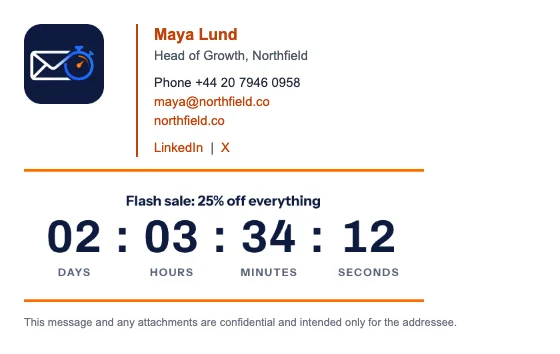
A countdown in a signature is an image address that draws the time left whenever a message is opened, so a reply opened next week usually still shows the right number; some mail apps keep a copy of an image for a while, as how email image caching works explains. Make one in the countdown timer generator and paste its image address into the banner field. It is the same email countdown timer as in a campaign, with sharper limits: everyone you write to fetches it, on every message and every reply, so each fetch counts as an open, and a busy inbox uses a lot of them. Size it to fit under your details, around 400 pixels wide, and keep it to one line of message plus the clock. Plans and free limits are on pricing. The full guide, including when a signature timer is worth it at all, is countdown timer in an email signature.
Problems and fixes
| What happens | Why | What to do |
|---|---|---|
| The image arrives as an attachment | It was pasted or uploaded as a file, not linked | Use an image address starting with https:// in the generator and paste again |
| The image shows as an empty box | The reader’s mail app blocks images until allowed | Nothing breaks: the photo’s width, height and alt text hold its space, and the banner’s alt text says what it shows. Keep the essentials in text, which the generator does |
| Gmail says the signature is too long | An image was pasted as a file and counted against the 10,000 characters | Link the image by address instead |
| Lines are spaced too far apart in Outlook | The editor added its own paragraph spacing | Paste the generator’s copy again rather than retyping; every line already sets its margins to zero |
| Links turn blue and underlined | The mail app restyled them | The generator sets each link’s colour and turns underlines off inline, which most clients keep; Outlook sometimes still underlines |
| It looks wrong in dark mode | Clients invert or recolour signatures differently | Use a logo that reads on light and dark, as covered in email signature dark mode; what each client does to colours is in email dark mode |
| The layout breaks on iPhone | The iOS signature field keeps limited formatting | Use a short text signature on the phone |
Before you start sending with it
- Send a test to a Gmail account, an Outlook account and an iPhone, and look at all three.
- Reply to your own test and check that the signature still looks right in the reply.
- Turn images off in one client and check that the text still says who you are.
- Check that every link opens the right page, and that the phone link dials on a phone.
- Read the banner’s alt text aloud: it should say what the banner says.
- Check it in dark mode.
For a full campaign layout rather than a signature, start from the free HTML email template. For buttons that survive Outlook, see bulletproof HTML email buttons, and for a branded header behind text, email background images.
Questions and answers
Is this email signature generator free?
Yes, with no account and no watermark. The signature is plain HTML that belongs to you. Only a countdown banner, if you add one, depends on an image service, and its limits are above.
Can I use an HTML signature in Gmail?
Yes, but not by pasting code. Gmail’s signature box takes formatted content, not HTML source, so press Copy signature and paste the formatted version. The HTML underneath comes across with it.
How do I add an HTML signature to Outlook?
Copy the signature formatted and paste it into the signature editor: Settings, Accounts, Signatures in new Outlook and Outlook on the web, or Signature, Signatures on the message ribbon in classic Outlook. The steps for each are above.
Why does my signature image not show?
Usually because the reader’s mail app blocks images until they allow them, or because the image was pasted as a file instead of linked. A linked image with a width, a height and alt text keeps its space and its meaning either way.
What size should an email signature be?
Keep the whole signature under about 600 pixels wide and around 150 to 250 pixels tall without a banner. Show a photo or logo at about 80 pixels square and upload it at twice that size.
Can I put a GIF in my signature?
Yes. An animated GIF works wherever images show. Outlook 2007 to 2013, and classic Outlook with animations turned off, show only the first frame, so make sure frame one works as a still picture. More in animated GIF email signatures.
Should my whole signature be one image?
No. An image-only signature disappears for anyone whose images are blocked, cannot be read by a screen reader beyond its alt text, and cannot be copied. Keep your name and contact details as text, as the generator does, and use images only for a photo, a logo or a banner. The W3C’s images tutorial explains what alt text should say for each kind of image.
How do I make the links in my signature clickable?
The generator writes every contact detail as a real link: your email opens a new message, your phone number dials on a phone, and your website and social profiles open in the browser. Paste the formatted copy, not a screenshot, and the links come across.
How do I add social media icons to my signature?
The generator writes social profiles as text links, because icon images are blocked by default in many inboxes and show as empty boxes until the reader allows images. If you want icons anyway, host small PNG icons on your own site and add them to the HTML with a width, a height and alt text naming the network.
Will my signature look right in dark mode?
The text will, because mail apps recolour text for dark mode. Images are the risk: a dark logo on a transparent background can vanish on a dark background. Use a logo that reads on both, and read email signature dark mode and email dark mode for what each app does.
Can I have different signatures for different accounts?
Yes. Gmail lets you create several signatures and set defaults for new emails and replies, including a different one for each “Send mail as” address. Classic Outlook sets a default per account, and new Outlook lets you choose which account a signature applies to.
How do I change my signature later?
Open this page again in the same browser: your last entries are still in the form. Change what you need, copy it again and replace the old signature in your mail app’s settings.
Does the generator save or send my details?
No. It runs entirely in your browser and has no form that posts anywhere. Your entries are kept only in your own browser’s storage so a reload does not lose them.
Do I need to know HTML to use it?
No. Fill in the form and press Copy signature, then paste into your mail app. The HTML is there under Show the HTML for anyone who needs it, for example an IT team setting signatures for a whole company.
Sources
Related
Put a countdown in the campaign you are writing now
The free plan covers 5,000 opens a month with no card. Starter is $24 a month for 250,000.