

An email background image works in Gmail, Apple Mail, Outlook on the web, Yahoo and Samsung Email with ordinary CSS, but classic Outlook for Windows ignores CSS background-image because it draws email with Microsoft Word’s engine. To show the image there too, add a VML rectangle inside an Outlook-only conditional comment, and set a solid background colour underneath so the text stays readable when the image does not load.
This page gives the complete, copyable code for a full-width hero with text over a background image, a smaller cell-level version, every line of the Outlook part explained, what Gmail and the new Outlook for Windows support, what dark mode does to it, and a pre-send checklist. Every screenshot below is the code on this page, drawn by a browser.
Why Outlook does not show background images
Classic Outlook for Windows (Outlook 2007 to 2024 and classic Outlook in Microsoft 365) does not use a browser to show HTML email. Microsoft’s own documentation from the 2007 release says Outlook “uses the HTML parsing and rendering engine from Microsoft Office Word 2007 to display HTML message bodies”. The same page lists the CSS properties Word does not support, and background-image, background-position and background-repeat are all on it. Word treats them as unknown properties and drops them.
The HTML background attribute does not rescue you either. Can I email records that classic Outlook for Windows supports it only on the <body> element, not on a <table> or <td>.
What Word does understand is VML (Vector Markup Language), the old Microsoft drawing format that Office documents still use internally. Microsoft’s VML reference describes a rect element (a rectangle), a fill element that can paint an image into a shape, and a textbox element that holds HTML inside a shape. Put those three together and Word draws a rectangle filled with your picture, with your text on top. Every other client never sees that code, because it sits inside a conditional comment only Microsoft Office reads.
The fix in five steps
- Declare the VML and Office namespaces on the
<html>element. - Put the image on the table cell three ways: the
backgroundattribute, CSSbackground-image, and abgcolorplusbackground-colorfallback colour. - Inside that cell, open an Outlook-only conditional comment with a
v:rect, av:fillpointing at the same image, and av:textbox. - Put your real HTML content (headline, text, button) after it, in a
<div>. - Close the
v:textboxandv:rectin a second conditional comment, and give the rectangle the same height the content needs.
Complete code: a full-width hero with text over a background image
Paste this as a whole email to test it, or lift the inner <td> into your template. Replace https://example.com/img/winter-hero-1200x640.jpg with your image’s full https:// address.
<!DOCTYPE html>
<html lang="en" xmlns="http://www.w3.org/1999/xhtml" xmlns:v="urn:schemas-microsoft-com:vml" xmlns:o="urn:schemas-microsoft-com:office:office">
<head>
<meta charset="utf-8">
<meta name="viewport" content="width=device-width, initial-scale=1">
<meta name="x-apple-disable-message-reformatting">
<title>Winter sale</title>
<!--[if mso]>
<noscript><xml><o:OfficeDocumentSettings><o:PixelsPerInch>96</o:PixelsPerInch></o:OfficeDocumentSettings></xml></noscript>
<![endif]-->
<style>
  @media screen and (max-width: 599px) {
    .hero-pad { padding: 48px 24px !important; }
    .hero-h1 { font-size: 30px !important; line-height: 36px !important; }
  }
</style>
</head>
<body style="margin:0; padding:0; background-color:#eef1f6;">
<table role="presentation" width="100%" cellpadding="0" cellspacing="0" border="0" style="background-color:#eef1f6;">
<tr>
<td align="center" style="padding:0;">
<!--[if mso]><table role="presentation" width="600" cellpadding="0" cellspacing="0" border="0"><tr><td><![endif]-->
<table role="presentation" width="100%" cellpadding="0" cellspacing="0" border="0" style="max-width:600px;">
<tr>
<td background="https://example.com/img/winter-hero-1200x640.jpg" bgcolor="#1b2a4a" valign="middle" style="background-color:#1b2a4a; background-image:url('https://example.com/img/winter-hero-1200x640.jpg'); background-position:center; background-size:cover; background-repeat:no-repeat;">
<!--[if gte mso 9]>
<v:rect xmlns:v="urn:schemas-microsoft-com:vml" fill="true" stroke="false" style="width:600px; height:320px;">
<v:fill type="frame" src="https://example.com/img/winter-hero-1200x640.jpg" color="#1b2a4a" />
<v:textbox inset="0,0,0,0">
<![endif]-->
<div>
<table role="presentation" width="100%" cellpadding="0" cellspacing="0" border="0">
<tr>
<td class="hero-pad" align="left" style="padding:38px 48px; font-family:Arial, Helvetica, sans-serif; color:#ffffff;">
<p style="margin:0 0 12px; font-size:16px; line-height:22px; color:#ffd8a8;">Ends Sunday at midnight</p>
<h1 class="hero-h1" style="margin:0 0 16px; font-size:40px; line-height:46px; font-weight:bold; color:#ffffff;">30% off everything for winter</h1>
<p style="margin:0 0 28px; font-size:17px; line-height:26px; color:#ffffff;">Gifts wrapped free, delivered before the 20th.</p>
<table role="presentation" cellpadding="0" cellspacing="0" border="0">
<tr>
<td bgcolor="#c2410c" style="border-radius:6px; background-color:#c2410c; mso-padding-alt:14px 28px;">
<a href="https://example.com/sale" style="display:inline-block; padding:14px 28px; font-family:Arial, Helvetica, sans-serif; font-size:17px; line-height:20px; font-weight:bold; color:#ffffff; text-decoration:none; border-radius:6px;">Shop the sale</a>
</td>
</tr>
</table>
</td>
</tr>
</table>
</div>
<!--[if gte mso 9]>
</v:textbox>
</v:rect>
<![endif]-->
</td>
</tr>
</table>
<!--[if mso]></td></tr></table><![endif]-->
</td>
</tr>
</table>
</body>
</html>

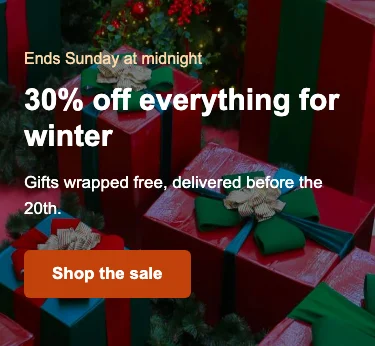
The Outlook part, line by line
xmlns:v="urn:schemas-microsoft-com:vml" on the <html> element declares the v: prefix, so Word knows v:rect and v:fill are VML and not unknown tags. xmlns:o="urn:schemas-microsoft-com:office:office" declares the o: prefix used by the settings block in the head. The v:rect repeats xmlns:v on itself as well, because some sending platforms rewrite the <html> tag and drop attributes they do not recognise; the repeat keeps the shape working if that happens.
<o:OfficeDocumentSettings><o:PixelsPerInch>96</o:PixelsPerInch> tells Outlook to treat the pixel sizes in the email as 96 per inch. Without it, Outlook on a Windows machine with display scaling turned up can scale some measurements and not others, and a VML shape can end up a different size from the HTML around it.
<!--[if gte mso 9]> opens a conditional comment that only Microsoft Office reads (“mso” version 9 or later, which covers every Word-based Outlook). Every other client treats the whole block as an ordinary HTML comment and skips it.
<v:rect fill="true" stroke="false" style="width:600px; height:320px;"> draws a rectangle. fill="true" paints it, stroke="false" removes the outline VML would otherwise draw, and the width and height set its size in pixels. The height matters: Word will not stretch the rectangle to fit content by default, so it must be at least as tall as the text inside it. Measure the rendered hero in a browser at 600 pixels and use that number. This hero is exactly 320 pixels tall, because 38 pixels of padding top and bottom plus the text add up to 320.
<v:fill type="frame" src="..." color="#1b2a4a" /> paints the image into the rectangle. Microsoft’s reference for the type attribute lists frame as “The image is stretched to fill the shape” and tile as “The fill image is tiled”. Use frame for a photo, and save the photo at the same proportions as the rectangle (1200 by 640 here is the same shape as 600 by 320) so stretching does not distort it. color is the colour Word paints if it cannot fetch the image.
<v:textbox inset="0,0,0,0"> creates the area that holds your HTML on top of the image. Microsoft documents the default inset as “0.1in, 0.05in, 0.1in, 0.05in”; setting it to zero stops Word from adding that extra margin, so your own padding is the only spacing.
<![endif]--> closes the opening conditional comment. The content between the two comments is ordinary HTML that every client reads, Outlook included.
<div> wraps the content so it has a single block container inside the textbox and in every other client.
</v:textbox></v:rect> in the second conditional comment closes the two shapes. If you leave this block out, the shapes are never closed and the layout after the hero can break in Outlook.
The ghost table, <!--[if mso]><table width="600">, is not part of the background fix. It gives Outlook a fixed 600 pixel container, since Word ignores max-width. Email template in Outlook lists the other properties Word drops. The button inside the hero puts its padding on the link for every other client and repeats it as mso-padding-alt on the cell for Outlook, which ignores padding on links; bulletproof HTML email buttons explains that pattern and two others.
Letting the rectangle grow with the text
Microsoft documents a mso-fit-shape-to-text style for the textbox: “If True, the shape is stretched to fit the text. Default is False.” You can write <v:textbox inset="0,0,0,0" style="mso-fit-shape-to-text:true"> so a longer headline makes the rectangle taller instead of being cut off. Keep a sensible height on the v:rect anyway, as the starting size, and test with the longest headline you expect to send.
The fallback colour, and why it matters most
The solid colour does more work than the image. It shows while the image loads, when a reader has images turned off, in any client that does not support background images, and if the image address breaks. Set it in all three places in the code above: bgcolor="#1b2a4a" on the <td>, background-color in its style, and color on the v:fill.
Pick the colour so the text passes contrast against it on its own. WCAG asks for a contrast ratio of at least 4.5:1 for normal text and 3:1 for large text. White on #1b2a4a is about 14:1. A pale fallback behind white text is the most common reason a background image email becomes unreadable with images off.
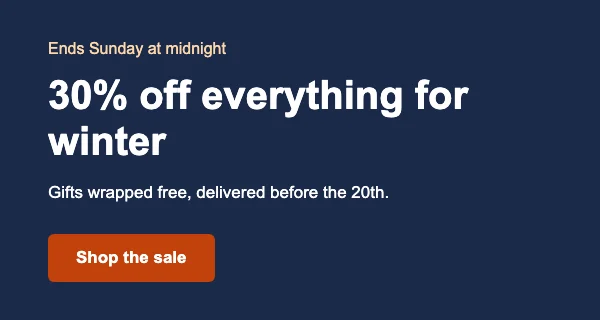
Never put words that matter only inside the image. A reader with images off sees none of it, a screen reader cannot read it, and the images not showing in email checklist starts with exactly that. Live text over the image is the whole point of this technique. Email accessibility covers the rest of the reading-order and contrast rules.
Cell-level background image
The same method works on a smaller cell inside the email body, for a coupon, a quote panel or a banner. The only change is the size: the v:rect uses the cell’s width rather than 600. This example uses type="tile", because the image is a paper texture that can repeat without looking wrong.
<table role="presentation" width="100%" cellpadding="0" cellspacing="0" border="0">
<tr>
<td background="https://example.com/img/paper-texture.jpg" bgcolor="#f6c7cf" width="520" height="180" valign="middle" align="center" style="background-color:#f6c7cf; background-image:url('https://example.com/img/paper-texture.jpg'); background-position:center; background-repeat:repeat; border-radius:8px;">
<!--[if gte mso 9]>
<v:rect xmlns:v="urn:schemas-microsoft-com:vml" fill="true" stroke="false" style="width:520px; height:180px;">
<v:fill type="tile" src="https://example.com/img/paper-texture.jpg" color="#f6c7cf" />
<v:textbox inset="0,0,0,0">
<![endif]-->
<div>
<p style="margin:0 0 8px; font-family:Arial, Helvetica, sans-serif; font-size:15px; line-height:20px; color:#5a1f2b;">Members save 15%</p>
<p style="margin:0; font-family:'Courier New', Courier, monospace; font-size:34px; line-height:40px; font-weight:bold; letter-spacing:4px; color:#1b2a4a;">SNOW15</p>
</div>
<!--[if gte mso 9]>
</v:textbox>
</v:rect>
<![endif]-->
</td>
</tr>
</table>
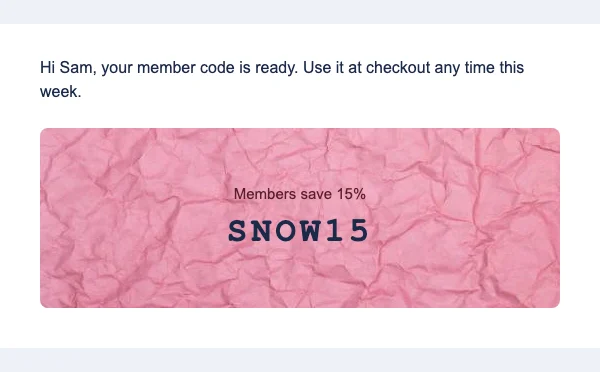
Two details to know. Classic Outlook does not apply border-radius, so the panel is square there. And a VML textbox anchors its content to the top by default, so in Outlook the text sits at the top of the panel rather than the middle; add top padding to the first paragraph if that matters to your design.
Edge-to-edge sections with mso-width-percent
For a band that runs the full width of the reading pane rather than 600 pixels, email developers swap the fixed width for mso-width-percent:1000, an Office style measured in tenths of a percent, so 1000 means 100% of the container:
<v:rect xmlns:v="urn:schemas-microsoft-com:vml" fill="true" stroke="false" style="mso-width-percent:1000; height:320px;">
Put that rectangle in a full-width <td> outside your 600 pixel ghost table. Microsoft’s VML reference on Learn does not document mso-width-percent, so treat it as tested practice rather than a documented feature, and check it in a real classic Outlook before you rely on it.
What Gmail supports
Gmail supports CSS background images. Google’s list of CSS properties supported in Gmail includes background, background-image, background-position, background-repeat and background-size. That covers Gmail on the web and the Gmail apps.
Three Gmail habits still catch people out. Gmail keeps styles in a <style> block in the head but rewrites class names, so the inline style on the <td> is the dependable place for the background. Can I email records a period in July 2023 when Gmail on the web removed the whole style attribute if it contained a url(), which Gmail then reversed; it is a reason to keep the bgcolor attribute as well as the CSS colour. And Gmail clips any message over about 102KB of HTML. A background image does not count toward that, because only its address is in the HTML, but the duplicated VML code does add a little. Gmail clipped message explains the limit, and Gmail’s email client page collects the other Gmail quirks.
If you are sending a one-off message from your own Gmail account rather than a sending platform, send an HTML email from Gmail shows how to get the code in without Gmail stripping it.
The new Outlook for Windows
The new Outlook for Windows is a different program from classic Outlook. Microsoft’s admin overview says it “is a native application, based on WebView2” and that “the experience is provided by Outlook on the web”. WebView2 is Microsoft Edge’s browser engine, so the new Outlook draws email the way Outlook on the web does, not the way Word does.
In practice that means the CSS background-image on the <td> is what shows in the new Outlook, the same as in Outlook.com, and the [if gte mso 9] VML block is ignored there, because the new Outlook is not Word. Keep the VML for as long as your readers still use classic Outlook: Microsoft lets organisations run the two versions side by side, so both are in use. Your sending platform’s client report tells you how many of your readers are on Word-based Outlook.
Background images by email client
| Client | CSS background-image | What to use |
|---|---|---|
| Classic Outlook for Windows (2007 to 2024, Microsoft 365 classic) | No | VML v:rect and v:fill in a conditional comment |
| New Outlook for Windows | Yes (web engine) | The CSS on the <td> |
| Outlook on the web and Outlook.com | Yes | The CSS on the <td> |
| Outlook for Mac, iOS and Android | Yes | The CSS on the <td> |
| Gmail on the web and the Gmail apps | Yes | Inline CSS; keep bgcolor too |
| Apple Mail on macOS and iOS Mail | Yes | The CSS on the <td> |
| Yahoo Mail and AOL | Partial: one background value only | One image per element, no layered backgrounds |
| Samsung Email | Yes in current versions | The CSS on the <td> |
Sources: Microsoft’s Word 2007 rendering documentation and new Outlook overview, Google’s Gmail CSS reference, and Can I email’s background-image data, all listed at the end of this page. Can I email notes that older Samsung Email versions downloaded background images only if the email also contained at least one <img>, and that Yahoo and AOL drop the comma between multiple background values, so a layered background (a gradient over a photo) collapses there.
Dark mode and background images
Clients that recolour email in dark mode change CSS colours. They do not repaint the pixels of an image. That gives two rules for a background image email.
First, the fallback colour can change while the image does not. A client may darken your light bgcolor and lighten your dark text, which is fine with images off but can put light text on a light photo once the image loads. The safest design is the one on this page: a dark image, darkened in the file itself, with white or very light text. Dark mode tools usually leave light text on a dark background alone.
Second, you cannot control every client. Can I email lists @media (prefers-color-scheme: dark) as supported in Apple Mail, iOS Mail, Samsung Email and the Outlook apps other than classic Outlook for Windows, and not supported in Gmail or classic Outlook for Windows, so a separate dark-mode image swap only reaches some readers. Dark mode email covers the colour rules in full, and dark mode countdown timers shows the same problem for live images.
Preparing the image
- Save photos as JPEG and textures as JPEG or PNG. Animated GIF backgrounds animate in some clients, but classic Outlook’s VML fill shows a still frame, so the first frame must work on its own (GIF in email has the details).
- Export at twice the display width (1200 pixels for a 600 pixel hero) so it is sharp on high-density screens, then compress it. Email image size has the widths for each slot.
- Match the proportions of the
v:rectexactly when you usetype="frame", or Outlook stretches the picture. - Keep the important part of the photo in the centre.
background-size: covercrops the edges on narrow screens, as the phone render above shows. - Use a full
https://address. A relative path or a local file never loads in a reader’s inbox.
Pre-send checklist
xmlns:vandxmlns:oare on the<html>element, andxmlns:vis repeated on thev:rect.- The image address is identical in the
backgroundattribute, the CSSurl()and thev:fill src. - The same fallback colour is in
bgcolor,background-colorand thev:fill color. - Text over the image passes 4.5:1 contrast against the fallback colour alone.
- The
v:rectheight is at least the height of the content at 600 pixels. - Both conditional comments are present, the opening one and the closing one.
- No words that matter exist only inside the image.
- The email still reads with images off.
- Tested in classic Outlook for Windows, the new Outlook or Outlook.com, Gmail, and Apple Mail or iOS Mail.
A countdown over the background
A background image is fixed the moment you send. A countdown timer or personalized image from EmailTimer.app changes each time the email is opened, and because it arrives as a foreground picture rather than a background, it can sit on top of the VML one: put the timer’s <img> in the hero’s content area, between the headline and the button, inside the <div> that the VML textbox wraps. Classic Outlook then draws it over the VML fill and every other client draws it over the CSS background. Give the <img> a width attribute, since Word ignores max-width, and check that the timer reads clearly against the darkened photo.
An email countdown timer is built in the editor, which copies the snippet with your sending platform’s merge tags, or you can make one in the countdown timer generator. Plans and free limits are on pricing. For the button in the hero, bulletproof HTML email buttons has three versions that work in Outlook, and the free HTML email template is a starting file with the ghost table already in place.
Questions and answers
How do I add a background image to an HTML email?
Put the image on a table cell with both the background attribute and inline CSS background-image, and set a solid bgcolor and background-color as the fallback. Then add a VML v:rect with a v:fill and v:textbox inside an [if gte mso 9] conditional comment for classic Outlook for Windows. The complete code is in the hero example above.
Why is my background image not showing in Outlook?
Classic Outlook for Windows renders email with Microsoft Word, and Microsoft’s documentation lists background-image as a CSS property Word does not support. The HTML background attribute only works on the <body> there. Use the VML fallback on this page, and check that the xmlns:v namespace is declared and both conditional comments are present.
Does Gmail support background images in email?
Yes. Google’s list of CSS properties supported in Gmail includes background-image, background-size, background-position and background-repeat. Put the CSS inline on the <td>, and keep the bgcolor attribute as a fallback, since Gmail briefly stripped styles containing url() in 2023.
Does the new Outlook for Windows need VML?
No. Microsoft describes the new Outlook as based on WebView2, with the experience provided by Outlook on the web, so it reads the CSS background like Outlook.com does and ignores the MSO conditional comment. Keep the VML for readers still on classic Outlook, since both versions are in use.
What is the difference between type=“frame” and type=“tile” in VML?
Microsoft’s reference says frame stretches the image to fill the shape and tile repeats it. Use frame for a photo and save the photo at the same proportions as the rectangle so it is not distorted. Use tile for a pattern or texture that can repeat.
Why is my text cut off over the background image in Outlook?
The VML rectangle has a fixed height, and Word does not grow it to fit the text by default. Make the v:rect height at least as tall as the content, or add style="mso-fit-shape-to-text:true" to the v:textbox, which Microsoft documents as stretching the shape to fit the text. Test with your longest headline.
What size should an email background image be?
Export it at twice the width it displays at, so 1200 pixels wide for a 600 pixel hero, and at the same proportions as the VML rectangle. Compress it as a JPEG for photos. Keep the important part in the centre, because background-size: cover crops the sides on phones.
Can I use a background image in an email signature?
It is better not to. Signatures are pasted into mail programs that rewrite HTML, and the VML and CSS needed for a background rarely survive that. Use a solid colour and an <img> logo instead, as the HTML email signature guide explains.
Do background images work in dark mode?
The image itself stays the same, because dark mode tools recolour CSS colours, not image pixels. The fallback colour and the text colour may change, though. Use a dark image with light text and the result reads in both modes.
Can I put an animated GIF as an email background?
Clients that support CSS background images will usually animate a GIF background, but classic Outlook’s VML fill shows a still frame. Make sure the first frame carries the design on its own, and keep the file small.
Why does my background image show in Outlook on the web but not on my desktop?
Outlook.com runs in a browser and supports CSS background images. Classic Outlook on a Windows desktop uses Word’s engine and needs the VML version. If you see it on the web but not on the desktop, the VML block is missing or broken.
Will a background image affect deliverability or Gmail clipping?
The image file is not part of the email, only its address, so it does not count toward Gmail’s roughly 102KB clipping limit. What counts is the HTML, and the VML adds a few hundred bytes per block. Keeping the words as live HTML over the image, rather than inside it, also means the message still makes sense to a reader and to a filter that cannot see the picture.
Sources
- Word 2007 HTML and CSS Rendering Capabilities in Outlook 2007, Part 1 of 2 (Microsoft Learn), read on 21 November 2026
- Overview of the new Outlook for Windows (Microsoft Learn), read on 21 November 2026
- How to Use VML on Webpages (Microsoft Learn), read on 21 November 2026
- VML Rect Element (Microsoft Learn), read on 21 November 2026
- VML Fill Element (Microsoft Learn), read on 21 November 2026
- Type Attribute (Fill) (VML) (Microsoft Learn), read on 21 November 2026
- VML TextBox Element (Microsoft Learn), read on 21 November 2026
- VML Inset Attribute (Microsoft Learn), read on 21 November 2026
- VML MSO-Fit-Shape-To-Text Attribute (Microsoft Learn), read on 21 November 2026
- CSS support in Gmail (Google for Developers), read on 21 November 2026
- background-image support by email client (Can I email), read on 21 November 2026
- background attribute support by email client (Can I email), read on 21 November 2026
- prefers-color-scheme support by email client (Can I email), read on 21 November 2026
- background-image (MDN Web Docs), read on 21 November 2026
- Contrast (Minimum), Understanding WCAG 2.2 (W3C), read on 21 November 2026
- Photo by Jeffry Surianto on Pexels (hero example)
- Photo by Tamanna Rumee on Pexels (cell example)
Related
Put a countdown in the campaign you are writing now
The free plan covers 5,000 opens a month with no card. Starter is $24 a month for 250,000.