
You cannot type or paste HTML source into Gmail’s compose window: it is a rich text editor with no “edit HTML” mode. To send an HTML email from Gmail you either paste the rendered email from a browser, swap the message body with your browser’s developer tools, send it with a short Google Apps Script that passes your code as htmlBody, or send it through an email platform instead.
This page walks through all four, step by step, with a complete Apps Script you can copy, then lists what Gmail strips or rewrites in your CSS and why, with a checklist to run before you send.
Which method to use
| Method | Good for | Keeps <style> in the head |
Personalization | Effort |
|---|---|---|---|---|
| 1. Paste from a browser | A one-off email you want to look roughly right | No | None | Two minutes |
| 2. Developer tools | A one-off email that must keep your exact inline-styled markup | No | None | Five minutes |
| 3. Google Apps Script | Sending your exact file, to yourself or a list of up to 100 a day | Yes, the whole file is sent | Any column of a Google Sheet | Fifteen minutes, once |
| 4. An email platform (ESP) | Newsletters, marketing and anything sent to a list | Yes | Merge tags | Account setup |
Methods 1 and 2 put your HTML into Gmail’s editor, so only what the editor accepts survives, and anything in the <head> is lost. Method 3 sends your file as written, without the editor in the way. Method 4 is the right tool for anything sent to more than a handful of people.
All four need an email that is built for email: tables for layout, inline styles, and images on public https:// addresses. The HTML email template starts from that, and the example below is built the same way.
The example email
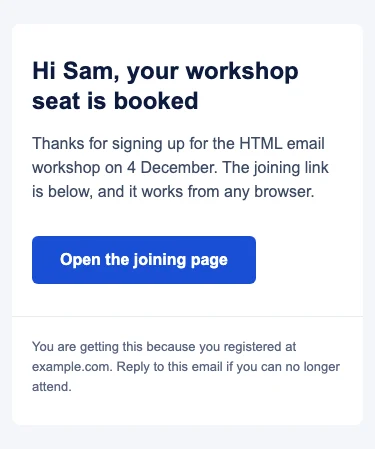
Every method on this page sends this file. It is a plain booking confirmation: a heading, a paragraph, a button and a footer, with a media query that narrows the padding on phones.
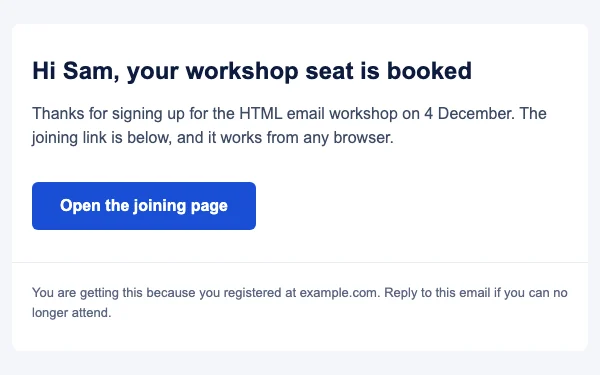
Save it as email.html. The {{firstName}} and {{date}} placeholders are only used by the Apps Script method; for methods 1 and 2, type the real values in.
<!DOCTYPE html>
<html lang="en">
<head>
<meta charset="utf-8">
<meta name="viewport" content="width=device-width, initial-scale=1">
<title>Your workshop seat is booked</title>
<style>
  @media screen and (max-width:620px) {
    .container { width:100% !important; }
    .px { padding-left:20px !important; padding-right:20px !important; }
  }
</style>
</head>
<body style="margin:0; padding:0; background-color:#f4f6fa;">
<table role="presentation" width="100%" cellpadding="0" cellspacing="0" border="0" style="background-color:#f4f6fa;">
<tr>
<td align="center" style="padding:24px 12px;">
  <table role="presentation" class="container" width="600" cellpadding="0" cellspacing="0" border="0" style="width:600px; max-width:600px; background-color:#ffffff; border-radius:8px;">
    <tr>
      <td class="px" style="padding:32px 40px 8px; font-family:Arial, Helvetica, sans-serif;">
        <h1 style="margin:0 0 16px; font-size:24px; line-height:30px; color:#0e1b3e;">Hi {{firstName}}, your workshop seat is booked</h1>
        <p style="margin:0 0 16px; font-size:16px; line-height:24px; color:#3d4a63;">Thanks for signing up for the HTML email workshop on {{date}}. The joining link is below, and it works from any browser.</p>
      </td>
    </tr>
    <tr>
      <td class="px" style="padding:8px 40px 32px;">
        <table role="presentation" cellpadding="0" cellspacing="0" border="0">
          <tr>
            <td align="center" bgcolor="#1a4fd6" style="border-radius:6px; background-color:#1a4fd6;">
              <a href="https://example.com/workshop" style="display:inline-block; padding:14px 28px; font-family:Arial, Helvetica, sans-serif; font-size:16px; line-height:20px; font-weight:bold; color:#ffffff; text-decoration:none;">Open the joining page</a>
            </td>
          </tr>
        </table>
      </td>
    </tr>
    <tr>
      <td class="px" style="padding:20px 40px 28px; border-top:1px solid #e6eaf2; font-family:Arial, Helvetica, sans-serif; font-size:13px; line-height:20px; color:#5b6680;">You are getting this because you registered at example.com. Reply to this email if you can no longer attend.</td>
    </tr>
  </table>
</td>
</tr>
</table>
</body>
</html>
Why it is written this way: every style that matters is inline, so it survives methods 1 and 2, where the <head> is dropped. The <style> block only holds the phone rules, so if it is lost the email is still a readable 600 pixel layout. The button is a table cell with a bgcolor attribute and a padded link, which is the version that also works in classic Outlook; HTML email button explains each part.
Method 1: paste the rendered email from a browser
The quickest way to insert HTML in Gmail is to let the browser render it first, then copy what you see.
- Open
email.htmlin Chrome, Edge or Firefox by dragging the file into a browser window. - Click inside the page and press Ctrl+A (Cmd+A on a Mac) to select everything, then Ctrl+C (Cmd+C) to copy.
- In Gmail, click Compose, click in the message body and press Ctrl+V (Cmd+V).
- Add the recipient and subject. Send it to yourself first.
What happens: the browser copies the selection as formatted HTML, and Gmail’s editor accepts the parts it understands and drops the rest. Text, colours, links and simple tables usually come through. Media queries do not, because they live in the <head>, which is never part of a selection. Exactly what survives depends on the browser you copied from, so always judge the received copy, not the compose window.
Two traps. Images must be on public https:// addresses: an image the HTML loads from your own disk shows in your browser and in the compose window, then breaks for the recipient. And if the pasted email is too wide for the compose window, it is usually a fixed width cell or image; the email will still arrive at its real width.
Method 2: replace the message body with developer tools
This puts your exact markup into the compose window, without the browser’s copy step deciding what to keep. It uses Chrome’s Elements panel; Edge is the same, and Firefox’s Inspector has the same command.
- In Gmail, click Compose and type a single word in the message body, such as
here. - Right-click that word and choose Inspect. Chrome’s documentation describes this: right-click an element, then “From the menu, select Inspect.”
- In the Elements panel, the selected line is your word. Move up to the
divthat contains it and hascontenteditable="true". At the time of writing, Gmail labels it Message Body. - Right-click that
divand choose Edit as HTML. Chrome: “select Edit as HTML from the node’s drop-down menu.” - Select everything between the
div’s opening and closing tags and replace it with the content of your email’s<body>: from the first<table>to the last</table>. Do not paste<html>,<head>or<body>tags. - Click outside the editing box. The compose window now shows your email.
- Close developer tools, add the recipient and subject, and send a test to yourself.
Gmail’s editor can still clean the markup when you insert it or send it, and Gmail removes what it does not support when the message is displayed, so the head is gone just as in method 1 and unsupported CSS is still ignored. What you gain over pasting is control: your tables, attributes and inline styles go in as you wrote them. If you edit the text afterwards in the compose window, the editor may rewrite the markup around your cursor, so make text changes in the file and repeat the swap.
Gmail’s signature editor has no HTML mode either, and the same two methods are how most people put an HTML signature into it. HTML email signature has a signature built to survive that.
Method 3: send your HTML file with Google Apps Script
Apps Script is Google’s scripting tool, free with any Google account. Its GmailApp.sendEmail method sends a message from your own Gmail address, and its htmlBody option is, in Google’s words, an HTML body that HTML-capable devices use instead of the plain text body. Your file goes out as written, head and all, and the email arrives with Gmail’s normal treatment of incoming HTML.
The script below sends email.html to a list in a Google Sheet, filling in each person’s first name and date. It skips rows already sent and writes the time it sent each one, so you can run it again safely.
Set up the sheet and the script
- Create a Google Sheet. Rename the first tab
Recipients. - In row 1, type these headers:
email,firstName,date,sent. Add one row per recipient, and leavesentempty. - Select the
datecolumn and choose Format, Number, Plain text, then type dates as words (4 December). Otherwise Sheets turns them into date values and the email shows a long timestamp. - Choose Extensions, then Apps Script. Google’s guide: “To create a bound script, select Extensions > Apps Script from within Sheets.”
- Delete the sample code in
Code.gsand paste the script below. - Click the plus next to Files, choose HTML, and name the file
email. Delete its contents and pasteemail.htmlfrom above, placeholders included. - Save. In the toolbar, choose
sendTestfrom the function menu and click Run. Google asks you to authorize the script to send email as you; read the request and allow it. - Open the test in your inbox. When it looks right, choose
sendToSheetand click Run.
The complete script
// Sends the HTML file "email" as an HTML email from your own Gmail account.
// Sheet "Recipients", row 1 headers: email | firstName | date | sent
const SUBJECT = 'Your workshop seat is booked';
const SENDER_NAME = 'Workshop Team';
// Run this first: sends one copy to you.
function sendTest() {
const me = Session.getActiveUser().getEmail();
sendOne_(me, { firstName: 'Sam', date: '4 December' });
}
// Sends to every row that has an address and no date in "sent".
function sendToSheet() {
const sheet = SpreadsheetApp.getActiveSpreadsheet().getSheetByName('Recipients');
const rows = sheet.getDataRange().getValues();
const header = rows.shift();
const col = (name) => header.indexOf(name);
['email', 'firstName', 'date', 'sent'].forEach((name) => {
if (col(name) === -1) throw new Error('Missing column: ' + name);
});
rows.forEach((row, i) => {
const to = String(row[col('email')]).trim();
if (!to || row[col('sent')]) return;
sendOne_(to, { firstName: row[col('firstName')], date: row[col('date')] });
sheet.getRange(i + 2, col('sent') + 1).setValue(new Date());
});
}
function sendOne_(to, data) {
let html = HtmlService.createHtmlOutputFromFile('email').getContent();
let text = 'Hi {{firstName}}, your seat for the HTML email workshop on {{date}} is booked. ' +
'Joining page: https://example.com/workshop';
Object.keys(data).forEach((key) => {
const token = '{{' + key + '}}';
const value = String(data[key]);
html = html.split(token).join(escapeHtml_(value));
text = text.split(token).join(value);
});
GmailApp.sendEmail(to, SUBJECT, text, { htmlBody: html, name: SENDER_NAME });
}
function escapeHtml_(s) {
return s.replace(/&/g, '&').replace(/</g, '<').replace(/>/g, '>').replace(/"/g, '"');
}
What each part does:
HtmlService.createHtmlOutputFromFile('email').getContent()reads theemailfile you added to the project as a string.- The
split(token).join(value)pair replaces every{{firstName}}and{{date}}. It is a plain text replacement, so no character in a name can break it, andescapeHtml_stops a name containing<or&from breaking the HTML. textis the plain text version.sendEmailrequires abody, and clients that do not show HTML use it, so make it a real message rather than a blank string.{ htmlBody: html, name: SENDER_NAME }sends the HTML and sets the sender’s display name. Other options Google documents includereplyTo,cc,bcc,attachments,inlineImagesfor images referenced ascid:in the HTML, andfromfor one of your Gmail aliases.- Writing the date into
sentmakes the script safe to run twice: rows with a value there are skipped.
I ran the script’s logic against a mocked Sheet and Gmail on 22 November 2026 to check the replacements, the escaping and the skipped rows; run sendTest on your own account before you send to anyone else.
Limits to know
Apps Script’s quota page lists “Email recipients per day” as 100 for consumer Gmail accounts and 1,500 for Google Workspace accounts, and an email body size limit of 200 KB per message on consumer accounts and 400 KB on Workspace. Gmail clips any message whose HTML passes about 102 KB long before that, so keep under the Gmail clipped message limit instead. GmailApp.sendEmail has no option for custom headers. The Gmail API advanced service can send a raw message with a List-Unsubscribe header, but it will not process unsubscribes for you, which is one reason method 4 exists.
Method 4: send it through your email platform instead
For anything sent to a list, use an email service provider. Most have a code editor or a “custom HTML” option where you paste the whole file, head included. In exchange for the setup you get what Gmail cannot do for you:
- Authentication on your own domain. Gmail’s sender guidelines ask senders to authenticate their mail, and to use one-click unsubscribe for marketing messages. SPF, DKIM and DMARC covers the setup.
- Unsubscribe headers and links, added for you and processed for you.
- Merge tags for personalization, filled per recipient at send time.
- No Gmail daily cap. Gmail’s help warns that you may hit a sending limit after “more than 500 emails sent in a day” from a personal account.
- Reports on delivery, opens and clicks.
Send from an address on your own domain; most platforms refuse or rewrite a @gmail.com From address, because mail sent from their servers cannot pass DMARC for gmail.com. Your Gmail account can still be the reply-to address, so replies land in the inbox you already use.
Why Gmail strips styles
Gmail does not run your email in a browser tab. It sanitizes the HTML first, keeping what it supports and dropping the rest. Google’s CSS page puts it in one line: “Gmail might ignore unsupported CSS properties and selectors.” Its reference lists the properties Gmail does support; anything missing from that list should be treated as unsupported.
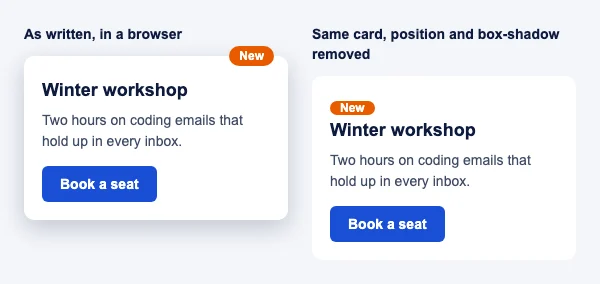
These are the things that most often go missing, with what Gmail does instead:
| What you wrote | What happens in Gmail | Source |
|---|---|---|
<style> inside the <body> |
Not supported; put it in the <head> |
Can I email |
<style> in the head, larger than 16 KB |
“The size of the <style> tag is limited to 16 KB” |
Can I email |
<style> in the head, read in the Gmail app with a non-Google account |
“Not supported with non Google accounts” | Can I email |
<link rel="stylesheet"> |
Not supported; external stylesheets are not loaded | Can I email |
@font-face web fonts |
Not supported; Roboto and Google Sans work only because Gmail’s own styles embed them | Can I email |
position (absolute, relative, fixed, sticky) |
Not supported; not in Google’s list | Can I email, Google |
box-shadow |
Not supported on the web; not in Google’s list | Can I email, Google |
| CSS variables | “The var() function is supported, but not the variable declaration” | Can I email |
Inline <svg> |
Not supported | Can I email |
Anything in the <head>, when pasted or inserted (methods 1 and 2) |
Lost, because only the body goes into the editor | How the editor works |
The fix for all of them is the same: inline the styles that matter, use tables for layout, keep the <style> block for media queries and small extras you can afford to lose, and use web-safe font stacks. Gmail does support background-image, border-radius, display and the media queries Google lists, so background images and rounded buttons are fine; email background image shows the version that also works in Outlook. If you design for dark mode, Gmail’s handling differs again, which email dark mode covers.
How other clients treat the same CSS
Your recipients will not all read in Gmail. The three features that most often explain “it looked right in Gmail and wrong in X”, or the reverse:
| Client | <style> in the head |
Web fonts with @font-face |
position |
|---|---|---|---|
| Gmail on the web | Head only, 16 KB limit | No, Roboto and Google Sans only | No |
| Gmail app, iOS and Android | Yes with a Gmail address; not with other accounts | No | No |
| Outlook for Windows, classic | Yes; declare before use | Partial: remote fonts are ignored and text can fall back to Times New Roman | No |
| Outlook.com and Outlook on the web | Yes | No | Partial: sticky only |
| New Outlook for Windows | Not tested separately by Can I email | Not tested separately | Not tested separately |
| Apple Mail, macOS | Yes | Yes | Partial: relative and absolute |
| iOS Mail | Yes | Yes | Partial: relative and absolute |
| Yahoo Mail | Yes | No | Partial: relative only |
| Samsung Email | Yes | Yes, except with Microsoft addresses | Partial: relative and absolute |
All rows are from Can I email’s test results for each feature. Gmail and the email clients overview cover how each client handles images and animation, and email template for Outlook covers the classic Outlook fixes.
Checklist before you send HTML from Gmail
- Layout is tables, not
divpositioning, flex or grid. - Every style that matters is inline; the
<style>block holds only media queries and extras. - The
<style>block is in the<head>and under 16 KB. - Fonts are web-safe stacks such as
Arial, Helvetica, sans-serif. - Every image is on a public
https://address, withwidth,heightandalt. Email image size gives the widths. - No
position,box-shadow, CSS variable declarations or inline SVG that the email depends on. - The HTML is under about 90 KB, well clear of Gmail’s clip.
- There is a real plain text version (method 3) and a working unsubscribe for anything sent to a list (method 4).
- Alt text and heading order make sense with images off; email accessibility has the details.
- You sent a test to yourself and checked it in Gmail and in one other client, including dark mode.
Keeping a live image through Gmail
What matters here is whether an image survives the trip through Gmail’s editor. Gmail’s editor keeps image tags and drops styling, which suits an email countdown timer from EmailTimer.app: it relies on no head styles, web fonts or positioning, only on its picture address. It survives each method on this page as long as its src stays the hosted https:// address.
- Methods 1 and 2: paste or insert it like any other image in your body markup, then check in the received copy that the tag still points to the hosted address.
- Method 3: put the tag in
email.html; the script sends it untouched. A timer made in the countdown timer generator is one tag you can paste straight in. - Method 4: the editor copies the snippet with your platform’s merge tags in place.
GIF in email covers how each client plays the animation. Plans and free limits are on pricing.
Questions and answers
Can you send HTML email from Gmail?
Yes, but not by typing code into the compose window, which has no HTML mode. Paste the rendered email from a browser, replace the message body with developer tools, send the file with Google Apps Script, or send it through an email platform.
How do I insert HTML into Gmail?
Open the HTML file in a browser, select all, copy, and paste into a new Gmail message. For your exact markup, use developer tools instead: Inspect the message body, choose Edit as HTML on its editable div, and replace its content with your email’s body.
Does Gmail have an HTML editor?
No. Gmail’s compose window and its signature editor are rich text editors with no source view. You can format text with the toolbar, but you cannot see or edit the HTML behind it.
How do I send an HTML email with Google Apps Script?
Put the HTML in a file in your Apps Script project, read it with HtmlService.createHtmlOutputFromFile('email').getContent(), and pass it to GmailApp.sendEmail(to, subject, plainText, { htmlBody: html }). The complete script above also sends to a list in a Google Sheet.
How many emails can I send with Apps Script?
Google’s quota page lists 100 email recipients per day for consumer Gmail accounts and 1,500 for Google Workspace accounts. For bigger lists, use an email platform.
Why does Gmail strip my CSS?
Gmail sanitizes incoming HTML and ignores properties and selectors it does not support, as Google’s CSS page says. The usual losses are <style> blocks in the body, external stylesheets, web fonts, position and box-shadow. Inline your important styles and use tables for layout.
Does Gmail support the style tag?
Yes, in the <head>, not in the <body>. Can I email records a 16 KB limit on the block, and no support in the Gmail apps when the account is not a Google one, so keep anything essential inline.
Why does my HTML email look different in Gmail than in my browser?
Your browser applies all of your CSS, and Gmail applies only the subset it supports. Media queries in the head work in Gmail; external stylesheets, web fonts and positioned elements do not.
Can I use Google Fonts in a Gmail email?
Not through @font-face or a stylesheet link, both of which Gmail ignores. Roboto and Google Sans display because Gmail already loads them, so list your font with a web-safe fallback such as Arial, Helvetica, sans-serif.
Why are images broken in the HTML email I sent from Gmail?
They were probably loaded from your own computer, which the recipient cannot reach. Host every image at a public https:// address and use that address in the src. Recipients who block images will also see the alt text instead; images not showing in email lists the other causes.
Can I save an HTML email as a template in Gmail?
Yes. Enable templates in Settings, See all settings, Advanced, as Gmail’s help describes, then with the email in the compose window choose More options, Templates, and save it. Saved templates go through the same editor, so check that your formatting survived.
Does Gmail support dark mode in HTML emails?
Gmail can change colours in dark mode, and how much depends on the app. Email dark mode shows what Gmail changes and the code that keeps your design readable.
Is it better to send newsletters from Gmail or an ESP?
An ESP. Gmail’s help warns of a sending limit at more than 500 emails a day, GmailApp.sendEmail cannot add the unsubscribe headers Gmail’s sender guidelines ask for, and neither gives you delivery reports. Gmail is fine for one-off and small personal sends.
Will Gmail clip a long HTML email I send myself?
Yes, the same rule applies whatever sends it. If the HTML passes about 102 KB, Gmail shows “[Message clipped] View entire message”; Gmail clipped message shows how to shrink it.
Sources
- CSS support (Gmail, Google for Developers), read on 22 November 2026
- Supported CSS properties and media queries (Gmail, Google for Developers), read on 22 November 2026
- Class GmailApp, sendEmail (Apps Script, Google for Developers), read on 22 November 2026
- Advanced Gmail service (Apps Script, Google for Developers), read on 22 November 2026
- Quotas for Google services (Apps Script, Google for Developers), read on 22 November 2026
- Extending Google Sheets (Apps Script, Google for Developers), read on 22 November 2026
- HTML Service: Create and Serve HTML (Apps Script, Google for Developers), read on 22 November 2026
- View and change the DOM (Chrome DevTools, Chrome for Developers), read on 22 November 2026
- Limits for sending and getting mail (Gmail Help), read on 22 November 2026
- Email sender guidelines (Gmail Help), read on 22 November 2026
- Create a template in Gmail (Gmail Help), read on 22 November 2026
- style element (Can I email), read on 22 November 2026
- link element (Can I email), read on 22 November 2026
- @font-face (Can I email), read on 22 November 2026
- position (Can I email), read on 22 November 2026
- box-shadow (Can I email), read on 22 November 2026
- CSS variables (Can I email), read on 22 November 2026
- svg element (Can I email), read on 22 November 2026
Related
Put a countdown in the campaign you are writing now
The free plan covers 5,000 opens a month with no card. Starter is $24 a month for 250,000.