
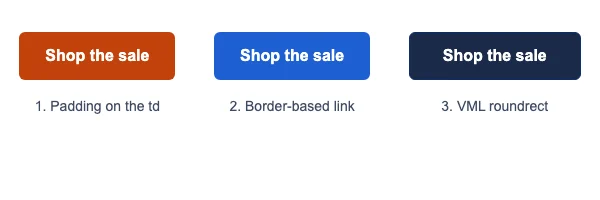
An HTML email button is a link styled with HTML and CSS to look like a button, rather than a picture of one, so it still shows and works when images are blocked. A bulletproof button is one built so it also holds its shape in classic Outlook for Windows, which ignores much of the CSS a browser uses: the three dependable ways are padding on the table cell, a thick border on the link, and a VML rounded rectangle for Outlook.
This page gives complete code for all three, a table of what each one does well and badly, how to make the whole button clickable in Outlook, the accessibility rules, what dark mode does to button colours, a mailto button with the subject and body encoded correctly, and a checklist. The screenshots are the code on this page, drawn by a browser.
Why image buttons fail
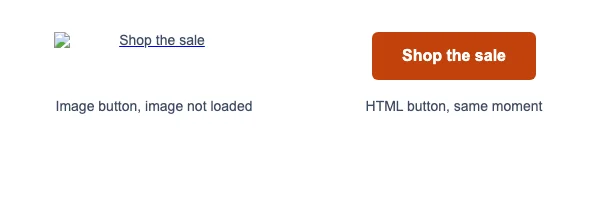
The old way to make a button was to save one as a PNG and link it. It looks the same everywhere, until the picture does not load.
- Images are often blocked. Many mail programs and company mail settings hold back images until the reader allows them. An image button then shows as an empty box or a line of alt text, and the one thing you wanted clicked is the hardest thing to find. Images not showing in email covers why this happens.
- Screen readers get only the alt text. If the alt text is missing or says “button”, the reader hears nothing useful.
- Text in an image does not scale. A reader who zooms text, or reads on a high-density phone screen, gets a blurry or tiny button. Live text stays sharp at any size.
- Dark mode cannot adapt it. A white-cornered PNG on a dark background shows its edges.
Why Outlook makes buttons hard
Classic Outlook for Windows draws email with Microsoft Word’s engine. Microsoft’s documentation of that engine lists button, form and input among the HTML elements Word does not support, and display among the unsupported CSS properties, so a link cannot be turned into a block. Can I email adds the details that matter for buttons: in classic Outlook, padding works only on table cells, not on links; a border cannot be wider than 8 pixels; and border-radius is ignored, so corners are square. Each method below is a different way around those three limits.
The new Outlook for Windows is not affected. Microsoft describes it as “based on WebView2”, with “the experience provided by Outlook on the web”, so it draws CSS buttons the way a browser does, and ignores the Outlook-only VML code.
Method 1: padding on the table cell
The colour and the padding go on a <td>, and the link sits inside it. Outlook supports padding on table cells, so the button has the right size and shape everywhere.
<table role="presentation" cellpadding="0" cellspacing="0" border="0">
<tr>
<td align="center" bgcolor="#c2410c" style="border-radius:6px; background-color:#c2410c; padding:14px 26px;">
<a href="https://example.com/sale" style="font-family:Arial, Helvetica, sans-serif; font-size:16px; line-height:20px; font-weight:bold; color:#ffffff; text-decoration:none; display:inline-block;">Shop the sale</a>
</td>
</tr>
</table>
Line by line: role="presentation" tells screen readers the table is for layout, not data. bgcolor and background-color both set the colour, because some clients read only one of them. padding:14px 26px makes the button 48 pixels tall (14 + 20 line height + 14). text-decoration:none removes the underline. display:inline-block is ignored by Outlook and harmless.
The catch: the padding belongs to the cell, not the link, so only the words are clickable. In every client, a tap on the coloured edge of the button does nothing. On a phone that edge is a real share of the button.
Make the whole cell clickable outside Outlook
A common improvement moves the padding onto the link for every client, and gives Outlook its own cell padding with the Office-only property mso-padding-alt, which other clients ignore:
<td align="center" bgcolor="#c2410c" style="border-radius:6px; background-color:#c2410c; mso-padding-alt:14px 26px;">
<a href="https://example.com/sale" style="display:inline-block; padding:14px 26px; font-family:Arial, Helvetica, sans-serif; font-size:16px; line-height:20px; font-weight:bold; color:#ffffff; text-decoration:none; border-radius:6px;">Shop the sale</a>
</td>
Now the whole button is the link in Gmail, Apple Mail and the rest, and Outlook draws the same size from the cell padding. In Outlook only the text is clickable, as before.
Method 2: a border-based link
Here the link carries everything. A thick border in the button colour makes the space around the text, and because the border is part of the link, the whole button is clickable.
<a href="https://example.com/sale" style="display:inline-block; background-color:#1f5fd1; border:8px solid #1f5fd1; padding:6px 18px; border-radius:6px; font-family:Arial, Helvetica, sans-serif; font-size:16px; line-height:20px; font-weight:bold; color:#ffffff; text-decoration:none;">Shop the sale</a>
The border is 8 pixels because Can I email records that classic Outlook will not draw a border wider than that. The extra padding:6px 18px adds size in every other client, which gives a 48 pixel button there. Outlook ignores padding on a link, so in Outlook this button is 36 pixels tall (8 + 20 + 8) and sits closer to the text. That is the trade: a fully clickable button everywhere, but a smaller one in Outlook.
No table is needed, which makes this the easiest method to drop into a paragraph or a template from a sending platform’s editor.
Method 3: a VML roundrect for Outlook
For a button with rounded corners and an exact size in classic Outlook, draw it in VML, the Microsoft drawing format Word understands, and give everyone else an HTML link.
<div><!--[if mso]>
<v:roundrect xmlns:v="urn:schemas-microsoft-com:vml" xmlns:w="urn:schemas-microsoft-com:office:word" href="https://example.com/sale" style="height:48px; v-text-anchor:middle; width:170px;" arcsize="25%" strokecolor="#0f2f6b" fillcolor="#1b2a4a">
<w:anchorlock/>
<center style="color:#ffffff; font-family:Arial, Helvetica, sans-serif; font-size:16px; font-weight:bold;">Shop the sale</center>
</v:roundrect>
<![endif]--><a href="https://example.com/sale" style="background-color:#1b2a4a; border:1px solid #0f2f6b; border-radius:6px; color:#ffffff; display:inline-block; font-family:Arial, Helvetica, sans-serif; font-size:16px; font-weight:bold; line-height:46px; text-align:center; text-decoration:none; width:170px; -webkit-text-size-adjust:none; mso-hide:all;">Shop the sale</a></div>
Line by line:
<!--[if mso]>opens a comment only Microsoft Office reads. Every other client skips it.<v:roundrect>is Microsoft’s predefined rounded rectangle. The twoxmlnsattributes declare thev:andw:prefixes so Word knows what they are.hrefon the shape makes the whole rectangle the link, corner to corner. This is the only method where the full button is clickable in classic Outlook.style="height:48px; width:170px"sets the exact size. VML does not grow to fit text, so the width must hold your longest label on one line.v-text-anchor:middlecentres the text vertically. Microsoft liststopas the default.arcsize="25%"rounds the corners. Microsoft defines it as a percentage “of half the smaller dimension”, so on a 48 pixel tall button, 25% of 24 pixels gives a 6 pixel radius, the same as theborder-radiuson the HTML link.strokecolorandfillcolorare the outline and the fill.<w:anchorlock/>: Email developers include it to stop the shape and its text being edited when the message is replied to or forwarded.<center>centres the label horizontally inside the shape.mso-hide:allon the HTML link hides it from Outlook, so Outlook shows the VML button only and not both.line-height:46pxplus the 1 pixel border makes the HTML version 48 pixels tall, matching the VML.
The cost is upkeep. The address, the label and the colours are written twice, and they drift apart when someone edits one and not the other. Some sending platforms’ visual editors also strip conditional comments, so check the sent email, not the editor preview. Send an HTML email from Gmail is a quick way to send yourself a test.
Which method to use
| Padding on the td | Border-based link | VML roundrect | |
|---|---|---|---|
| Size in classic Outlook | Exact | Smaller (borders capped at 8px, link padding ignored) | Exact |
| Rounded corners in classic Outlook | No | No | Yes |
| Whole button clickable in classic Outlook | No, text only | Yes | Yes |
| Whole button clickable elsewhere | Only with the mso-padding-alt version |
Yes | Yes |
| Width follows the label | Yes | Yes | No, fixed width |
| Code to maintain | One table | One link | Two copies of everything |
For most emails, Method 1 with the mso-padding-alt link padding is the best balance. Use the VML roundrect when the rounded corners in Outlook matter to the brand, or when a large share of your readers are on classic Outlook and need the full button to be clickable. Use the border-based link where you cannot add a table. Good Email Code publishes a fourth approach that pads the link in Outlook with invisible spaces and mso-text-raise; it is worth reading if you want one link with no table and no VML.
Buttons by email client
| Client | CSS padding on a link | border-radius | What shows |
|---|---|---|---|
| Classic Outlook for Windows | No (cells only) | No | Square buttons; VML if you add it |
| New Outlook for Windows | Yes (web engine) | Yes | The HTML button |
| Outlook on the web and Outlook.com | Yes | Yes | The HTML button |
| Outlook for Mac, iOS and Android | Yes | Yes | The HTML button |
| Gmail on the web and the Gmail apps | Yes | Yes | The HTML button |
| Apple Mail and iOS Mail | Yes | Yes | The HTML button |
| Yahoo Mail and AOL | Yes | Yes, simple values | The HTML button |
| Samsung Email | Yes | Yes | The HTML button |
Sources: Can I email’s padding, border and border-radius data, Google’s list of CSS properties supported in Gmail, and Microsoft’s documentation for classic and new Outlook.
Accessibility
A button in an email is a link, and it should stay one. Leave role="button" off: the ARIA Authoring Practices Guide describes a button as something that performs an action and is activated with Space as well as Enter, so a screen reader that announces “button” sets up an expectation a link to a web page does not meet. Use role="presentation" on the layout tables around it, and set lang on the <html> element.
- Text contrast. WCAG asks for at least 4.5:1 between text and background for normal text. White on the orange
#c2410cused here is about 5.2:1. White on a brighter brand orange such as#f26b1dis about 3:1, which fails, so check your brand colour before you use it behind white. - Button contrast. WCAG’s non-text contrast rule asks for 3:1 between a control and what surrounds it, so the button can be found at all. A pale grey button on a white email fails this even with perfect text contrast.
- Size. WCAG 2.2’s minimum target size is 24 by 24 CSS pixels, and its enhanced level is 44 by 44. Every button on this page is 48 pixels tall in browsers; aim for 44 or more.
- Link text. Say what happens: “Shop the sale”, “Track your order”, “Reset your password”. “Click here” and “Learn more” pass WCAG’s link purpose rule only when the sentence around them explains the link, and a button usually stands alone; screen reader users often list links out of context, where those labels say nothing.
- Font size. Use 16 pixels or more, and real text, so it scales with the reader’s settings.
Email accessibility covers reading order, alt text and headings for the rest of the email.
Dark mode button colours
Some mail apps recolour emails in dark mode. Can I email lists @media (prefers-color-scheme: dark) as supported in Apple Mail, iOS Mail, Samsung Email and the Outlook apps other than classic Outlook for Windows, and not in Gmail or classic Outlook for Windows, so you can only set dark-mode colours for some readers. The rest decide for themselves, usually by darkening light backgrounds and lightening dark text.
That makes the button colour the important choice. A very dark button, such as navy, nearly disappears on a dark background: navy #1b2a4a against #121212 is about 1.3:1. A mid-tone colour stays visible in both modes: orange #f26b1d is about 3:1 against white and about 6:1 against #121212, and with dark text on it, about 5.7:1, it reads in both.
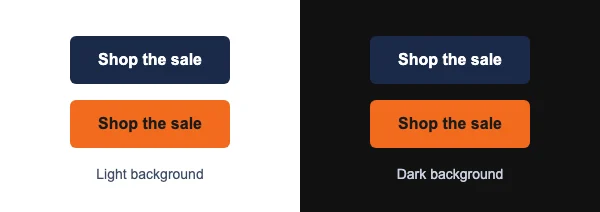
For the clients that do support it, add a dark-mode override in the head:
<style>
  @media (prefers-color-scheme: dark) {
    .btn-cell { background-color: #f26b1d !important; }
    .btn-link { color: #1b1b1b !important; }
  }
</style>
Then add class="btn-cell" to the button’s <td> and class="btn-link" to its <a>. Dark mode email covers the colour rules for the whole email, and dark mode countdown timers shows the same problem for images.
Mailto buttons with a subject and body
A button can open the reader’s mail program with a message already written. The address goes after mailto:, then ?, then fields joined with &. RFC 6068, the standard for mailto links, defines body as a special field and allows header fields such as subject; both are widely supported.
<table role="presentation" cellpadding="0" cellspacing="0" border="0">
<tr>
<td align="center" bgcolor="#c2410c" style="border-radius:6px; background-color:#c2410c; mso-padding-alt:14px 26px;">
<a href="mailto:orders@example.com?subject=Question%20about%20order%20%2341207&body=Hi%2C%0D%0A%0D%0AI%20have%20a%20question%20about%20order%20%2341207%3A%0D%0A" style="display:inline-block; padding:14px 26px; font-family:Arial, Helvetica, sans-serif; font-size:16px; line-height:20px; font-weight:bold; color:#ffffff; text-decoration:none; border-radius:6px;">Email us about your order</a>
</td>
</tr>
</table>
The encoding rules, from RFC 6068:
- Spaces become
%20. The RFC says spaces “SHOULD be encoded as %20”, and warns against+, because a+cannot be told apart from a real plus sign, which is common in addresses such asname+tag@example.com. - Line breaks in the body become
%0D%0A. The RFC says line breaks in the body “MUST be encoded” that way, and should not be used in other fields. - Reserved characters are percent-encoded. In the example,
#is%23,,is%2Cand:is%3A. An unencoded&or#would end the field early. - Non-English text is UTF-8, then percent-encoded. The RFC’s own example writes “café” as
caf%C3%A9. - The
&between fields is written&in HTML, because the link sits inside an HTML attribute.
You do not have to encode by hand. In a browser console, encodeURIComponent("Question about order #41207") returns the subject correctly encoded, with spaces as %20. For the body, encode each line and join them with %0D%0A.
Two limits to know. A mailto link opens whatever mail program the reader has set up, and on a computer with none set up it may do nothing, so print the address as text near the button too. And keep the prefilled body short: the reader has to scroll past it on a phone.
Pre-send checklist
- The button is live text, not an image.
- The label says what happens when it is tapped.
- Text contrast is at least 4.5:1, and the button stands out at 3:1 from the background around it.
- The button is at least 44 pixels tall.
bgcolorandbackground-colorare both set on the cell.- For VML: the address, label and colours match in both copies, the width holds the longest label, and
mso-hide:allis on the HTML link. - The button colour is visible on both a white and a near-black background.
- Mailto links use
%20for spaces,%0D%0Afor line breaks, and&between fields. - Every link is a full
https://address and goes where it should. - The email stays under Gmail’s clipping size, so the button is not hidden behind a “View entire message” link (Gmail clipped message).
- Tested in classic Outlook for Windows, Gmail, and Apple Mail or iOS Mail, with images on and off.
A deadline above the button
The button gets the click; a live image just above it can give the reason to click today. Keep the timer out of the button itself: a picture inside the <a> turns the whole button into an image, which vanishes with images off. A countdown timer from EmailTimer.app belongs in its own table row directly above the button’s table, centred, with the same width as the content column and about 16 pixels of space before the button, so the deadline and the action read as one unit. When the timer and the button share a colour, the two read as one design in every client, classic Outlook included.
An email countdown timer is built in the editor, which copies the snippet with your sending platform’s merge tags, or you can make one in the countdown timer generator. Plans and free limits are on pricing. For the rest of the email, the free HTML email template has the bulletproof button already built in, and email background images puts a button over a photo that works in Outlook.
Questions and answers
How do I make a button in an HTML email?
Put a link inside a table cell, give the cell a background colour and padding, and style the link text white with no underline. That is Method 1 above, and it works in every major client, including classic Outlook. Do not use the HTML <button> element, which classic Outlook does not support.
What is a bulletproof button in email?
A bulletproof button is a button built from HTML and CSS, or VML for Outlook, instead of an image, so it shows with images blocked and keeps its shape in classic Outlook for Windows. The three common types are padding-based, border-based and VML roundrect buttons, all with code on this page.
Why does my email button look wrong in Outlook?
Classic Outlook for Windows uses Word to draw email, and Word ignores padding on links, border-radius, and borders wider than 8 pixels. Put the padding on the table cell instead of the link, or use the VML roundrect for rounded corners. The new Outlook for Windows uses a web engine and shows CSS buttons normally.
How do I make the whole button clickable in Outlook?
Use either the VML roundrect, where the href on the shape makes the whole rectangle the link, or the border-based link, where the border is part of the link. With padding on the table cell, only the words are clickable in classic Outlook.
What is the difference between padding-based and border-based buttons?
A padding-based button puts the space around the text on the table cell, so Outlook draws it at full size but only the text is clickable there. A border-based button uses a thick border on the link itself, so the whole button is clickable, but Outlook caps borders at 8 pixels, so the button is smaller there.
How do I add rounded corners to a button in Outlook?
Classic Outlook ignores CSS border-radius. Draw the button as a VML v:roundrect inside an [if mso] conditional comment and set arcsize, which Microsoft defines as a percentage of half the shorter side. On a 48 pixel tall button, arcsize="25%" gives a 6 pixel radius.
Should I use an image for an email button?
No, not as the only version. Blocked images hide the button, screen readers get only the alt text, and text in an image cannot scale or adapt to dark mode. An HTML button does all of that, and its colour, size and label still match your brand.
How do I make a mailto link with a subject and body?
Write mailto: and the address, then ?subject= and the encoded subject, then &body= and the encoded body. RFC 6068 asks for %20 for spaces and %0D%0A for line breaks in the body. encodeURIComponent in a browser console encodes each part for you.
Why is there a plus sign instead of a space in my mailto subject?
Some tools encode spaces as +, which RFC 6068 warns against because a + cannot be told apart from a real plus sign. Encode spaces as %20 instead and the subject arrives with spaces.
What size should an email button be?
At least 44 pixels tall, which is WCAG 2.2’s enhanced target size, and wide enough for the label with comfortable space on each side. The minimum WCAG target is 24 by 24 pixels, but that is small for a thumb on a phone. The buttons on this page are 48 pixels tall.
Should an email button have role=“button”?
No. A button in an email opens a web page, which makes it a link, and screen readers should announce it as one. Keep role="presentation" for the layout tables, and let the <a> stay a link.
What colour should an email button be for dark mode?
Pick a mid-tone colour that stands out against both white and near-black, with text that passes 4.5:1 on it. Very dark buttons such as navy blend into dark backgrounds. You can add a prefers-color-scheme: dark override for Apple Mail, iOS Mail, Samsung Email and the Outlook apps other than classic Outlook for Windows, but Gmail ignores it.
Can I use a background image or gradient on an email button?
Most clients support CSS background images and gradients on a link or cell, but classic Outlook does not, so always set a solid background-color underneath. For an image behind a button in Outlook you need VML, as email background images shows.
Can I put a button in an email signature?
You can, but a plain text link is safer. Signatures are pasted into mail programs that rewrite HTML, and table padding or VML rarely survives that. HTML email signature shows the link styles that hold up in Outlook and Gmail.
Sources
- Word 2007 HTML and CSS Rendering Capabilities in Outlook 2007, Part 1 of 2 (Microsoft Learn), read on 21 November 2026
- Overview of the new Outlook for Windows (Microsoft Learn), read on 21 November 2026
- VML RoundRect Element (Microsoft Learn), read on 21 November 2026
- VML ArcSize Attribute (Microsoft Learn), read on 21 November 2026
- VML V-Text-Anchor Attribute (Microsoft Learn), read on 21 November 2026
- RFC 6068: The 'mailto' URI Scheme (IETF), read on 21 November 2026
- padding support by email client (Can I email), read on 21 November 2026
- border support by email client (Can I email), read on 21 November 2026
- border-radius support by email client (Can I email), read on 21 November 2026
- prefers-color-scheme support by email client (Can I email), read on 21 November 2026
- Link button (Good Email Code), read on 21 November 2026
- CSS support in Gmail (Google for Developers), read on 21 November 2026
- Contrast (Minimum), Understanding WCAG 2.2 (W3C), read on 21 November 2026
- Non-text Contrast, Understanding WCAG 2.2 (W3C), read on 21 November 2026
- Target Size (Minimum), Understanding WCAG 2.2 (W3C), read on 21 November 2026
- Target Size (Enhanced), Understanding WCAG 2.2 (W3C), read on 21 November 2026
- Link Purpose (In Context), Understanding WCAG 2.2 (W3C), read on 21 November 2026
- Button Pattern, ARIA Authoring Practices Guide (W3C), read on 21 November 2026
Related
- Email background images that work in Outlook, Gmail and Apple Mail
- Dark mode email for developers, client by client, with the CSS that controls it
- Free responsive HTML email template, explained line by line
- Email accessibility, from the WCAG 2.2 criteria that apply
- How to create and use an email template in Outlook
Put a countdown in the campaign you are writing now
The free plan covers 5,000 opens a month with no card. Starter is $24 a month for 250,000.