How to add a GIF to an Outlook email, and make it play
By Danish Mohammed. 6 min read
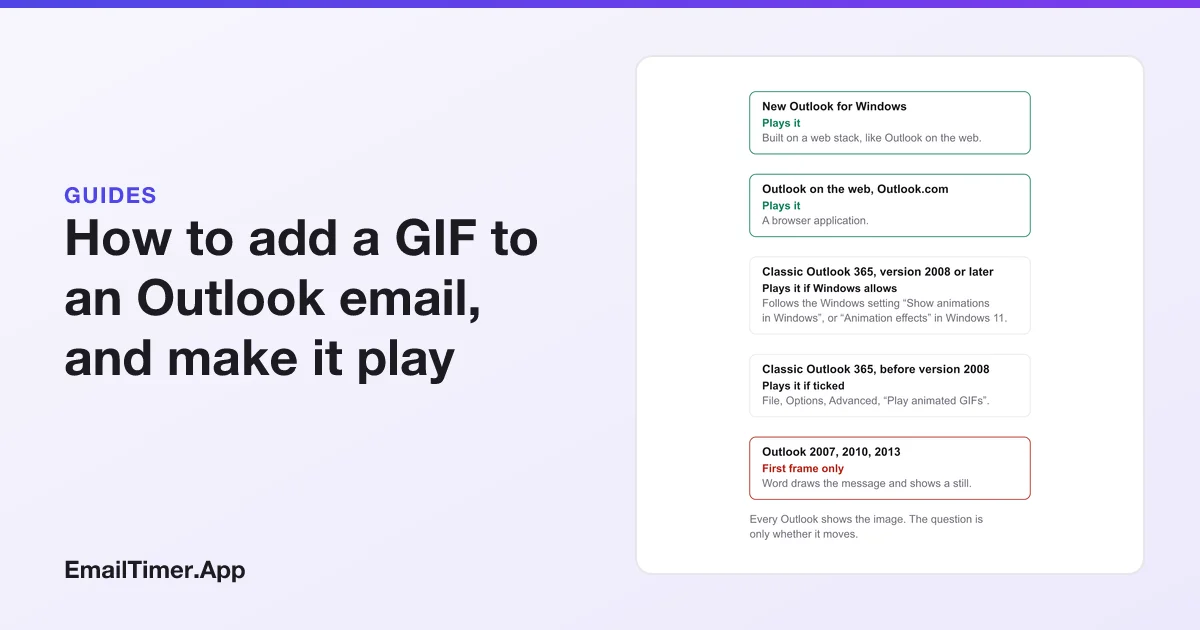
To add a GIF to an Outlook email, place your cursor in the message, select Insert, then Pictures, choose the GIF and select Open (classic Outlook says Insert). That works the same way in new Outlook for Windows, classic Outlook and Outlook on the web. If the GIF then sits still, animation is switched off on that computer, not broken in the file.
The steps below are Microsoft’s own, checked on 29 October 2026, for each Outlook you are likely to be writing in. After them comes the part most guides skip: why a GIF that moves on your screen can arrive frozen on someone else’s, and how to make a GIF that still says the right thing when it does.
Add a GIF in new Outlook for Windows
- Open a new message, or a reply, and put your cursor where the GIF should go.
- On the ribbon, select Insert, then Pictures.
- Browse to the GIF on your computer or in an online location, select it, then select Open.
- To resize it, drag a corner handle toward or away from the middle of the image.
Insert it as a picture rather than an attachment. Microsoft’s page notes the difference for Outlook on the web: attachments “always appear at the top of the email”, while a picture you insert shows where you put it, and the reader does not have to open anything to see it.
Add a GIF in classic Outlook for Windows
- Put your cursor where the GIF should go in the message.
- On the ribbon, select Insert, then Pictures.
- Browse to the GIF, select it, then select Insert.
- Drag a corner handle to resize it.
If Pictures is greyed out, the message is probably in plain text. Microsoft’s advice is to change the message format to HTML or rich text, and the button comes back.
Add a GIF in Outlook on the web and Outlook.com
- Create, reply to or forward a message, and put your cursor where the GIF should go.
- Select Insert, then Pictures, choose the file and select Open. Hold Ctrl (or Command on a Mac) to pick several files at once.
- Drag a corner handle to resize, or right-click the image for more options.
Why the GIF shows only its first frame
This is the question behind most searches for “gif not working in Outlook”, and Microsoft answers it directly: “If only the first frame of the animation appears, you have animations, or animated GIFs, disabled.”
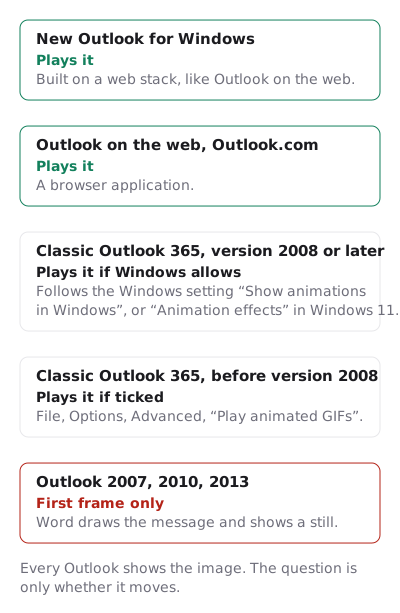
Which setting depends on the version, and Microsoft documents three:
| Outlook | Where animation is switched on |
|---|---|
| Classic Outlook for Microsoft 365, before version 2008 | File, Options, Advanced, then tick Play animated GIFs in the Display section |
| Classic Outlook for Microsoft 365, version 2008 or later, on Windows 10 | Start, search for “Show animations”, then turn on Show animations in Windows |
| The same, on Windows 11 | Press Windows + I, open Accessibility, then Visual effects, and turn Animation effects on |
The second and third rows are the surprise. In current classic Outlook the switch is not in Outlook at all, it is a Windows accessibility setting, and anyone who turned animations off to make Windows calmer has also stopped every GIF in their inbox. That is a choice on the reader’s computer. You cannot change it from the email you send.
Outlook 2007, 2010 and 2013 draw messages with Word, which shows a still image of a GIF whatever the settings say. Countdown timers in Outlook has the full version table with Microsoft’s own wording for each row.
When new Outlook sends a GIF as a still
New Outlook for Windows plays GIFs, but one route into the message is reported to lose the animation. In a Microsoft Q&A thread from 6 September 2023, a user on Windows 11 wrote that inserting a GIF through the Win + . emoji panel “results in a single frame image in the body of the email”. Microsoft’s moderator could not reproduce it on Windows 10, and the thread has no accepted answer.
So use Insert, then Pictures, with the GIF file itself, and send a test to yourself before the real one. That is the documented route, and it is the one to trust.
Make a GIF that works even when it does not move
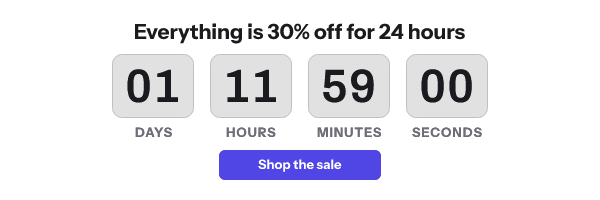
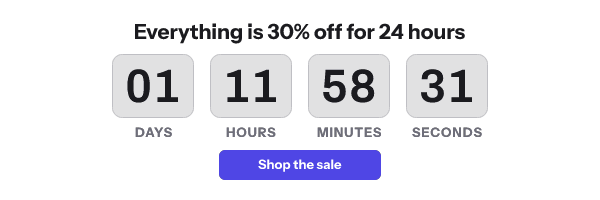
Since some readers will see only frame one, frame one has to carry the message. A GIF whose first frame is blank, a logo intro or half of a sentence is broken for those readers, even though it looks fine on yours.
Four rules cover most GIFs in email:
- Frame one is the poster. Put the headline, the offer and any call to action in the first frame. Animate only the decoration.
- Keep it small. A GIF is downloaded before it plays. Fewer frames and fewer colors make a smaller file, and the GIF frame limits post shows where file size and frame count start to bite.
- Say it in text too. Anything the reader must know, such as a date or a code, belongs in the email’s live text as well as the picture.
- Give it a background. A GIF with a transparent background can show a pale halo when the reader’s inbox is in dark mode. Dark mode email shows why, and the opaque background that avoids it.
To check a GIF before you send it, the email-safe GIF checker reads the file in your browser, without uploading it, and reports its frame count, frame delays, loop setting and file size.
Add a GIF to your Outlook signature
Microsoft’s steps for an image in a signature work for a GIF file:
- New Outlook: on the View tab, select View settings, then Accounts, then Signatures. Pick the signature, put the cursor where the image goes, select Insert pictures, choose the file and select Open.
- Classic Outlook: in a new message, select Insert, Signature, then Signatures. Pick the signature, select the image icon, and insert the file.
Microsoft’s signature page does not mention animation. The same first-frame rule applies to a signature, because it is read in the same inboxes: anything a reader must see belongs in frame one.
A GIF that counts down
A countdown GIF is the one GIF that has to be right at the moment it is opened, which a file you insert from your computer cannot be: it was made once and shows the same numbers for ever. A countdown timer for email is an image address instead, drawn fresh when each reader’s mail client asks for it, and its first frame carries the real time left for that open. Countdown timer in an Outlook email makes one for free, with a style chosen for Outlook’s first-frame case: no account for 500 opens, or 1,000 when you sign in.
For the HTML that carries one, including the static fallback for older Outlook, see the HTML for an email countdown timer.
Questions and answers
Why is my GIF not moving in Outlook?
Animation is turned off on that computer. In classic Outlook for Microsoft 365 version 2008 or later it follows the Windows setting “Show animations in Windows” (Windows 10) or “Animation effects” (Windows 11). Earlier versions use the “Play animated GIFs” box under File, Options, Advanced.
Can I paste a GIF into an Outlook email?
You can paste an image with Ctrl+V, but the documented route is Insert, then Pictures, with the GIF file. One user reported in 2023 that a GIF added through the Windows emoji panel arrived as a single frame in new Outlook.
Does the recipient see the GIF move?
Only if their own mail client plays GIFs. New Outlook, Outlook on the web, Gmail and Apple Mail generally do. Classic Outlook depends on the reader’s settings, and Outlook 2007 to 2013 show the first frame only.
Is there a GIF search inside Outlook?
Microsoft’s picture and signature pages do not describe one. They describe inserting a GIF file you already have.
How big can a GIF in an email be?
Microsoft’s pages set no size for inline pictures. Keep it as small as the design allows, because the reader downloads the whole file before it plays, and a large one is slow on a phone.
Sources
- Add pictures or attach files to emails in Outlook for Windows (Microsoft Support), read on 29 October 2026
- Add pictures or attach files to emails in Outlook on the web and Outlook.com (Microsoft Support), read on 29 October 2026
- The animated graphic in my e-mail message doesn't work (Microsoft Support), read on 29 October 2026
- Add a logo or image to your signature in Outlook (Microsoft Support), read on 29 October 2026
- Can't send animated GIF in new Outlook (Microsoft Q&A, 6 September 2023)
Related
Put a countdown in the campaign you are writing now
The free plan covers 5,000 opens a month with no card. Starter is $19 a month for 250,000.