Why your timer stops after a minute
By Danish Mohammed, founder. 7 min read
Every animated countdown in email stops. A GIF is a finite list of pictures, and at one picture per second a minute of motion costs sixty pictures of bytes, so every vendor sets a ceiling. The documented ones run from 45 to 90 seconds. They sit in help-centre articles rather than on pricing pages, and they differ enough to change which resolution you should pick.
The documented ceilings
| Vendor | Documented ceiling | What happens at the ceiling | Source |
|---|---|---|---|
| MotionMail | 45 seconds | Motion stops. The article states the reason directly: “we optimize the size of our timer images by limiting the duration to 45 seconds”. It also notes that “every time your email is re-opened, the countdown timer will start ticking down again”. | MotionMail knowledge base |
| Dotdigital | 60 seconds of valid open-time content | “Countdown timers in email work on a 60 second frame gif, so only the first minute of the timer is valid for open time content.” Stated as a general property of email timers rather than as a cap on Dotdigital’s own block. | Dotdigital Personalization help centre |
| Customer.io | 60 frames, hard cap | “The countdown timer GIF cannot contain more than 60 frames. This limits the size of the image in your messages and ensures that your message loads properly.” With a seconds resolution, “the counter will stop 60 seconds after the image loads”. | Customer.io Liquid recipes |
| MailerLite | 90-second loop | “It will play on a 90-second loop when a subscriber opens your newsletter.” The block also uses the account time zone rather than the recipient’s. | MailerLite help centre |
| EmailTimer.App | 30 frames at 1 fps by default, configurable from 20 to 60 | Loops by default. One setting makes it play once and hold its last frame instead. Target file size at 600 by 200 is under 400 KB. | This product |
Four vendors, four different numbers, and not one of those figures appears on the page where a marketer decides what to buy.
Why the ceiling exists
Drawn the naive way, a 600 by 200 countdown with sixty seconds of motion is sixty pictures of a 600 by 200 canvas. The file gets heavy enough to matter on a mobile connection, and heavy enough to shift the text-to-image ratio that some spam filters look at.
There are two ways to buy more seconds for the same bytes, and both are decisions a renderer makes rather than settings you choose.
The first is sub-rectangle encoding. Only the digits change between one second and the next, so only the rectangle containing the digits needs to be redrawn. EmailTimer.App emits frame one as a full-canvas image and every subsequent frame as a small rectangle over the digit strip. Disposal is set to leave the previous frame in place, so the unchanged rest of the canvas simply persists. A second of animation costs a strip, not a canvas.
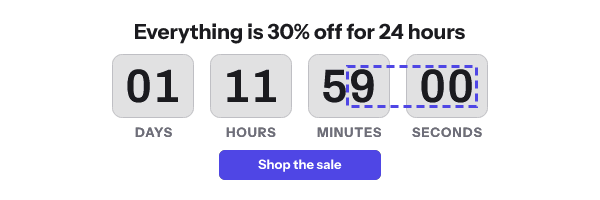
The second is a fixed palette. Every animated frame here draws from one global colour table, so no frame carries a table of its own and no quantiser runs at request time. Frame one carries a local table whose first entries are that same palette in the same order. That is what lets the digit sprites be copied into frame one without remapping, and keeps frame one’s digits pixel-identical to frame two’s. Without that prefix trick the two can disagree by one shade and you see a visible flick on the first tick.
Those two decisions are why 30 frames at 600 by 200 stays under 400 KB with room to spare, and they are the difference between a 45-second ceiling and a comfortable one.
The resolution trap
The ceiling only hurts when the resolution and the horizon disagree.
A timer showing seconds on a three-day countdown is displaying a digit that changes every second for a value that is meaningless at that precision. Sixty frames later, the seconds column stops, and the recipient watching it concludes the timer is broken. Customer.io documents this exact outcome for its own block: set the resolution to seconds and “the counter will stop 60 seconds after the image loads”.
A timer showing hours and minutes on the same three-day countdown is correct for the whole animation and stays correct for a further fifty-nine seconds after the motion stops. The minutes column changes once a minute, so the last frame is right almost all of the time it is on screen.
Show the smallest unit that will actually change during the animation, and no smaller.
Loop or hold
Two vendors above make opposite choices and the difference matters more than the frame count.
MailerLite loops at 90 seconds. MotionMail restarts on every re-open. A looping timer returns to its first frame when it finishes, which means it shows a number that is already a minute stale and shows it as if it were current. Watch one for three minutes and you will see the same number three times.
A timer made in the EmailTimer.App editor loops by default, and so does every design in the gallery, so the seconds keep moving while the message is open. The editor’s “At the end” setting offers the other choice, Hold, which writes the GIF without the Netscape loop block: it plays once and the final frame stays on screen, leaving the reader with the most recent number the renderer produced. Hold never shows a number twice. Loop keeps the timer moving. Pick per template.
There is a second reason to prefer holding. In classic Outlook on Windows, animation depends on a setting outside Outlook, and Microsoft’s own support page says that when it is off, “only the first frame of the animation appears”. A design that depends on the animation completing is a design that never runs for those readers at all.
What to do about it
- Match the unit to the horizon. Days and hours for a week, hours and minutes for a few days, minutes and seconds only for the last hour of a sale.
- Look up your current vendor’s ceiling before your next send. It is in the help centre, not on the feature page. If you cannot find it in ten minutes, that is an answer about the vendor.
- Ask what happens when the frames run out. Holding the last frame leaves a correct number on screen. Looping does not, and restarting on re-open does not.
- Check the file size the way a recipient meets it. Load the image URL in a browser on a phone on mobile data. Under 400 KB at 600 by 200 is a reasonable target for a 30-frame timer.
- Keep the canvas honest. A 600 by 200 timer at a sensible frame count is a small file. A 1200 by 400 retina timer at sixty frames is a different proposition, so if you are serving at 2x, reduce the frame count rather than the quality.
- Design frame one to stand alone. It is the whole timer for Outlook readers with animations off, and it is the last thing everyone else is left looking at if you hold rather than loop.
- The ceiling is not the main accuracy problem. A cached render is, and Apple MPP and the shared image cache covers the client where it bites hardest.
- If you are on Customer.io, know the second half of the cap. The 60-frame limit applies and the native block does not accept extra CSS, which is covered on the Customer.io setup guide.
Questions and answers
Why does my countdown timer stop after 30 or 60 seconds?
Because the GIF has run out of frames. Every vendor caps the frame count to keep the file small, and the documented caps range from 45 to 90 seconds.
Can I get a timer that animates for the whole hour?
Not as a GIF. One frame per second for an hour is 3,600 frames, which is not a sendable email image at any canvas size.
Is a longer animation better?
Rarely. Most recipients look at a message for a few seconds. Frames beyond that are bytes spent on motion nobody watches, and they buy nothing in Outlook where animation is often off.
Does the timer restart if the recipient re-opens the message?
It depends on the vendor and the client. MotionMail documents a restart on re-open, and a client serving a cached copy will replay the same animation from the same old starting number.
What does EmailTimer.App do at the end of the frames?
It loops, unless the template is set to Hold, in which case it plays once and keeps its last frame on screen. Loop keeps the seconds moving; Hold never goes back to a number the reader has already seen. Plans and limits are on features, and the client-by-client picture is on email clients.
Sources
- Why does my timer stop counting down after a while when I view it in an email? (MotionMail Knowledge Base), read on 17 September 2026
- Email privacy protection guidance (Dotdigital Personalization Help Center)
- Liquid recipes (Customer.io Docs)
- How to use a countdown timer (MailerLite Help)
- The animated graphic in my e-mail message doesn't work (Microsoft Support)
Related
Put a countdown in the campaign you are writing now
The free plan covers 5,000 opens a month with no card. Starter is $19 a month for 250,000.