GIF in email: how to add one, and make sure it works
By Danish Mohammed. 7 min read
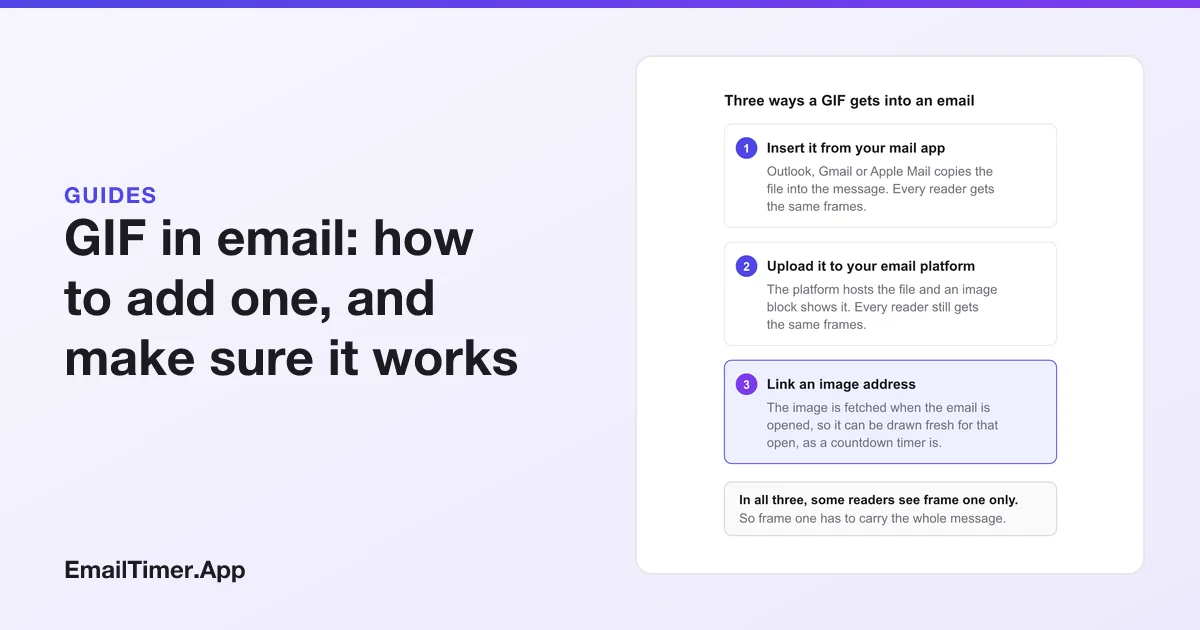
A GIF in email is an image file like any other. You insert it as a picture in your mail app, or upload it to an image block in your email platform, and the reader’s mail client plays the frames. Most clients animate it. Some show only the first frame, and some show nothing until the reader allows images, so the first frame has to carry the message alone.
That last sentence is the part that decides whether a GIF works, and it is the part most guides leave to the end. This page covers the three ways a GIF gets into an email, what happens to it in the reader’s inbox, and how to build one that still reads when it does not move.
How to add a GIF to an email
There are three routes, and which one you use depends on where you are writing.
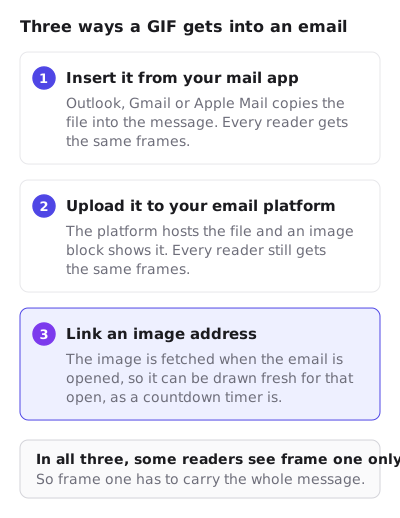
| Route | Where you do it | What the reader gets |
|---|---|---|
| Insert it from your mail app | Outlook, Gmail or Apple Mail, for a single message | The file, copied into the message |
| Upload it to your email platform | An image block in Mailchimp, Klaviyo or any campaign builder | The file, kept on the platform’s servers |
| Link an image on a server | An image tag whose source is a server you choose | Whatever the server returns when the email is opened |
The first two are the same GIF for everyone, frozen at the moment you made it. The third is the only one that can change after you press send, which is why a countdown timer has to work that way.
In Outlook
Place the cursor in the message, select Insert, then Pictures, choose the GIF and select Open (classic Outlook says Insert). Microsoft documents the same route for new Outlook, classic Outlook and Outlook on the web. If Pictures is greyed out, the message is in plain text and has to be switched to HTML first. The version-by-version steps, and the Windows setting that freezes GIFs in classic Outlook, are in how to add a GIF to an Outlook email.
In Gmail
Google’s Help gives one route on a computer: “Add an image by dragging it directly into the compose window.” On a phone you tap Compose, then Attach, then Photos. The phone steps, the signature route and what Gmail does with the file are in how to insert a GIF in Gmail.
In an email platform
Campaign builders take a GIF in their image block like a JPG or a PNG. Mailchimp’s image guidance is typical: “Save your images as PNG, JPG, or GIF files”, with “a maximum file size of 1MB for images”, and a width of 600 to 1,200 pixels in its legacy builder or 660 to 1,320 in the new one. The platform then hosts the file and writes the image tag for you.
Why a GIF in email can arrive still, or not at all
Inserting the GIF is the easy half. What the reader sees depends on their mail app and their settings, and you cannot change either from the email you send.
| What happened | What the reader sees | Where it is documented |
|---|---|---|
| Classic Outlook with animations off | The first frame only | Microsoft: “If only the first frame of the animation appears, you have animations, or animated GIFs, disabled.” |
| Outlook 2007, 2010 or 2013 | The first frame only | Microsoft’s page on animated graphics, as summarized in countdown timers in Outlook |
| Classic Outlook’s default picture blocking | No picture until the reader downloads it | Microsoft: Outlook “is configured by default to block automatic picture downloads from the Internet” |
| Gmail set to “Ask before displaying external images” | No picture until the reader clicks “Display images below” | Gmail Help, Show images in Gmail |
| Gmail flags the sender or message as suspicious | Gmail asks before showing images | Gmail Help, Show images in Gmail |
Two of those rows end with a still image and three with no image at all. A reader in the still-image rows gets your first frame and nothing else, so a GIF that opens on a blank frame, a logo sting or half a sentence is broken for them. A reader in the no-image rows gets your alt text and the live text around the picture. When pictures are missing altogether, images not showing in email works through the causes in order.
What makes a good animated GIF for email
The GIF format was not designed for this. Its own specification says so: “The Graphics Interchange Format is not intended as a platform for animation, even though it can be done in a limited way.” The limits are the reason for every rule below.
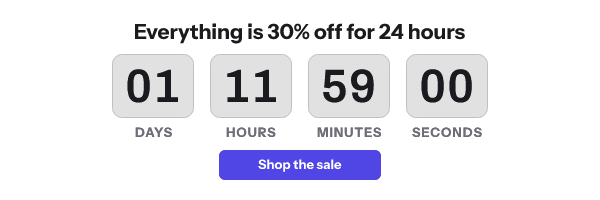
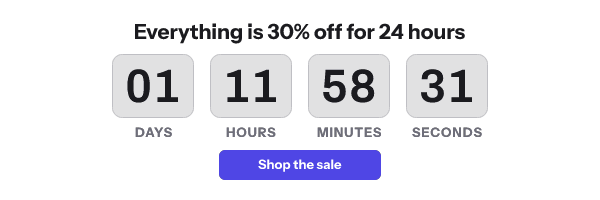
- Frame one is the poster. Put the headline, the offer and any button in the first frame, and animate only what can be missed. Test it by asking whether frame one would make sense as a JPG.
- Fewer colors, smaller file. A GIF color table holds at most 256 colors; the specification sizes it by raising 2 to a 3-bit field plus one. Photographs and gradients get dithered into that palette and grow the file. Flat color compresses well.
- Fewer frames, smaller file. Every frame adds bytes, and the reader downloads the whole file before it plays. Mailchimp’s ceiling of 1MB is a sensible upper bound; most email GIFs can be a fraction of that.
- Set the timing on purpose. Each frame’s delay is stored in hundredths of a second, in the field the specification calls Delay Time. One frame a second is right for a ticking clock. A product spin needs more frames and a shorter delay, and costs more bytes for it.
- Decide on the loop. The 89a specification has no loop count of its own; looping is written into an application-specific extension block, which is why “loop forever” or “play once” is an export option in your design tool. A GIF that plays once and stops on a weak last frame leaves the reader on that frame.
- Say it in text too. A date, a code or a price belongs in the live text of the email as well as in the picture, for every reader in the no-image rows above.
- Give it a background. A transparent GIF can show a pale fringe in a dark mode inbox. Dark mode email explains the edge pixels behind it.
To check a file before you send it, the email-safe GIF checker reads it in your browser, without uploading it, and reports the frame count, the frame delays, the loop setting and the file size. Frame counts and file sizes at which platforms start refusing a GIF are collected in GIF frame limits in email.
When the GIF has to change after you send it
A GIF you insert from your computer was made once, so it shows the same frames for ever. That is fine for a product loop or a celebration. It is wrong for anything tied to the clock, such as a sale ending at midnight, because the reader who opens on the last morning sees the numbers from the day you made the file.
The fix is the third route in the table: an image address that a server draws when the reader’s mail client asks for it. A countdown timer for email works that way, and its first frame carries the real time left for that open. The free countdown timer generator makes one without an account for 500 opens, or 1,000 when you sign in, and gives you the image tag to paste into your platform. Why a GIF fetched later can still be out of date in some inboxes is covered in how email image caching works.
Questions and answers
Can you put a GIF in an email?
Yes. Insert it as a picture, not as an attachment, and it appears in the body of the message. Most mail clients play it; classic Outlook with animations off and Outlook 2007 to 2013 show the first frame only.
How do I add a GIF to an email from my phone?
In the Gmail app on iPhone or iPad, tap Compose, then Attach, then Photos, and pick one GIF; Google says a single photo goes into the message text. The full Gmail steps are in how to insert a GIF in Gmail.
Why is my GIF not moving in the email?
Either the reader’s client shows only the first frame, which classic Outlook does when animations are turned off, or the file was flattened to one frame on the way in. Check the file with the GIF checker first; if it has many frames, the cause is on the reader’s side.
How big can a GIF in an email be?
Gmail’s personal accounts accept attachments up to 25 MB, and Mailchimp recommends a maximum of 1MB for an image. Keep it far below both: the reader downloads the whole file before it plays.
Will my GIF show if the reader has images turned off?
No. The reader sees the alt text and the text around the image until they choose to load pictures. Write alt text that says what the GIF says, and put anything essential in the body text as well.
Sources
- Graphics Interchange Format, Version 89a (W3C copy of the specification), read on 29 October 2026
- The animated graphic in my e-mail message doesn't work (Microsoft Support), read on 29 October 2026
- Add pictures or attach files to emails in Outlook for Windows (Microsoft Support), read on 29 October 2026
- Send attachments with your Gmail message (Gmail Help), read on 29 October 2026
- Image Recommendations for Content Blocks (Mailchimp Help), read on 29 October 2026
- Show images in Gmail (Gmail Help), read on 29 October 2026
- Block or unblock automatic picture downloads in email messages (Microsoft Support), read on 29 October 2026
Related
Put a countdown in the campaign you are writing now
The free plan covers 5,000 opens a month with no card. Starter is $19 a month for 250,000.