How to create and use an email template in Outlook
By Danish Mohammed. 6 min read
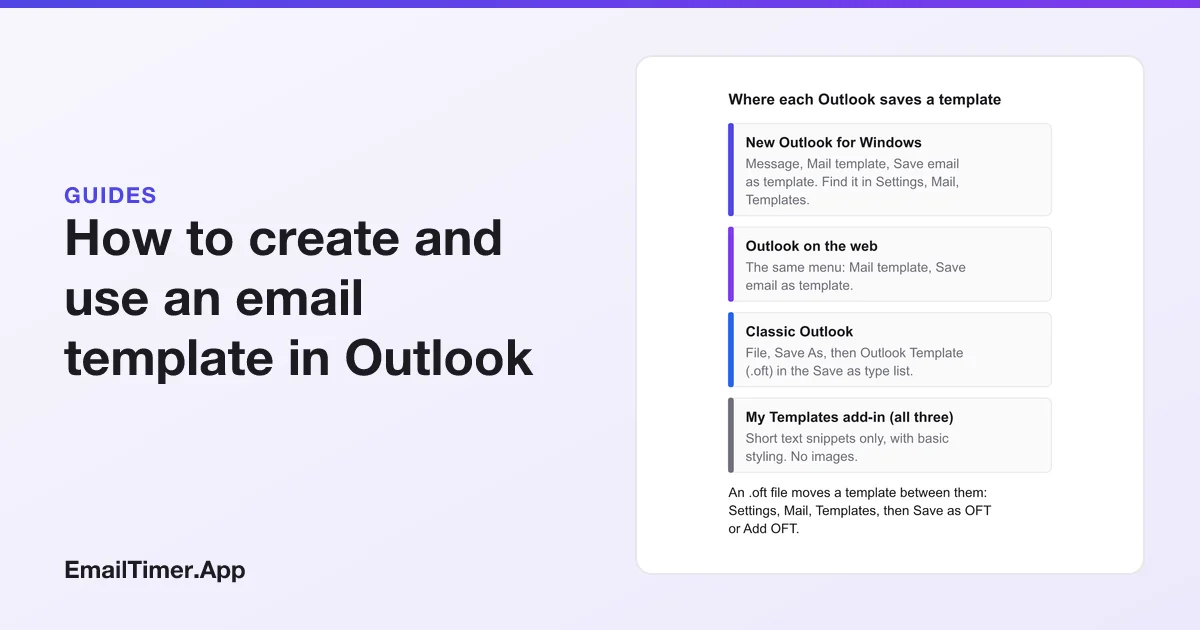
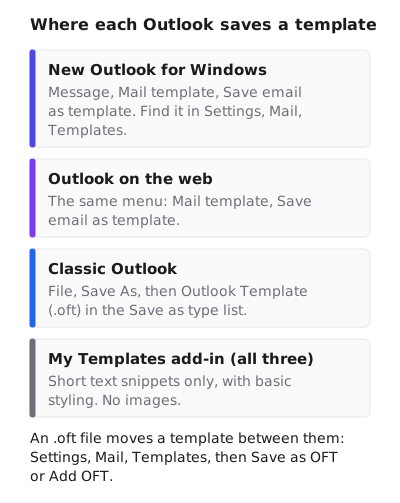
To make an email template in Outlook, write the message, then save it as a template. In new Outlook and Outlook on the web, select Mail template, then Save email as template. In classic Outlook, select File, Save As, and choose Outlook Template in the Save as type list, which saves an .oft file. Each version then opens the template as a new draft.
Every step below is from Microsoft’s own support pages, read on 29 October 2026. After the steps comes the design side: what classic Outlook does to an HTML template, and what that means for images, including animated ones.
Which kind of Outlook template do you need?
Microsoft describes two features that are both called templates, and they do different jobs.
| Mail Templates | My Templates add-in | |
|---|---|---|
| What it saves | Full emails, “including recipients, subject, body, formatting, and attachments” | Short text snippets for quick insertion |
| Formatting | Rich formatting, images, tables and attachments | Plain text with basic styling |
| Good for | A newsletter, an announcement, any repeatable email | A standard reply or a stock paragraph |
| Where it lives | In the account you compose from, or an .oft file in classic Outlook | Your primary mailbox |
If the template has a logo, a banner or a table, it has to be a Mail Template. My Templates cannot hold an image. Microsoft also notes that both features need “a qualifying Microsoft 365 subscription”.
Create an email template in new Outlook for Windows
- On the Home ribbon, select New, then Mail.
- Add the content, and any recipients, subject and attachments that should be part of every copy.
- On the Message ribbon, select Mail template, then Save email as template.
- Name the template in the Save email as template dialog and select Save.
Your templates are then listed in Settings, Mail, Templates, grouped by account.
Create an email template in Outlook on the web
The steps match new Outlook: New, then Mail, write the message, then on the Message ribbon select Mail template, Save email as template, name it and select Save. Saved templates are in Settings, Mail, Templates.
Create an email template in classic Outlook (.oft)
- On the Home menu, select New Email, or press Ctrl+Shift+M.
- Write the message.
- In the message window, select File, then Save As.
- In the Save as type list, select Outlook Template.
- Type a file name and select Save.
Microsoft gives the default folder as c:\users\username\appdata\roaming\microsoft\templates.
Save a snippet with My Templates
For a block of text rather than a whole email, open a new message and select My Templates on the Message tab (in classic Outlook the button is View Templates). A task pane opens. Select +Template, enter a Title and the text, and select Save.
If the button is missing, Microsoft’s explanation is that your organization may have turned add-ins off, and the person to ask is your administrator.
How to use an Outlook email template
New Outlook and Outlook on the web:
- On the Home ribbon, select New, then Mail from template.
- In the Templates dialog, choose the template.
- It opens as a draft. Add or change the recipients in To, Cc or Bcc.
- Select Send.
Classic Outlook:
- Select New Items, More Items, then Choose Form.
- In the Choose Form dialog, under Look In, select User Templates in File System. If the template is in another folder, select Browse.
- Select the template, then Open.
- Change the recipients if needed, then select Send.
In both, Microsoft notes: “Changes made aren’t saved to the template.” To change the template itself, edit a copy and save it again as a template.
Share a template as an .oft file
An .oft file is, in Microsoft’s words, “a saved email draft that includes the subject, message content, formatting, and attachments.” New Outlook and Outlook on the web can export and import them:
- Download: Settings, Mail, Templates, find the template, select Save as OFT, and pick a folder.
- Add: Settings, Mail, Templates, then Add, Add OFT, Choose, select one or more .oft files and select Add.
- Send to a colleague: open the draft, and on the Message tab select Forward as OFT.
That is also how to move a template made in classic Outlook into new Outlook: add the .oft file in Settings.
How to design an email template for Outlook
A template is HTML, and classic Outlook for Windows draws HTML with Word’s engine, not a browser’s. Microsoft’s documentation from the 2007 release, when that change was made, says Outlook 2007 “uses the HTML parsing and rendering engine from Microsoft Office Word 2007 to display HTML message bodies,” and lists what Word does not support. The parts that matter most for a designed template:
| Word does not support | What to do instead |
|---|---|
background-image |
Use a solid bgcolor on the table cell, and put the picture in an <img> |
float and position |
Lay out columns with tables |
max-width and min-width |
Set the width attribute on images and tables |
| Animated GIF images | Make the first frame complete: “Only a static representation of the GIF image shows” |
Forms, buttons and script |
Use a link styled as a button |
Width is the one to get right first. Since Word ignores max-width, a large image with no width attribute can show at its full file size and push the layout wide. Set width on every <img>, at the size it should appear. Email image size has the widths for each slot in a 600 pixel layout.
New Outlook for Windows and Outlook on the web use a web rendering stack instead, so a template can look different in each. Send yourself a test from the template in each version your readers use.
Images and GIFs in an Outlook template
Whether a GIF in your template moves depends on the reader’s Outlook, not yours. Microsoft’s support page says: “If only the first frame of the animation appears, you have animations, or animated GIFs, disabled.”
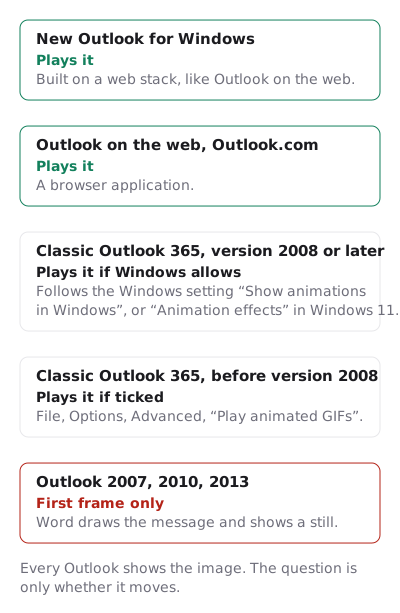
How to add a GIF to an Outlook email has the insert steps and the setting for each version.
A countdown timer needs one more thing. Its numbers are drawn when the reader’s mail client fetches the image from its address. A copy inserted from a file has no clock in it, so a template that contains a saved timer GIF shows the same numbers in every email. To check whether your template kept a live address, send yourself two test messages from it a few minutes apart. If the numbers differ, the address survived. Countdown timer in an Outlook email makes a free timer with a first frame built for classic Outlook, for 500 opens without an account or 1,000 when you sign in.
Questions and answers
Why are my templates missing in Outlook?
Microsoft gives two reasons. Templates need a qualifying Microsoft 365 subscription, and if My Templates is missing, your organization may have turned add-ins off. In new Outlook, also check Settings, Mail, Templates.
Where are Outlook templates saved?
In new Outlook and Outlook on the web, in the account you compose from, listed in Settings, Mail, Templates. In classic Outlook, as .oft files, by default in c:\users\username\appdata\roaming\microsoft\templates.
Can an Outlook template include images and attachments?
A Mail Template can, with rich formatting, images, tables and attachments. The My Templates add-in holds plain text with basic styling only.
Can I edit a template while sending from it?
You can change the draft, but Microsoft notes that changes are not saved to the template. Save the edited message as a template again to update it.
Can I use a classic Outlook template in new Outlook?
Yes. In new Outlook, open Settings, Mail, Templates, select Add, then Add OFT, and choose the .oft file.
Sources
- Create email templates in Outlook (Microsoft Support), read on 29 October 2026
- Create an email message template (Microsoft Support), read on 29 October 2026
- Send an email message based on a template (Microsoft Support), read on 29 October 2026
- Download, add, and share templates as .oft files in Outlook (Microsoft Support), read on 29 October 2026
- Word 2007 HTML and CSS Rendering Capabilities in Outlook 2007, Part 1 of 2 (Microsoft Learn, August 2006), read on 29 October 2026
- The animated graphic in my e-mail message doesn't work (Microsoft Support), read on 29 October 2026
Related
Put a countdown in the campaign you are writing now
The free plan covers 5,000 opens a month with no card. Starter is $19 a month for 250,000.