Email banner size, from the column width to the file you upload
By Danish Mohammed. 6 min read
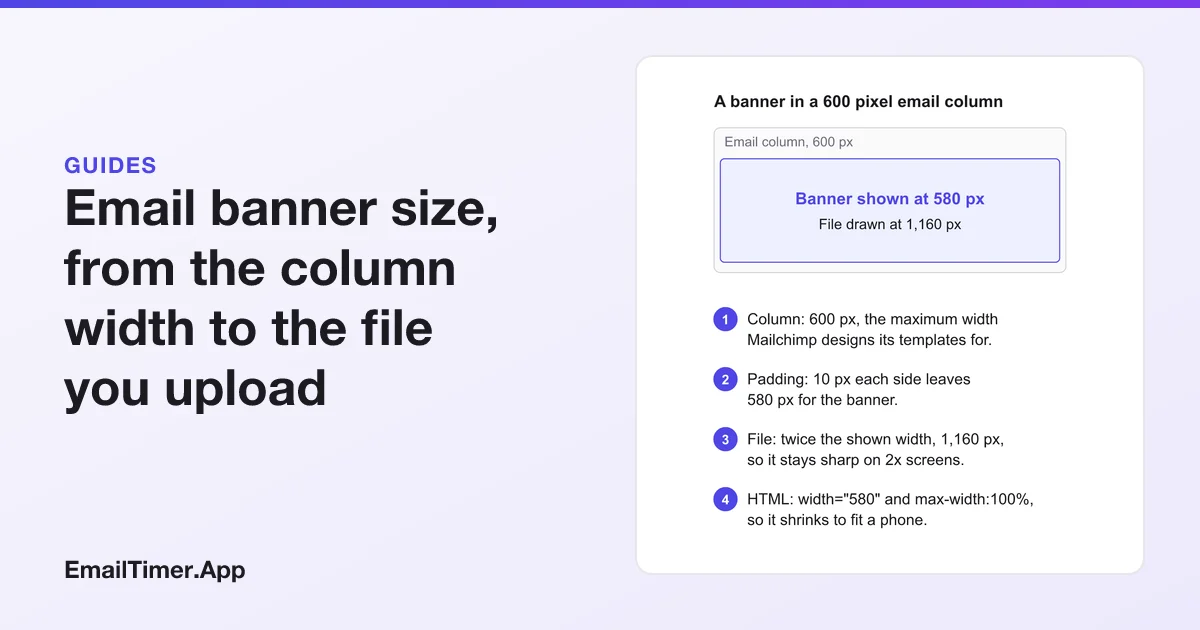
The right email banner size is as wide as your email’s content column, which is 600 pixels or less in most templates, and as tall as the message needs, often 200 to 300 pixels. Upload the file at twice that width, 1,200 pixels for a 600 pixel slot, and set the shown size in the HTML so the banner stays sharp on high-density phone screens.
That answer has three numbers in it, and most size charts only give one. The width is fixed by the template you send with. The height is your choice. The file size in pixels is a second, larger number that the reader never sees directly. The rest of this page takes each in turn, with the sources for every figure.
What is an email banner?
An email banner is a wide image that runs across the email’s content column, usually at the top under the logo, sometimes between sections to introduce an offer. It carries the headline picture of the message: a sale, a launch, an event date. A banner at the very top is often called the email header image, and it follows the same size rules.
A banner is an <img> in a table cell, not a background. That matters for size, because an <img> has a width and height you set in the HTML, and those, not the file’s own pixels, decide how big it looks.
How wide should an email banner be?
As wide as the column it sits in, and the column is set by your template. Mailchimp’s help states the common figure directly: “Mailchimp templates are generally designed for a maximum width of 600 pixels,” and its mobile page gives the reason, “To work with most email clients, Mailchimp templates are no wider than 600px.”
Padding comes off that number. Mailchimp’s own example is a header with 10 pixels of padding on each side, which should be 580 pixels wide rather than 600. So measure the space inside your template’s padding, not the template’s outer width.
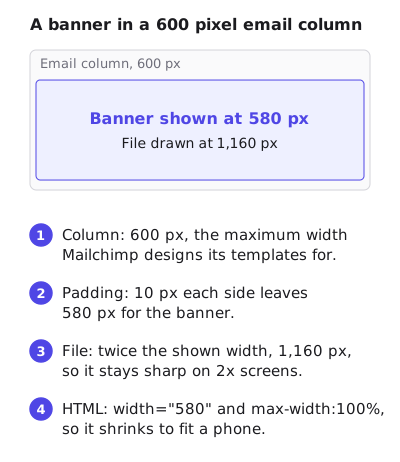
If your platform’s builder uses a different column width, use that. The rule is the same: the banner’s shown width equals the space inside the padding, and nothing wider.
How tall should an email banner be?
There is no client rule for height. Mail clients scroll, so a banner can be as tall as its content needs. What decides a good height is what happens on a phone, because the banner shrinks there and keeps its proportions.
Suppose a phone shows your 600 pixel email 360 pixels wide. Everything in the banner is drawn at 60 percent of its designed size:
| Banner designed at | Shown on a 360 pixel wide screen | A 24 px line of text becomes | A 16 px line of text becomes |
|---|---|---|---|
| 600 by 100 | 360 by 60 | 14.4 px | 9.6 px |
| 600 by 200 | 360 by 120 | 14.4 px | 9.6 px |
| 600 by 300 | 360 by 180 | 14.4 px | 9.6 px |
| 300 by 250 (half width) | 300 by 250, if it fits unscaled | 24 px | 16 px |
The height changes how much room the picture has. It does not change how small the words get, because the scale comes from the width. That is the real constraint on a banner: words drawn into the image at body-text size become very small on a phone. Make the headline in the image large, and put anything the reader must read, such as a date or a code, in live HTML text under the banner as well.
The table’s width is an example, not a device standard. Run the same sum for any width: shown size equals designed size times screen width over 600.
Three banner sizes rendered by the engine
The countdown timers that EmailTimer.App draws come in three gallery sizes, and they make a useful reference because each is a finished banner built for a 600 pixel column.
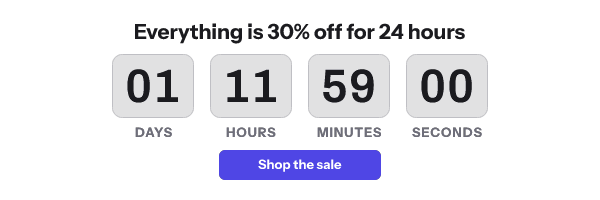
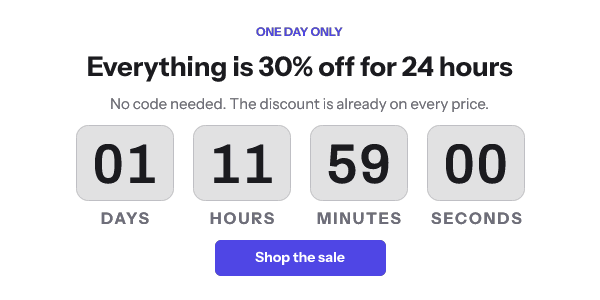
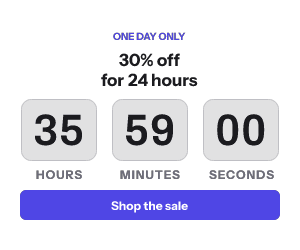
The 600 by 200 version holds a headline, the countdown and a button. The 600 by 300 version adds a kicker line and a sentence of detail, which is what the extra 100 pixels of height buy. The 300 by 250 version is for a half-width column or a two-column row.
What size should the banner file be?
Twice the shown width, for high-density screens. Apple’s Human Interface Guidelines explain the reason: “Because of higher pixel densities, high-resolution displays demand images with more pixels.” A screen at 2x packs two physical pixels into each pixel your HTML asks for, so a 580 pixel banner needs a 1,160 pixel file to look sharp there. Litmus gives the same advice for email: retina images “need to be twice as large”, shown at their intended size through the width and height attributes.
The cost is weight. When I rendered four timer designs at 600 by 200 and again at 1,200 by 400 on 17 September 2026, each 2x file came out between 2.08 and 2.14 times the bytes of the 1x file. The full table is in retina countdown timers. For a still photo banner the ratio will differ, so check your own file.
Mailchimp’s limits for the file itself: “We recommend a maximum file size of 1MB for images,” in JPG, GIF or PNG, saved in RGB rather than CMYK. It adds that “72 dpi is generally sufficient for the web, but isn’t required”. The dpi setting stored in a file does not change how an email shows it, because the HTML sets the size in pixels.
The HTML that sizes a banner
A banner that is sharp on a 2x screen and shrinks on a phone needs both the attributes and an inline style:
<img src="https://example.com/banner-1160.png"
     width="580" height="200"
     alt="Autumn sale: 30% off everything until Sunday"
     style="display:block; width:100%; max-width:580px; height:auto; border:0;">
widthandheightare the shown size, half the file’s pixels. They also keep the space open when images are blocked, so the layout does not jump.max-width:580pxstops the banner growing past its slot. Litmus reports that “Some versions of Microsoft Outlook still display the retina images at their full size, despite the explicit sizes set by the width and height attributes”, and amax-widthin the style attribute is its fix. The Word engine behind classic Outlook for Windows does not readmax-widthat all (Microsoft lists it as unsupported), so there thewidthattribute is what holds the banner to its slot. Set both.width:100%withheight:autolets it shrink with a narrow screen. Gmail listswidth,max-widthandheightamong the CSS properties it supports.altsays what the banner says, for readers with images off and for screen readers.
Countdown timer HTML for email goes through each attribute line by line, including the Outlook cases.
A banner that counts down
A banner that announces a deadline can show the time left as well. A countdown timer is a banner image whose address is drawn fresh each time the email is opened, so the numbers are right for that open. The free countdown timer generator makes one at 600 by 200 without an account, for up to 500 opens, or 1,000 when you sign in. Its snippet already carries the width, height and inline style shown above.
For dark mode, give any banner an opaque background color of its own. A transparent banner can show a pale halo when the inbox turns dark, which dark mode countdown timers shows with examples.
Questions and answers
What is the standard email banner size?
There is no single standard. The common choice is 600 pixels wide, because that is the maximum width Mailchimp designs its templates for, with a height between about 200 and 300 pixels. Upload the file at 1,200 pixels wide.
What size should an email header image be?
The same as a banner: the width of your content column inside its padding, so 580 pixels in a 600 pixel template with 10 pixels of padding each side. Height depends on what the image has to hold.
Should I upload the banner at 600 or 1,200 pixels?
At 1,200, and set width="600" in the HTML. A 2x screen then has enough pixels to draw it sharply. A 600 pixel file looks soft on those screens.
How big can the banner file be?
Mailchimp recommends 1 MB or less per image. Smaller is better, because the reader downloads the whole file before it appears.
Does dpi matter for an email banner?
No. Email is sized in pixels by the HTML. Mailchimp notes that 72 dpi is sufficient for the web but not required.
Sources
- About Template Images (Mailchimp Help), read on 29 October 2026
- Edit and Test Mobile Styles in Your Email Campaign (Mailchimp Help), read on 29 October 2026
- Images (Apple Human Interface Guidelines), read on 29 October 2026
- CSS support (Gmail, Google for Developers), read on 29 October 2026
- Word 2007 HTML and CSS Rendering Capabilities in Outlook 2007, Part 1 of 2 (Microsoft Learn, August 2006), read on 29 October 2026
- Understanding Retina Images in HTML Email (Litmus, 8 January 2019), read on 17 September 2026
Related
Put a countdown in the campaign you are writing now
The free plan covers 5,000 opens a month with no card. Starter is $19 a month for 250,000.