Email accessibility, from the WCAG 2.2 criteria that apply
By Danish Mohammed. 8 min read
Email accessibility means an email can be read and acted on by people who use a screen reader, zoom, high contrast, keyboard navigation or images switched off. In practice that comes down to a short list of WCAG 2.2 criteria: text alternatives for images, real headings, a sensible reading order, enough contrast, clear link text, tappable buttons and a declared language.
WCAG is written for web content, not for email in particular. An HTML email is a web page drawn by a mail client, though, and the criteria below are the published standard closest to the problem. Every quote is from WCAG 2.2, a W3C Recommendation dated 12 December 2024, read on 29 October 2026. Where a criterion is about something the email cannot control, such as a reader’s own settings, it is left out.
Which WCAG 2.2 criteria apply to email?
| Criterion | Level | What it asks of an email |
|---|---|---|
| 1.1.1 Non-text Content | A | Every image that carries meaning has alt text; decorative images have empty alt |
| 1.3.1 Info and Relationships | A | Headings are real headings, lists are real lists, not styled paragraphs |
| 1.3.2 Meaningful Sequence | A | The order in the HTML is the order the email should be read |
| 1.4.1 Use of Color | A | Color is never the only way something is shown |
| 1.4.3 Contrast (Minimum) | AA | Text at 4.5:1, large text at 3:1 |
| 1.4.4 Resize Text | AA | Text can be zoomed to 200 percent without breaking |
| 1.4.10 Reflow | AA | The email reads at 320 CSS pixels wide without sideways scrolling |
| 2.2.2 Pause, Stop, Hide | A | Motion over five seconds can be stopped, which a GIF cannot be |
| 2.4.4 Link Purpose (In Context) | A | Each link says where it goes |
| 2.5.8 Target Size (Minimum) | AA | Buttons and links at least 24 by 24 CSS pixels |
| 3.1.1 Language of Page | A | The email’s language is declared |
Moving images, 2.2.2 above, get a page of their own: accessible countdown timers covers motion, the five second rule, flashing and alt text for a timer, and this page does not repeat it.
Alt text for images in email
Success criterion 1.1.1 asks that “All non-text content that is presented to the user has a text alternative that serves the equivalent purpose”. In an email, that is the alt attribute on each <img>.
The test for good alt text is whether the email still makes sense read aloud with the images gone:
- An image that carries words or an offer gets those words:
alt="Everything 30% off until Sunday", notalt="banner". - A linked image gets alt text that says where the link goes, because for a screen reader the alt text is the link text.
- A decorative image, such as a divider or a background flourish, gets an empty
alt="". That tells a screen reader to skip it. A missingaltis not the same thing: it gives the screen reader no instruction at all. - A logo gets the brand name.
Alt text matters for sighted readers too. Microsoft states that “Microsoft Outlook is configured by default to block automatic picture downloads from the Internet”, and Mailchimp’s open tracking page notes that tracking fails when “recipients or their email client have chosen not to display images”. Those readers see the alt text, or nothing, in the image’s place.
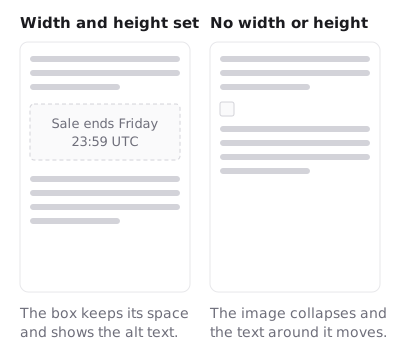
Set width and height on every image as well. With images off, a sized image keeps its box and shows its alt text in it; an unsized one can shrink to an icon and lose the words.
Headings and reading order
Criterion 1.3.1 asks that “Information, structure, and relationships conveyed through presentation can be programmatically determined”. Screen reader users often move through a page by its headings. A headline that is only large bold text in a <td> is not a heading to them. Use <h1> to <h3> for the email’s headings, styled inline, and <p> for paragraphs.
Criterion 1.3.2, Meaningful Sequence, covers the case “When the sequence in which content is presented affects its meaning”. A screen reader reads an email in the order of its HTML, not the order of its columns on screen.
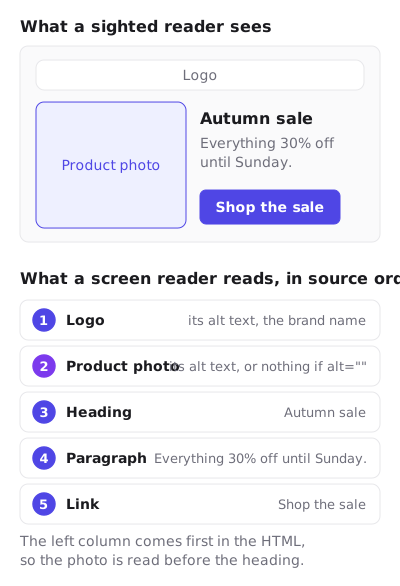
In this example the order is acceptable: the photo is read before the heading, and if its alt text is empty, it is skipped. It goes wrong when the HTML order stops matching the meaning, such as a price in one cell and what it is the price of in another cell three rows later. Put things in the HTML in the order they should be read, and check by reading the source top to bottom.
Why do layout tables need role=“presentation”?
Much HTML email is still laid out with tables. To a screen reader, though, a <table> is a data table, and it may announce rows and columns that mean nothing.
WAI-ARIA 1.2 defines the fix. The presentation role marks “An element whose implicit native role semantics will not be mapped to the accessibility API”, and the specification lists “A layout table and/or any of its associated rows, cells, etc.” among its intended uses:
<table role="presentation" width="100%" cellpadding="0" cellspacing="0" border="0">
  <tr>
    <td>
      <h1 style="margin:0;font-size:24px;">Autumn sale</h1>
      <p style="margin:8px 0 0;">Everything 30% off until Sunday.</p>
    </td>
  </tr>
</table>
Put role="presentation" on every table used for layout. Leave it off a table that really holds data, such as an order summary, and give that one header cells.
Color and contrast in email
Criterion 1.4.3, Contrast (Minimum), is Level AA. Normal text needs a contrast ratio of at least 4.5:1, and “Large-scale text and images of large-scale text have a contrast ratio of at least 3:1”. WCAG defines large-scale text as “at least 18 point or 14 point bold”.
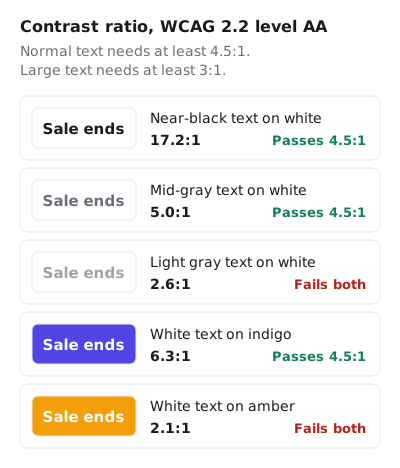
The two failures in the figure are common in email design: light gray small print, and white text on a bright button color. Check the colors you actually use, including the text on buttons and the footer.
Criterion 1.4.1 adds that “Color is not used as the only visual means of conveying information”. A link shown only by color, with no underline, fails it for a reader who cannot tell the colors apart. So does a sale price shown only in red. Underline links in body text, and say “Now $40, was $60” in words.
Dark mode changes colors without asking you, and an image with a transparent background can lose its contrast against a dark inbox. Dark mode email shows what happens and the opaque background that avoids it.
Links and buttons
Criterion 2.4.4 asks that “The purpose of each link can be determined from the link text alone or from the link text together with its programmatically determined link context”. Screen reader users often pull up a list of links on their own, out of context. Five links that all say “Click here” are five identical entries in that list.
- Write link text that names the destination: “See the autumn sale prices”, “Read the full returns policy”.
- Make the main action a coded button, a link styled with padding and a background, not a picture of a button. A coded button still works with images off and can be zoomed.
Criterion 2.5.8, Target Size (Minimum), is Level AA: “The size of the target for pointer inputs is at least 24 by 24 CSS pixels”, with some exceptions such as links inside a sentence. 24 pixels is the minimum. The stricter criterion 2.5.5, Target Size (Enhanced), is Level AAA and asks for “at least 44 by 44 CSS pixels”, a better target for the main button in an email read on a phone.
Text size, zoom and reflow
Criterion 1.4.4 asks that text can be resized “up to 200 percent without loss of content or functionality”, and 1.4.10, Reflow, asks that content works at a width equivalent to “320 CSS pixels” without scrolling in two directions. For an email, that means:
- Body text set in a size people can read without zooming, and in real text rather than in images.
- A layout that falls to one column on a narrow screen, so a reader who zooms does not have to scroll sideways.
- No fixed-height boxes that clip text when it is enlarged.
Declare the language
Criterion 3.1.1, Language of Page, Level A: “The default human language of each web page can be programmatically determined.” Put lang on the <html> element, such as <html lang="en">, so a screen reader pronounces the email with the right voice. Set it on the outer wrapper table or <div> as well, so the language stays declared if a mail client shows only the message body. An email in a right-to-left language also needs dir="rtl"; right-to-left countdown timers covers that case for timers.
An email accessibility checklist
| Check | Criterion |
|---|---|
| Every meaningful image has alt text that says what it says | 1.1.1 |
Decorative images have alt="" |
1.1.1 |
Headings use <h1> to <h3>, paragraphs use <p> |
1.3.1 |
Every layout table has role="presentation" |
1.3.1 |
| The HTML order is the reading order | 1.3.2 |
| Links are underlined or otherwise marked, not by color alone | 1.4.1 |
| Text contrast at least 4.5:1, large text 3:1 | 1.4.3 |
| Readable at 200 percent zoom and at 320 pixels wide | 1.4.4, 1.4.10 |
| Motion lasts five seconds or less, or the reader can pause, stop or hide it | 2.2.2 |
| Link text names the destination | 2.4.4 |
| Buttons are at least 24 by 24 pixels, ideally 44 by 44 | 2.5.8, 2.5.5 |
lang is set on the email |
3.1.1 |
| The email still makes sense with images off | 1.1.1 |
The images-off row is the quickest test of all: turn images off in your own mail client and read the email as it arrives. If a deadline, a price or a code disappears, it was only in a picture. A countdown timer from EmailTimer.App is a picture too, so its deadline belongs in the alt text and in live text beside it, which the HTML for an email countdown timer shows. The free countdown timer generator writes that alt text with the timer, with no account for 500 opens, or 1,000 when you sign in.
Questions and answers
Does WCAG apply to email?
WCAG is written for web content, and no part of it is specific to email. An HTML email is drawn the same way as a web page, so its criteria are the closest published standard, and they are the ones this guide uses.
What alt text should an email image have?
The words or the information the image carries, written as a short sentence. A linked image’s alt text should say where the link goes. A purely decorative image should have an empty alt="" so screen readers skip it.
What contrast ratio does email text need?
At WCAG 2.2 level AA, at least 4.5:1 for normal text and 3:1 for large text, which WCAG defines as at least 18 point, or 14 point bold.
Why add role=“presentation” to email tables?
Because tables used for layout are otherwise announced as data tables. WAI-ARIA 1.2 lists “A layout table” as an intended use of the presentation role, which removes the table semantics while keeping the content.
Is an animated GIF in an email accessible?
Not on the strength of the image alone, because a looping GIF cannot be paused from inside an email. Accessible countdown timers covers what WCAG 2.2 asks of moving images and what to put around one.
Sources
- Web Content Accessibility Guidelines (WCAG) 2.2 (W3C Recommendation, 12 December 2024), read on 29 October 2026
- Understanding Success Criterion 2.4.4: Link Purpose (In Context) (W3C WAI), read on 29 October 2026
- Understanding Success Criterion 2.5.5: Target Size (Enhanced) (W3C WAI), read on 29 October 2026
- Accessible Rich Internet Applications (WAI-ARIA) 1.2, presentation role (W3C Recommendation), read on 29 October 2026
- Block or unblock automatic picture downloads in email messages (Microsoft Support), read on 29 October 2026
- Use Open Tracking in Emails (Mailchimp Help), read on 29 October 2026
Related
Put a countdown in the campaign you are writing now
The free plan covers 5,000 opens a month with no card. Starter is $19 a month for 250,000.