Accessible countdown timers in email
By Danish Mohammed, founder. 5 min read
A countdown timer is a moving image of text, so several accessibility rules apply to it at once. No email timer satisfies them on the strength of the image alone. What works is the image plus the words around it.
WCAG is written for web content, not for email in particular. I use it here because it is the published standard closest to the problem. The quotes below are from WCAG 2.2, a W3C Recommendation dated 12 December 2024.
Motion, and the five second rule
Success criterion 2.2.2, Pause, Stop, Hide, is Level A. It covers “any moving, blinking or scrolling information” that “(1) starts automatically, (2) lasts more than five seconds, and (3) is presented in parallel with other content”. For that, “there is a mechanism for the user to pause, stop, or hide it”, unless the movement is essential.
An animated countdown in an email starts automatically and sits beside other content. The shortest animation EmailTimer.App will make is 20 frames at one frame a second, so 20 seconds. An image in an email carries no control to pause it. So an animated timer does not meet 2.2.2 by itself.
What you can control is how long the motion lasts and whether it comes back.
- Set “At the end” to Hold. The editor, and every gallery design, starts on Loop. On Hold the GIF plays once and keeps its last frame, so the motion stops for good.
- Use fewer frames. 20 frames is 20 seconds of motion, against 30 at the default.
- Leave seconds off when the deadline is days away. A days, hours and minutes timer barely moves during its animation, because the minutes column changes at most once.

Readers can switch motion off themselves in some clients. For Outlook for Office 365 at version 2008 or higher, Microsoft’s instruction is to “use Windows 10 to enable animated GIFs”, through the setting “Show animations in Windows”. It also says that “If only the first frame of the animation appears, you have animations, or animated GIFs, disabled.” Those readers see frame one only, which is why frame one of every render here is a complete picture with the live numbers.
Flashing
Success criterion 2.3.1 says content should not flash “more than three times in any one second period”. A countdown changes its digits once a second. That is well under the threshold, provided the design does not add a flashing effect of its own.
Alt text
Success criterion 1.1.1 asks that non-text content have “a text alternative that serves the equivalent purpose”. For a countdown, the purpose is the deadline. An alt text reading “Countdown timer” names the picture and says nothing about the offer.
A screen reader is not the only reader of the alt text. Microsoft’s support page says “Microsoft Outlook is configured by default to block automatic picture downloads from the Internet.” Until a reader downloads the pictures, the alt text is what they get.
The alt text cannot count down, so write the deadline as a date and time rather than as time remaining. “Summer sale, 30% off, ends Friday 26 June at 23:59 BST” stays true for every reader. “Ends in 2 days” is wrong by the next morning.
That applies to the alt text EmailTimer.App writes for you, too. The dashboard fills the snippet’s alt with the words of the template’s first text layer, followed by a line such as “About 2 days 11 hours left from when this email was sent”. It is a reasonable starting point and it ages like any relative time. The dashboard does not let you edit it, so change it in your sending platform after pasting, and put the actual date in.
Contrast
Success criterion 1.4.3 asks for “a contrast ratio of at least 4.5:1” for text and images of text, and 3:1 for large-scale text. The digits and labels in a timer are images of text.
The renderer helps with half of this. It nudges each unit label’s colour until it reaches 4.5 to 1 against the timer’s background colour, moving it toward white on a dark background and toward black on a light one. It does not adjust the digits. Check the digit colour against the background yourself, and check it again if the email may be read in dark mode.
Say it in text as well
Success criterion 1.4.5, Images of Text, asks that “text is used to convey information rather than images of text” where the technology allows it. An email can carry the deadline as live text, so do that next to the image.
A line of text beside the timer is read in order by a screen reader and survives blocked images. It also reflows when a reader zooms, which an image does not, and it takes the pressure off the picture. With the date in the copy, the timer adds emphasis and is no longer the only place the deadline exists.
Language
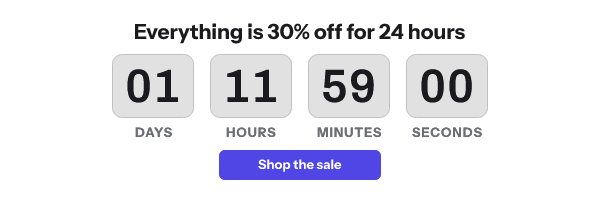
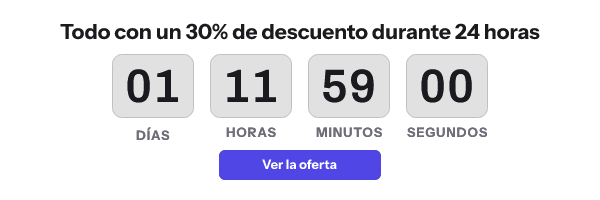
Unit labels ship in 44 languages, and Arabic, Hebrew, Persian and Urdu are laid out right to left. Match the label language to the email. A reader who sees “DAYS HOURS MINUTES” in an otherwise Spanish email has to translate the picture. A screen reader never reaches the labels at all, which is one more reason the alt text carries the deadline. Labels can also be hidden entirely, which suits a timer whose digits are explained by the text around it.
A checklist
- At the end: Hold, not Loop.
- The fewest frames that show the change you care about.
- Alt text with the offer and an absolute deadline, edited in your sending platform.
- The same deadline written in the email body.
- Digit colour checked at 4.5 to 1 against the timer background.
- Label language set to the email’s language.
What the renderer guarantees about frame one is on features, and the snippet’s attributes, including alt, are explained in countdown timer HTML for email.
Questions and answers
Is an animated countdown timer accessible?
Not on its own terms. WCAG 2.2 asks for a way to pause motion that lasts more than five seconds, and an email image has none. Keep the animation short, set it to hold, and carry the deadline in alt text and body text.
What should the alt text of a countdown timer say?
The offer and the deadline as a fixed date and time, such as “Free shipping ends Sunday 5 July at 23:59 New York time”. Avoid time remaining, because alt text does not change after the email is sent.
Does a countdown timer count as flashing content?
A digit change once a second is under WCAG’s limit of three flashes in any one second. A design with its own blinking or strobing effect is a different matter.
Can a reader stop the animation?
Some can, at the client or system level. Microsoft documents that Outlook for Office 365 from version 2008 takes the setting from Windows, under “Show animations in Windows”. A reader without such a setting cannot, which is why the motion should be short and hold at the end.
Sources
Related
Put a countdown in the campaign you are writing now
The free plan covers 5,000 opens a month with no card. Starter is $19 a month for 250,000.