How to insert a GIF in Gmail
By Danish Mohammed. 6 min read
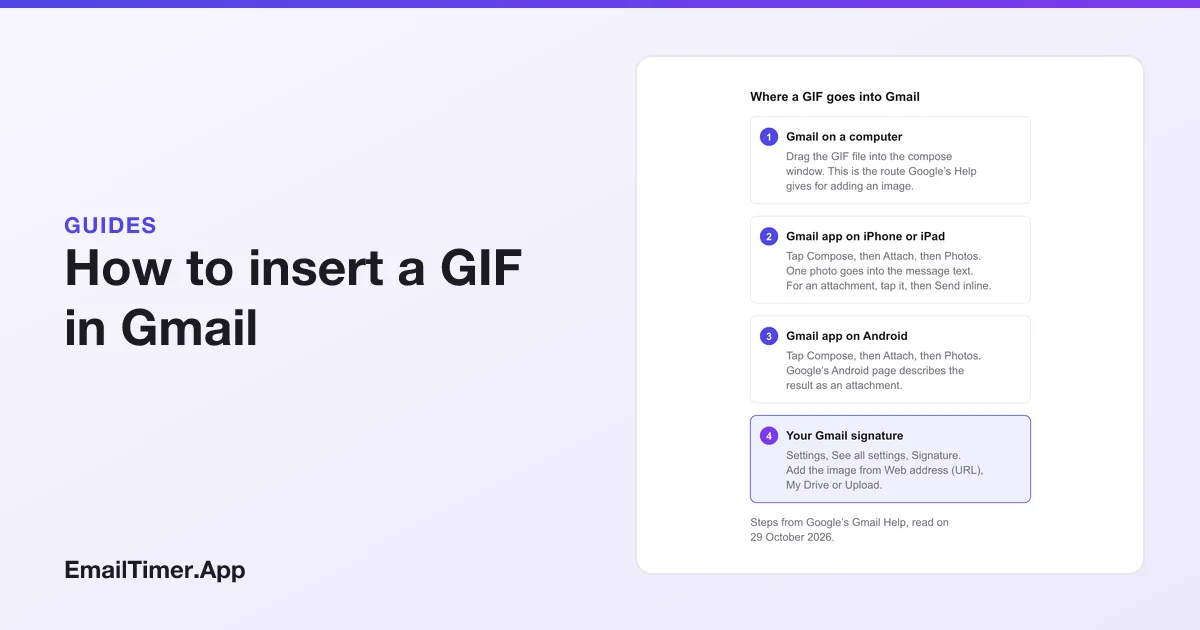
To insert a GIF in Gmail on a computer, drag the GIF file straight into the compose window; that is the route Google’s Gmail Help gives for adding an image. In the Gmail app on iPhone or iPad, tap Compose, then Attach, then Photos, and pick one GIF, which Gmail places in the message text. For your signature, add it from a web address, Drive or an upload.
Every step on this page comes from Google’s own Gmail Help, read on 29 October 2026, and where Google’s pages say nothing, this page says so rather than filling the gap. The four routes are below, followed by what decides whether the person you write to sees the GIF at all.
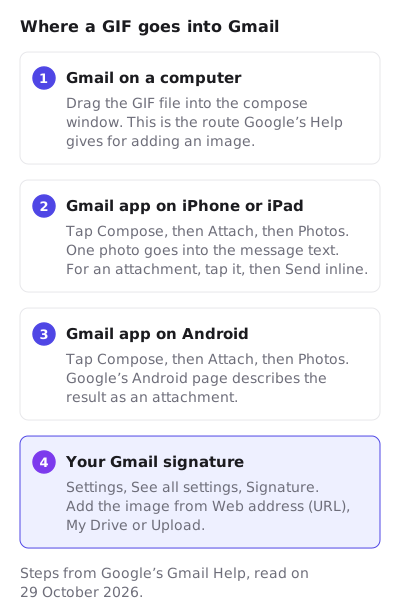
Insert a GIF in Gmail on a computer
- Open Gmail in your browser and select Compose, or open a reply.
- Find the GIF file in your computer’s file manager.
- Drag it into the compose window and drop it where it should appear in the message.
Google’s attachments page puts it in one line: “Add an image by dragging it directly into the compose window.” The Attach button at the bottom of the compose window is a different route. It adds the GIF as a file attachment rather than placing it in the text of the message.
Insert a GIF in Gmail on iPhone or iPad
- Open the Gmail app and tap Compose at the bottom right.
- Tap Attach at the top right.
- Tap Photos and choose the GIF.
What happens next depends on how many you pick, and Google spells it out:
| You pick | What Gmail does | To change it |
|---|---|---|
| One photo | Inserts it into the message text | Tap the photo, then Send as attachment |
| Two to five photos | Adds them as attachments | Tap an attachment, then Send inline |
Google’s limit is “up to five at a time”. The same menu also offers Camera, Files, Google Photos and Google Drive.
Insert a GIF in Gmail on Android
- Open the Gmail app and tap Compose at the bottom right.
- Tap Attach at the top right.
- Tap Photos and choose the GIF. You can select up to five.
Google’s Android page describes this as attaching a photo, and unlike the iPhone page it does not describe a Send inline option. Send a test to yourself to see where the GIF lands before you rely on it.
What size limit applies
For a personal Gmail account, Google’s limit is 25 MB of attachments; for a work or school account, the Google Workspace administrator sets it. Past the limit, Gmail removes the file and “adds it to the email as a Google Drive link”, which means the reader gets a link instead of a GIF in the message. A GIF that big is far too heavy for email anyway. GIF in email covers why smaller is better and how to get there.
Add a GIF to your Gmail signature
- Open Gmail on a computer and select Settings at the top right, then See all settings.
- In the Signature section, put the cursor in the signature box and add the image.
- Choose where it comes from: Web address (URL), My Drive or Upload.
- Select Save Changes at the bottom of the page.
Google’s signature troubleshooting page adds the rules that catch people out:
| Rule | Google’s wording |
|---|---|
| Recommended size | 70 to 100 pixels high, 300 to 400 pixels wide |
| Largest size | “100 pixels high by 1000 pixels wide” |
| Signature length | “up to 10,000 characters”, and “your image also counts toward the character limit” |
| Drive images | “the image sharing settings must be set to public” |
| Deleted from Drive | The image no longer appears in the signature |
A work or school account that offers only the URL option cannot change Drive sharing, and Google’s advice there is to ask the administrator. Google’s mobile signature steps describe text only. The sizes that suit an animated signature, and what happens to one in other people’s inboxes, are in animated GIF email signature.
GIF in Gmail: what the reader sees
Getting the GIF into the message is half of it. Whether it shows on the other end depends on the reader’s settings.
Google’s default is the helpful one: “By default, when you get an email with an image, you’ll see the image automatically.” A reader can change that to Ask before displaying external images on a computer, under See all settings and Images. On Android the switch is under Settings, the account, Data usage, then Images, with Always show or Ask before showing. On iPhone and iPad it is under Settings, Email preferences, then Images.
Google also checks images itself. It “scans images for suspicious content” before they reach the reader, and when Gmail decides a sender or message is suspicious it does not show images automatically, asking the reader first instead. A reader who asked to be asked, or who got a message Gmail distrusts, sees no GIF until they choose to load it. If a GIF you sent is missing on their side, images not showing in email goes through the causes in order.
Two things Google’s Gmail Help does not document either way: a GIF search inside Gmail, and whether Gmail animates a GIF. How a GIF behaves in Gmail’s apps, and what Google’s image proxy does to an image opened twice, is on countdown timers in Gmail.
A GIF in Gmail that shows the time left
A GIF you drag in from your computer is fixed at the frames you made, so a countdown made that way is wrong the day after you send it. A live timer is an image address instead, drawn when the reader opens the message.
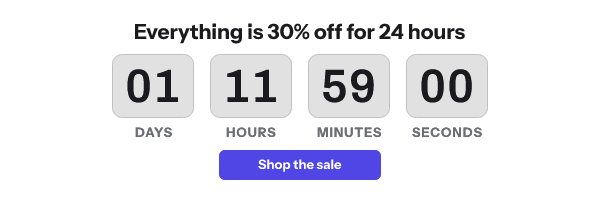
Gmail’s compose window takes no pasted HTML, so a timer goes in through its image address, the same Web address (URL) idea Google documents for signatures. Putting a countdown timer in a Gmail message walks through it, with a free timer on the page: 500 opens without an account, or 1,000 when you sign in.
Questions and answers
Can you send a GIF in Gmail?
Yes. On a computer, drag the GIF into the compose window. On iPhone or iPad, tap Compose, Attach, Photos and pick one GIF, and Gmail puts it in the message text.
Why does my GIF show as an attachment in Gmail?
You used the Attach route with more than one photo, or the Attach button on a computer. On iPhone or iPad, tap the attachment and choose Send inline. On a computer, drag the file into the compose window instead.
How do I put a GIF in my Gmail signature?
Open Settings, See all settings, and add the image in the Signature box from a web address, My Drive or an upload, then Save Changes. Keep it within 100 pixels high and 1,000 wide, Google’s maximum for signature images.
Why does my Gmail signature GIF not show?
Google lists the usual causes: a Drive image that is not shared publicly, an image deleted from Drive, or an image larger than the maximum. Its fixes include uploading it again, trying a different upload method and resizing it.
Does Gmail have a GIF search?
Google’s Gmail Help pages do not describe one. They describe adding an image file you already have, from your device, Drive or Google Photos.
Sources
- Send attachments with your Gmail message, computer (Gmail Help), read on 29 October 2026
- Send attachments with your Gmail message, iPhone and iPad (Gmail Help), read on 29 October 2026
- Send attachments with your Gmail message, Android (Gmail Help), read on 29 October 2026
- Create a Gmail signature (Gmail Help), read on 29 October 2026
- Troubleshoot issues with Gmail signatures (Gmail Help), read on 29 October 2026
- Show images in Gmail (Gmail Help), read on 29 October 2026
Related
Put a countdown in the campaign you are writing now
The free plan covers 5,000 opens a month with no card. Starter is $19 a month for 250,000.