An advent calendar email campaign from one image
By Danish Mohammed. 8 min read
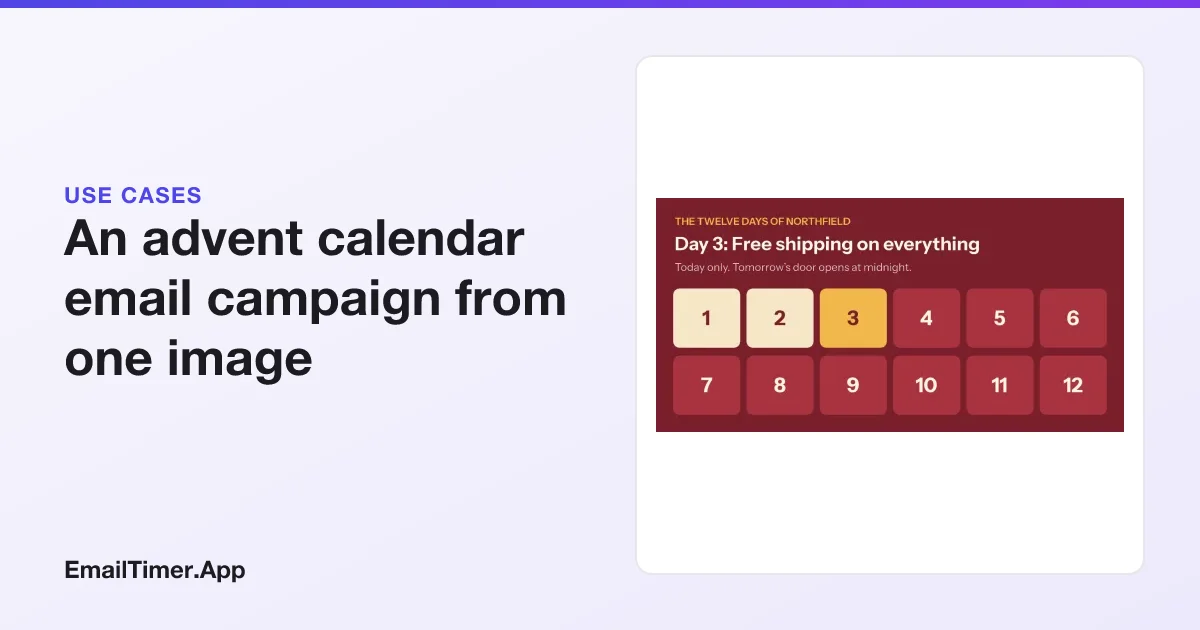
An advent calendar email campaign gives readers a new door, and a new offer, every day of December. The simplest way to build one is a single image with every door in it, where rules against the time the image is opened decide which doors are open, which one is today’s, and what today’s headline says. Every daily send carries the same image tag.
It is the friendliest kind of email gamification: no subscriber data, no AMP, and it works in every inbox that loads images. This page builds the twelve-door version shown below, rule by rule, and covers the parts that decide whether it works in practice: time zones, caching, sending pattern and measurement.
What the reader sees
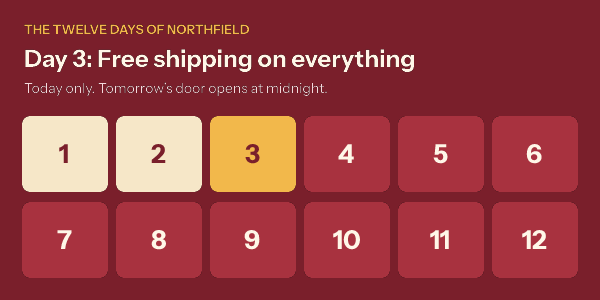
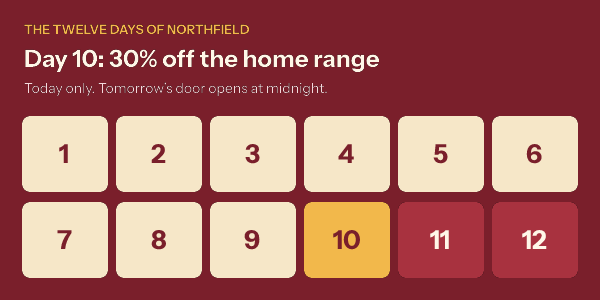
Three states per door carry the whole game. A closed door is red. Today’s door is gold, and the headline names its offer. A past door is cream, so the reader can see how far through the twelve days they are. After the last day, the headline thanks them for playing and says what comes next.
Why one image and not twelve
You could design twelve images and put a different one in each day’s email. The single image wins for three reasons.
- Old emails stay right. A reader who opens the 3 December email on the 9th for the first time sees day 9, not a stale offer that has already ended.
- One thing to build and check. All twelve days live in one template, so a reviewer checks one set of rules instead of twelve files. Published versions keep rendering for the emails sent against them, so settle the offers before the first send.
- The progress is the game. Seeing the cream doors pile up is a small reward for coming back, and it only works when every send shows the whole calendar.
The trade-off is that the offers must be decided before the first send, because the rules carry them. That is usually a feature: a December calendar planned in full by November is a calendar the merchandising team can actually honor.
The rules, written out
The template is a 600 by 300 image with a background, an eyebrow, a headline, a subline, and for each day a door shape and a number. The rules use one subject, the time the image is opened, and one operator, “is at or after”. For day 3 they read:
| # | When the time the image is opened | Then |
|---|---|---|
| 1 | is at or after 3 December, 00:00 New York | Change the color of door 3 to gold |
| 2 | is at or after 3 December, 00:00 New York | Change the color of number 3 to dark red |
| 3 | is at or after 3 December, 00:00 New York | Change the text of the headline to “Day 3: Free shipping on everything” |
| 4 | is at or after 3 December, 00:00 New York | Change the text of the subline to “Today only. Tomorrow’s door opens at midnight.” |
| 5 | is at or after 4 December, 00:00 New York | Change the color of door 3 to cream |
Rules run from the top down, and a later rule wins over an earlier one on the same layer. That is the whole trick. On 3 December rules 1 to 4 fire and rule 5 does not, so door 3 is gold. On 4 December rule 5 fires too, so door 3 turns cream, and day 4’s own rules turn door 4 gold and replace the headline. No rule needs a “between” condition.
The value in each rule is an instant with its offset written out, such as 2026-12-03T00:00:00-05:00. Writing the offset keeps the meaning fixed; a value without one is read as UTC.
For twelve days that comes to 61 rules: five a day for the first eleven, four on the last, and two at the end for the closing message. The engine allows 100 rules on a template, so a 24-door version needs a tighter design, such as dropping the subline swap, or two images split by week.
Rules are on Starter and above.
Time zones: pick one midnight
The rules compare against one instant, so every reader’s door opens at the same moment worldwide. Pick the midnight of your main market and say so in the copy. A New York midnight is 5am in London and 3pm in Sydney, which is fine for a US list and odd for an Australian one.
If you sell in several regions, build one template per region with its own instants rather than trying to guess each reader’s zone. The recipient country rule is not a good substitute: mail proxies often hide it, and when they do, the rule does not fire.
Caching: when the picture is drawn
An image drawn at open is only as current as the fetch that drew it, and the two biggest mail systems fetch at different moments.
Gmail serves images through Google’s proxy, which Google describes as serving images “when your users open email messages”. The first open of each email is a live fetch, so a reader opening today’s email today sees today’s door. Google does not publish how long it keeps its copy, so a reader who re-opens yesterday’s email may see yesterday’s state.
Apple Mail with Mail Privacy Protection “downloads remote content in the background by default”. The picture is drawn near delivery, not at reading. FreshInbox’s testing also reports that “if you have the same image across multiple emails… the image is only fetched once”, which matters here because every daily email carries the same image. Apple MPP and the shared image cache goes into that finding.
What to do about it:
- Send one email a day. Each send is a fresh reason to look, and it keeps the headline in the subject line and preheader, where no cache can touch it.
- Name the day’s offer in live text as well. The image is the delight; the HTML text and the button are the guarantee.
- Make every door’s offer good for its whole day. A reader whose picture was drawn at 7am and who reads at 9pm should still be able to use what they saw.
Keep the doors honest
A daily door is a deadline twelve times over, so the same rules apply as for any countdown. If the copy says “today only”, the offer must end at the end of that day. If last week’s door quietly still works, the urgency was false. The FTC’s 2022 staff report names countdown timers on offers that are not actually time-limited, and fake countdown timers covers the US, EU and UK positions.
The honest version also sells better over twelve days. Readers who learn that each door really closes have a reason to open tomorrow.
Ideas for the doors
The best calendars mix offer types so the series does not read as twelve discounts:
| Kind of door | Examples |
|---|---|
| Discount | 20% off a category, a gift card above a basket value |
| Service | Free gift wrap, free monogramming, extended returns |
| Loyalty | Double points today, early access for members |
| Content | A gift guide, a recipe, a playlist, a how-to video |
| Surprise | A mystery offer, revealed in that day’s email only |
A door built around a restock works best with an honest stock line rather than a clock; back in stock emails shows that image.
Put the strongest door late enough to hold attention, not on day 1. A calendar that peaks on its first morning teaches readers that the rest is filler.
Measuring the series
Opens will overstate this campaign twice over: Apple’s background downloads count as opens, and the design invites re-opening. Measure what a person has to do instead.
- Clicks per day, to see which doors pulled.
- Return rate: the share of readers who click in three or more of the twelve sends.
- Revenue per recipient against a holdout: a random tenth of the list gets the same offers with a static image. That difference is the value of the calendar itself.
How to set it up
- List the twelve days, their offers and the midnight you will use. Agree them with whoever runs the promotions.
- Build a 600 by 300 template with a background, an eyebrow, a headline, a subline and a door shape and number for each day. Name the layers door 1, number 1 and so on, so the rules read clearly.
- Add the rules from the table above for each day, then the two closing rules: after the last day, change the headline and the subline to the end-of-series message.
- Read the rules back in order. The Rules tab marks each one as firing now or not now; check that each date matches your list.
- Publish, and paste the image tag into an HTML block in each daily email.
- Put the day’s offer in the subject line, the preheader and the button text too.
- Set up the holdout segment before the first send, not after.
You can try a countdown first, with no account, in the free countdown timer generator: 500 opens without signing in, 1,000 when you sign in. The calendar itself needs a template with rules. If December also has a sale weekend, the Black Friday guide shows the three-phase timer pattern that sits well alongside it.
Questions and answers
Can an advent calendar work in a single email?
Yes, if readers re-open it each day, and the image will show the current door at each fresh fetch. In practice a daily send works better, because Gmail and Apple both keep copies of an image and a re-open may show an older state.
Does an advent calendar email need AMP?
No. Every state in this calendar is decided by the date of opening, which an ordinary image handles in every inbox that loads images. AMP would only be needed if the reader had to tap a door to open it inside the message.
Can readers click a specific door?
The image is one link, so it goes to one place. Point it at a page that shows today’s offer, and let that page show the full calendar with a link per door.
How many doors can one image have?
As many as the design fits and the rules allow. Twelve doors use 61 rules out of the 100 a template may have. Twenty-four doors need a simpler rule set or two images.
What happens after the last day?
Whatever the closing rules say. Here the headline thanks readers for playing and names the date of the next sale, so an email opened in January still says something true.
Sources
Related
Put a countdown in the campaign you are writing now
The free plan covers 5,000 opens a month with no card. Starter is $19 a month for 250,000.