Images not showing in email: find the setting, then the cause
By Danish Mohammed. 7 min read
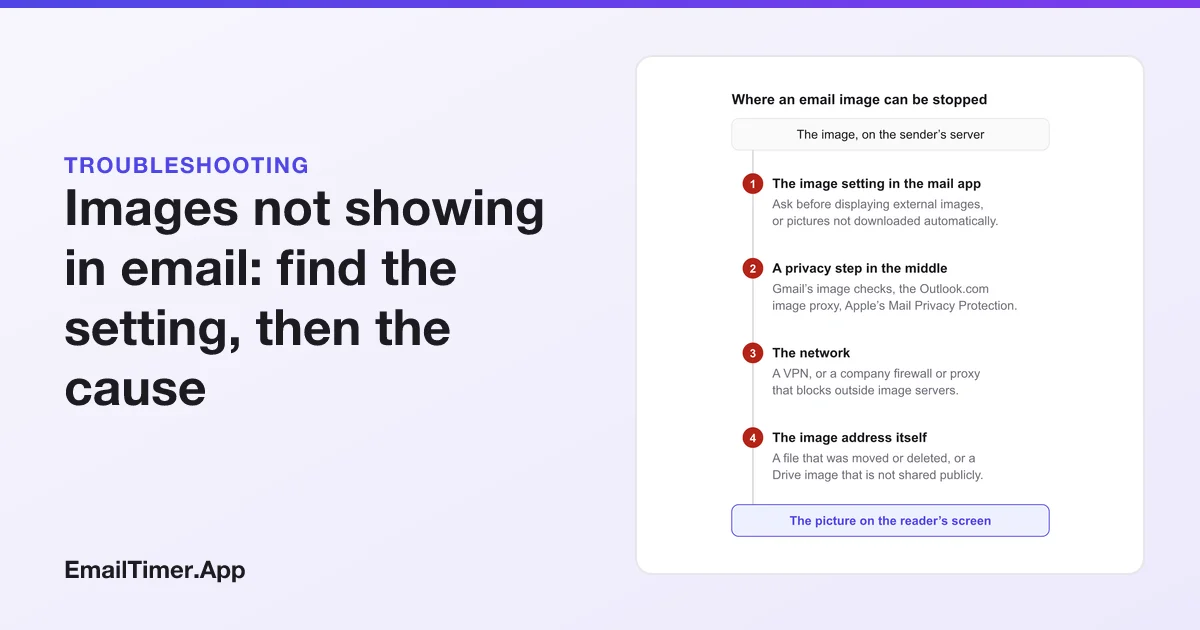
Images not showing in email is almost always a setting, not a broken message. Classic Outlook blocks downloaded pictures by default, Gmail and Yahoo can be set to ask first, and Apple Mail can block remote content. Find the switch in your mail app below, load the images for one message to confirm, then change the setting or trust the sender if you want them every time.
If only one sender’s images are missing, or only one message’s, the cause is more likely on the way to you or at the sender’s end, and those come after the settings. If the missing image is a countdown timer, countdown timer not showing covers the causes that are specific to timers.
The setting to check, by mail app
| Mail app | The setting | Where it is |
|---|---|---|
| Gmail on a computer | Always display external images or Ask before displaying external images | Settings, See all settings, Images |
| Gmail on Android | Always show or Ask before showing | Settings, your account, Data usage, Images |
| Gmail on iPhone and iPad | Always display external images or Ask before displaying external images | Settings, Email preferences, Images |
| Classic Outlook for Windows | Don’t download pictures automatically in HTML e-mail messages or RSS items | File, Options, Trust Center, Trust Center Settings |
| Outlook.com | Always use the Outlook service to load images or Don’t use the Outlook service to load images | Privacy and data settings |
| Outlook for Mac | Always, My contacts, organization(s) and safe senders or Ask before downloading | Outlook, Settings, Reading, Download external images |
| Outlook for iOS and Android | Block External Images | The app’s settings |
| Apple Mail on Mac | Block All Remote Content | Mail, Settings, Privacy |
| Yahoo Mail | Always, except in Spam folder or Ask before showing external images | Settings, Viewing Email, Show images in messages |
Gmail images not showing
Google’s default shows images: “By default, when you get an email with an image, you’ll see the image automatically.” So if Gmail is not showing them, one of three things is true.
- The setting was changed to ask first. On a computer, open Settings, See all settings, scroll to Images, choose Always display external images and select Save Changes. For one message, select Display images below instead.
- Gmail thinks the message is suspicious. Google says that if a sender or message looks suspicious, Gmail will not show images automatically and asks you first. That overrides the setting for that message only.
- The image itself is broken. In a Gmail signature, Google lists an image from Drive whose sharing is not set to public, or one that was deleted from Drive, among the reasons it shows as a question mark or a broken icon.
Gmail also “scans images for suspicious content” before you see them, which is part of how it stops senders from learning your location through an image. Google’s admin help describes the mechanism: “Gmail uses Google’s secure proxy servers to serve images” in messages, so your Gmail fetches the picture from Google rather than from the sender. What that proxy means for an image that changes over time is on countdown timers in Gmail.
Outlook images not showing
Which Outlook you use decides which switch it is.
Classic Outlook for Windows. Microsoft is direct: “Microsoft Outlook is configured by default to block automatic picture downloads from the Internet.” For one message, choose the InfoBar at the top and select Download Pictures. For a sender you trust, right-click a blocked picture and choose Add Sender to Safe Senders List. To stop blocking altogether, go to File, Options, Trust Center, Trust Center Settings, and clear Don’t download pictures automatically in HTML e-mail messages or RSS items. Microsoft’s advice is to unblock only messages from sources you trust.
Outlook.com and Outlook on the web. “Outlook.com helps protect your data by loading external images using an image proxy.” The two choices are in Privacy and data. Microsoft warns that with Don’t use the Outlook service to load images, “your personal data might be at risk”.
Outlook for Mac. Open Outlook, Settings, then Reading, and in Download external images choose Always, My contacts, organization(s) and safe senders, or Ask before downloading.
Outlook for iOS and Android. Block External Images blocks pictures in the reading view “to limit tracking through web beacons”. Pictures attached to the message are not affected.
Apple Mail images not loading
On a Mac. Open Mail, Settings, then Privacy. Block All Remote Content does what it says: it shows that a message contains remote content and does not download it until you choose to. Turn it off, or load the content for the one message. Apple adds one rule no setting overrides: “Remote content is never displayed in messages that are marked as junk.” Move the message out of Junk first.
On iPhone and iPad. Mail Privacy Protection, under Settings, Apps, Mail, Privacy Protection, loads remote content privately. When it cannot, Mail shows Unable to load remote content privately at the top of the message. Apple names a VPN as a common cause. Tap Load Content to load it without Mail Privacy Protection. Apple also notes that Mail Privacy Protection needs Limit IP Address Tracking turned on for your Wi-Fi network.
Yahoo Mail images not showing
Open Settings, then Viewing Email, scroll to the bottom, and set Show images in messages. The default is Always, except in Spam folder, so a message in Spam shows no images whatever you choose. Move it to the inbox first.
When only some messages are missing images
If images load for most senders and not for one, look between the sender and you.
- A VPN. Apple names it as a reason Mail cannot load content privately. Turn the VPN off for a moment and open the message again.
- A company network. A work firewall or proxy can block outside image servers for everyone on it. If images load on your phone’s mobile data and not on the office network, that is the cause, and your IT team owns the fix.
- Junk or Spam. Apple Mail never shows remote content in junk, and Yahoo shows none in Spam by default. Gmail asks before showing images in a message it thinks is suspicious.
If you sent the email and the images are missing
When readers tell you your images are missing, some of the causes are yours to fix.
- The image address needs a login. A file in Drive or another cloud folder that is not shared publicly loads for you and for nobody else. Host email images somewhere public; Google’s signature help says the same for Drive images.
- The file moved or was deleted. An email links to the address it had on the day you sent it. Delete or rename the file and every copy of the message shows a broken image.
- The message was sent as plain text. Plain text carries no pictures at all. In classic Outlook the Pictures button is greyed out in a plain-text message, which is the clue.
- Images are blocked and the layout collapses. Set
widthandheighton every image so a blocked one keeps its space, and write alt text that says what the picture says.
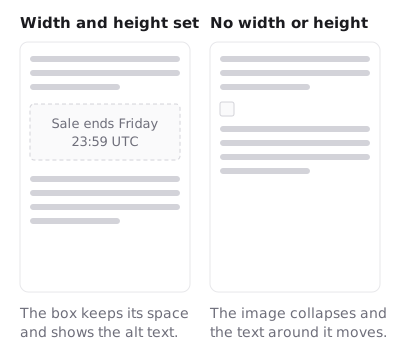
Anything the reader must know, such as a date, a price or a code, belongs in the text of the email too. Plenty of readers will open it before they load a single picture. For a GIF that has to move as well as show, GIF in email covers the first-frame rule. A live image such as a countdown from the free countdown timer generator is blocked by the same settings as any other picture, so the same text fallback applies. If a timer does show but its numbers look stuck, that is a different problem, covered in why your email timer is stuck.
Questions and answers
Why are images not showing in my emails?
Usually because your mail app is set to block or ask before loading them, which is classic Outlook’s default. Check the setting for your app in the table above, then load the images for one message to confirm.
Why are images not showing in Gmail?
Either Gmail is set to Ask before displaying external images, or Gmail found the message suspicious and is asking before it shows them. Change the setting under See all settings, Images, or select Display images below in the message.
Why are pictures not showing in Outlook emails?
Classic Outlook blocks automatic picture downloads by default. Select Download Pictures in the InfoBar for one message, add the sender to Safe Senders, or clear the option in Trust Center Settings.
Why are pictures not showing in email on iPhone?
Usually Mail could not load them through Mail Privacy Protection, often because of a VPN, and shows Unable to load remote content privately. Tap Load Content. In the Gmail app, check Settings, Email preferences, Images.
Why do images show for some senders and not others?
Messages in Junk or Spam do not load images in Apple Mail and, by default, in Yahoo Mail, and Gmail asks before showing images in messages it thinks are suspicious. A sender’s own broken or private image address also only affects their messages.
Sources
- Show images in Gmail (Gmail Help), read on 29 October 2026
- Troubleshoot issues with Gmail signatures (Gmail Help), read on 29 October 2026
- Set up an image URL proxy allowlist (Google Workspace Admin Help), read on 29 October 2026
- Add pictures or attach files to emails in Outlook for Windows (Microsoft Support), read on 29 October 2026
- Block or unblock automatic picture downloads in email messages (Microsoft Support), read on 29 October 2026
- External image protection in Outlook.com (Microsoft Support), read on 29 October 2026
- Automatically download pictures from the Internet in Outlook for Mac (Microsoft Support), read on 29 October 2026
- What is Block External Images in my settings? (Microsoft Support), read on 29 October 2026
- Change Privacy settings in Mail on Mac (Apple Support), read on 29 October 2026
- If you see Unable to load remote content privately at the top of an email (Apple Support), read on 29 October 2026
- Use Mail Privacy Protection on iPhone (Apple Support), read on 29 October 2026
- Block images in New Yahoo Mail (Yahoo Help), read on 29 October 2026
Related
Put a countdown in the campaign you are writing now
The free plan covers 5,000 opens a month with no card. Starter is $19 a month for 250,000.