

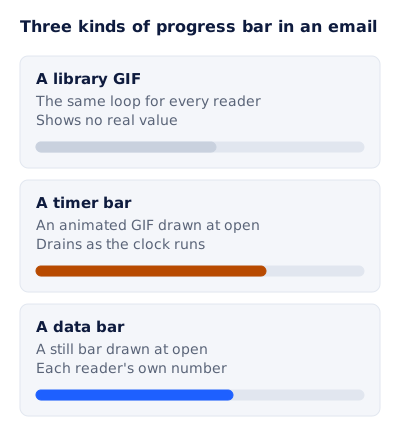
A progress bar GIF in an email is an animated image of a bar filling or draining. The useful kind shows something true: time running out on a live countdown, or a reader’s own progress toward a goal. A looping bar from a GIF library shows neither. It moves, but it means the same thing to every reader, which is nothing.
This page covers the two kinds that carry real information, and where each one gets its value. Both are a form of image personalization for email: the picture is drawn when the email is opened, not saved once and sent to everyone.
What is a progress bar GIF?
A GIF is a stack of frames with a pause between each one. The W3C’s GIF89a specification sets that pause in the Graphic Control Extension, where the delay “specifies the number of hundredths (1/100) of a second to wait before continuing”. A progress bar GIF is a stack whose frames each show the bar a little further along, so the eye reads it as movement.
The format has two limits worth knowing before you design one. A color table holds at most 256 entries, so soft gradients band, and a bar in two or three flat colors looks cleaner. And the animation is fixed when the file is made. A GIF downloaded from Giphy, LottieFiles or Pixabay fills to the same point for every reader on every day. It is wrong anywhere a reader might take the bar as a measurement.
Which progress bar do you need?
| Library GIF | Timer bar | Data bar | |
|---|---|---|---|
| Does it move? | Yes, the same loop forever | Yes, it drains with the clock | No, it is a still drawn at open |
| What it shows | Nothing about the reader | Time left until a deadline | One reader’s number, from 0 to 100 percent |
| Where the value comes from | Nowhere | The deadline set in the timer | Your data: a recipient list or the API |
| Same for everyone? | Yes | Yes, unless the deadline is per recipient | No |
| Good for | Decoration | Sales, held carts, event starts | Points, lessons, referrals, profile steps |
If the question your reader has is “how long have I got?”, you want a timer bar. If it is “how far along am I?”, you want a data bar. When both are true, as with points that expire, one image can carry both.
The timer bar: an animated progress bar that drains
Bar is one of the eight timer styles in EmailTimer.app. The numbers sit on a band, and a bar along the foot of the band drains as the clock runs. Every timer is rendered as an animated GIF at the moment the email is opened, 30 frames at one frame a second, and it loops.
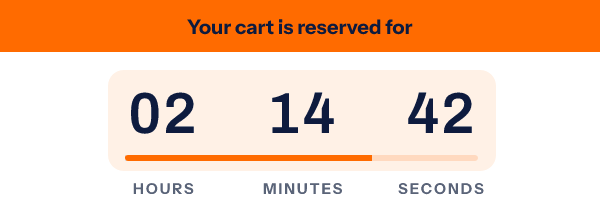
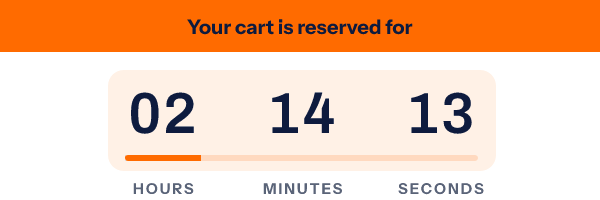
What the bar measures depends on what the image knows:
- On a fixed deadline, the bar follows the smallest unit on the clock. With seconds shown, it sweeps once a minute, which keeps it moving on every frame. A bar tied to the whole sale would move by a sliver across 30 seconds and look broken.
- On an evergreen timer, which counts a set duration from each reader’s first open, the image knows the whole window. The bar then shows the share of that window still left.
Frame one is a complete picture, with the real time and the bar where it should be. That matters for the inboxes that show only one frame, covered below.
You can make one now without an account. Pick Bar in the countdown timer generator, set the deadline and colors, and paste the snippet. A timer from the free generator works for 500 opens without an account, and for 1,000 once you sign in and claim it. For a window that starts at each reader’s first open, the evergreen timer generator explains the setup.
The data bar: a progress bar from each reader’s own number
The second kind does not animate, and does not need to. A progress bar layer in the image editor draws a bar from a number between 0 and 100. Bind that number to a field, and each reader’s image is drawn with their own value when they open the email.
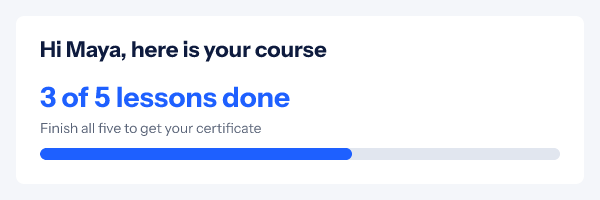
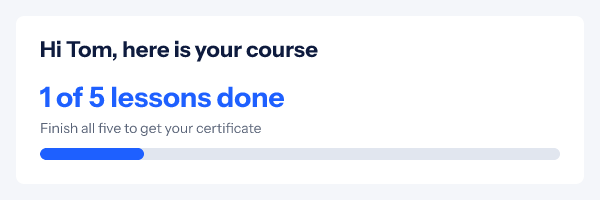
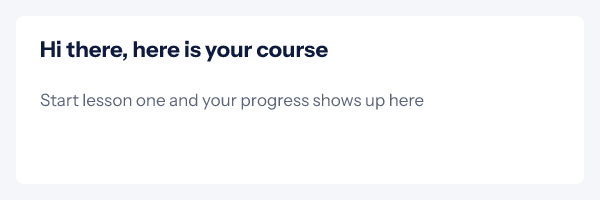
How it behaves, checked in the renderer:
- The value is a percentage. Anything under 0 draws an empty bar and anything over 100 draws a full one, so a reader who has gone past the goal never sees a bar spill out of its track.
- A missing value does what the variable is set to do: draw a default, hide the bar, or hide the whole group it belongs to, as in the third render above.
- Rules can read the number. “If progress is at least 100, change the bar’s color and swap the line to You did it” is two rules on one template. Rules are on Starter and above.
The value has to reach the image. Pasting your email platform’s merge tag inside the image address does not work here: the address is signed, so a value substituted after signing fails the check. Values for each reader come from a recipient list you upload, or from the API, both on the Growth and Agency plans. Each row gets its own signed address, and that whole address goes into a contact field your platform uses as the image source. The merge tags documentation has the details, and the API reference covers minting addresses in code.
A worked example: the course image above
The fields, as they would sit in the recipient list:
| first_name | done | progress | |
|---|---|---|---|
| maya@example.com | Maya | 3 | 60 |
| tom@example.com | Tom | 1 | 20 |
| sam@example.com |
The template:
- A text layer:
Hi {{first_name}}, here is your course. The variable falls back to “there”. - A text layer:
{{done}} of 5 lessons done, in a group called learner. - A progress bar layer, value
{{progress}}, fill and track colors of your choice, in the same group. - A text layer for readers with nothing on file, hidden by a rule when progress is not empty.
- Both
doneandprogressset to hide the group when missing.
Compute the percentage in your own system before you upload. Five lessons with three done is 60.
Progress bar examples for email
Each of these is a data bar, with the number you would send:
| What the bar shows | The number to send | |
|---|---|---|
| Loyalty statement | Points toward the next reward or tier | points ÷ next threshold × 100 |
| Onboarding | Steps of setup finished | steps done ÷ steps total × 100 |
| Course or challenge | Lessons or days completed | done ÷ total × 100 |
| Referral program | Friends referred toward a reward | referrals ÷ referrals needed × 100 |
| Year in review | Share of a yearly goal reached | the year’s total ÷ the goal × 100 |
The loyalty version, with a tier badge and a member number beside the bar, is on loyalty program emails. A referral reward bar fits the referral email, and a goal bar is one of the panels in a year in review email. For the bar as a game mechanic among streaks, reveals and tiers, see email gamification.
Can a still bar and a moving clock sit in one image?
Yes. Put a progress bar layer and a timer layer on the same canvas, and the image is rendered as a GIF. The clock ticks, and the data bar is the same on every frame, because the reader’s number does not change while they look at it. “1,240 points, 62 percent of the way to Platinum, and the points expire in 10 days” is one picture.
What inboxes show
A timer bar is animated, so it is subject to every inbox that limits animation. Microsoft says Outlook plays animated graphics in the body of messages by default, and that if only the first frame appears, “you have animations, or animated GIFs, disabled”, for example through the Windows setting for animation effects. A reader in that state sees frame one, which is why frame one carries the true time and a correctly placed bar. The Outlook page has the rest.
Two privacy features change when the image is fetched, not what it draws. Apple states that “Protect Mail Activity downloads remote content in the background by default”, and Google documents that Gmail uses its own proxy servers to serve images. A data bar is unaffected: Maya’s 60 percent is the same whenever it is fetched. A timer bar is drawn for the moment of the fetch, so a copy prefetched early can be behind when it is read.
Questions and answers
Can I download a progress bar GIF and put it in my email?
You can, and every reader will see the same loop. It works as decoration. Do not use one where the reader could take it as a measurement of their order, their points or the time left.
Does the per-recipient progress bar animate?
No. It is a still bar drawn from each reader’s number at open. If the same image has a timer layer, the image becomes a GIF, but the bar stays put on every frame.
What number does the progress bar layer take?
A number from 0 to 100, as a literal or from a field. Values below 0 draw an empty bar and values above 100 draw a full one.
Which plan do I need?
The Bar timer style is in the free generator. Progress bar layers are on Starter and above. Filling the bar with each reader’s own value needs a recipient list or the API, on Growth and Agency. Current prices are on pricing.
Can I use my email platform’s merge tag for the value?
Not inside the image address. The address is signed, and a value put in after signing fails verification. Upload the values in a recipient list or mint addresses with the API, then merge the whole signed address in as the image source.
Sources
- GRAPHICS INTERCHANGE FORMAT Version 89a (W3C), read on 4 November 2026
- The animated graphic in my e-mail message doesn't work (Microsoft Support), read on 4 November 2026
- Mail Privacy Protection and Privacy (Apple Legal), read on 4 November 2026
- Set up an image URL proxy allowlist (Google Workspace Admin Help), read on 4 November 2026
- Photo by Ketut Subiyanto on Pexels
Related
Put a countdown in the campaign you are writing now
The free plan covers 5,000 opens a month with no card. Starter is $19 a month for 250,000.