Animated GIF email signature: how to add one that works
By Danish Mohammed. 6 min read
An animated GIF email signature is a GIF placed in your signature block, added the same way as any signature image: Gmail takes it from a web address, Drive or an upload, Outlook through its signature settings, and Apple Mail when you drag it into the preview. Keep it within Gmail’s 100 pixel height limit, make frame one a finished picture, and leave your contact details as text.
A signature is read in more inboxes than any campaign, by people you have never checked the settings of, on every reply in a thread. That is the reason for the rules further down. The steps come first.
How to add an animated GIF to your email signature
| Mail app | Where | Where the image comes from | Size limit the maker documents |
|---|---|---|---|
| Gmail on a computer | Settings, See all settings, Signature | Web address (URL), My Drive or Upload | 100 pixels high by 1,000 wide |
| New Outlook | View, View settings, Accounts, Signatures, then Insert pictures | A file on your computer | None stated |
| Classic Outlook | New message, Insert, Signature, Signatures, then the image button | A file on your computer | None stated |
| Apple Mail on Mac | Mail, Settings, Signatures | Drag the GIF into the preview | None stated |
In Gmail
- On a computer, select Settings at the top right, then See all settings.
- In Signature, put the cursor in the signature box and add the image from a web address, My Drive or Upload.
- Select Save Changes at the bottom of the page.
A Drive image has to be shared publicly or it will not appear, and Google counts the image toward the signature’s 10,000 character limit. The full Gmail walk-through, with the phone apps, is in how to insert a GIF in Gmail.
In Outlook
In new Outlook, open View, then View settings, Accounts and Signatures. Pick the signature, put the cursor where the GIF goes, select Insert pictures, choose the file and select Open. In classic Outlook, open a new message and select Insert, Signature, then Signatures, pick the signature and use the image button. The body-of-the-message steps are in how to add a GIF to an Outlook email.
In Apple Mail on Mac
- Choose Mail, then Settings, then click Signatures.
- Select the account in the left column, then click the add button under the middle column and name the signature.
- In the right column, type the text, then drag the GIF into the preview.
Apple’s page is short on this: “Add an image: Drag an image into the preview area.”
What size should an email signature GIF be?
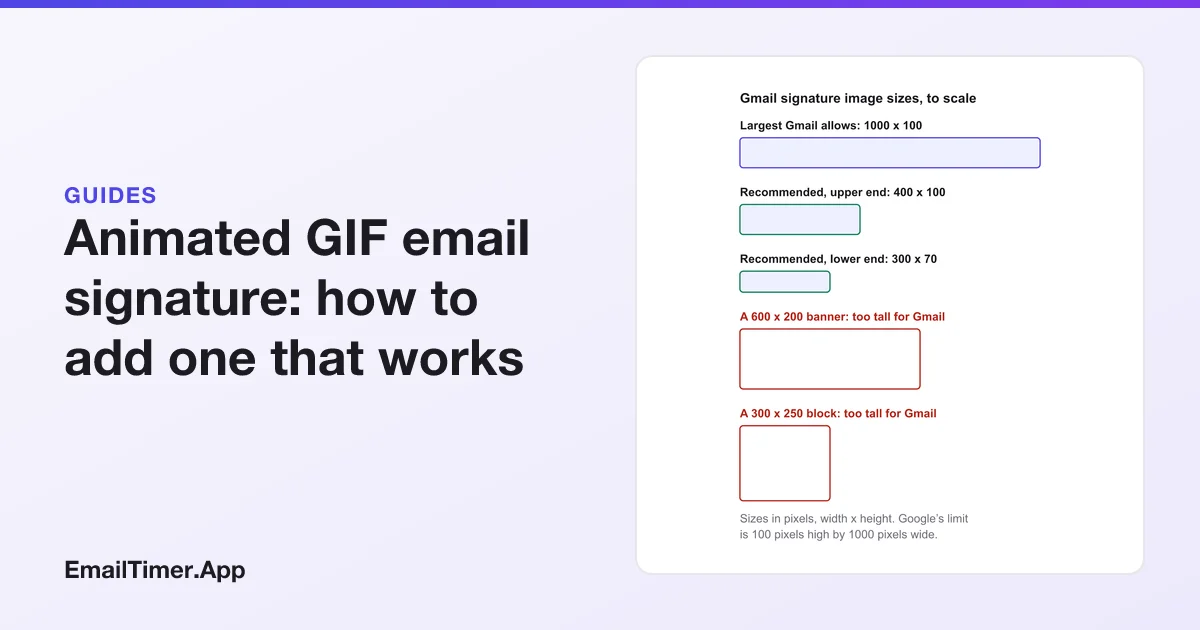
Gmail is the only one of the three that publishes numbers, and they are tight. Google recommends 70 to 100 pixels high and 300 to 400 pixels wide, and says “The maximum size for email signature images is 100 pixels high by 1000 pixels wide.”
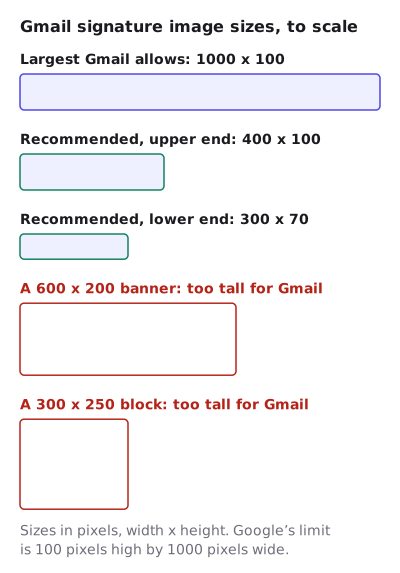
The height is the number that bites. A 600 by 200 banner, a common size for an animated GIF, is twice Gmail’s maximum height. Google’s suggested fix for an image that shows at the wrong size is to resize it to the recommended dimensions, so make the GIF at its final size rather than relying on the signature editor to shrink it.
Outlook and Apple Mail set no pixel limit on their signature pages. If you write from more than one app, design to Gmail’s box and use the same file everywhere.
Will the GIF animate for the people you write to?
Nobody documents the whole answer. Microsoft’s signature page covers adding an image and says nothing about animation. Its page on animated graphics covers the message body, and it is direct about one case: “If only the first frame of the animation appears, you have animations, or animated GIFs, disabled.” In classic Outlook for Microsoft 365, version 2008 or later, that follows a Windows accessibility setting on the reader’s computer, which you cannot change from your signature.
So plan for some readers seeing only the first frame. Then a second Outlook default matters: classic Outlook “is configured by default to block automatic picture downloads from the Internet”. A signature GIF that arrives as a link to a web address, rather than embedded in the message, is a picture from the Internet, and a classic Outlook reader with that default sees a blank space until they choose to download it.
Rules for an email signature GIF
- Frame one is the signature. Whatever the GIF says has to be in the first frame: the name of the event, the offer, the badge. Animate the decoration, not the information.
- Contact details stay as text. Your name, phone number and address should be typed into the signature, not drawn in the GIF. Text survives blocked images, first-frame-only clients and a reader who copies your number.
- Small file, few frames. A signature rides on every message you send, including one-line replies. A heavy GIF makes each of them heavy. The email-safe GIF checker reports the frame count and file size without uploading the file.
- Loop it, gently. A loop that ends on a weak frame leaves the reader looking at that frame. A slow, short loop reads as part of a signature; a fast flashing one reads as an advertisement.
- One GIF, not three. A logo, a banner and a badge that all move compete with the email above them.
- Check it in dark mode. A transparent GIF logo can vanish or grow a pale fringe on a dark background. Email signature dark mode shows what happens and what to do instead.
- Send a test to another app. Write to yourself at a Gmail address and an Outlook address, reply once, and look at the signature in the quoted thread.
A signature GIF that counts down
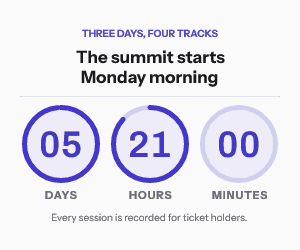
A GIF you upload is fixed. If your signature should show the time left until an event or a price change, the image has to be drawn when each message is opened, which means an image address rather than a file. Countdown timer in an email signature covers that case: which timer modes work without a send list, how many opens a signature uses, and what to show after the deadline. You can make one in the free countdown timer generator, with 500 opens without an account or 1,000 when you sign in. For a Gmail signature it has to fit the 100 pixel height above.
Questions and answers
Can you put an animated GIF in an email signature?
Yes. Gmail, Outlook and Apple Mail all accept an image in a signature, and a GIF is an image. Whether it moves depends on the reader’s mail app, and classic Outlook with animations off shows only the first frame.
How do I make my email signature GIF move in Outlook?
You cannot control it from your side. If the reader’s classic Outlook has animations turned off, through the “Play animated GIFs” option in older versions or the Windows animation setting in version 2008 and later, they see only the first frame.
What is the best size for a GIF in an email signature?
For Gmail, 300 to 400 pixels wide and 70 to 100 pixels high, which is Google’s recommendation, and never more than 100 pixels high. The same file works in Outlook and Apple Mail, which publish no limit.
Why does my signature GIF not show in Gmail?
Google lists a Drive image that is not shared publicly, an image deleted from Drive, and an image over the maximum size as the usual causes. Re-upload it, try another upload method, or resize it.
Do I need a signature tool for an animated GIF?
Not for one person. Each mail app’s own signature settings accept a GIF. Signature managers matter when a whole team has to carry the same one, which countdown timer in an email signature covers.
Sources
- Create a Gmail signature (Gmail Help), read on 29 October 2026
- Troubleshoot issues with Gmail signatures (Gmail Help), read on 29 October 2026
- Add a logo or image to your signature in Outlook (Microsoft Support), read on 29 October 2026
- The animated graphic in my e-mail message doesn't work (Microsoft Support), read on 29 October 2026
- Block or unblock automatic picture downloads in email messages (Microsoft Support), read on 29 October 2026
- Create and use email signatures in Mail on Mac (Apple Support), read on 29 October 2026
Related
Put a countdown in the campaign you are writing now
The free plan covers 5,000 opens a month with no card. Starter is $19 a month for 250,000.